Auto-confirm QR transfers
Connect Portal to SePay, Casso or VietQR.vn so money arriving with the right QR code is recorded automatically, with no need to check the banking app each time.
Classic layout
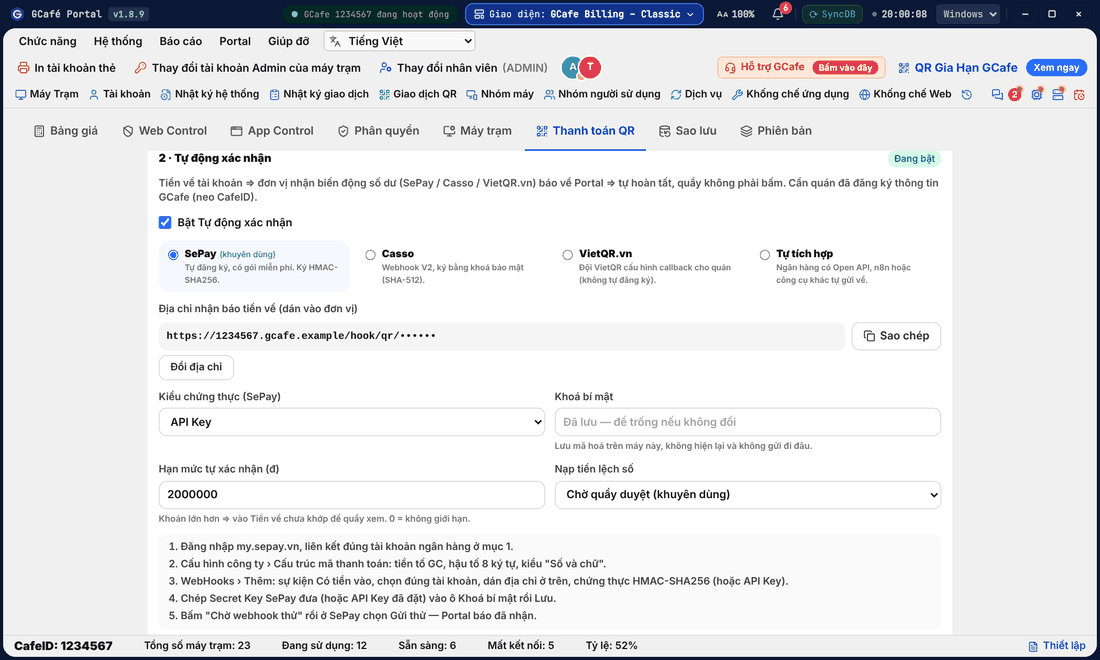
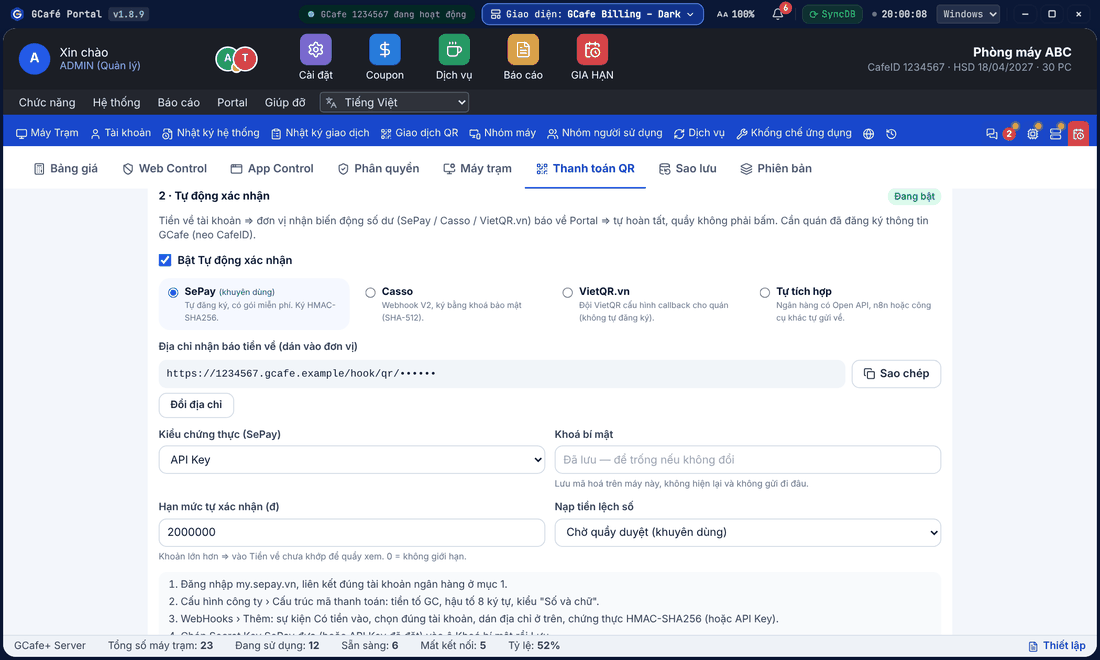
Dark layout
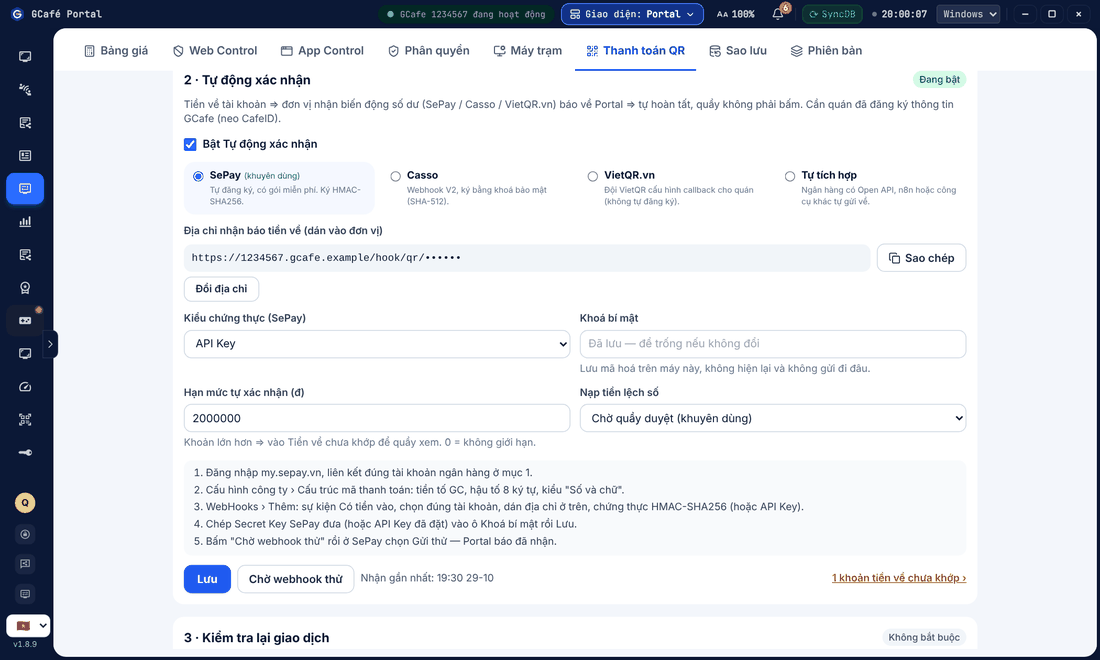
Portal layout
Before you start
- The receiving account is entered in stage 1 of QR payments.
- The shop has a registered CafeID and Remote access is on: the provider reaches Portal through that address.
- You have an account with a balance-notification provider, linked to the receiving bank account.
Choose a provider
Provider | Best when |
|---|---|
SePay (recommended) | You can sign up yourself; there is a free plan. |
Casso | You already use Casso. |
VietQR.vn | You work with the VietQR team; they configure it for you, there is no self sign-up. |
Tự tích hợp (Custom) | Your bank has an Open API or you have your own tool. Follow the instructions shown on screen. |
Turn on Auto-confirm with SePay
Step 1: get the address in Portal
- Under 2 · Tự động xác nhận, tick Bật Tự động xác nhận (Turn on Auto-confirm), choose SePay and click Lưu (Save). Portal creates the Địa chỉ nhận báo tiền về (notification address).
- Click Sao chép (Copy) next to the address.
Step 2: add the webhook in SePay
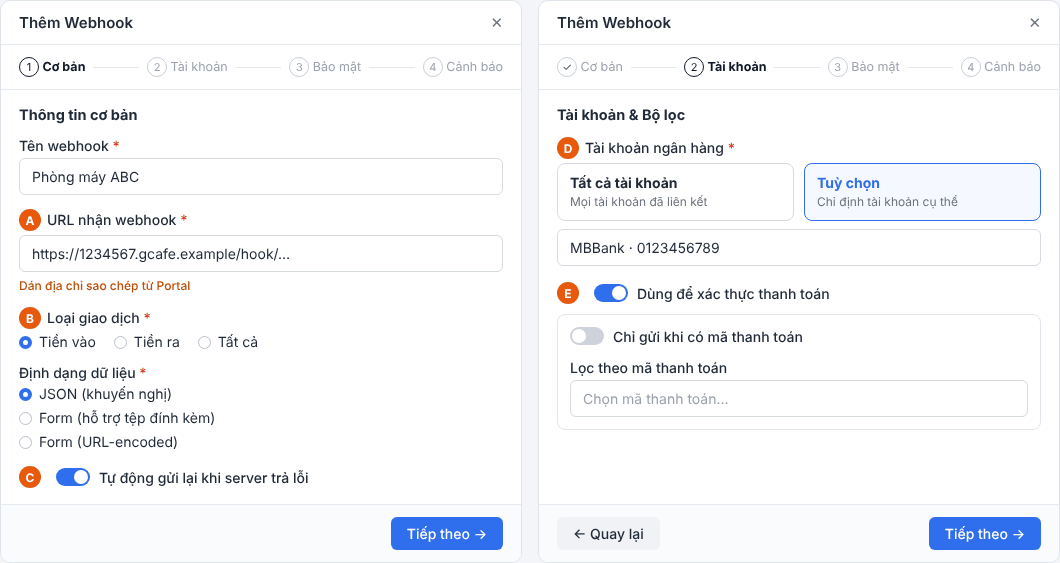
Redrawn from my.sepay.vn with sample data; the real screen may differ slightly.
- Sign in to my.sepay.vn. Check that the bank account from stage 1 in Portal is linked under Ngân hàng (Banks).
- Open Cấu hình Công ty › Cấu hình chung (Company settings › General) and set the payment code structure: the same prefix as Portal, an 8-character suffix, type "Số và chữ" (letters and digits).
- Open Tích hợp WebHooks and click Thêm webhook (Add webhook).
- Cơ bản (Basic) step: give it a name; paste the copied address into URL nhận webhook (A); choose Tiền vào (Money in) (B) and JSON; turn on Tự động gửi lại khi server trả lỗi (Retry on error) (C) so SePay resends while the Portal machine is off.
- Tài khoản (Account) step: pick the shop’s receiving account (D); turn on Dùng để xác thực thanh toán (Use for payment verification) (E). Leave Chỉ gửi khi có mã thanh toán (Only send with a payment code) off, so transfers with a wrong memo still reach Portal as unmatched money.
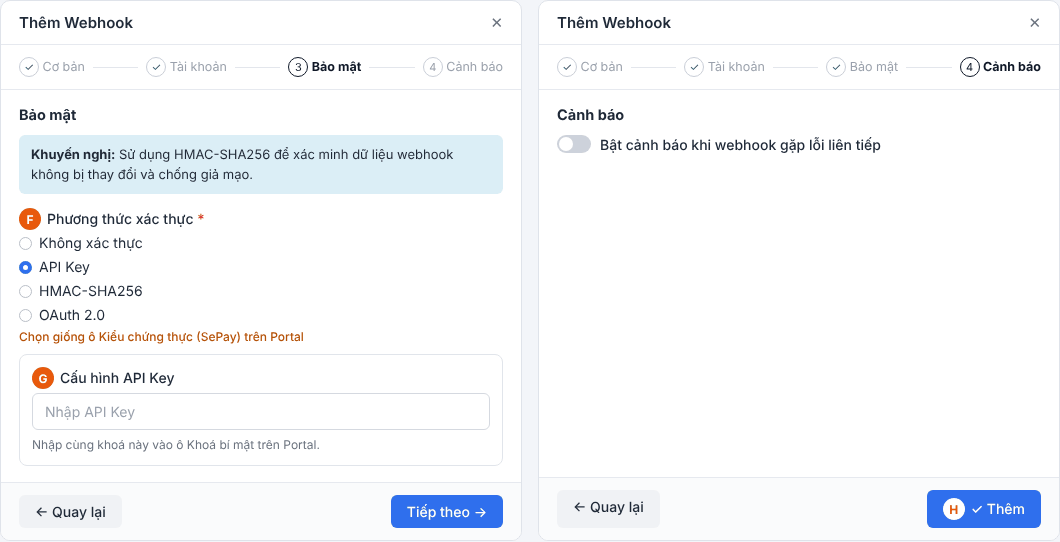
- Bảo mật (Security) step: choose the same Phương thức xác thực (F) as the Kiểu chứng thực (SePay) box in Portal. With API Key, make up a long, hard-to-guess key and type it in the key box (G).
- Cảnh báo (Alerts) step: click Thêm (Add) (H).
Step 3: enter the key and test in Portal
- Back in Portal, type the same key from the Security step into Khoá bí mật (Secret key) and click Lưu.
- Click Chờ webhook thử (Wait for test webhook), then within 2 minutes send a test from SePay (or transfer a small amount to the shop’s account).
Result: Portal reports Đã nhận webhook thử (Test webhook received) and stage 2 shows Đang bật (On). From then on matching money completes automatically and the counter gets a Đã nhận chuyển khoản … notification.
Casso and VietQR.vn
- Casso: at casso.vn add a Webhook V2 and paste Portal’s address; copy the webhook’s security key into Khoá bí mật and click Lưu; click Chờ webhook thử and trigger a test call in Casso.
- VietQR.vn: turn it on and Lưu; Portal creates a Tên đăng nhập (username) and Mật khẩu (password, shown only once). Send the VietQR team the details on screen with your receiving account number; when they are done, ask them to send a test while you click Chờ webhook thử.
Auto-confirm limits
- Hạn mức tự xác nhận (đ) (Auto-confirm limit): larger amounts are not recorded automatically but go to Tiền về chưa khớp (Unmatched money) for the counter to review. Enter 0 for no limit.
- Nạp tiền lệch số (Top-up amount mismatch): choose Chờ quầy duyệt (khuyên dùng) (Wait for counter review — recommended) or Nạp theo số thực nhận (Top up the amount received).
- Đổi địa chỉ (Change address): creates a new address when needed; remember to paste the new one at the provider.
Turn on Transaction re-check
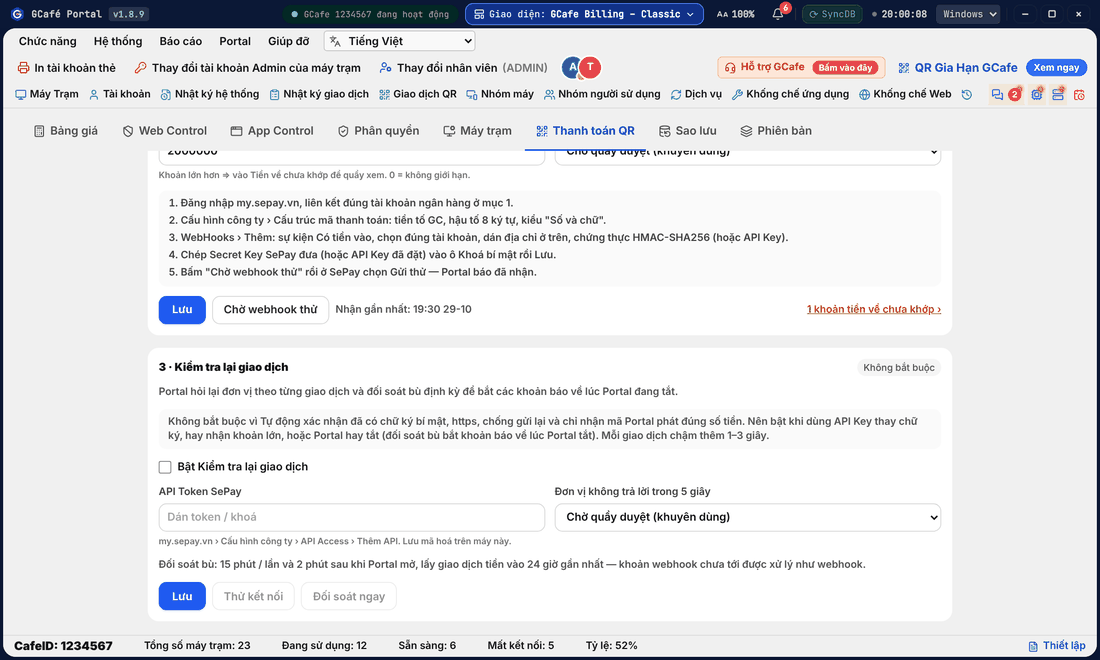
Classic layout
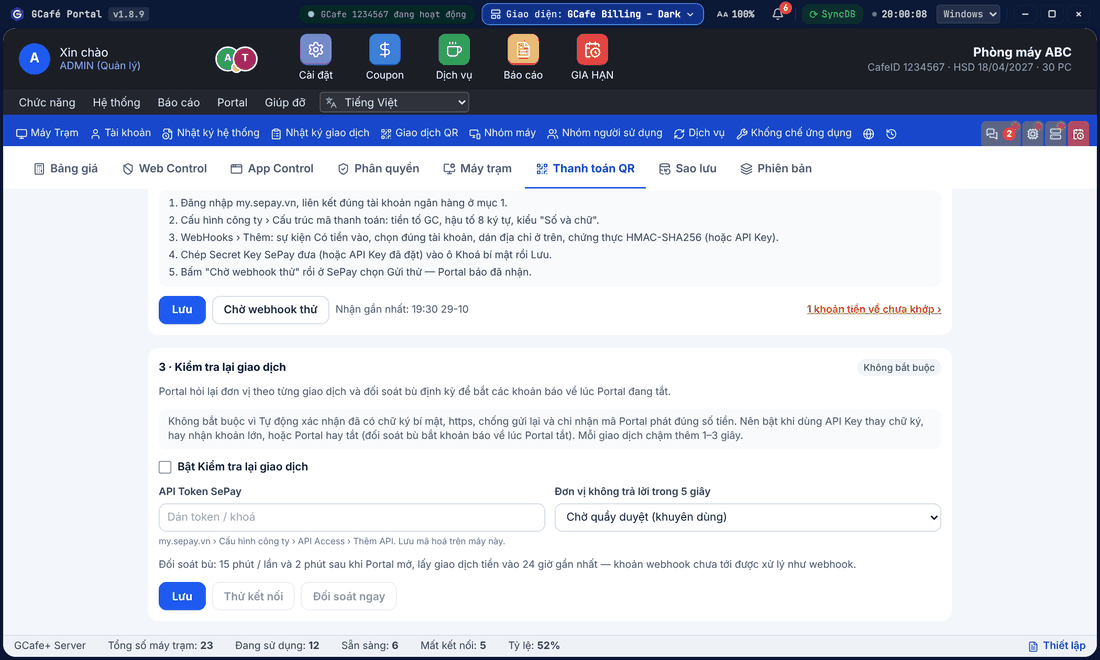
Dark layout
Portal layout
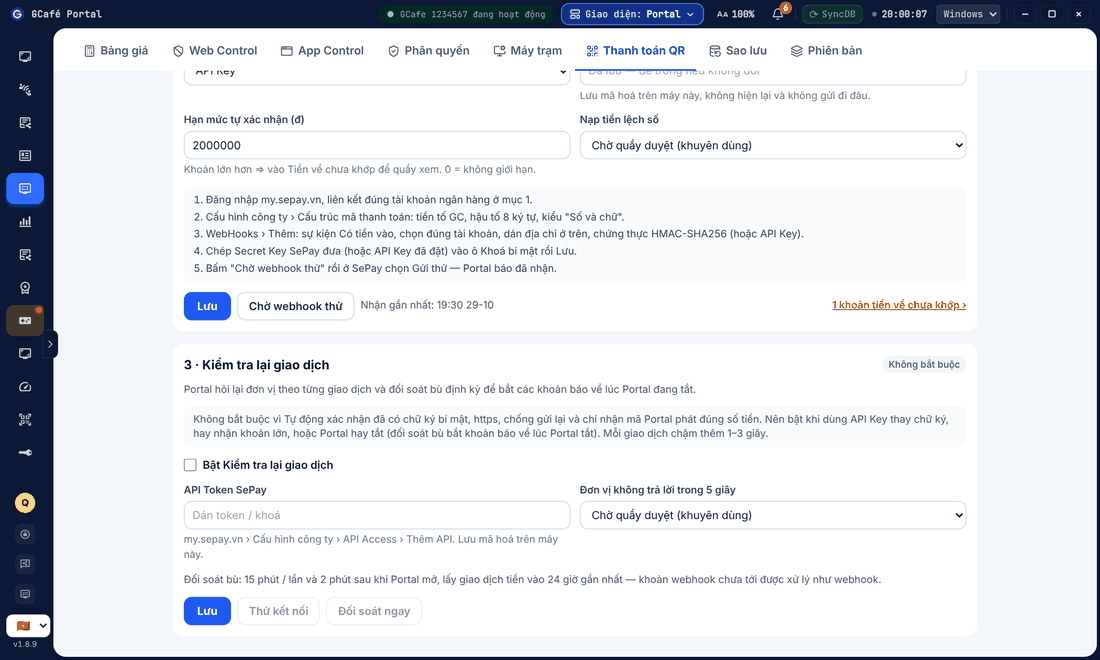
Stage 3 is optional and opens once stage 2 is on and has received at least one valid webhook. Portal asks the provider about each transaction and reconciles every 15 minutes to catch money reported while Portal was off.
- On my.sepay.vn, open Cấu hình Công ty › API Access and click Thêm API (Add API).
- Enter a Tên API (A), keep the status Hoạt động (Active) and click Thêm (B).
- Click the copy button next to the new token (C).
- In Portal, tick Bật Kiểm tra lại giao dịch and paste the token into API Token SePay. For Casso, paste the API key Casso.
- Under Đơn vị không trả lời trong 5 giây (Provider does not answer in 5 seconds), choose Chờ quầy duyệt (khuyên dùng).
- Click Thử kết nối (Test connection), then Lưu.
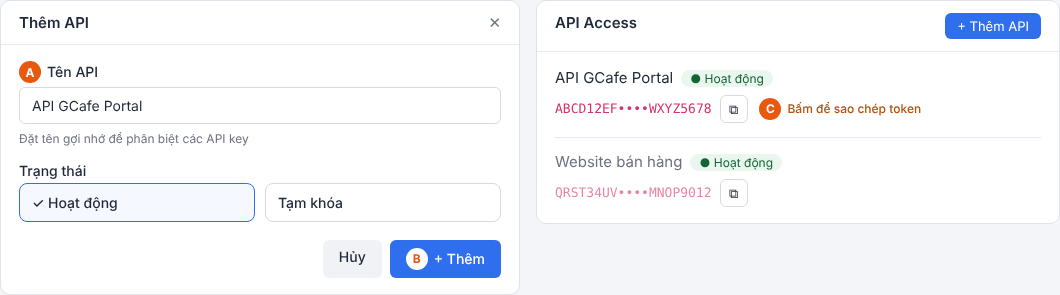
Redrawn from my.sepay.vn with sample data.
Click Đối soát ngay (Reconcile now) to check incoming transactions from the last 24 hours.
💡 Tip: Turn stage 3 on when you take large payments or the Portal machine is often off. Each transaction takes 1–3 seconds longer.
⚠️ Note: The secret key and token are kept only on the Portal machine and are never shown again. Do not share the key, the token or the notification address; if you suspect a leak, create a new key and click Đổi địa chỉ.
Common errors
Message / symptom | Cause | What to do |
|---|---|---|
Truy cập từ xa đang tắt — đơn vị không gọi tới Portal được. | Remote access is off. | Click Bật Truy cập từ xa. |
Tên miền … chưa mở trên Truy cập từ xa. | The notification address is not open yet. | Click Mở tên miền. |
Cần đăng ký thông tin quán GCafe (CafeID) trước | The shop has no CafeID. | Click Đăng ký thông tin quán. |
The 2-minute test ends without a result | Wrong address or key, or the provider has not sent anything. | Paste the address and key again, click Chờ webhook thử and send the test right away. |
Money arrives but is not completed automatically | The customer changed the memo, the amount differs, it is over the limit or the code expired. | Handle it under QR transactions › Unmatched money. |