Game library: browse & update
The Game library manages every game and application your workstations use.
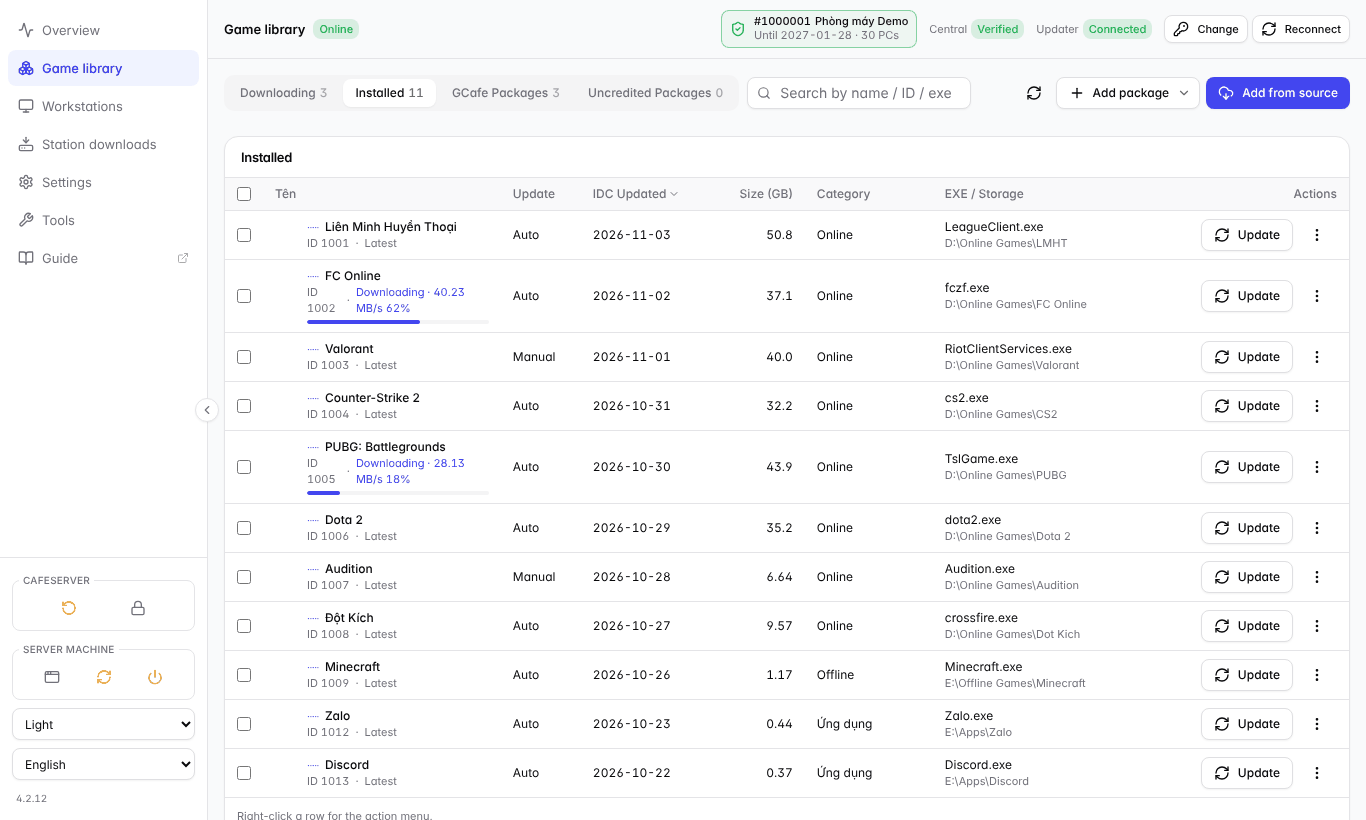
Installed tab: games already on the server.
Tabs
Tab | Contents |
|---|---|
Downloading | Games downloading / updating, with progress, speed and time left. |
Installed | Games installed on the server (available to workstations). |
GCafe Packages | Games in the official catalog that your café has not installed — click download to get them. |
Uncredited Packages | Unofficial games published openly on the Internet. CafeServer still accelerates them and supports updates, but speed is not guaranteed. |
Updating games
- Update column: Auto = CafeServer updates by itself when a new version appears; Manual = only when you click.
- Games with a new version show Update available. Click Update on that row to update now.
- To install a new game: go to GCafe Packages and click Download.
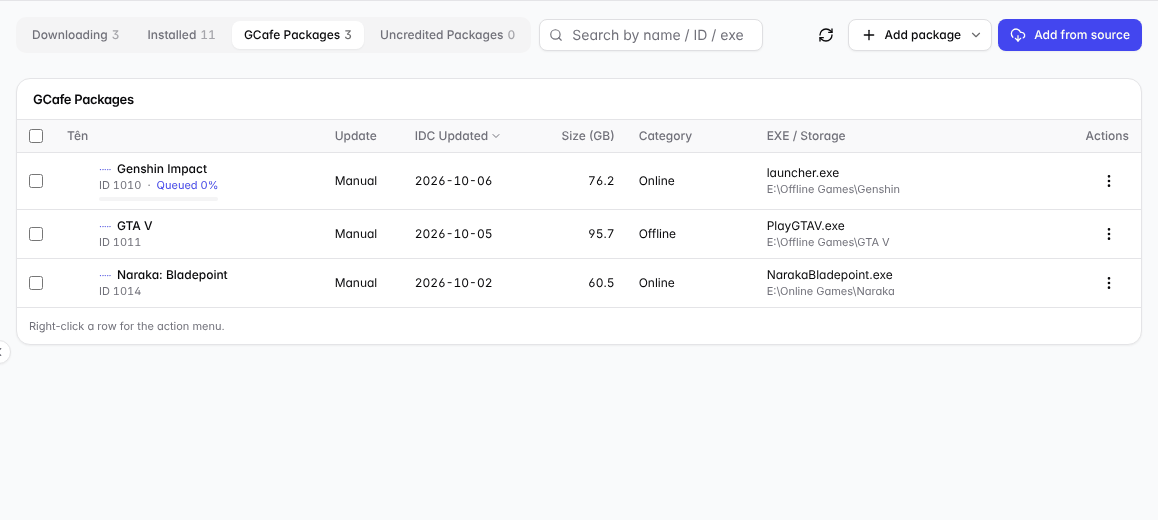
GCafe Packages: games in the catalog that are not installed yet.
Watching downloads
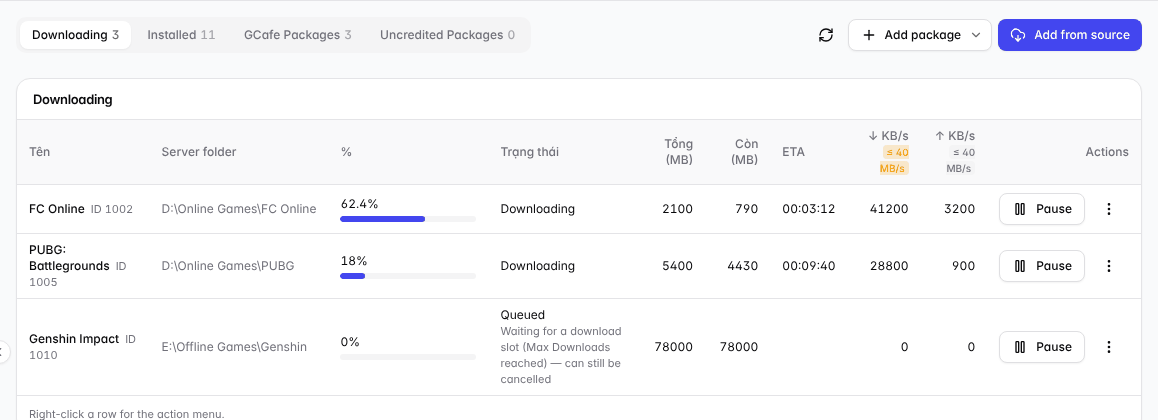
Downloading: progress, speed and time left per game.
- Queued: the maximum number of parallel downloads is reached; this game starts automatically when its turn comes.
- At the start CafeServer checks the files already on disk — the % at that stage is the part checked, not the part downloaded.
- You can Pause, Resume or Cancel each game.
Action menu (right-click)
Right-click a game row (or the ⋮ button at the end) to open the menu:
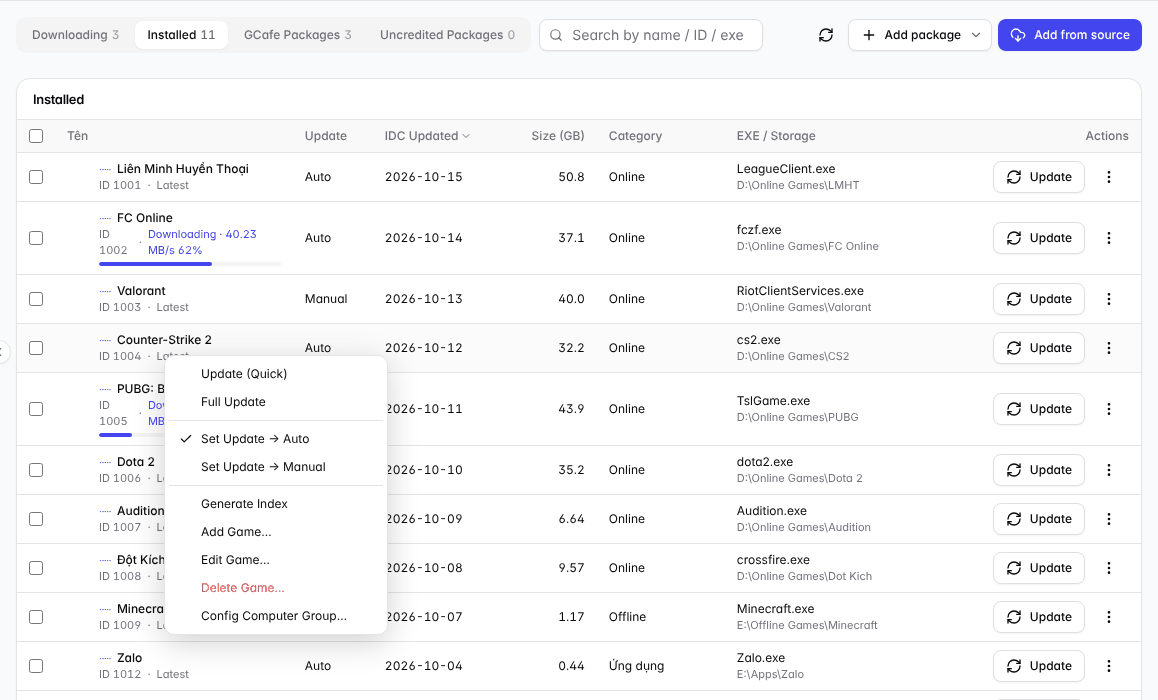
Actions for one game.
Item | What it does |
|---|---|
Update (Quick) | Quick update — downloads only the changes. |
Full Update | Re-checks every file of the game and downloads missing / damaged parts. Use it when workstations report broken game files. |
Set Update → Auto / Manual | Turn automatic updates on / off for the game. |
Generate Index | Rebuild the index of a game you added yourself, after changing files in its folder. |
Add / Edit / Delete Game… | Add, edit or delete a game. |
Config Computer Group… | Choose which groups see the game and whether it runs from the local drive or a virtual drive. |
⚠️ Note: When deleting a game you can also delete its files on the server and / or on workstations. Official games removed from the list reappear under GCafe Packages so you can reinstall them later.
Assigning games to computer groups
Workstations only see games assigned to their computer group. Select one or more games › Config… › tick the groups and pick the drive mode (Local / Virtual). Games not assigned to any group show a warning that they are not visible on workstations.