Remote control and closing apps on client PCs
From the server you can view the screen, take control of, or close applications on a client PC without walking over — handy when a customer needs help or an application hangs.
Before you start
You are signed in to the GCafe Billing server and the client PC is ONLINE.
New interface
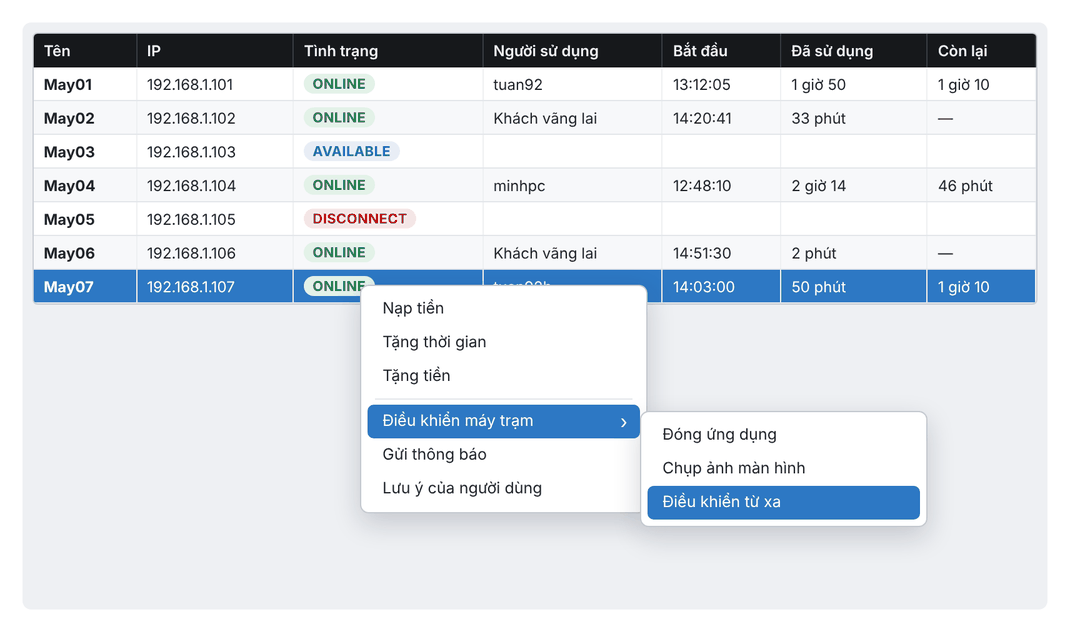
Classic interface
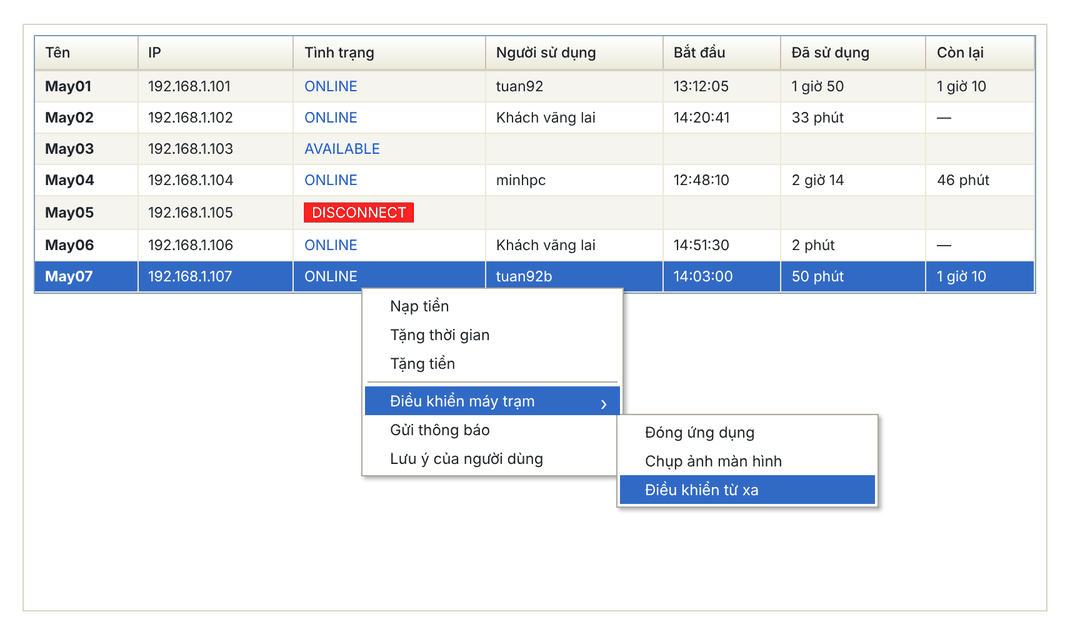
Remote control a client PC
- On the Máy Trạm (Client PCs) tab, right-click the PC.
- Choose Điều khiển máy trạm › Điều khiển từ xa (Control client PC › Remote control).
- The client screen opens in a window; use your mouse and keyboard as if you were sitting at that PC.
New interface
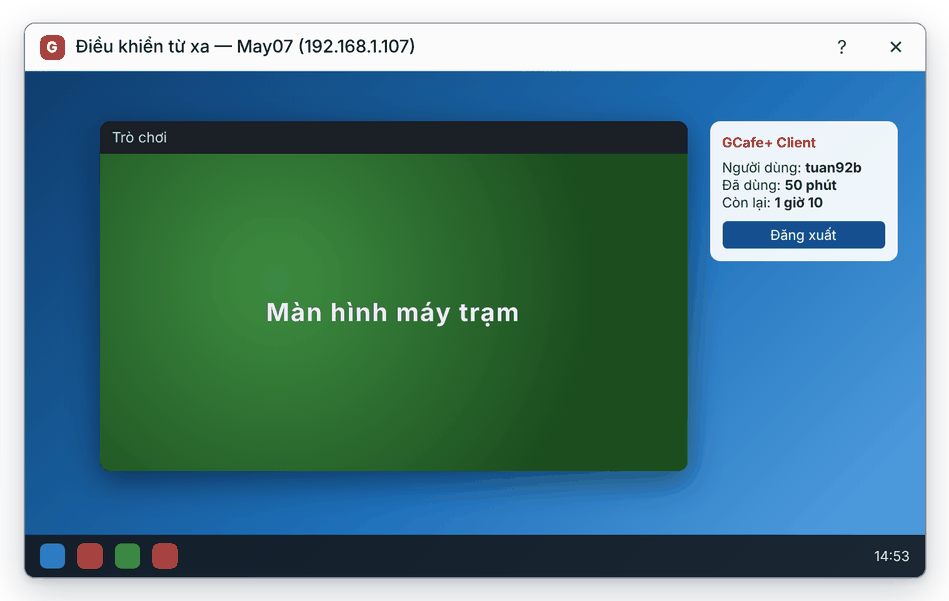
Classic interface
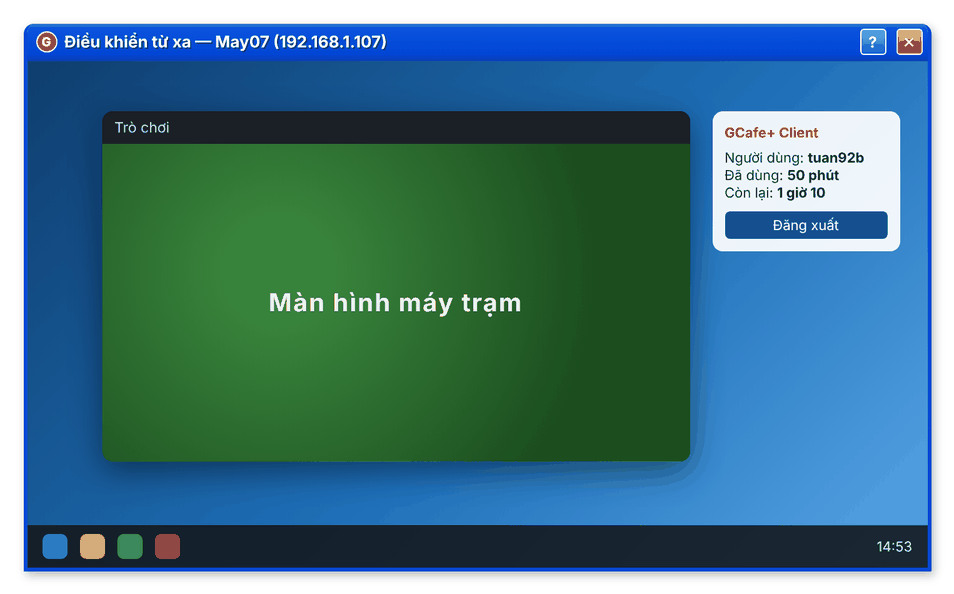
Take a screenshot of a client PC
Choose Điều khiển máy trạm › Chụp ảnh màn hình (Take screenshot) to quickly see what is open without disturbing the customer.
Close an application on a client PC
- Right-click the PC and choose Điều khiển máy trạm › Đóng ứng dụng (Close application).
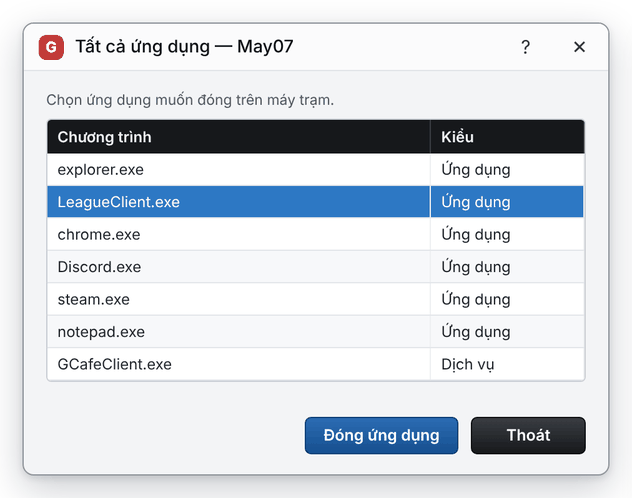
- The Tất cả ứng dụng (All applications) window lists running programs. Select the one to close.
- Click Đóng ứng dụng, then Yes to confirm.
New interface
Classic interface
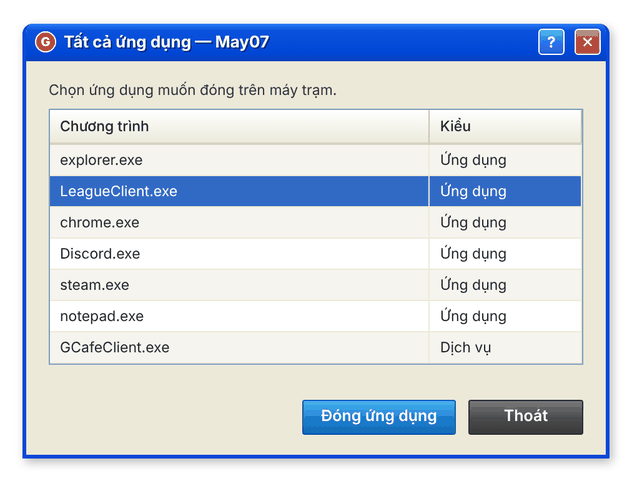
Result: the application closes on the client PC. Click Cancel at the confirmation if you change your mind.
⚠️ Note: Only view or control a customer’s PC when helping them or when there is a sign of misuse, and let the customer know first.