Banner, wallpaper and lock screen background
Café owners set the Client App banner, Windows wallpaper and lock screen background in GCafe Portal › Quảng cáo (Ads).
Client App home banner
The banner sits at the top of Client App Home and rotates every 7 seconds; clicking it opens the web page the café set (if any).
- In GCafe Portal open Quảng cáo › Banner GameMenu tab.
- Upload an image to an empty slot, add a URL if wanted, save the banners.
The banner is cropped to a wide, short frame — keep key text in the middle. Details: GameMenu banner and client wallpaper.
Client PC Windows wallpaper
On the Hình nền máy trạm (Client wallpaper) tab, upload images (1920×1080 recommended). GCafe+ Client sets them as the desktop wallpaper and changes the image on each unlock.
Lock screen background
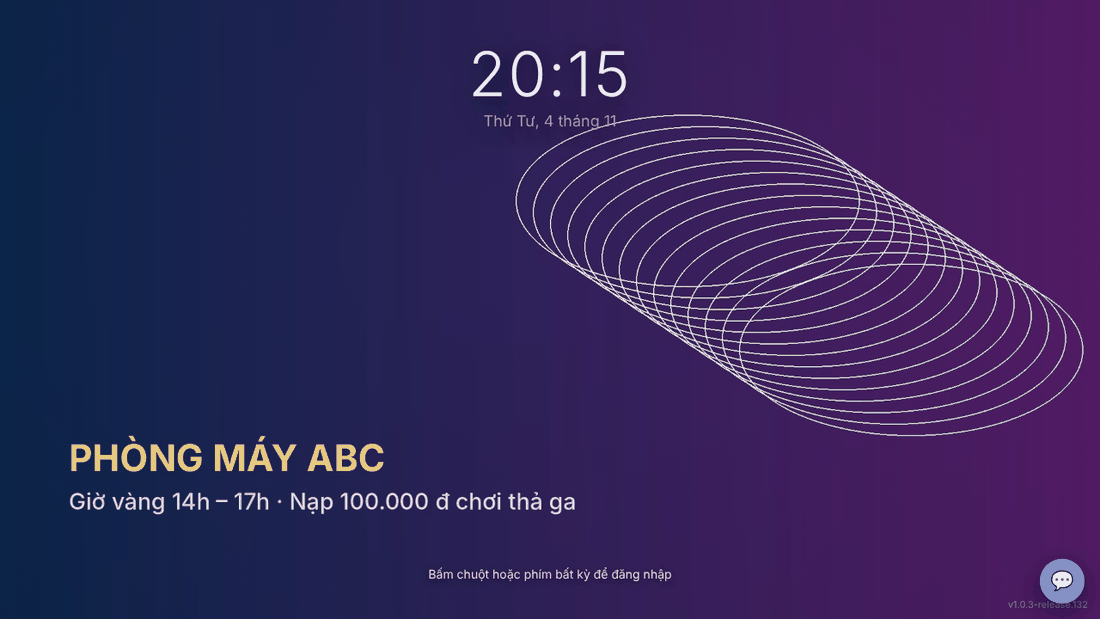
- Open Quảng cáo › Nền màn hình khoá (Lock screen background) tab.
- Under Nền quán tự đặt (Café backgrounds), click + Tải ảnh / video / Flash (upload image / video / Flash), or paste a YouTube link.
- With several backgrounds, set Đổi nền mỗi … phút (rotate every … minutes).
- Click Lưu nền khoá (Save).
Result: Portal shows Đã lưu — máy trạm nhận trong khoảng 2 phút (saved, clients receive it in about 2 minutes); the background shows on the lock screen when the PC is free.
💡 Tip: Export videos as web-optimized mp4 for smooth playback. YouTube backgrounds need Internet on the client PC.
Common errors
Message / symptom | Cause | What to do |
|---|---|---|
The client still shows the old background | The PC has not received new content yet, or another background takes priority. | Wait a few minutes, lock / unlock the PC. The Lock screen background tab in Portal shows which background is in use; contact support if you need it changed. |
Banner does not show | Banners were not saved, or the PC cannot reach GCafe Portal. | Save again; see GCafe Portal troubleshooting. |