Track client PC hardware
Portal records each client PC’s configuration and alerts you when RAM, a drive, a graphics card, a monitor or a mainboard is removed, swapped or added.
Classic layout
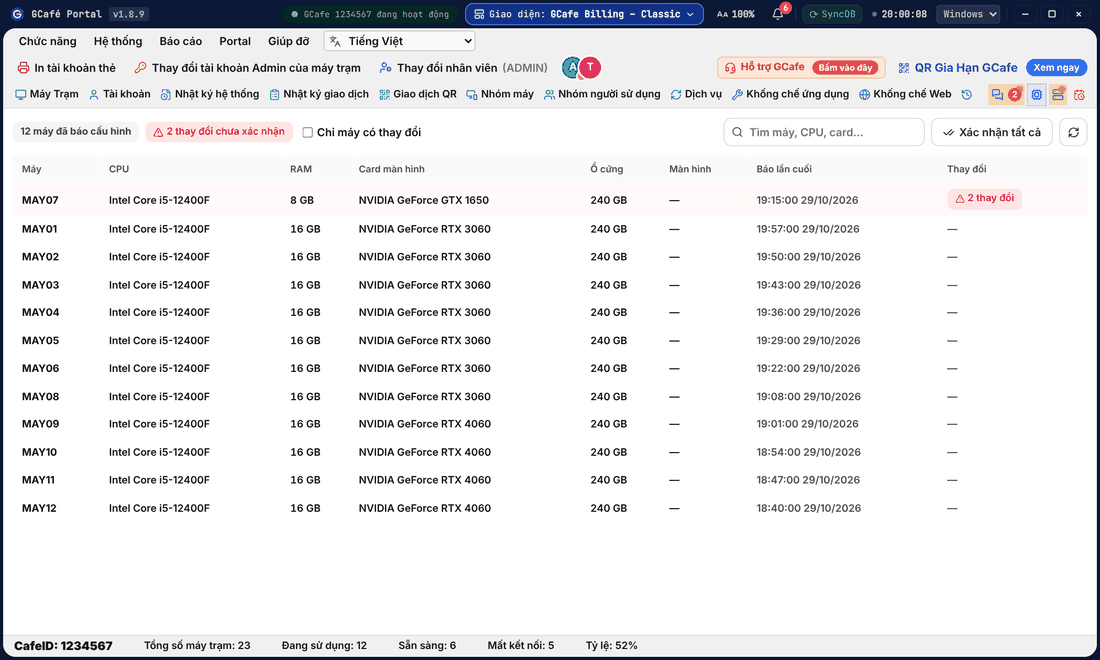
Dark layout
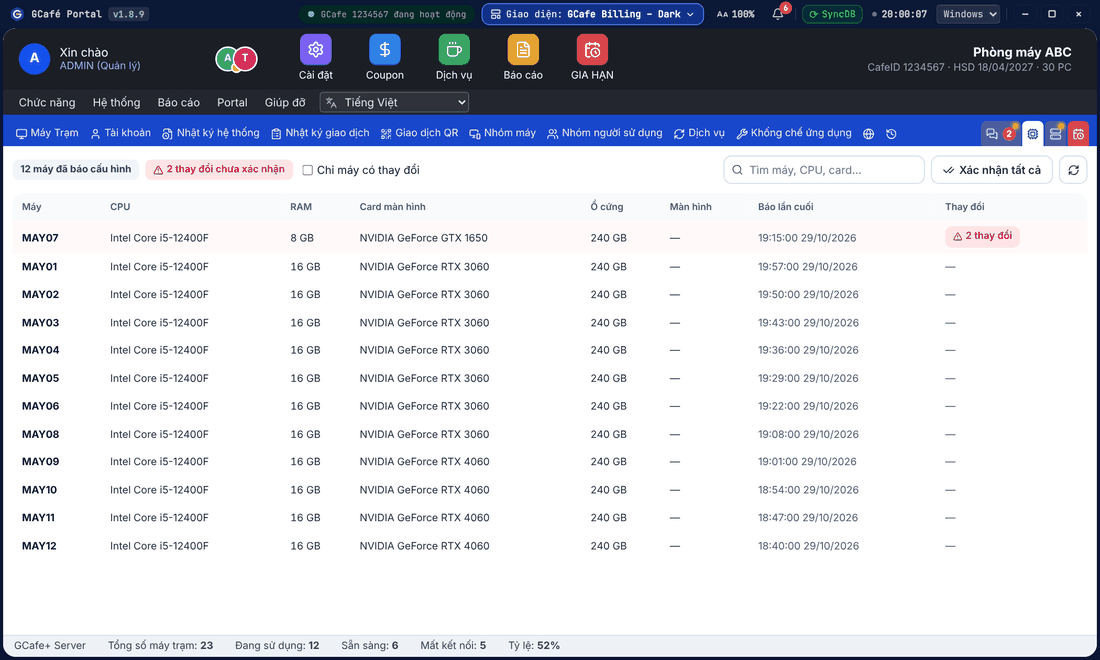
Portal layout
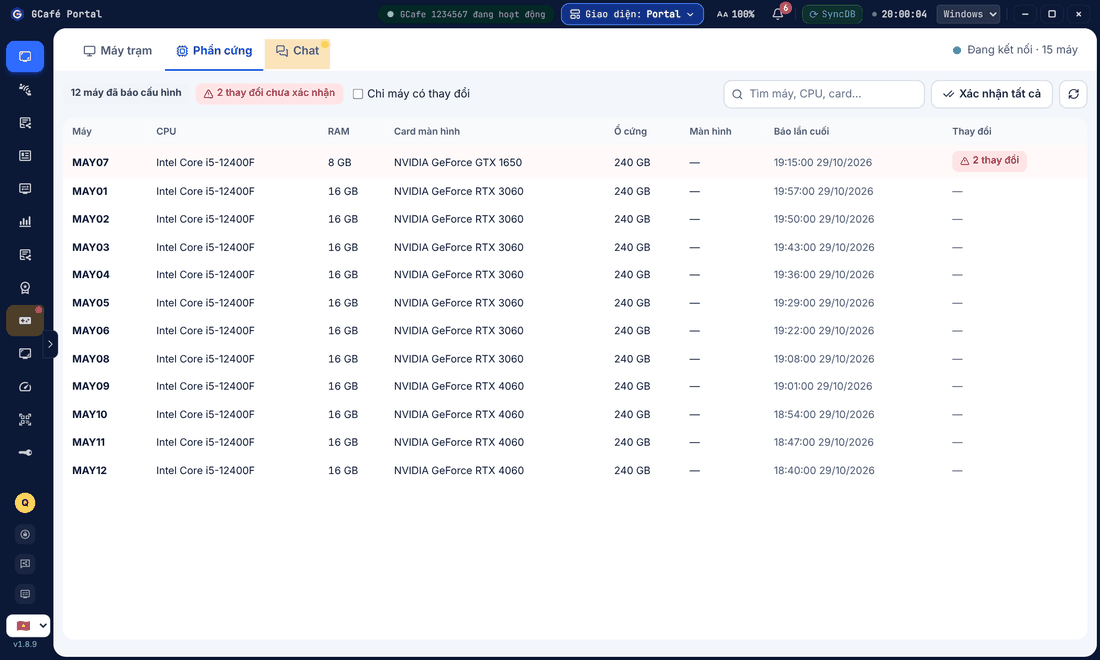
Before you start
- Client PCs run the new GCafe+ Client. Each PC sends its configuration when it starts.
- Theo dõi phần cứng & thông báo (Hardware tracking & notifications) is on under Thiết lập › Phiên bản › Tính năng mở rộng (Setup › Version › Extended features).
View PC configurations
- Open the Phần cứng (Hardware) tab: in the Classic / Dark layout it sits next to Chat; in the Portal layout it is inside the Máy trạm (PCs) page.
- Read the table: Máy (PC), CPU, RAM, Card màn hình (Graphics card), Ổ cứng (Drive), Màn hình (Monitor), Báo lần cuối (Last report), Thay đổi (Changes).
- Tick Chỉ máy có thay đổi (Only PCs with changes) or type in the search box to filter.
Check a change
Classic layout
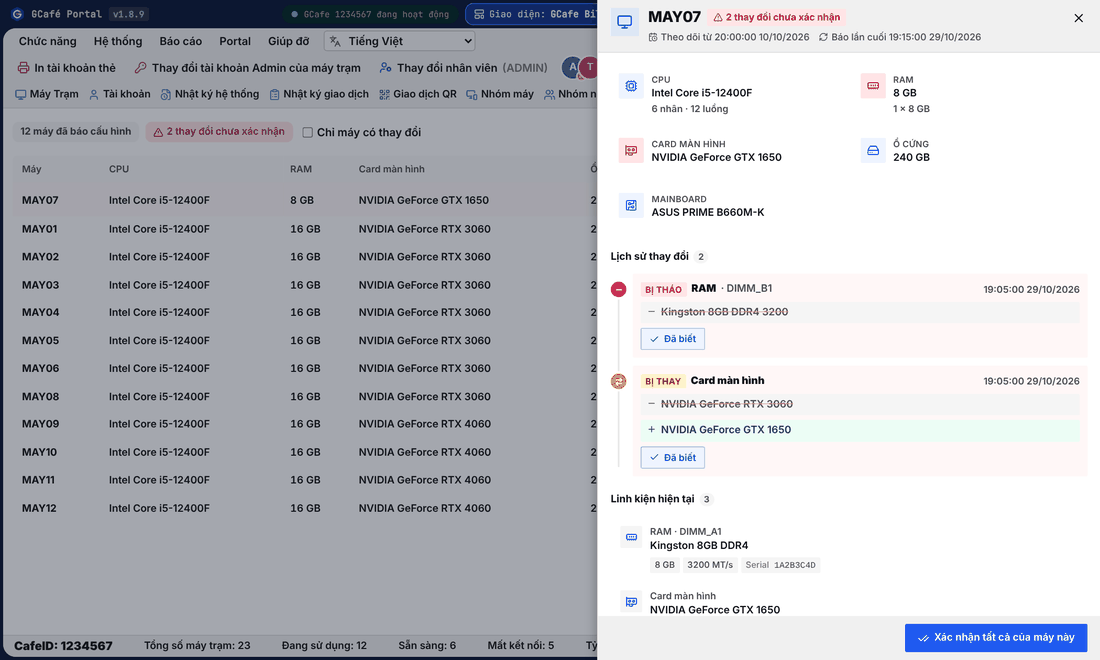
Dark layout
Portal layout
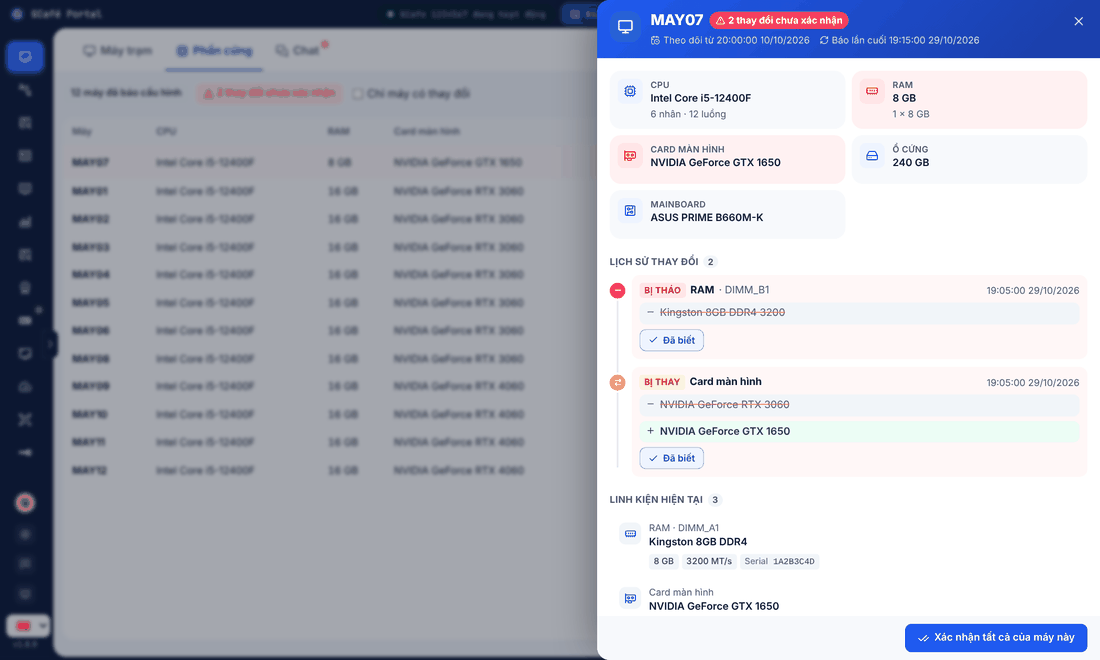
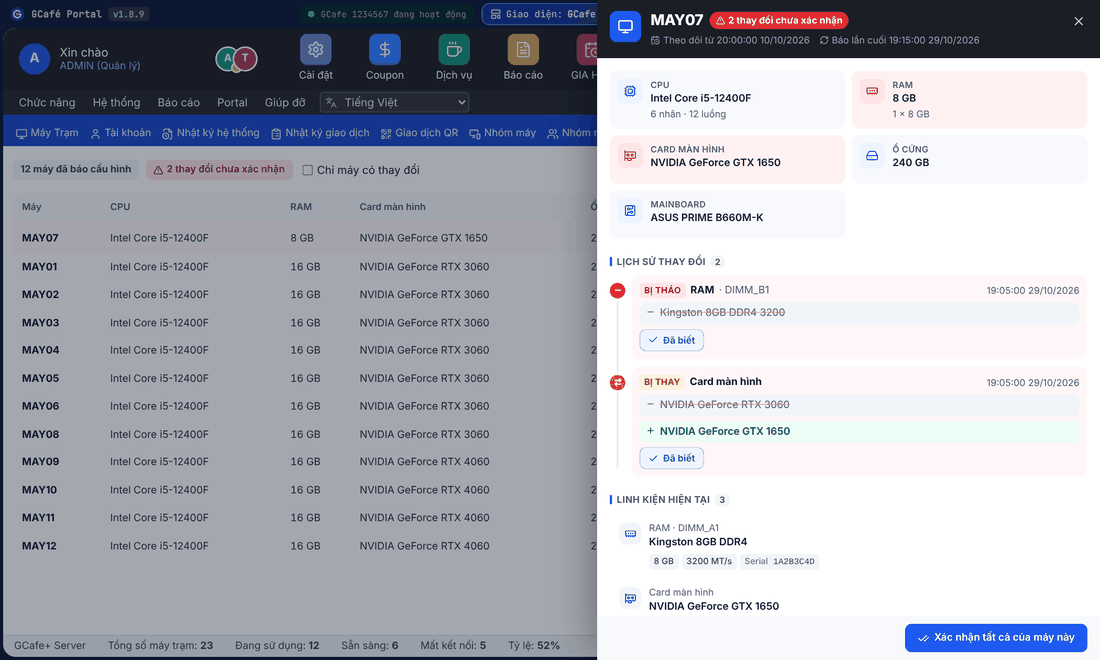
- Click a PC with a … thay đổi badge (or click the notification Máy …: linh kiện thay đổi).
- Read Lịch sử thay đổi (Change history): each entry says Lắp thêm (Added), Bị tháo (Removed) or Bị thay (Swapped), with the old part struck through, the new part in green, and the time.
- Check Linh kiện hiện tại (Current components) for capacity, speed and serial numbers.
- If the shop made the change itself, click Đã biết (Acknowledge) on each entry or Xác nhận tất cả của máy này (Acknowledge all for this PC).
Result: the PC’s change badge disappears; the history is kept with the name of the person who acknowledged it.
⚠️ Note: Only the Manager account can acknowledge changes. Portal compares against the first recorded configuration, so turn the feature on while PCs have all their parts.
💡 Tip: Choose a phone to receive Phần cứng máy trạm thay đổi (Client PC hardware changed) in Notification settings to know even when you are away.
Common errors
Message / symptom | Cause | What to do |
|---|---|---|
Theo dõi phần cứng máy trạm đang tắt. | The feature is off. | Click Bật ở Thiết lập › Phiên bản. |
Chưa có máy trạm nào báo cấu hình (No PC has reported yet) | Client PCs run an old GCafe+ Client, or have not restarted since you turned it on. | Update GCafe+ Client and restart the client PCs. |
A PC shows Chưa báo (Not reported) | That PC has not sent its configuration. | Start the PC and wait a few minutes. |