Workstations & computer groups
The Workstations page lists every client PC in the café, whether it is online, and its hardware.
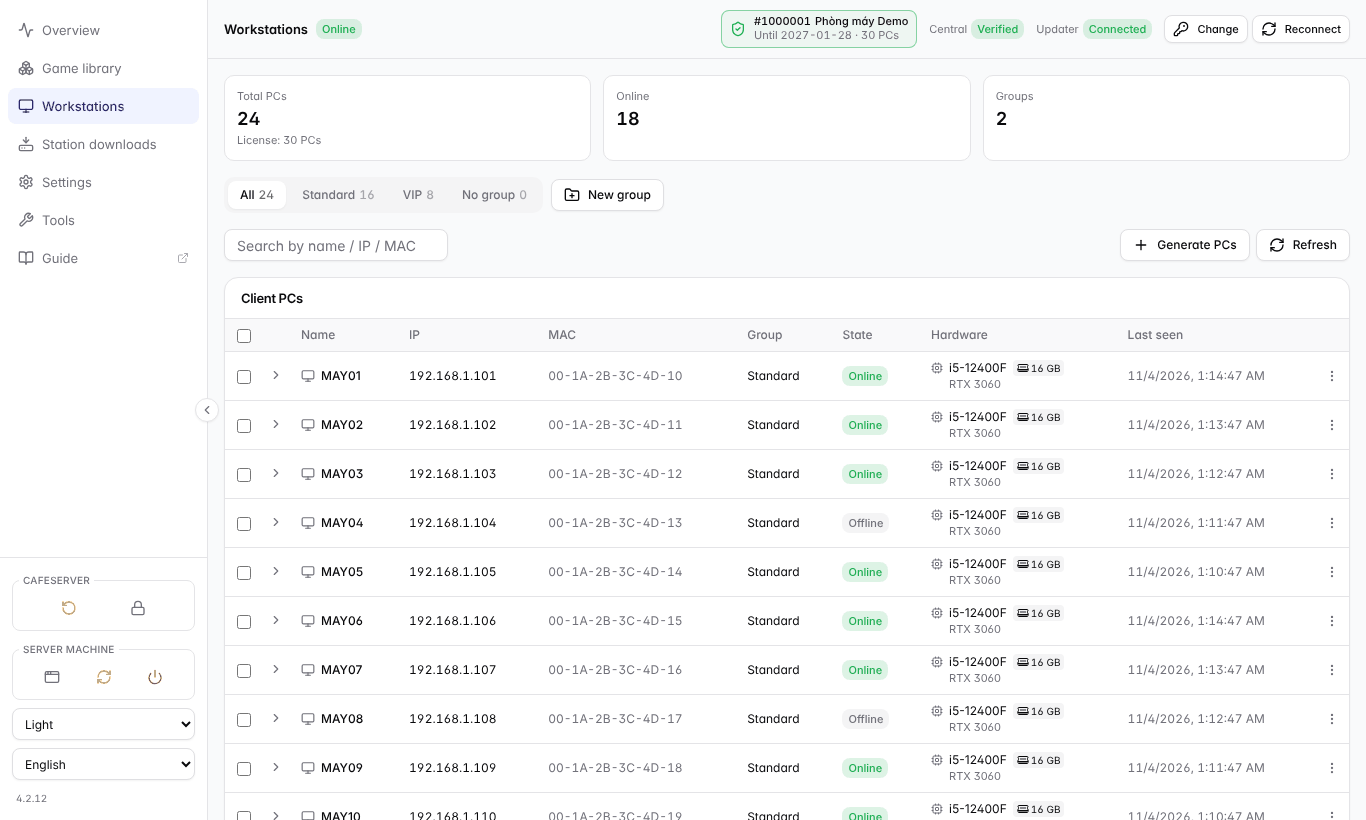
Workstations by group.
Browsing workstations
- The three boxes at the top: Total PCs (with the licensed count), Online, Groups.
- Filter by group with the tabs; search by name, IP or MAC.
- Click the arrow at the start of a row (or right-click › Show hardware) to see hardware: CPU, RAM, graphics, network card, disk, client software version.
- Right-click a PC for Show station games, Copy IP / Copy MAC, Move group and Delete.
See the games on one workstation
For workstations running GCafe+ Client App you can see which games the PC has downloaded and whether it has the same version as the server:
- Right-click the workstation and choose Show station games.
- Check the Latest downloaded version and State columns (Complete or Downloading N%).
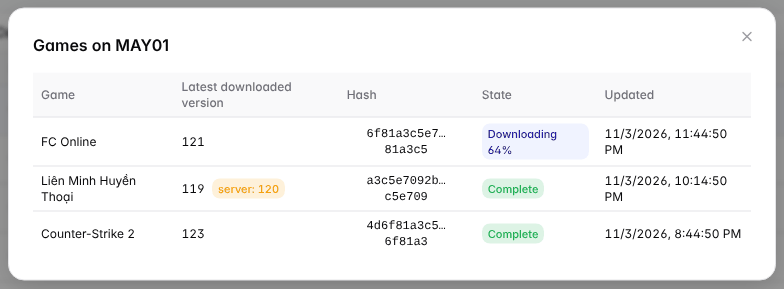
The orange "server: …" badge means the workstation holds an older version than the server.
A workstation without GCafe+ Client App shows "This station has not reported any games".
Computer groups
Groups give each area of the café (standard, VIP, tournament…) its own game list. Workstations only see games assigned to their group.
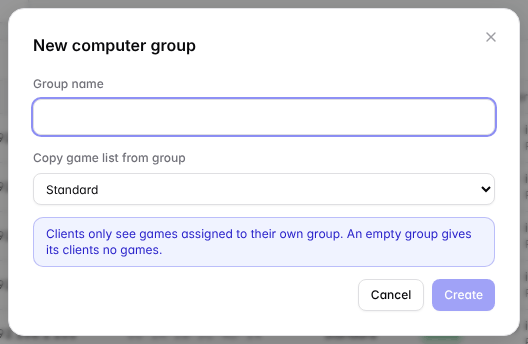
Create a group, optionally copying the game list of an existing group.
- Click New group and name it.
- Choose Copy game list from group so the new group starts with the same games (or leave it empty).
- Select the PCs to move › right-click › Move group.
⚠️ Note: An empty group (no games copied) gives its PCs no games until you assign games to it.
Generating a row of PCs (Volume Generate)
Installed a whole row of new PCs? Instead of adding them one by one, use Generate PCs:
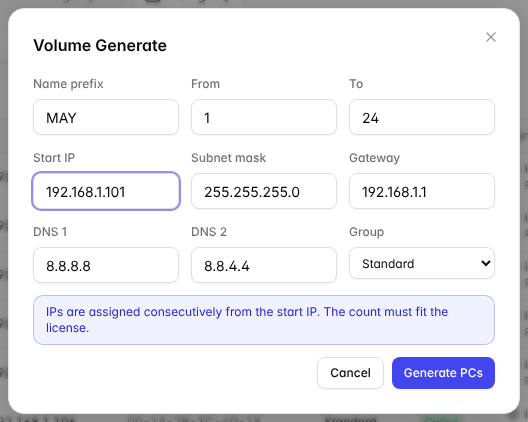
Volume Generate: names MAY01 → MAY24, IPs assigned consecutively from the start IP.
- Name prefix + From / To: e.g. MAY, 1 → 24 creates MAY01 … MAY24.
- Start IP, subnet mask, gateway, DNS: IPs are assigned one after another.
- Group: the computer group for the whole row.
The total number of PCs cannot exceed your licensed count. PCs beyond the licensed count are not put in any group, so they see no games.