Adding games to the library
Besides the catalog games, you can add your own. Click Add package ▾ at the top of the Game library:
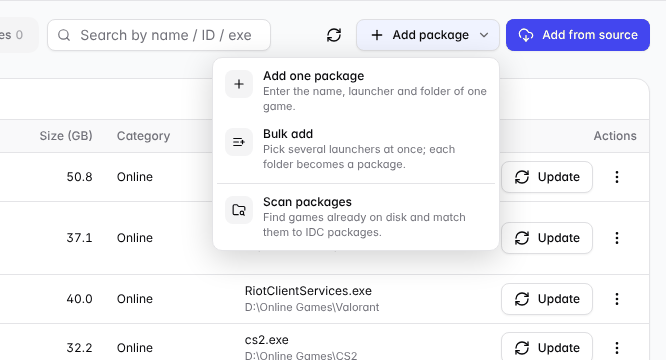
Three ways to add: Add one package, Bulk add, Scan packages.
1. Add one package
For a single game / application.
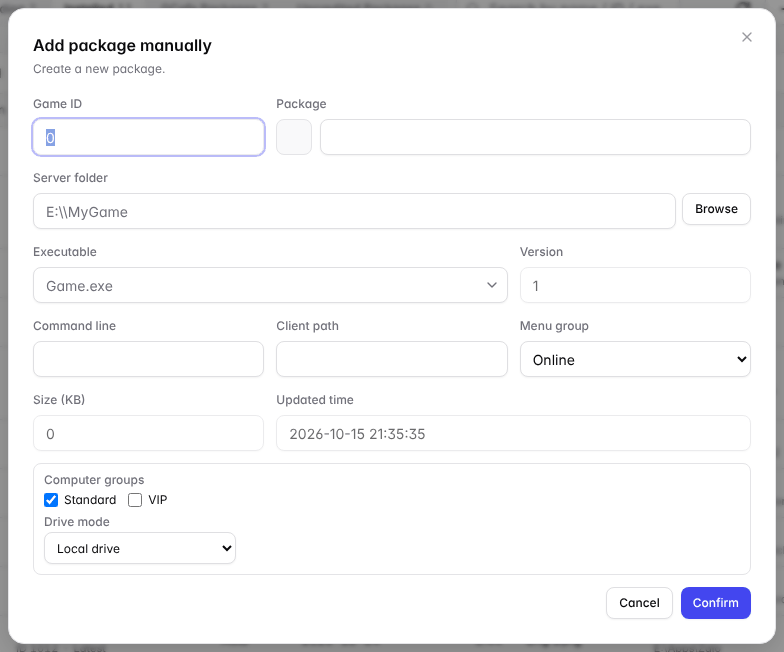
The Add package manually dialog.
- Server folder: click Browse and pick the game folder on the server.
- Package name and Executable (the .exe that starts the game) — CafeServer suggests them when you pick the folder.
- Menu group: where the game appears on workstations (Online, Offline, Apps…).
- Computer groups and Drive mode: which groups see this game.
- Click Confirm. CafeServer builds the game's index and moves it to Installed.
2. Bulk add
Many games in one big folder? Choose Bulk add › Pick launchers… and tick each game's executable. Each folder containing an executable becomes one package. The One per subfolder option selects a whole folder quickly.
⚠️ Note: Do not close the Bulk add window before it finishes — packages not yet added are cancelled (game folders are left untouched).
3. Scan packages
Already have games on a drive (e.g. copied from an old server)? Scan packages finds game folders on the drive and matches them to the catalog — no need to download from scratch.
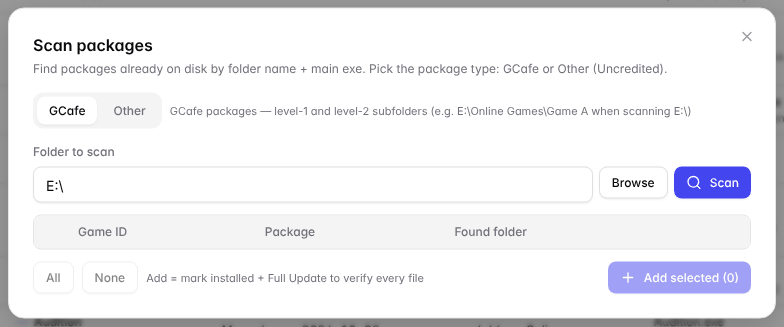
Scan packages: choose GCafe or Other, pick a folder and click Scan.
- Choose the type: GCafe (official games) or Other (Uncredited games).
- Pick the Folder to scan (e.g.
E:\) and click Scan. - Tick the games found and click Add selected. CafeServer re-checks all files and only downloads what is missing.
4. Add from an external source
Add from source downloads a game with BitTorrent: paste a magnet link, a link to a .torrent file, or pick a .torrent file.
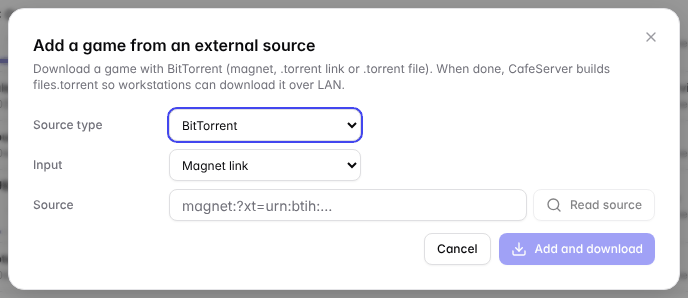
Adding a game from an external source (BitTorrent).
- Choose the Input type, paste the source and click Read source (a magnet can take up to 2 minutes).
- Check the name and size, pick the parent folder and the executable.
- Click Add and download. Follow progress in Downloading; once done the game appears on workstations.
💡 Tip: If a game added from an external source also exists in the catalog, it shows "Update available" when the catalog gets a newer version — turn on Auto Update to keep it current.