What is CafeServer?
CafeServer runs on your café's server. It downloads games, keeps them up to date and delivers them to every workstation in the café — so nobody has to update each PC by hand.
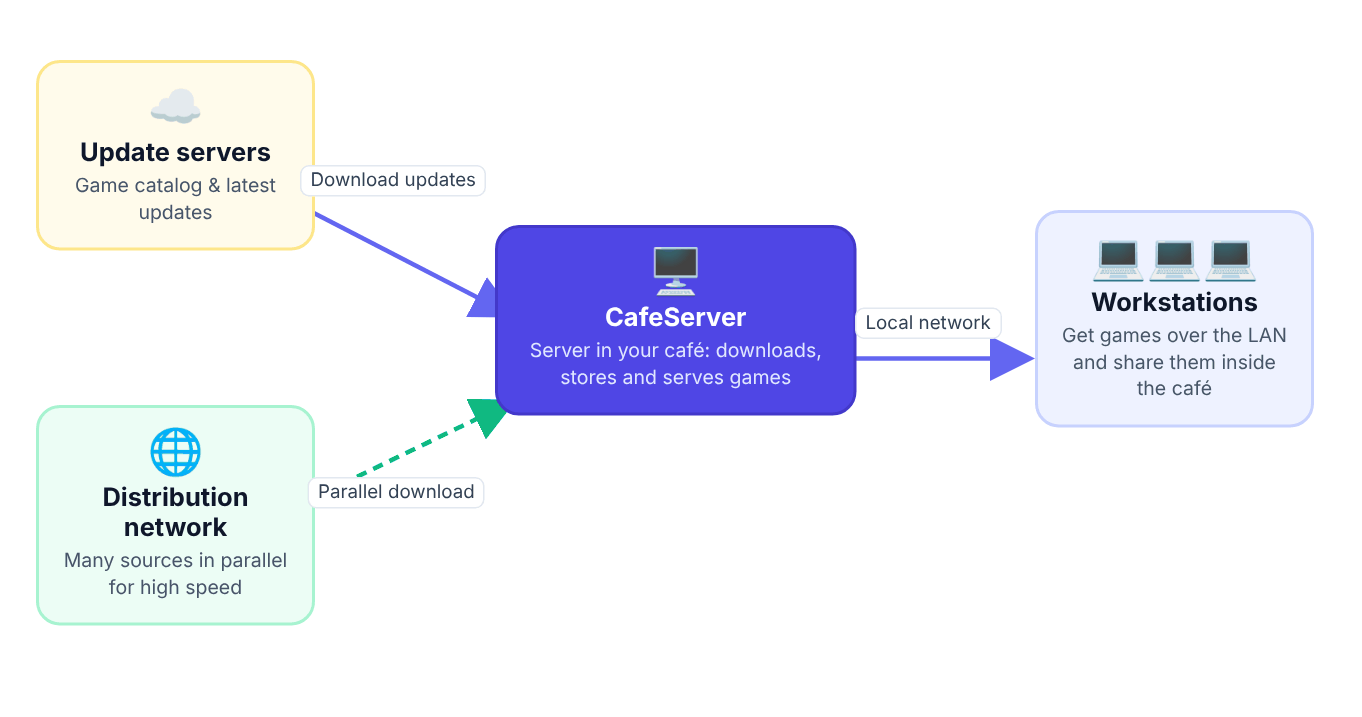
CafeServer sits in the middle: it gets updates from the GCafe Update system, then serves games to your workstations over the LAN.
What CafeServer does for you
- Automatic game updates: when a game has a new version, CafeServer downloads just the changes to the server — no one needs to watch it.
- Fast downloads: CafeServer downloads only the changes and pulls data from several of the system's download sources at once.
- Serves games to workstations: workstations get games straight from your server over the local network. Workstations running GCafe+ Client App also share games with each other, taking load off the server.
- One place to manage everything: game library, workstations, groups, license and drives are all on one screen called the Console.
- Server health at a glance: CPU, RAM, drives, network card, today's events and warnings.
The pieces you will see
Piece | What it is |
|---|---|
CafeServer | A background program (Windows service) on the server. It starts with Windows. |
Console (GCaféUpdate Dashboard) | CafeServer's management screen. Open it from the Desktop shortcut, or from a browser on another device in the café. |
CafeID & CafePwd | Your café's ID and its password, used to verify the license. See CafeID & license. |
Workstations | The client PCs your customers play on; they get games from CafeServer. |
GCafe+ Client App | The new client software on workstations. Workstations running it appear on the Station downloads page. |
Where to start
- Check the system requirements.
- Install CafeServer on the server.
- Open the Console and sign in.
- Enter or check your CafeID & license.
- Adjust Settings (game folders, speed limits) and look through the Game library.