The GCafe Billing layout inside Portal
Portal has three layouts: GCafe Billing – Classic, GCafe Billing – Dark and Portal. The two GCafe Billing layouts keep the old counter software’s way of working so staff can start right away.
Switch layout
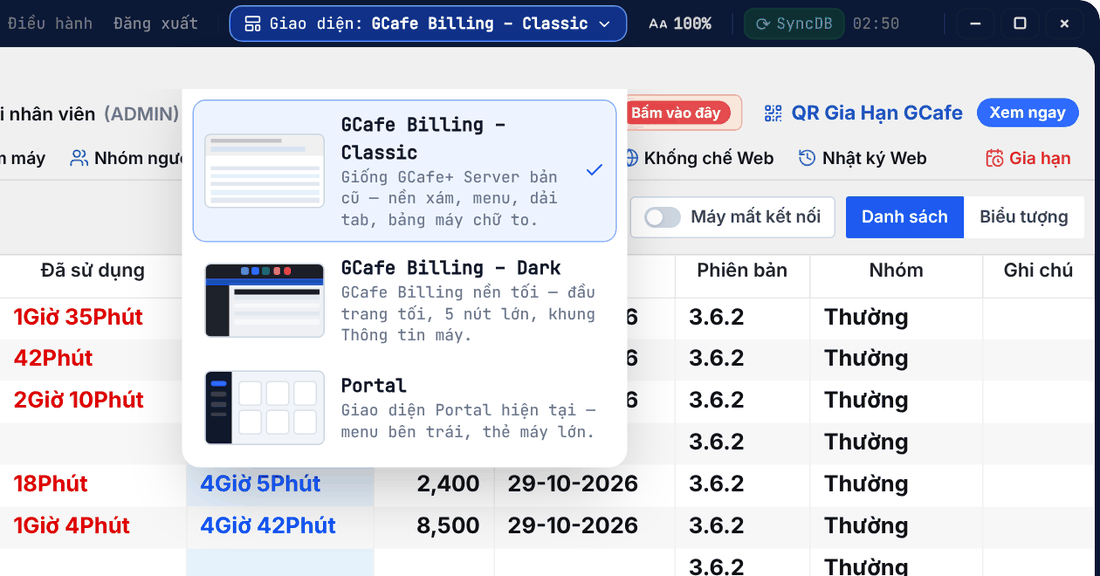
- Click Giao diện (Layout) in the title bar.
- Pick a layout. Portal remembers it next time.
Layout | What it looks like |
|---|---|
GCafe Billing – Classic | Like the old GCafe+ Server: grey background, menus, tab strip, large-text PC table. |
GCafe Billing – Dark | Dark header, 5 big buttons (Cài đặt, Coupon, Dịch vụ, Báo cáo, GIA HẠN) and a Thông tin máy (PC info) panel. |
Portal | Left menu with every Portal page. |
Classic layout
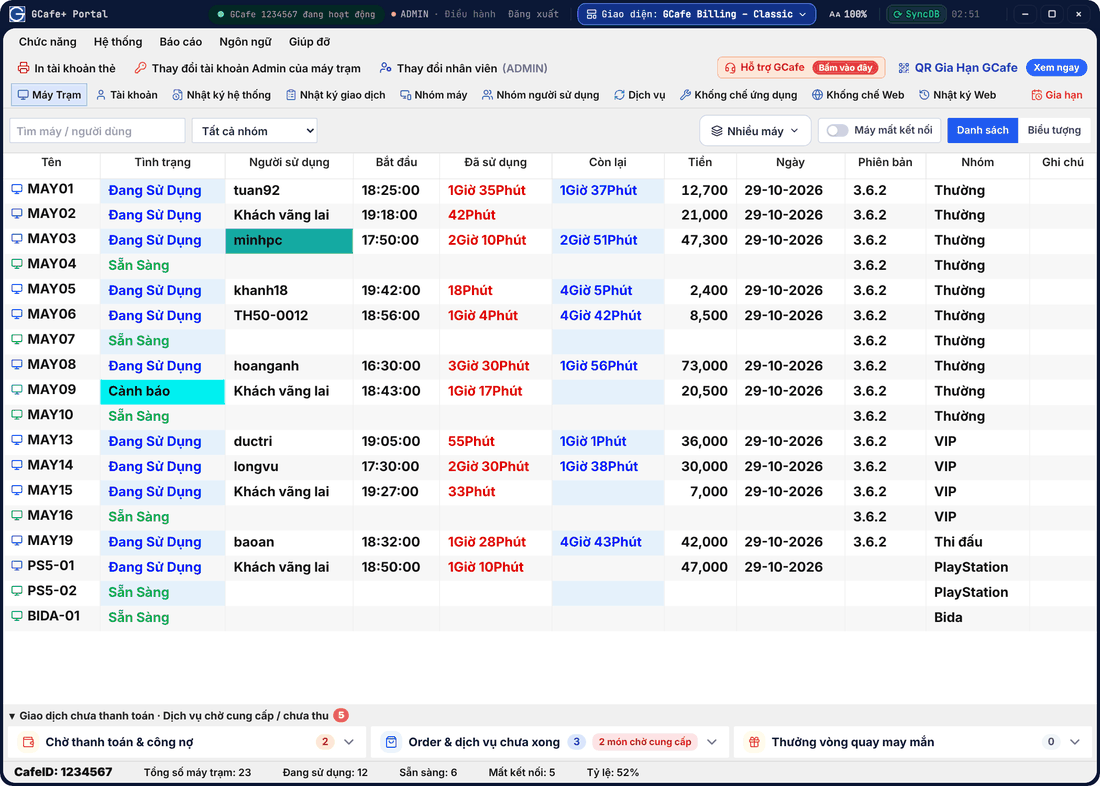
- Tabs: Máy Trạm (PCs), Tài khoản (Accounts), Nhật ký hệ thống / Nhật ký giao dịch (System / transaction log), Nhóm máy (PC groups), Nhóm người sử dụng (User groups), Dịch vụ (Services), Khống chế ứng dụng / Khống chế Web (App / web control), Nhật ký Web, Gia hạn (Renew).
- Danh sách (List) or Biểu tượng (Icons) switches the PC view; filter by group or search PCs / users.
- The Người sử dụng cell turns teal when a guest still has unpaid pay-later services.
- The bottom bar shows total PCs, in use, ready, disconnected and occupancy.
Dark layout
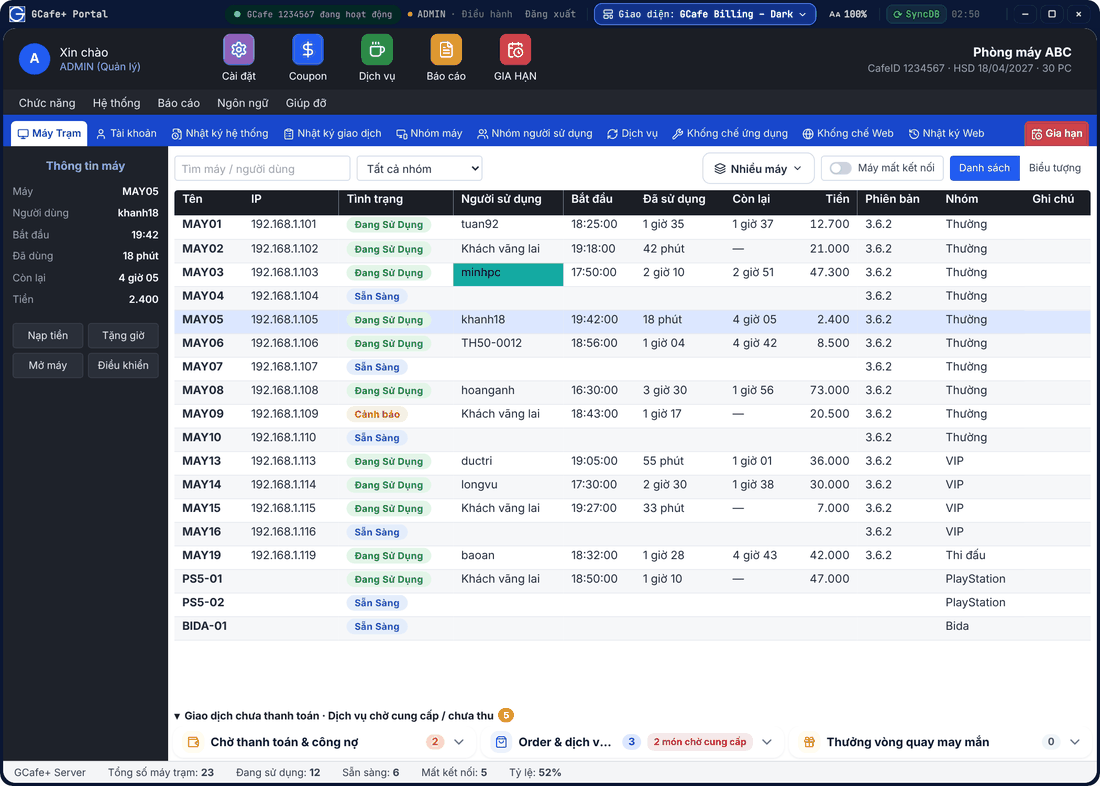
Select a PC to see the Thông tin máy panel on the left with Nạp tiền (Top up), Tặng giờ (Gift time), Mở máy (Open) and Điều khiển (Control).
Right-click and checkout
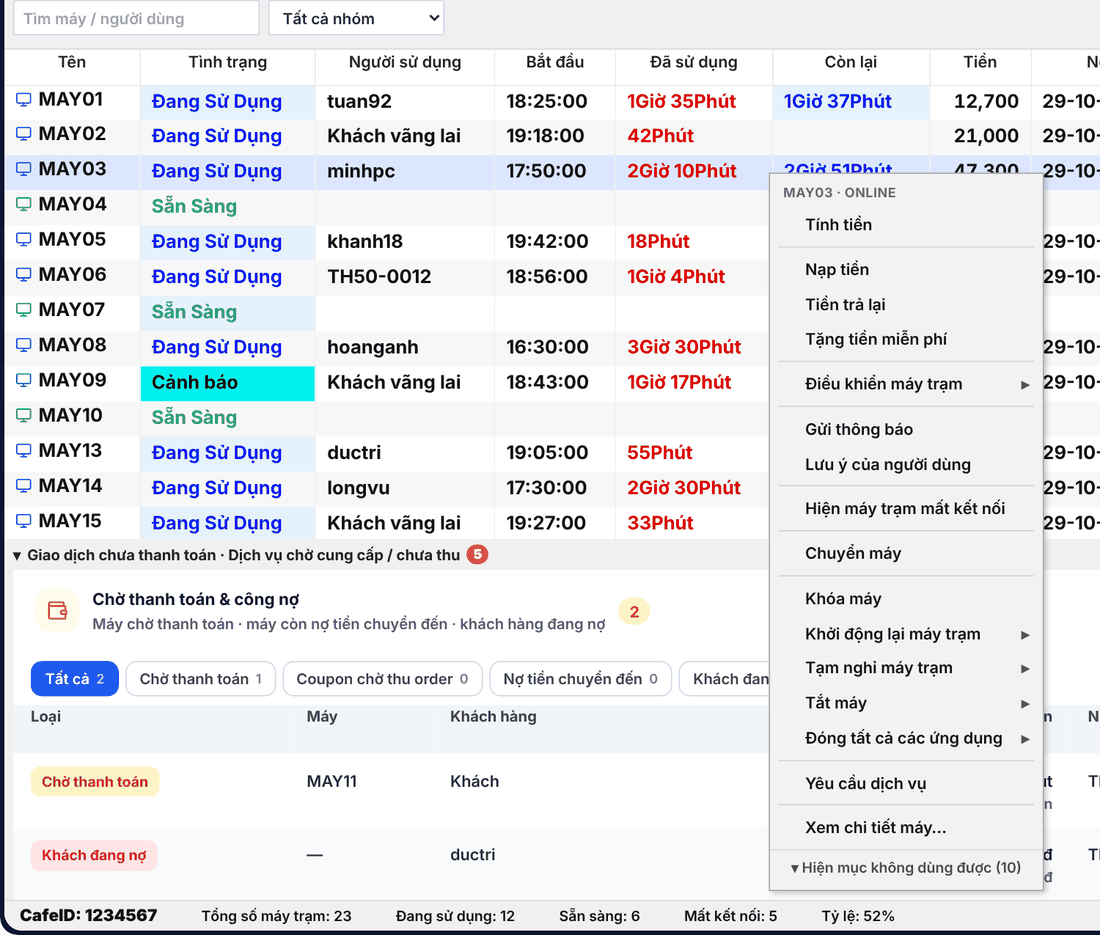
Right-click a PC for the same actions as the old app: Tính tiền (Check out), Nạp tiền, Tiền trả lại (Refund), Tặng tiền miễn phí (Gift money), Điều khiển máy trạm, Gửi thông báo (Send notice), Chuyển máy (Move), Khóa máy (Lock), Yêu cầu dịch vụ (Order)… Actions not available for the selected PC are folded under Hiện mục không dùng được.
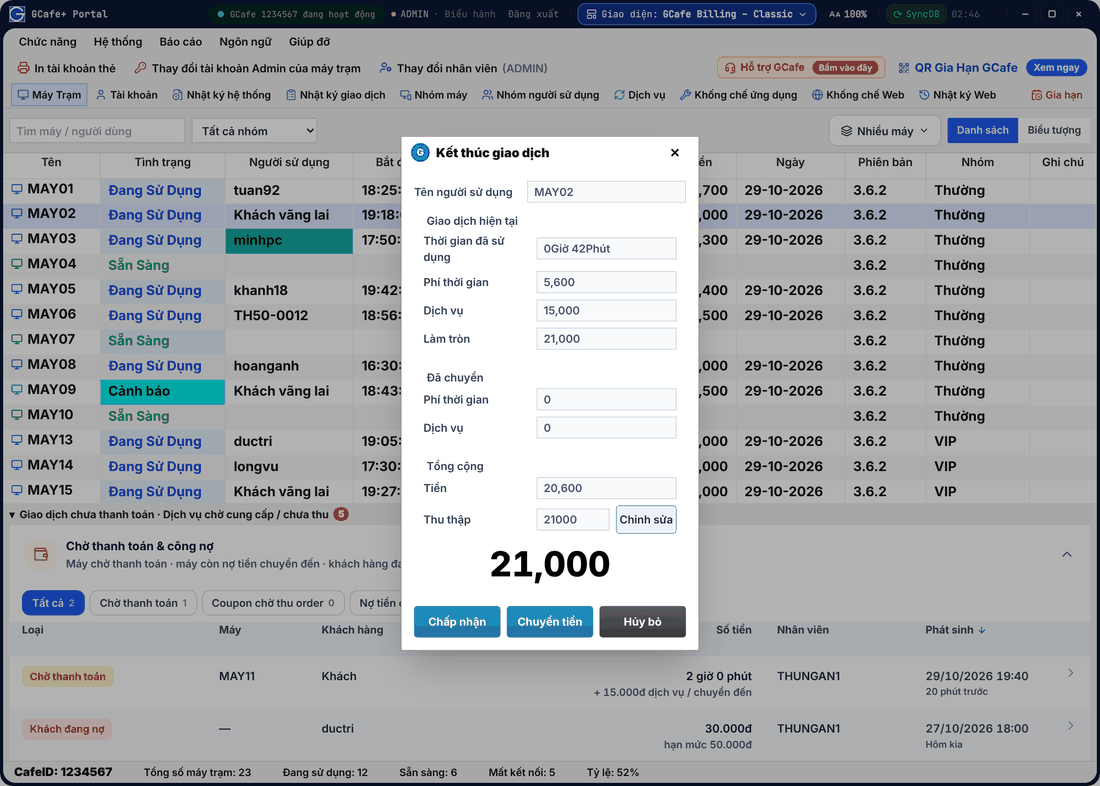
Double-click a PC (or choose Tính tiền) to open Kết thúc giao dịch (End transaction). To collect a different amount, click Chỉnh sửa (Edit), type the new amount and click Chấp nhận (Accept) — the edit is noted in the transaction log.
Unpaid transactions and pending services
Below the PC table is Giao dịch chưa thanh toán · Dịch vụ chờ cung cấp / chưa thu, the same as Portal’s pending payment list. Click the title to collapse / expand it.
Other tabs
- Dịch vụ opens the product list — see Stock and services.
- Nhóm người sử dụng edits hourly prices by account group — see Pricing.
- Hỗ trợ GCafe · Bấm vào đây opens the support chat; Giúp đỡ › Hướng dẫn sử dụng opens this guide.
💡 Tip: Switch layout any time; your data does not change. The sign-in screen follows the selected layout too.