Take a QR payment at the counter
The customer scans the QR code on the counter screen and transfers the exact amount; you click Transfer received, or Portal confirms it when the money arrives.
Before you start
The shop has set up QR payments and ticked the matching location.
Check out a PC by QR
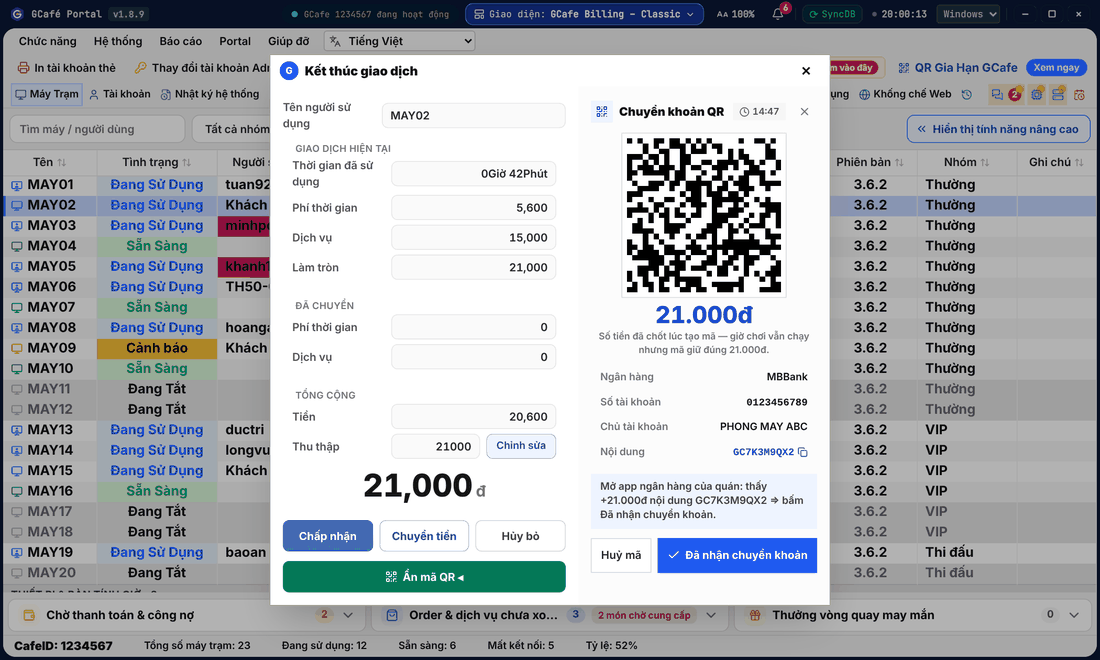
Classic layout
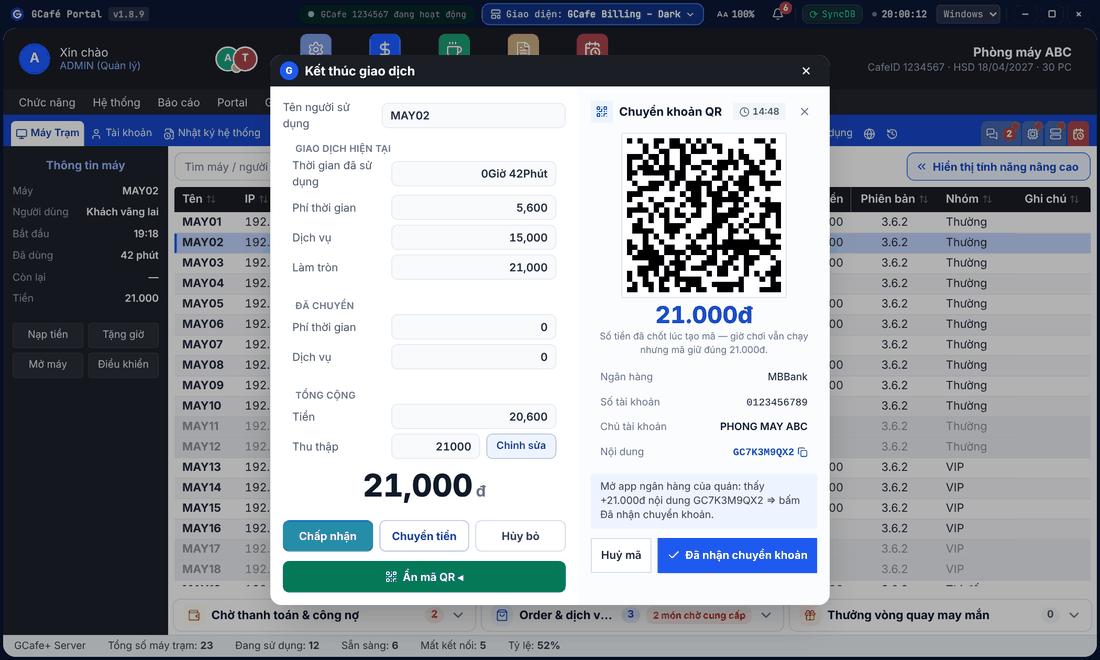
Dark layout
Portal layout
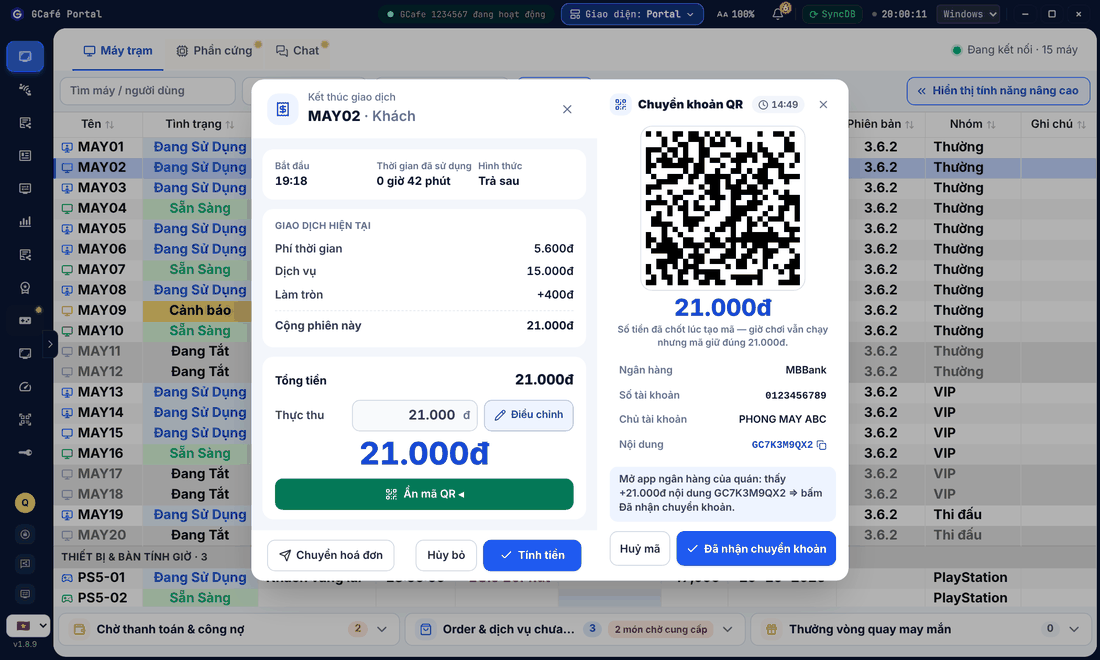
- Open the PC’s Kết thúc giao dịch (Checkout) dialog as usual.
- Click QR chuyển khoản ▸ (Classic / Dark layout) or Chuyển khoản QR (Portal layout). The QR code opens as a column on the right of the same window.
- Let the customer scan it. The amount and memo are pre-filled in their banking app.
- Open the shop’s banking app. When the money has arrived with the right amount and memo, click Đã nhận chuyển khoản (Transfer received).
Result: the session is checked out as with Chấp nhận (Accept), recorded as a QR transfer.
Good to know about the QR code
- The amount is fixed when the code is created: play time keeps running but the code keeps that amount.
- The clock at the top counts down the code’s remaining time.
- Click the Nội dung (Memo) row to copy the code if the customer must type it.
- Huỷ mã (Cancel code, left of the confirm button) when the customer pays cash instead. Ẩn mã QR ◂ (Hide QR) only hides the column; it does not cancel the code.
- Code expired but the money arrived: click Tiền về trễ — vẫn ghi nhận (Late money — record anyway). For another code click Tạo mã mới (New code).
- With Auto-confirm on, Portal completes the payment when matching money arrives; no click needed.
Top-ups and counter sales by QR
The Nạp tiền (Top up) and Bán tại quầy (Counter sale) dialogs offer the same Chuyển khoản QR option. See Members, top-ups and prepaid cards and Sell to walk-in customers.
QR money in logs and the shift report
- Transaction log: the Hình thức (Method) column shows QR · tay (manual) or QR · tự động (auto); the method filter adds Chuyển khoản QR.
- The shift report separates Tiền mặt (Cash), Chuyển khoản QR and Tiền mặt phải nộp (Cash to hand over); QR money is not counted as cash in the drawer.
- Running alongside the old GCafe Billing: the transaction note gains QR <code>.
⚠️ Note: Click Đã nhận chuyển khoản only after you see the money in the shop’s account. Never confirm from a customer’s screenshot.
Common errors
Message / symptom | Cause | What to do |
|---|---|---|
Mã đã hết hạn. (Code expired) | The time set in Mã QR hết hạn sau has passed. | Click Tạo mã mới; if the money arrived, click Tiền về trễ — vẫn ghi nhận. |
Đang chờ Điều hành xác nhận tiền về (Waiting for the Manager) | The shop chose Chỉ Điều hành xác nhận. | The owner confirms in Portal or on the phone. |
The customer paid but Portal did not auto-complete | The customer changed the memo or amount. | Click Đã nhận chuyển khoản after checking, or match it under Unmatched money. |