Stock and services: products, receiving, stock out
Kho & dịch vụ (Stock & services) manages all your food, drinks and game cards: prices, cost, stock, receiving, internal use, stocktakes and orders from client PCs.
In the GCafe Billing layouts, open it from the Dịch vụ tab or Chức năng › Kho & dịch vụ.
Tab | Used for |
|---|---|
Order chờ (Pending orders) | Orders waiting for delivery; click Đã giao (Delivered) or Từ chối (Reject), with a new-order sound. |
Tổng quan (Overview) | Service revenue, 28-day gross profit, stock value and to-dos (reorder, expiring, not selling). |
Hàng hoá (Products) | Categories, sale price, cost, barcode, location, supplier, stock card. |
Nhập hàng (Purchasing) | Reorder suggestions and goods receipts. |
Xuất & kiểm kho (Stock out & count) | Internal use / damaged / expired and stocktakes. |
Khuyến mãi (Promotions) | |
Sơ đồ kho (Stock map) | Draw zones, shelves and fridges, and place items. |
Overview
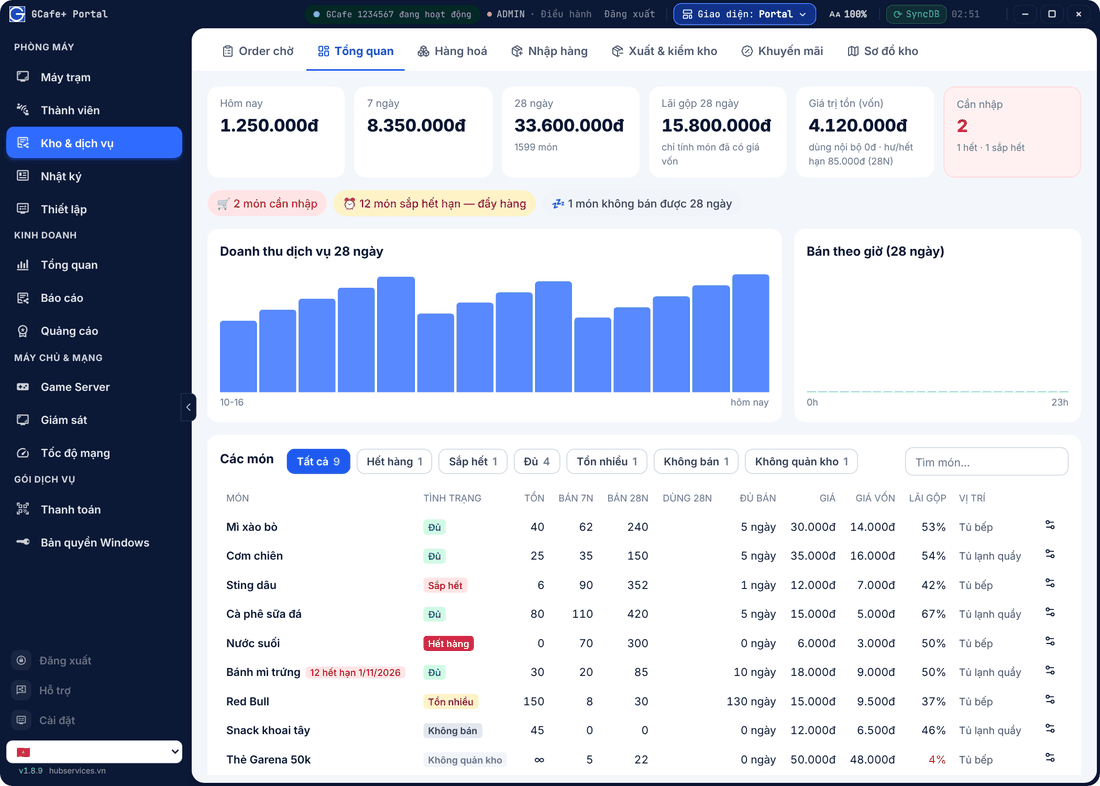
The alert chips on top (e.g. 2 món cần nhập — 2 items to reorder, expiring items) filter the item list when clicked.
Products
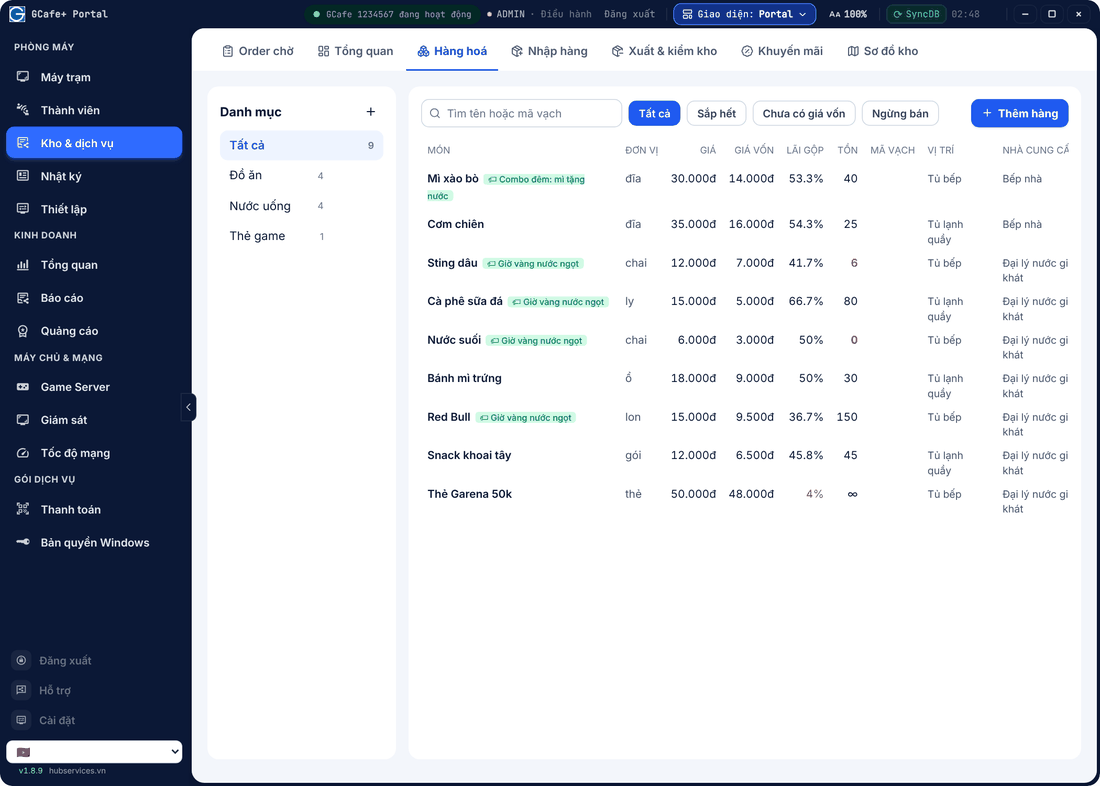
- Click Thêm hàng (Add product), enter name, unit, Giá bán (sale price) and category.
- Enter Giá vốn / đơn vị (unit cost), Mã vạch (barcode), Nhà cung cấp (supplier), Vị trí kho (location), Tồn tối thiểu (minimum stock).
- Tick Đang bán (máy trạm thấy) (on sale, visible on PCs) to show it on the client order menu.
Quick filters: Sắp hết (Low), Chưa có giá vốn (No cost), Ngừng bán (Inactive). Open an item’s Thẻ kho (stock card) for 60 days of receipts, sales, stock out and counts.
💡 Tip: Enter a cost for every item to see true margins and let Portal block promotions below cost.
Purchasing
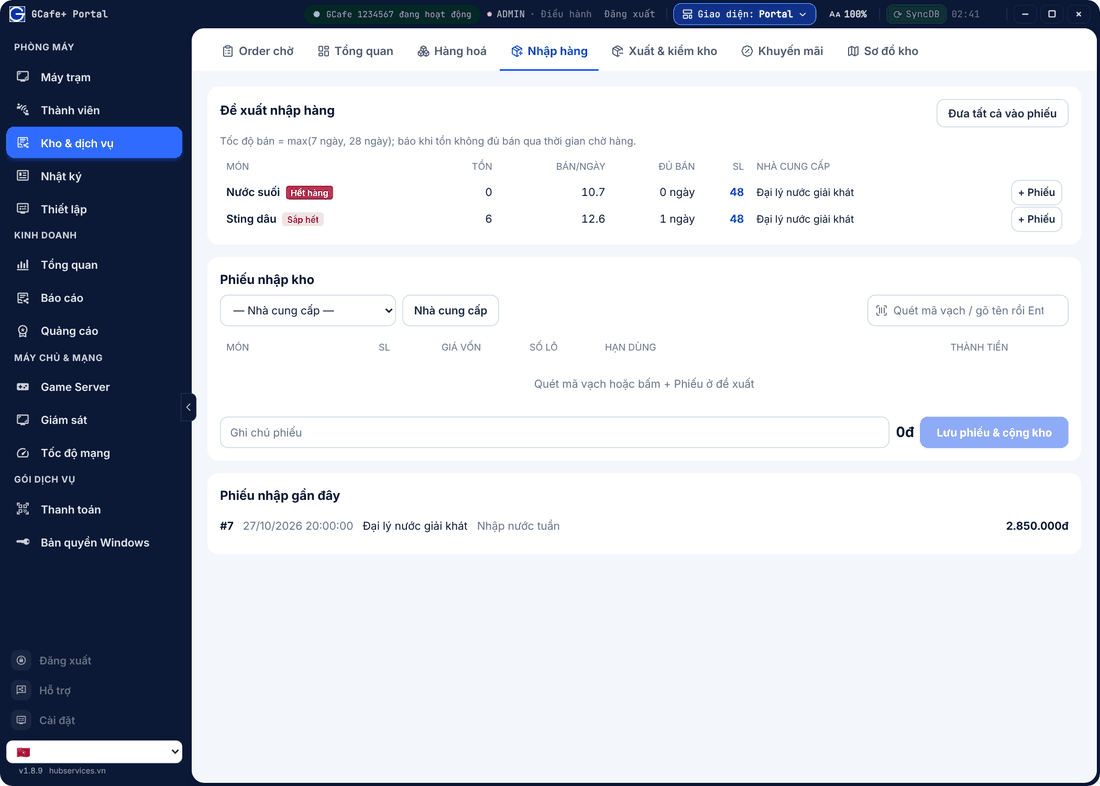
- Check Đề xuất nhập hàng (Reorder suggestions): Portal sizes quantities from sales speed and delivery lead time. Click + Phiếu per item or Đưa tất cả vào phiếu (Add all).
- Choose the Nhà cung cấp; scan a barcode or type a name and press Enter to add lines.
- Check quantity, cost, lot and expiry, then click Lưu phiếu & cộng kho (Save & add stock).
Stock out and stocktake
- Xuất kho (Stock out): pick Dùng nội bộ (internal use), Hư hỏng (damaged), Hết hạn (expired) or Khác (other), scan / type items and confirm. Stock drops immediately.
- Kiểm kê (Stocktake): count the goods, fill the Thực tế (Actual) column (blank = matches), click Lưu kiểm kê. Differences are recorded to track shrinkage.
⚠️ Note: Change stock through Purchasing or Stocktake rather than editing it by hand, so you always have history.
Common errors
Message / symptom | Cause | What to do |
|---|---|---|
Không thấy món (item not found) when scanning | The item has no barcode. | Open the item in Hàng hoá and enter its Mã vạch. |
Client PCs do not show a new item | The item is not marked Đang bán. | Tick Đang bán (máy trạm thấy) and save. |