Open and sign in to the Console
The Console is CafeServer's management screen. Everyday work (checking status, updating games, managing workstations…) happens here.
Opening the Console
- On the server: double-click the GCaféUpdate Dashboard shortcut (or run
CafeServer.exeagain). - From another device in the café (PC or phone on the same LAN): open a browser and enter the server's address — the same address shown in the address bar when you open the Dashboard on the server, with
127.0.0.1replaced by the server's LAN IP.
Signing in
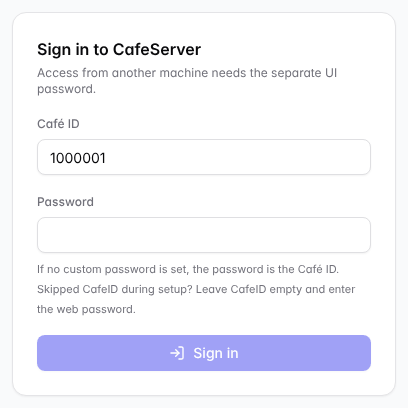
The sign-in screen.
- Café ID: your CafeID.
- Password: the web password you set during setup. If no web password was set, the password is the CafeID.
- Skipped the CafeID during setup? Leave the CafeID box empty and enter the web password.
⚠️ Note: Opening the Console from another device requires a custom web password (set it on the server itself under Settings › Console password). Too many wrong attempts lock that device out for a few minutes.
Finding your way around
- Left menu: Overview, Game library, Workstations, Station downloads, Settings, Tools. Guide at the end of the menu opens this documentation in your browser.
- Top bar: café name, CafeID, license expiry, connection status and the Change (change license) / Reconnect buttons.
- Bottom left: quick controls, Light / Dark theme and Vietnamese / English language.
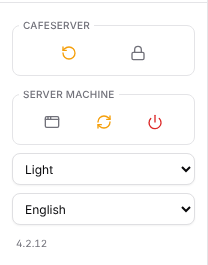
Quick controls: restart CafeServer, lock the console; create shortcut, reboot or shut down the server; theme and language.
Button | What it does |
|---|---|
CafeServer › ↻ | Restart CafeServer (downloaded games keep working). |
CafeServer › 🔒 | Lock the console — sign in again to continue. |
Server machine › 🗔 | Recreate the Desktop shortcut. |
Server machine › ⟳ / ⏻ | Reboot / shut down the server's Windows (asks for confirmation). |