View revenue reports
The Báo cáo (Reports) menu shows play-time revenue, service revenue, revenue per client PC and member activity for the period you choose.
New interface
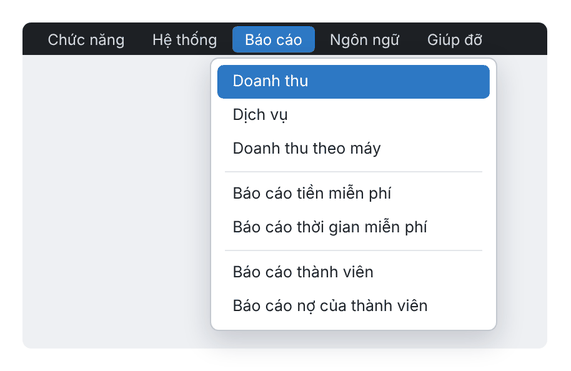
Classic interface
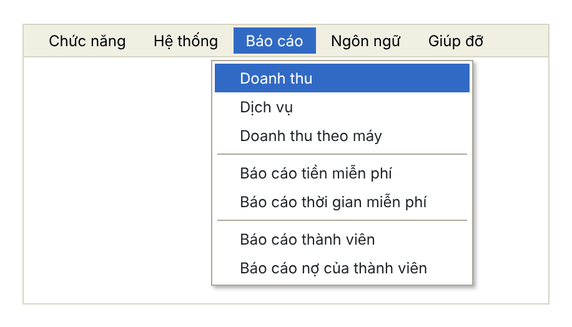
Report types
Report | Shows |
|---|---|
Doanh thu (Revenue) | Actual and collected totals per session, with the staff member who collected. |
Dịch vụ (Services) | Service sales, grouped by day or by product. |
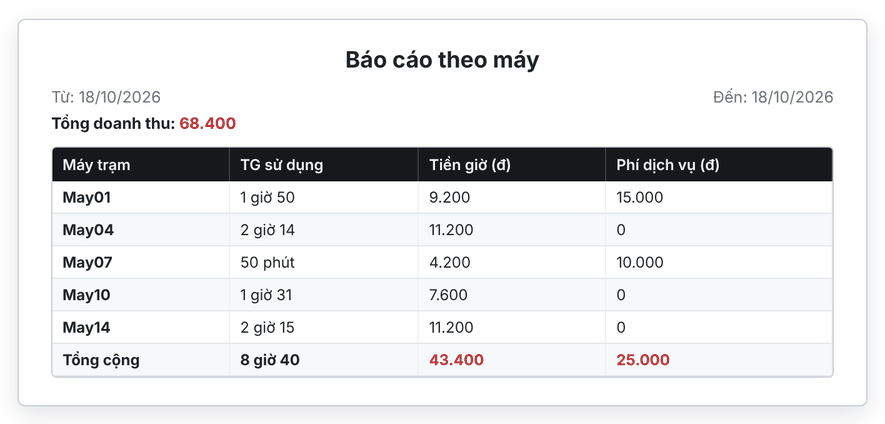
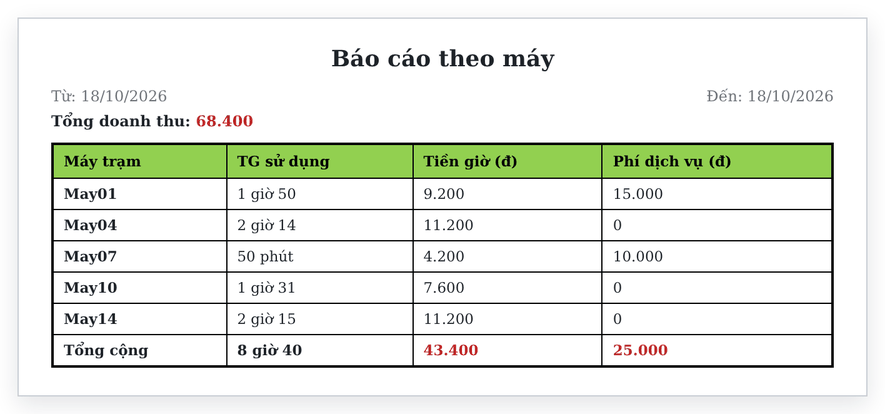
Doanh thu theo máy (Revenue per PC) | Usage time, play-time charges and service charges per client PC. |
Báo cáo tiền miễn phí · Báo cáo thời gian miễn phí | Money and time given to customers for free. |
Báo cáo thành viên · Báo cáo nợ của thành viên | Member activity and member debt log. |
View revenue
- Choose Báo cáo › Doanh thu.
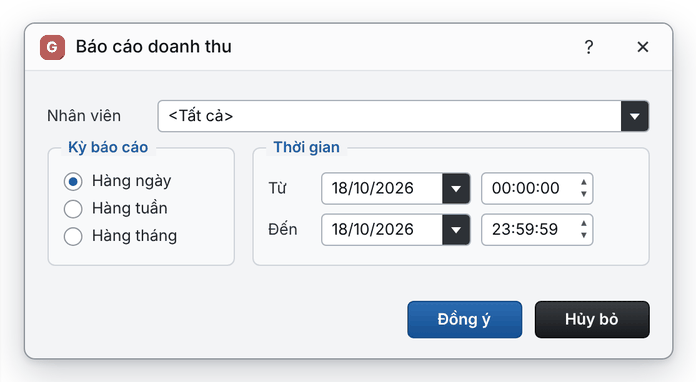
- In Nhân viên (staff), choose <Tất cả> (all) or one staff member.
- Choose Hàng ngày, Hàng tuần or Hàng tháng (daily, weekly, monthly), then the Từ – Đến (from – to) date and time.
- Click Đồng ý (OK).
New interface
Classic interface
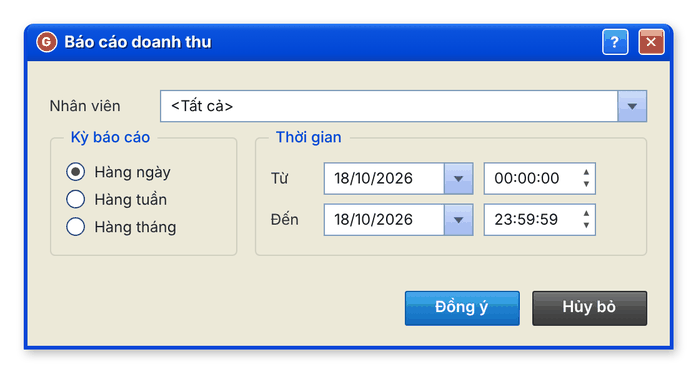
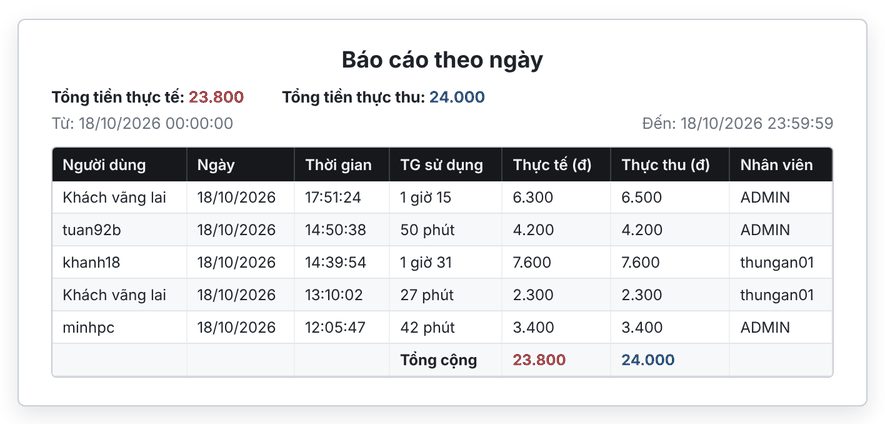
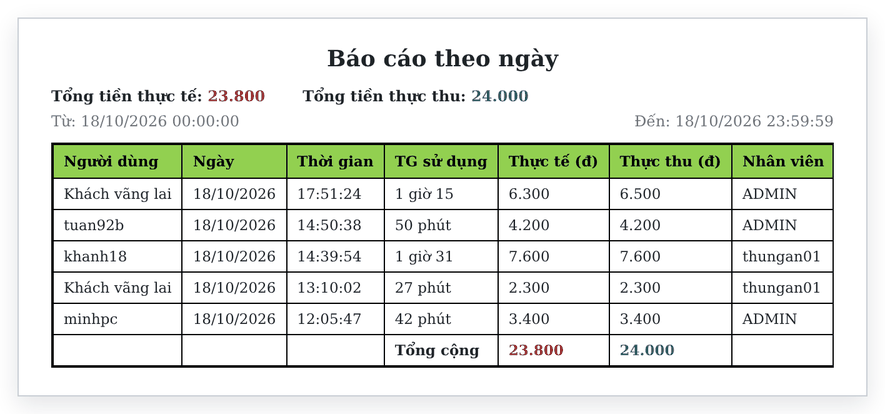
The result is a daily report: total actual amount, total collected amount and each session (user, date, time, duration, amount, staff).
New interface
Classic interface
⚠️ Note: Only manager accounts can see every staff member’s report. Staff only see their own.
Service revenue and revenue per PC
- Báo cáo › Dịch vụ: choose staff, Nhóm theo ngày (group by day) or Nhóm theo sản phẩm (group by product), choose the period, click Đồng ý.
- Báo cáo › Doanh thu theo máy: choose Từ – Đến, click Đồng ý.
New interface
Classic interface
Server log
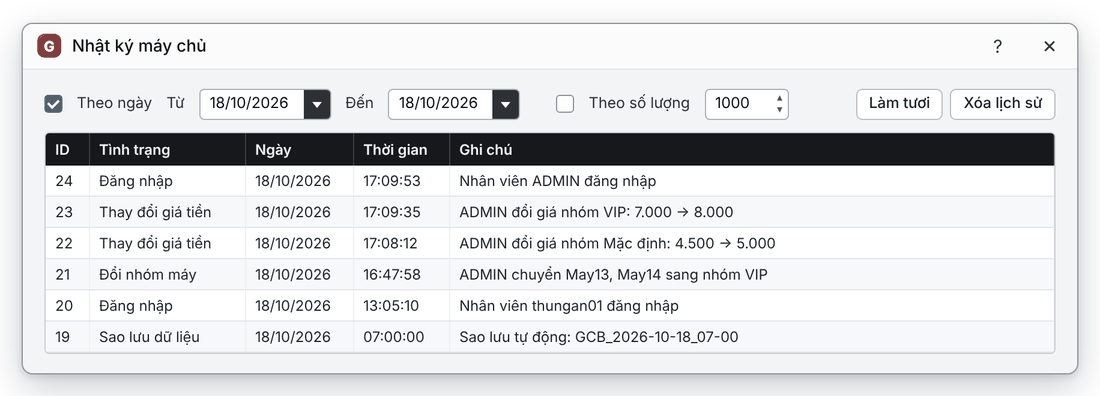
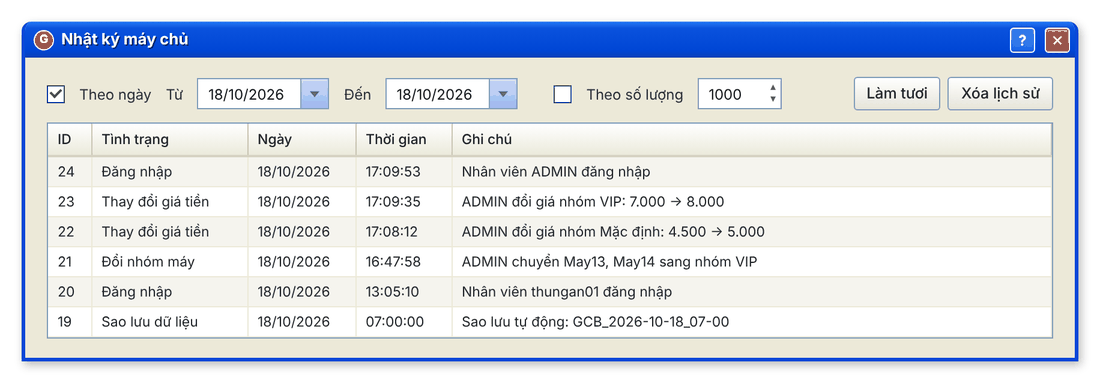
The Nhật ký máy chủ (Server log) window records actions on the server (price changes, sign-ins…) with time and staff member. Filter by date or number of rows and click Làm tươi (Refresh) to reload.
New interface
Classic interface
Common errors
Message | Cause | What to do |
|---|---|---|
"Giá trị từ ngày không thể lớn hơn giá trị đến ngày" (the from date cannot be later than the to date) | The start date is after the end date. | Choose a Từ date that is earlier than or equal to the Đến date. |