Your shop brand on client PCs
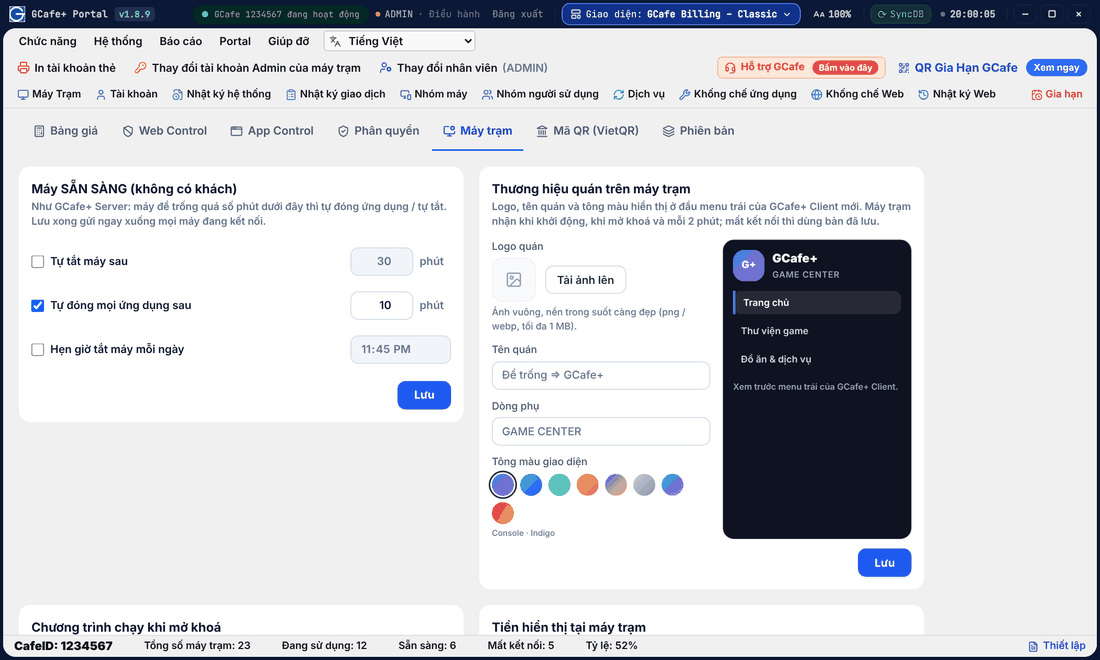
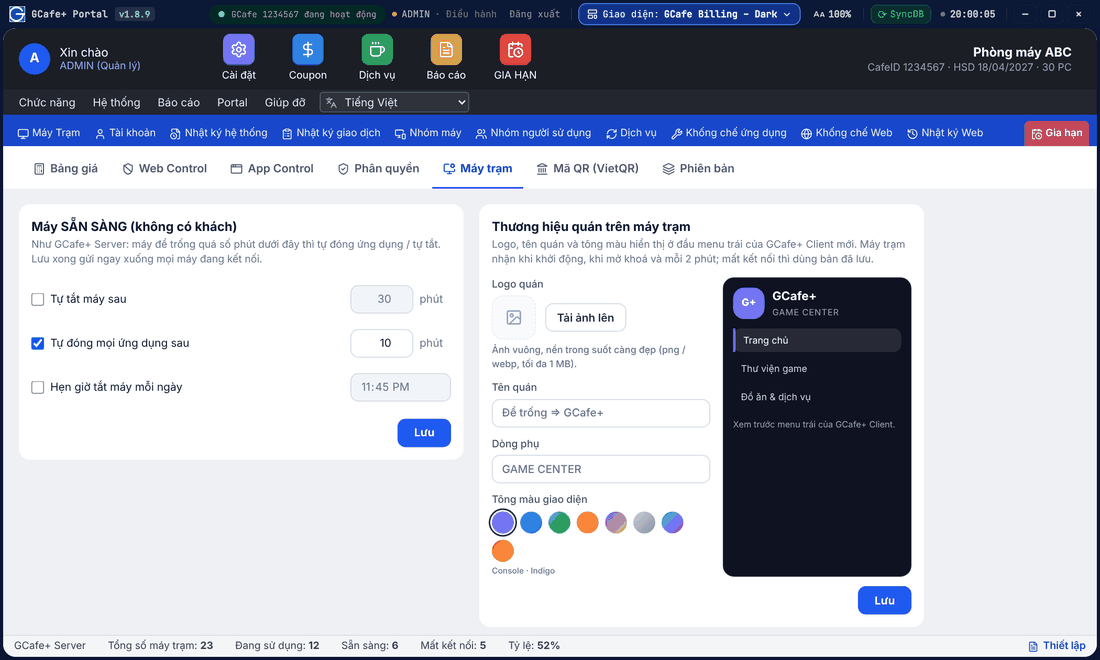
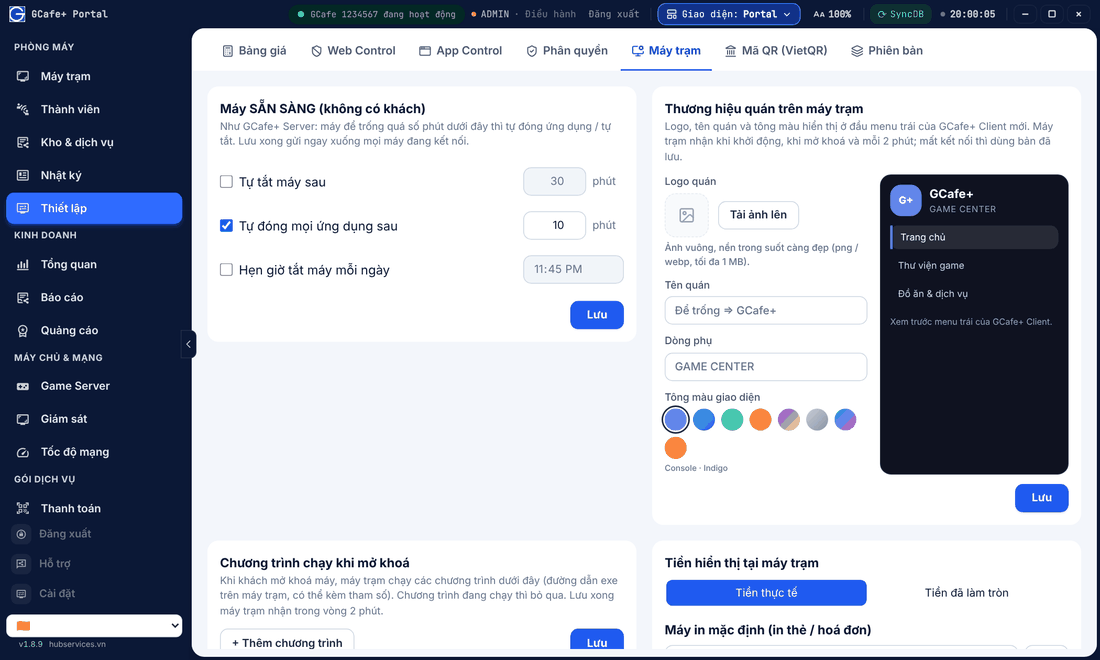
Put your shop logo, name and colours at the top of the GCafe+ Client left menu on every client PC — set it once in Portal, client PCs pick it up within about 2 minutes.
Classic layout
Dark layout
Portal layout
Set your shop brand
- Open Thiết lập (Setup) › Máy trạm (Client PCs) tab, find Thương hiệu quán trên máy trạm (Shop brand on client PCs).
- Choose the Logo quán (square image, transparent background looks best; png / webp up to 1 MB).
- Enter Tên quán (shop name) and Dòng phụ (subtitle); leave the name empty to show "GCafe+".
- Choose Tông màu giao diện (colour theme), check the preview and click Lưu (Save).
Result: Portal shows Đã lưu — máy trạm nhận trong vòng 2 phút (saved, clients update within 2 minutes).
Item photos on client PCs
In Kho (Stock) › Hàng hoá (Items), the item form has Ảnh món (item photo): Chọn ảnh mẫu (sample photo) or Tải ảnh lên (upload). Guests see the photo when ordering on the new GCafe+ Client.
⚠️ Note: Brand and item photos only show on the new GCafe+ Client; PCs on the old client do not change.