Notifications in Portal and on your phone
Portal’s bell collects what the owner needs to know: hardware changes, transfers waiting for confirmation, news from GCafe. You can get them on your phone too.
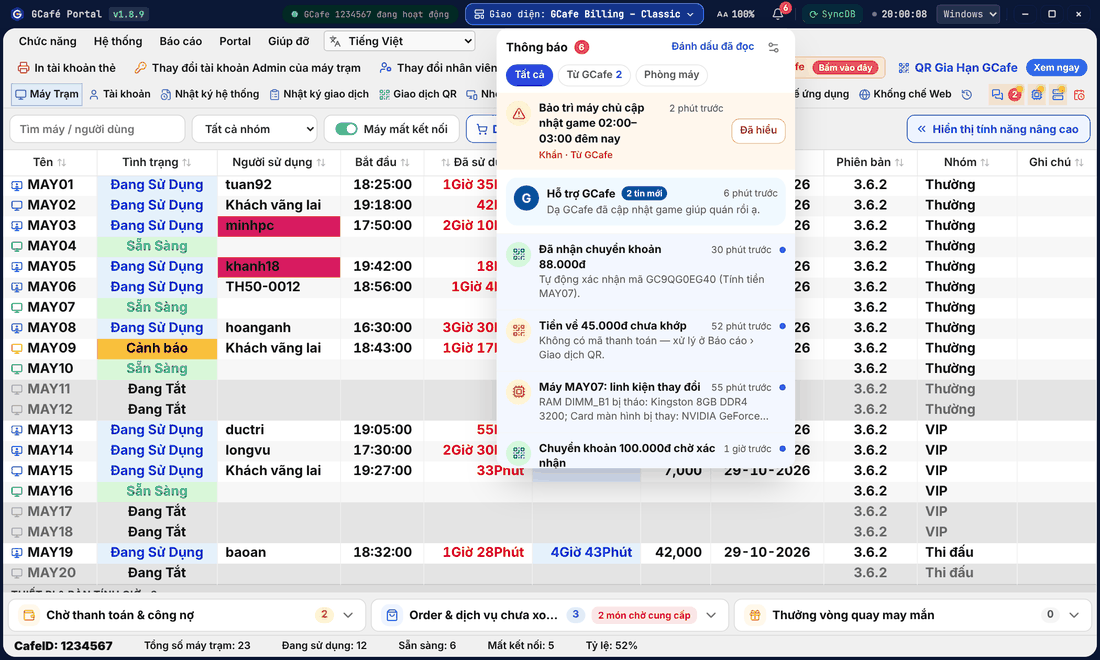
Classic layout
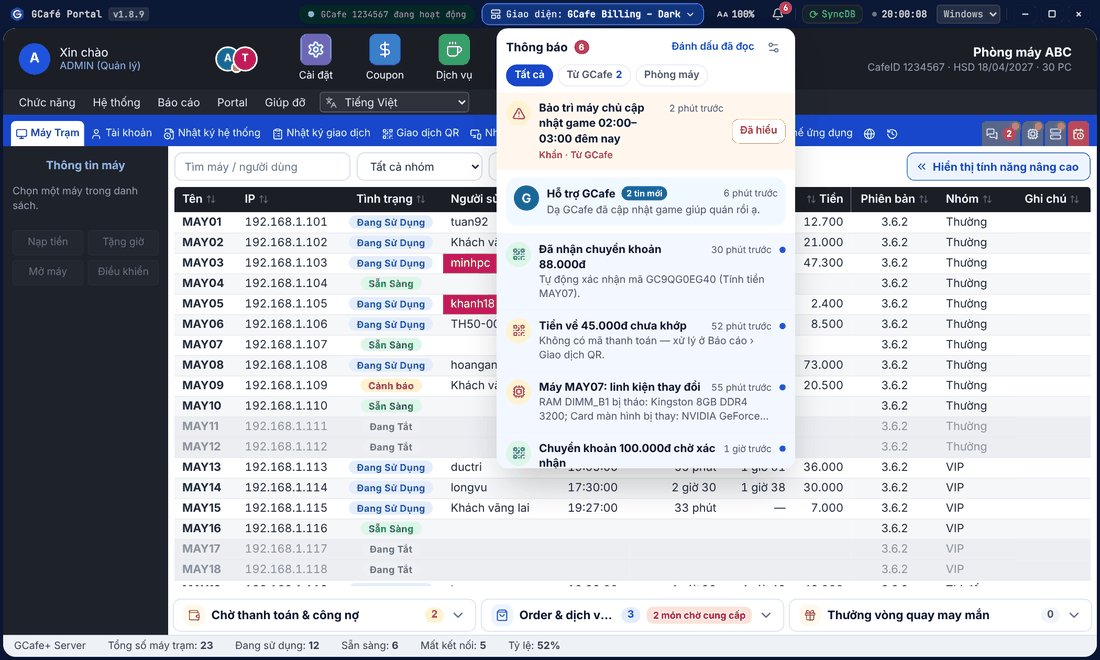
Dark layout
Portal layout
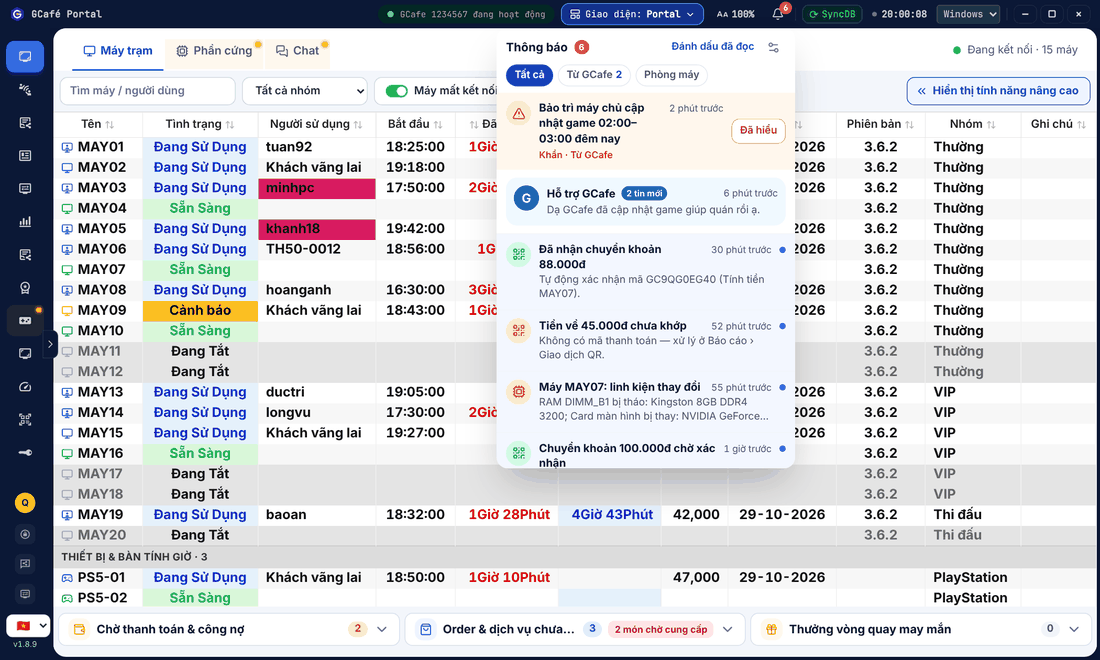
Read notifications on the counter machine
- Click the bell on the title bar.
- Filter by Tất cả (All), Từ GCafe (From GCafe) or Phòng máy (Shop).
- Click a notification to jump to where it is handled; click Đánh dấu đã đọc (Mark as read) to clear the counter on the bell.
Notification type | When it appears |
|---|---|
Phần cứng máy trạm thay đổi | A component was removed, swapped or added. |
Chuyển khoản QR chờ chủ xác nhận | Staff clicked Transfer received; waiting for the owner to reconcile. |
Tự động xác nhận chuyển khoản | Money matched a code and Portal recorded it. |
Tiền về chưa khớp | Money arrived but Portal could not record it. |
Tin nhắn từ Hỗ trợ GCafe | GCafe Support replied; several messages are grouped into one card. |
Bộ cập nhật máy trạm bị chặn | Antivirus blocked the GCafe+ Client updater. |
Thông báo từ GCafe | Maintenance, new versions and offers sent to the shop. |
Get notifications on your phone
- Turn on Remote access for the shop.
- On the counter machine click the bell › Cài đặt thông báo (Notification settings). Scan the QR code under Nhận thông báo trên điện thoại with your phone.
- Sign in to Portal on the phone and open the Thêm (More) tab › Cài đặt thông báo.
- Tap Nhận thông báo trên thiết bị này (Receive on this device), choose Allow when the browser asks, then name the device.
Result: the phone appears under Thiết bị nhận (Receiving devices) and gets notifications even with the screen locked.
⚠️ Note: iPhone / iPad: in Safari tap Share › Add to Home Screen, then open Portal from the home screen before turning it on.
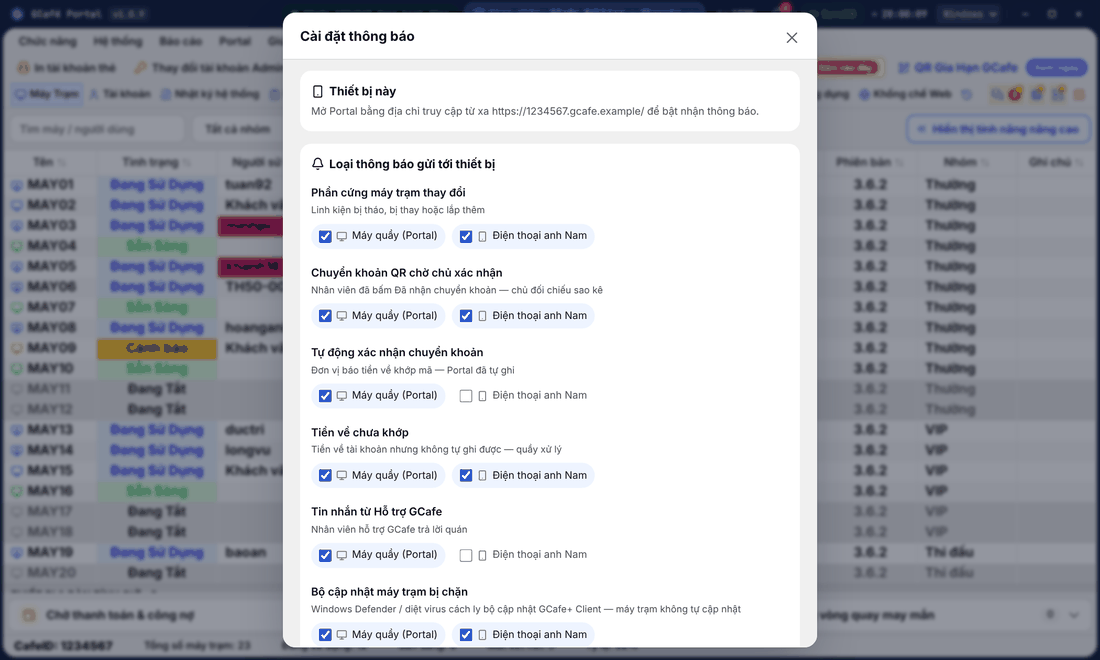
Choose notification types per device
Classic layout
Dark layout
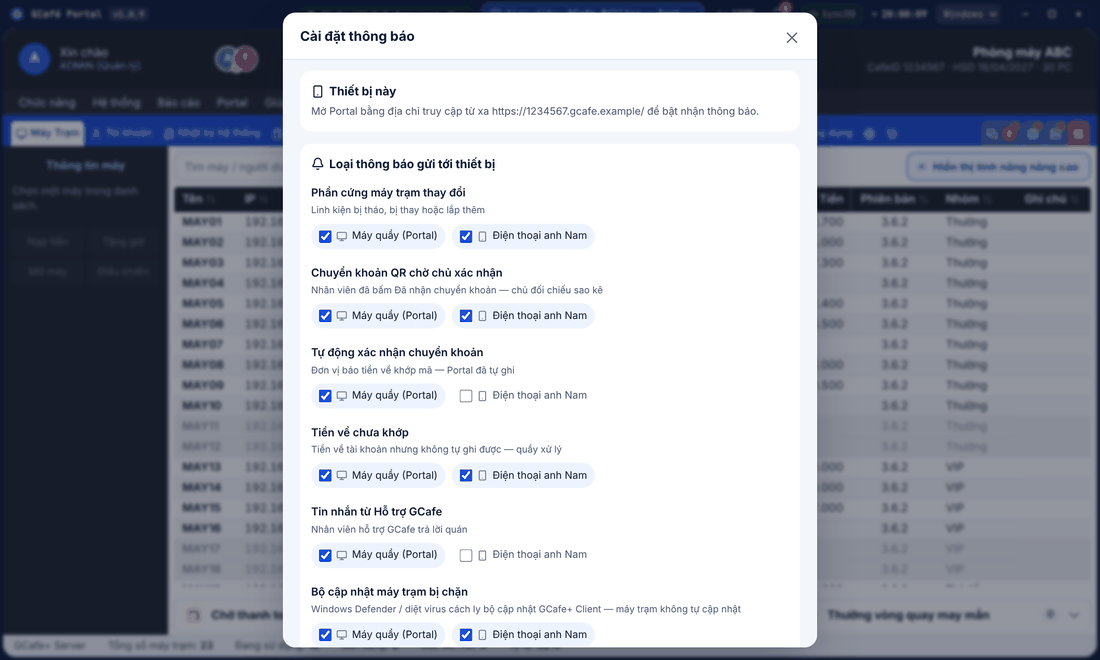
Portal layout
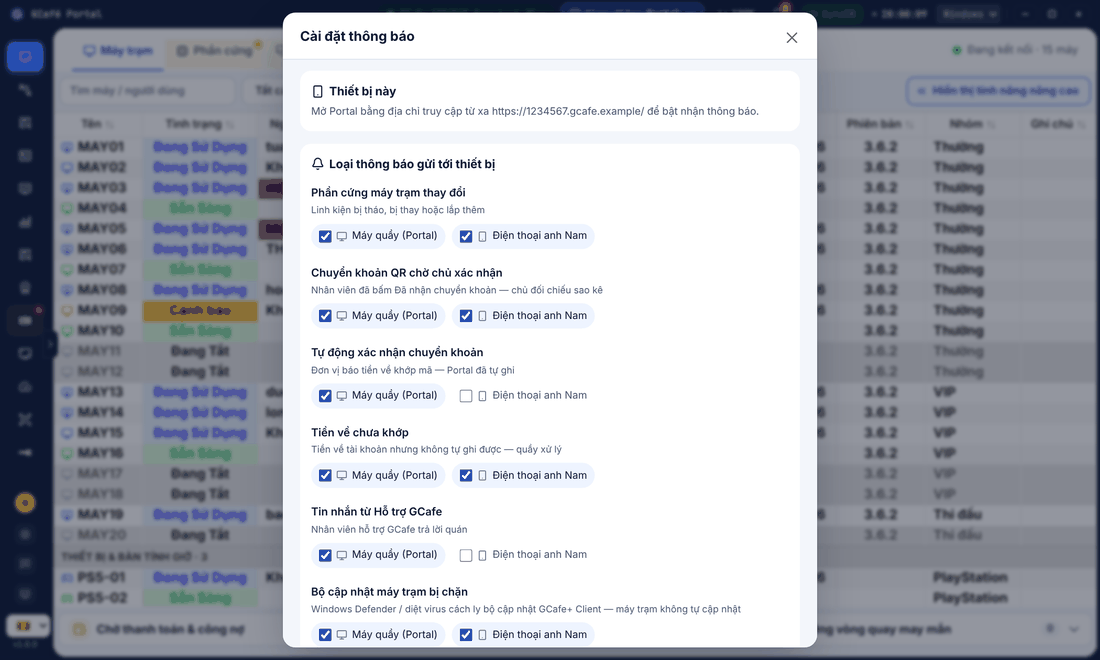
- Sign in as Manager and open Cài đặt thông báo.
- Under Loại thông báo gửi tới thiết bị (Types sent to devices), tick or untick each device under each type.
- Under Thiết bị nhận, click Gửi thử (Send test) to check; Đổi tên (Rename) or Gỡ thiết bị (Remove device) as needed.
Máy quầy (Portal) (the counter machine) gets the bell, a pop-up in the corner, an alert sound and a Windows notification.
News from GCafe
News from GCafe is labelled Khẩn (Urgent), Thông báo (Notice) or Ưu đãi (Offer). Click Đã hiểu (Got it) to close it, or Để sau (Later) to be reminded again.
Common errors
Message / symptom | Cause | What to do |
|---|---|---|
Mở Portal bằng địa chỉ truy cập từ xa … để bật nhận thông báo. | Portal is open through a local network address. | Open it through the shop’s remote access address (https). |
Trình duyệt đang chặn thông báo của trang này | You clicked Block earlier. | Click the padlock next to the address and allow Notifications. |
Trình duyệt này chưa nhận được thông báo đẩy | The browser is too old. | Use a recent Chrome, Edge or Safari. |
Gửi tới điện thoại / máy khác đang tắt | Theo dõi phần cứng & thông báo is off. | Turn it on under Thiết lập › Phiên bản › Tính năng mở rộng. |
No QR code to scan; Portal shows registration instructions | The shop has no CafeID. |