What’s new in the latest GCafe Portal
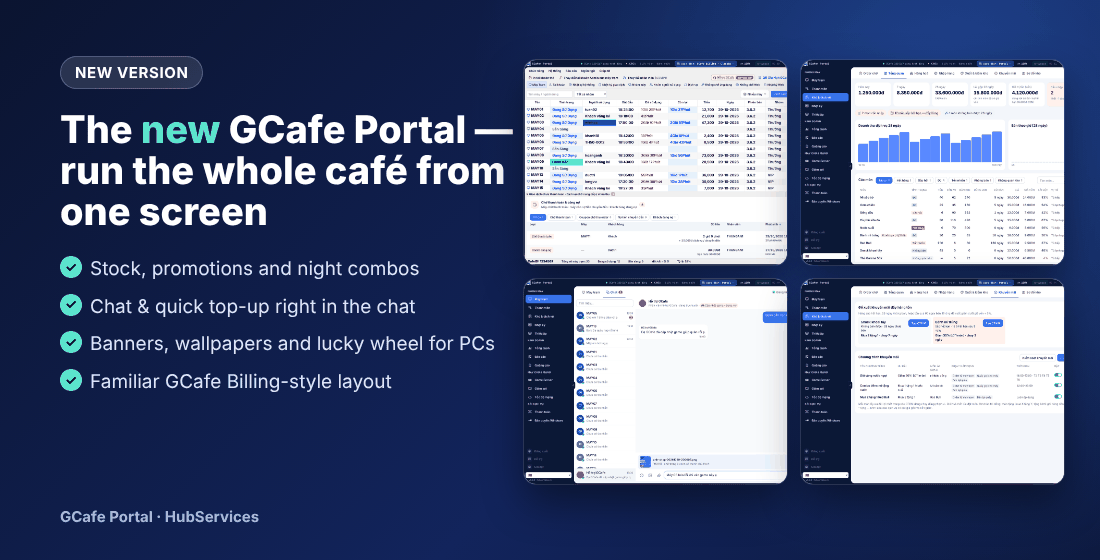
The new version turns GCafe Portal into one screen for the whole café: billing works just like GCafe Billing, plus stock, promotions, night combos, on-screen promotions for client PCs and quick top-ups in chat.
1. A familiar GCafe Billing layout
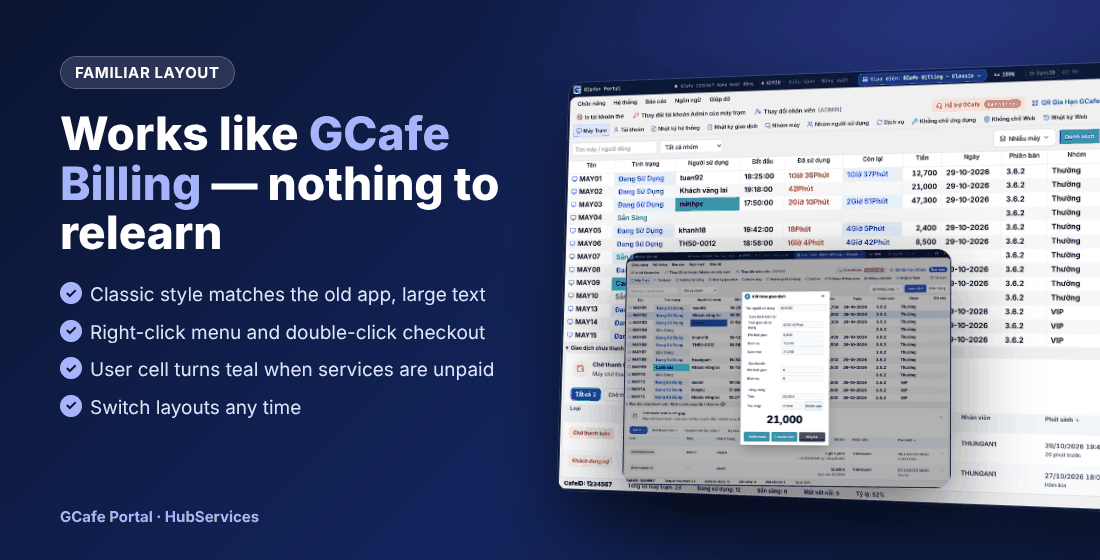
Pick GCafe Billing – Classic and you get the screen your staff already know: menus, tab strip, large-text PC table, right-click actions, double-click to check out. The Người sử dụng (User) cell turns teal when a guest has unpaid services; unpaid transactions and pending orders sit right below the PC list.
2. Stock management
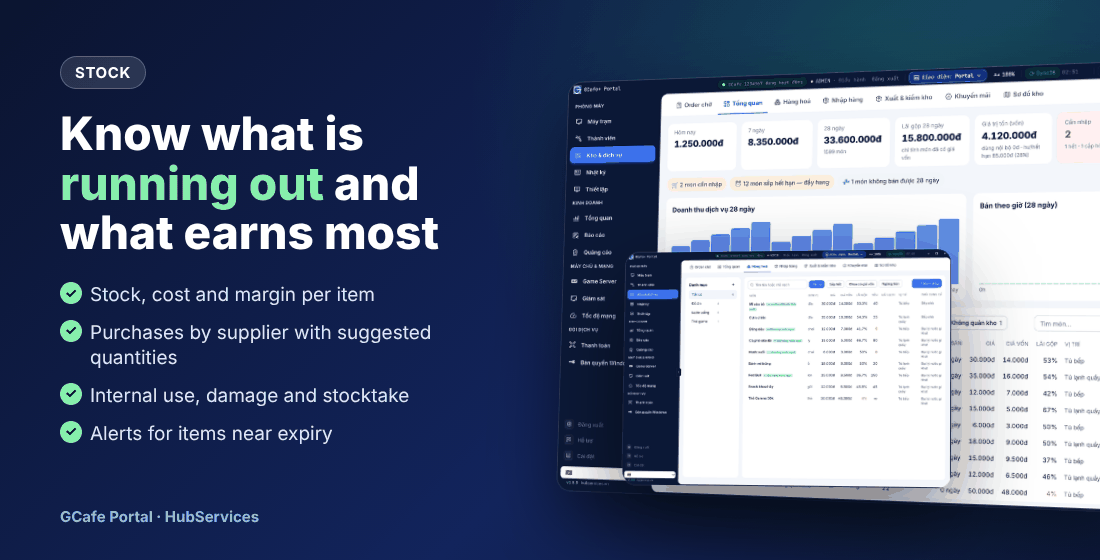
- See what is running out and what is not selling, the margin of every item and the value of your stock.
- Reorder suggestions based on real sales; scan barcodes to build goods receipts per supplier.
- Record internal use, damage and expiry, and run stocktakes to track shrinkage; a stock map helps you find items.
See Stock and services.
3. Promotions
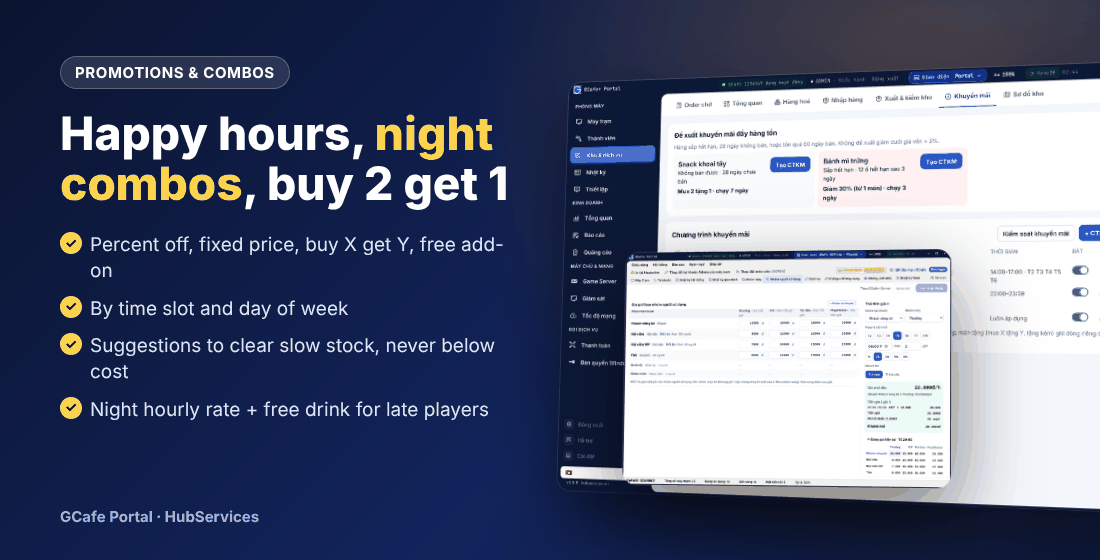
- Percent off, amount off, fixed price, buy X get Y, free gift item.
- Run by time slot and weekday — afternoon happy hours, late-night deals.
- Portal suggests promotions to clear slow stock and stops staff from discounting too far or below cost.
See Food and drink promotions.
4. Night combo: night rate plus a free drink
Combine a night time-band hourly rate with a free gift promotion in the same hours: late players get a better rate and a free drink or snack. You can also sell prepaid cards for night players.
See Set up a night combo.
5. Manage on-screen promotions yourself
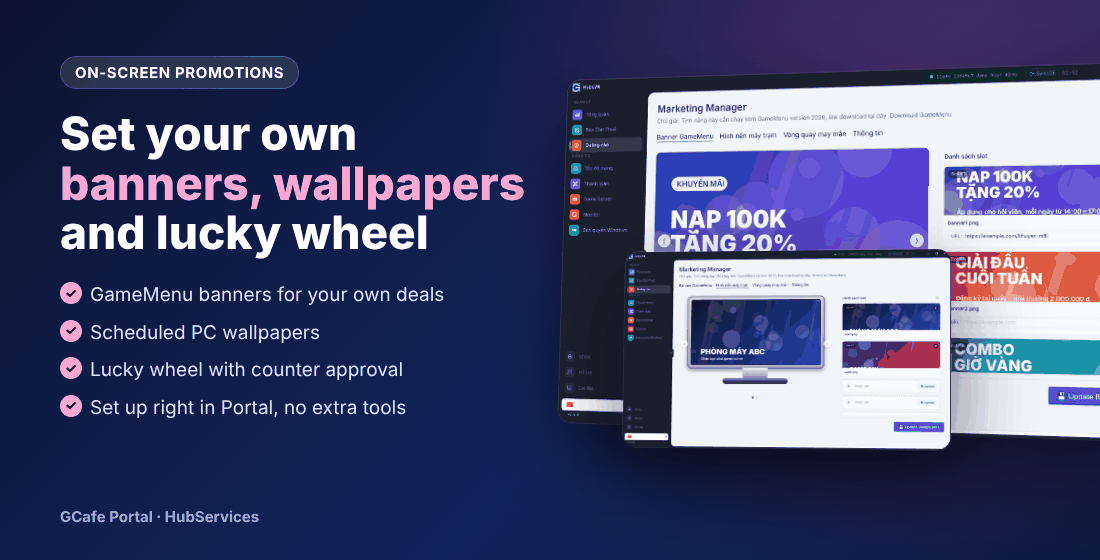
Set your own GameMenu banners, scheduled client wallpapers and a lucky wheel with counter approval — right in Portal. See Banners and wallpapers and Lucky wheel.
6. Chat and quick top-up in chat
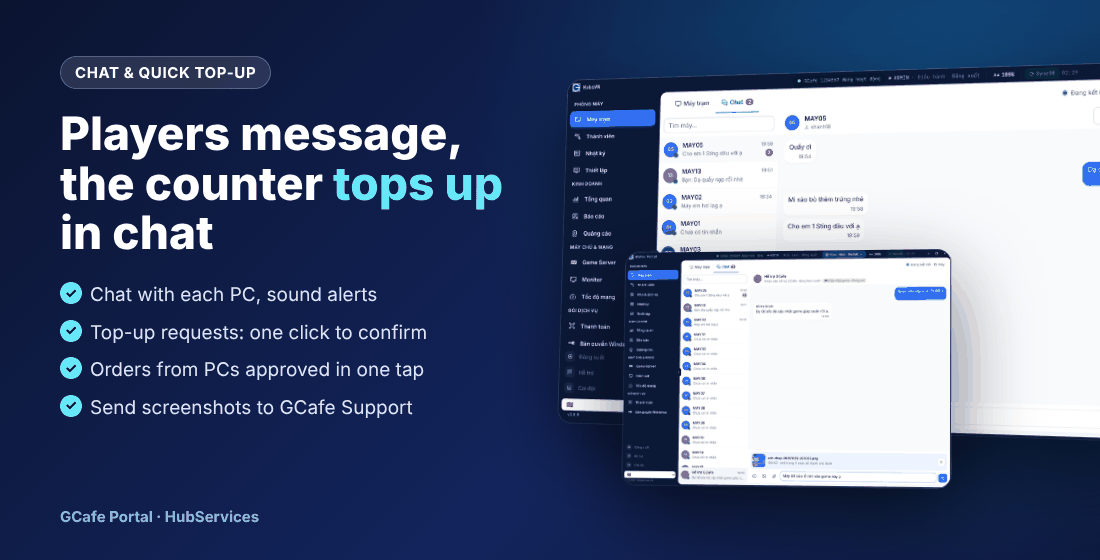
- A guest sends Xin nạp tiền (top-up request) — the counter clicks Nạp tiền right in the chat.
- Orders from client PCs land in the pending list; deliver with one click.
- Send images, files and pasted screenshots to Hỗ trợ GCafe (GCafe Support); take support calls and share your screen when needed.
See Chat with clients and Contact support.
How to upgrade
Portal updates itself to the new version. To use stock, promotions and billing fully in Portal, see Two ways to use GCafe Portal or chat with GCafe Support for help switching over.