The Overview screen
Overview is the first screen of the Console — it tells you at a glance whether the server and CafeServer are healthy.
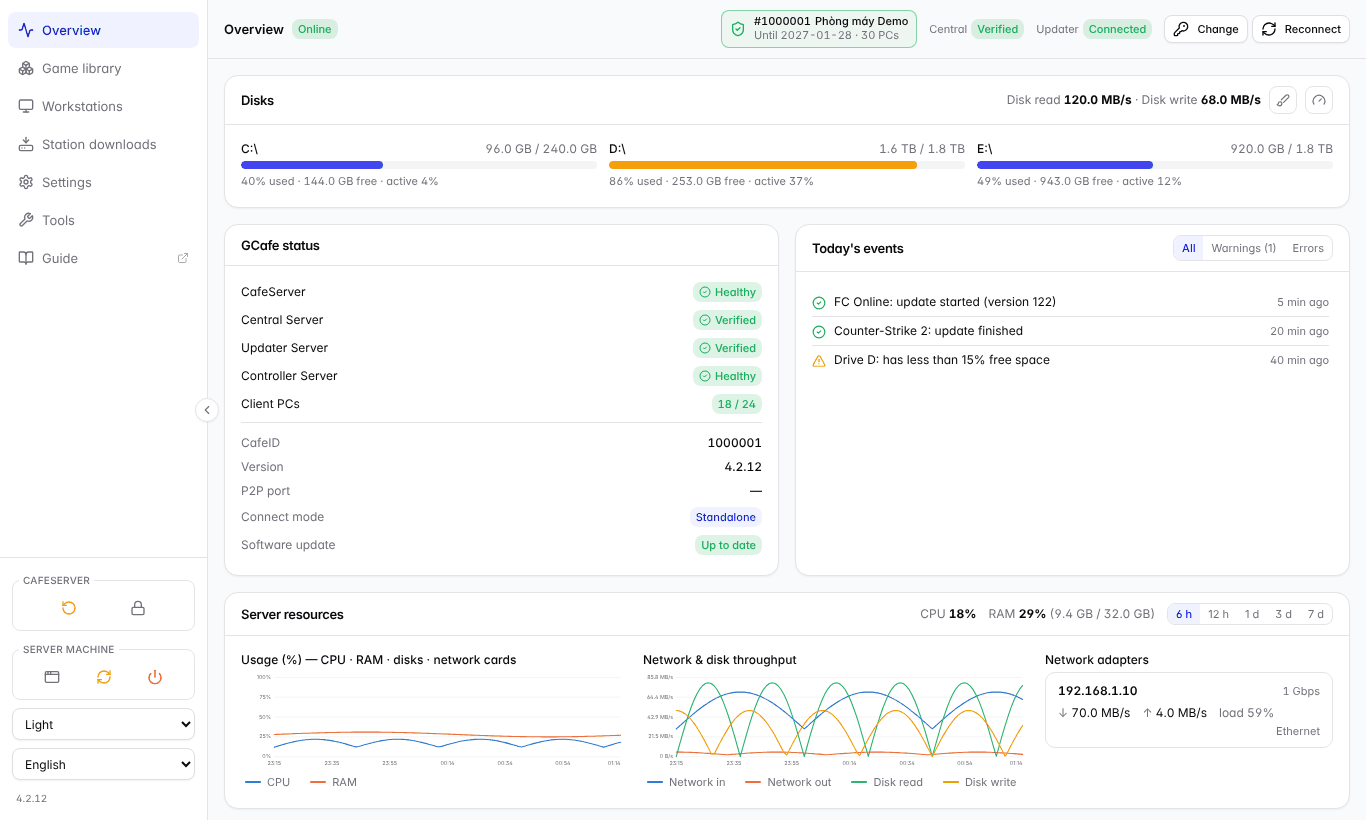
The Overview screen with sample data.
Areas on the screen
Disks
Used / free space per drive, activity (%) and current read / write speed. The bar turns orange when a drive is nearly full. The two small buttons on the right open Disk cleanup and Disk speed test.
GCafe status
Row | Meaning |
|---|---|
CafeServer | Whether CafeServer is running normally. |
Central Server | The license verification connection. |
Updater Server | The connection that provides the game catalog and updates. |
Controller Server | The connection to the provider's management system. |
Workstations | Online PCs / total PCs. |
Software update | Whether CafeServer is on the latest version or downloading a new one. |
Green = OK, yellow = warning / connecting, red = error. Hover for details.
Today's events
Important things that happened today: game updates started / finished, drive warnings, download errors… Filter by Warning or Error. Windows errors on the server also appear here — click one to open Event Viewer filtered to it.
Server resources
CPU, RAM, drive and network charts over time (6 hours to 7 days). A network card running below 1 Gbps shows a warning — usually a cable or switch port issue.
💡 Tip: Open Overview once every morning: no red rows and enough free disk space means all is well.