Getting to know the main screen
The GCafe Billing server main screen has a menu bar, function tabs and the client PC list. This page explains each part so you know where to find every feature.
Menu bar
Menu | Used for |
|---|---|
Chức năng (Functions) | Quick access to features such as member management. |
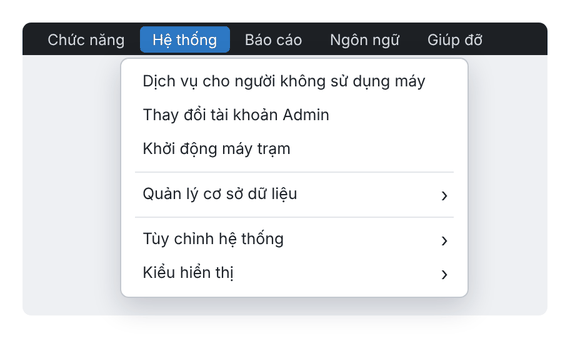
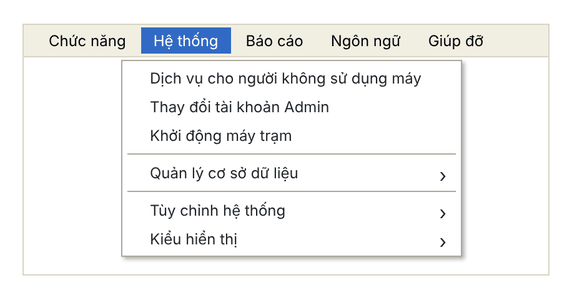
Hệ thống (System) | Selling services to non-PC customers, changing the Admin account, powering on client PCs, database management, system settings, display mode. |
Báo cáo (Reports) | Revenue, services, revenue per PC, free money / free time, members, member debts. |
Ngôn ngữ (Language) | Change the interface language. |
Giúp đỡ (Help) | Version information and help. |
New interface
Classic interface
Tabs
Tab | Content |
|---|---|
Máy Trạm (Client PCs) | Client PCs and who is using them. Right-click a PC to top up, control, shut down / restart. |
Tài khoản (Accounts) | Member and staff accounts — see Accounts. |
Lịch sử hệ thống · Lịch sử giao dịch (System / Transaction history) | Log of actions on the server and transaction log (time, amount collected, transaction type). |
Nhóm máy · Nhóm người sử dụng (Machine / User groups) | Price lists — see Machine groups and User groups. |
Dịch vụ (Services) | Services sold alongside play time, with prices. |
Không chế ứng dụng · Không chế Web · Lịch sử Web (App blocking / Web blocking / Web history) | Block applications, block websites and review web history. |
Client PC list
Each row is a client PC with the columns Tên (name), IP, Tình trạng (status), Người sử dụng (user), Bắt đầu (start), Đã sử dụng (used), Còn lại (left), Tiền (amount), Ngày (date), Phiên bản (version), Nhóm (group), Ghi chú (note). For the status column see Client PC status.
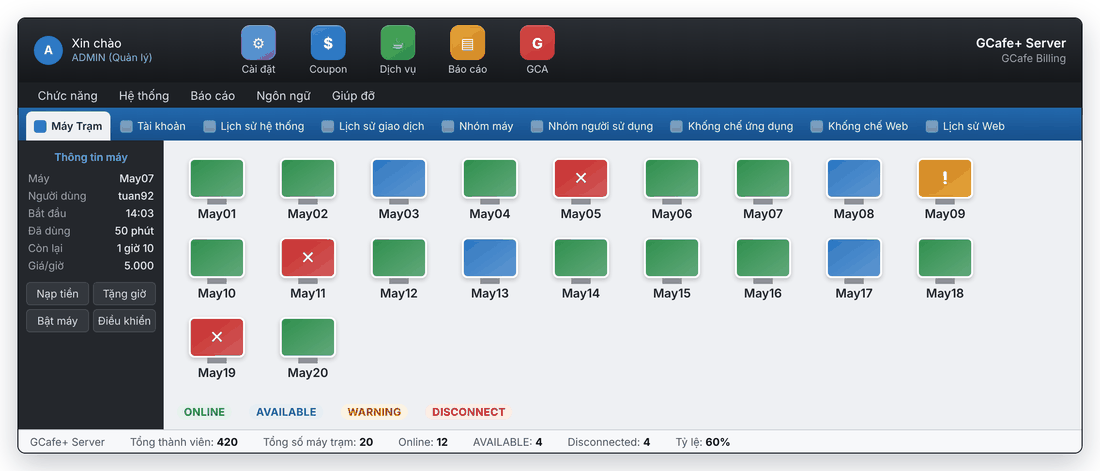
Use Hệ thống › Kiểu hiển thị (System › Display mode) to switch between list and icon view:
New interface
Classic interface
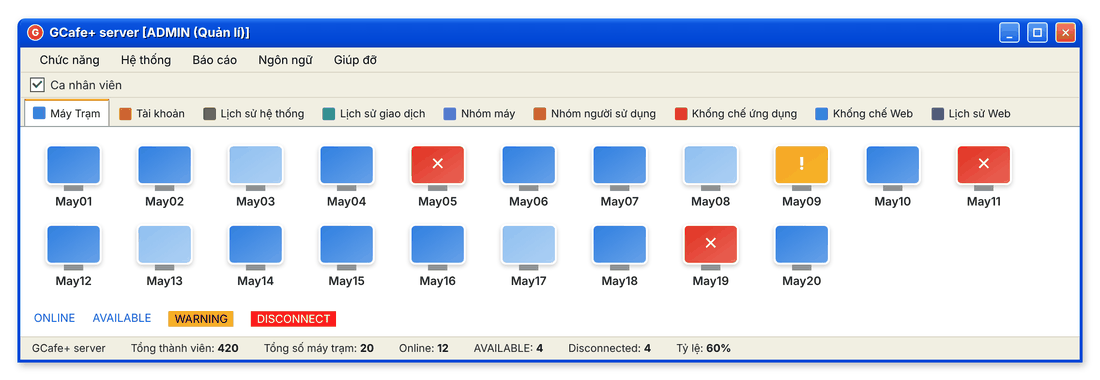
Icon view: a red ✕ marks a disconnected PC.
Status bar
The bottom of the screen shows total members, total client PCs, and how many are Online, AVAILABLE and Disconnected, plus the usage rate.