Track QR transactions and unmatched money
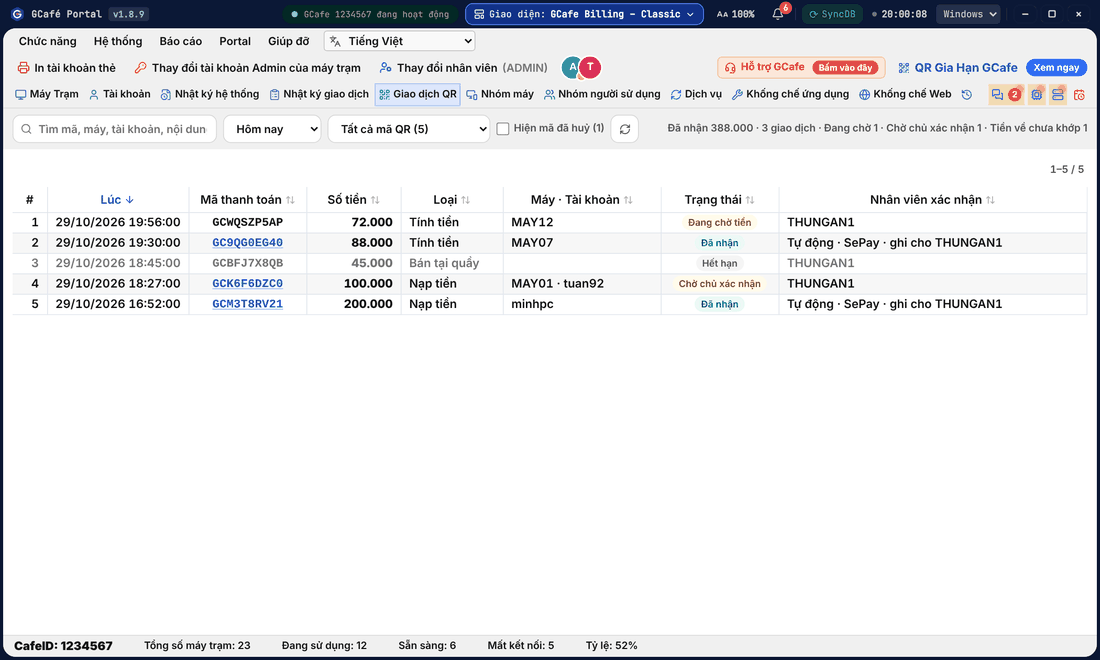
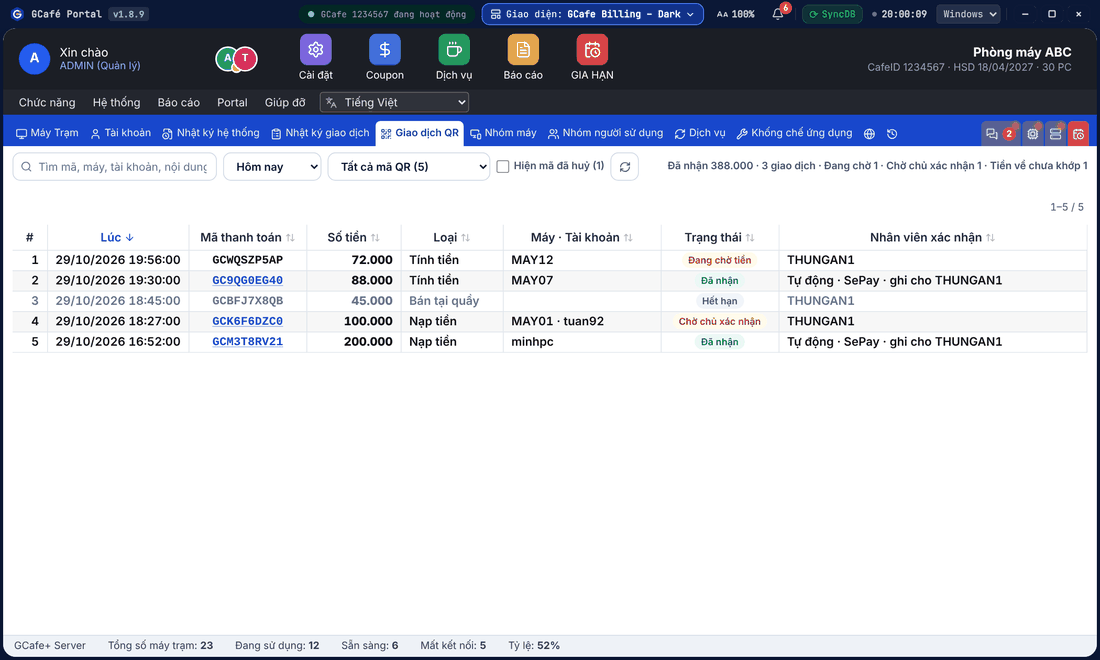
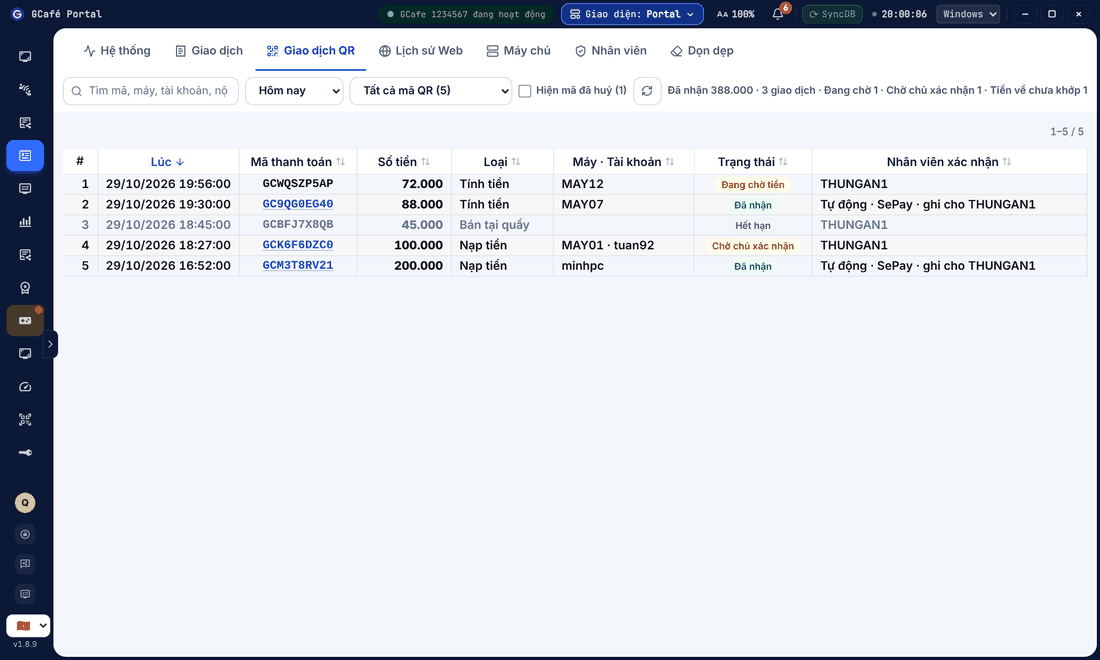
The QR transactions tab lists every QR code issued and the money your provider reported, so you can reconcile and match transfers sent with the wrong memo.
Classic layout
Dark layout
Portal layout
Before you start
- The tab appears only when Auto-confirm is on.
- Staff need the right Xem Giao dịch QR (View QR transactions; on by default). Matching and ignoring need Ghép / bỏ qua tiền về QR (off by default).
Open the QR transactions tab
- Classic / Dark layout: the Giao dịch QR tab in the tab strip.
- Portal layout: Nhật ký (Logs) › Giao dịch QR.
View issued QR codes
- Pick a period and, if needed, type a code, PC name or account in the search box.
- In the Xem (View) box choose Tất cả mã QR (All codes), Đã nhận (Received), Đang chờ tiền (Waiting), Hết hạn / huỷ (Expired / cancelled), Chờ chủ xác nhận (Waiting for owner) or Tiền về chưa khớp (Unmatched money).
- Cancelled codes are hidden by default. Tick Hiện mã đã huỷ (Show cancelled codes) to see them.
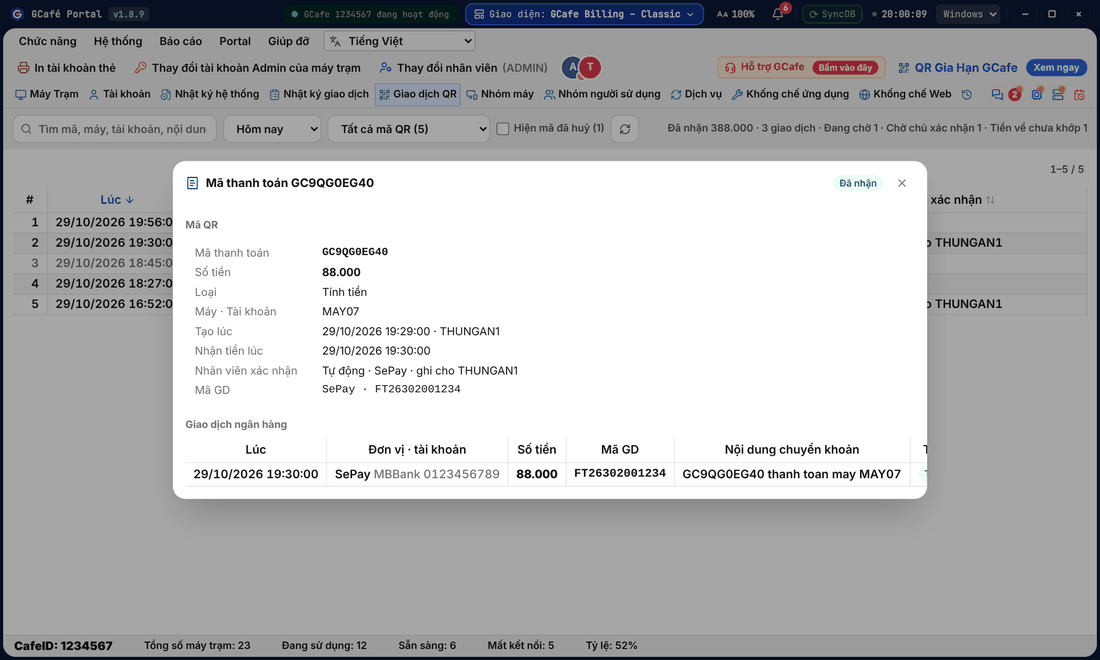
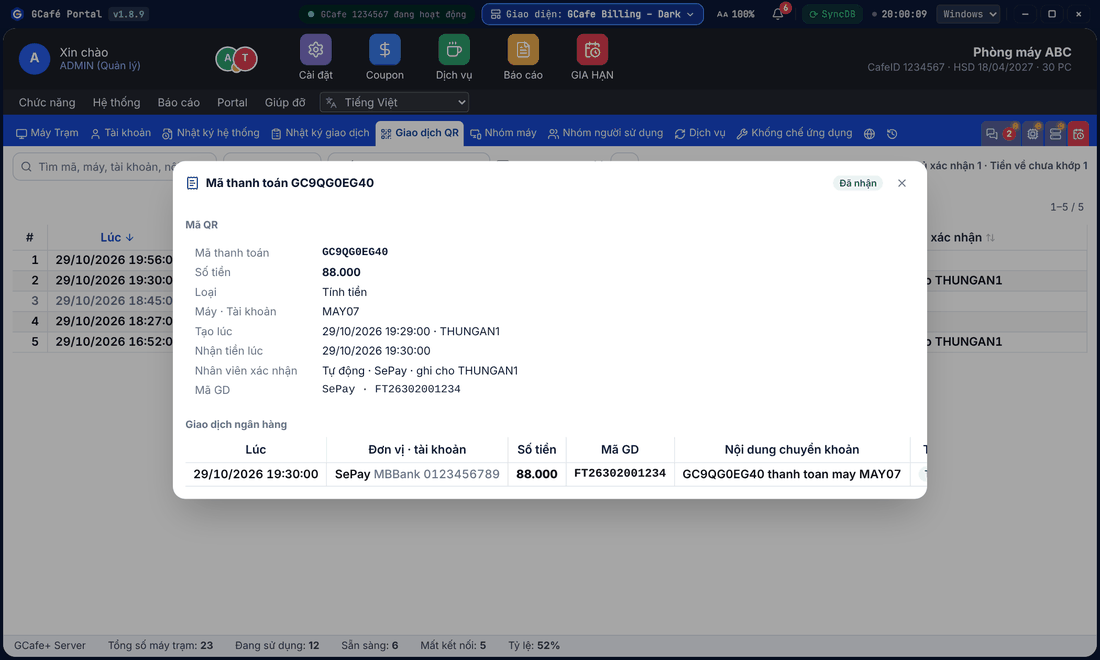
- Click an underlined payment code to open its details.
Classic layout
Dark layout
Portal layout
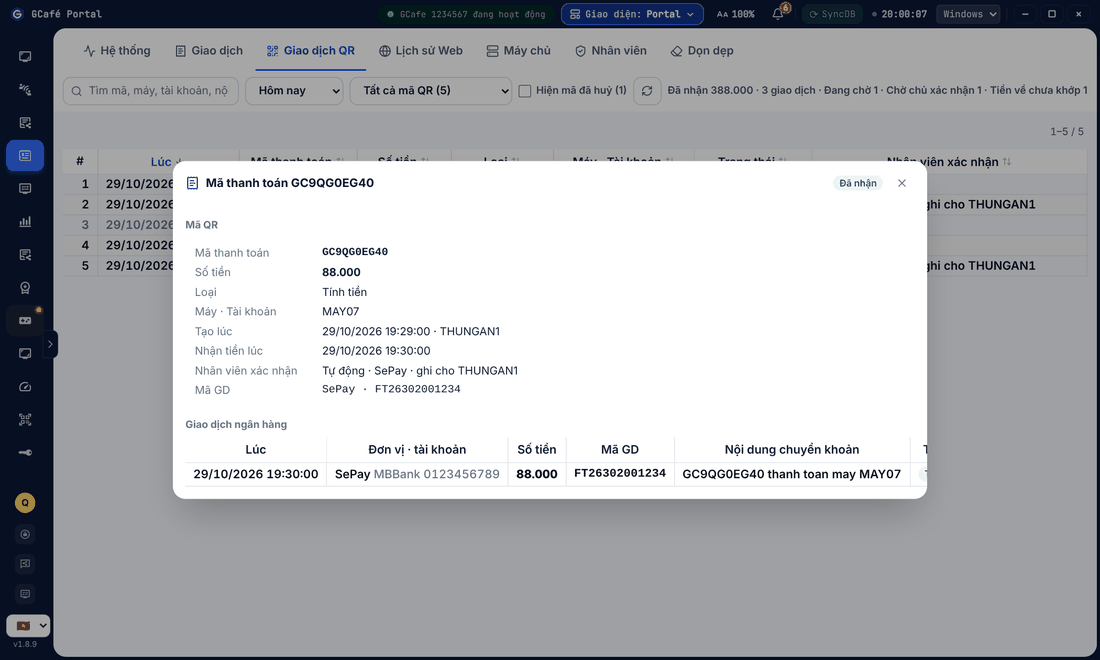
The dialog has a Mã QR part (amount, type, PC, creator, time received, who confirmed) and the Giao dịch ngân hàng (Bank transaction) matched to that code.
Confirm payments waiting for the owner
- Sign in as Manager and choose Xem › Chờ chủ xác nhận.
- Check each row against the shop’s banking app.
- Click Đã nhận (Received), or Không thấy tiền (Money not found) with a note to follow up with staff.
You can also confirm straight from the bell or phone notification.
Match unmatched money
Classic layout
Dark layout
Portal layout
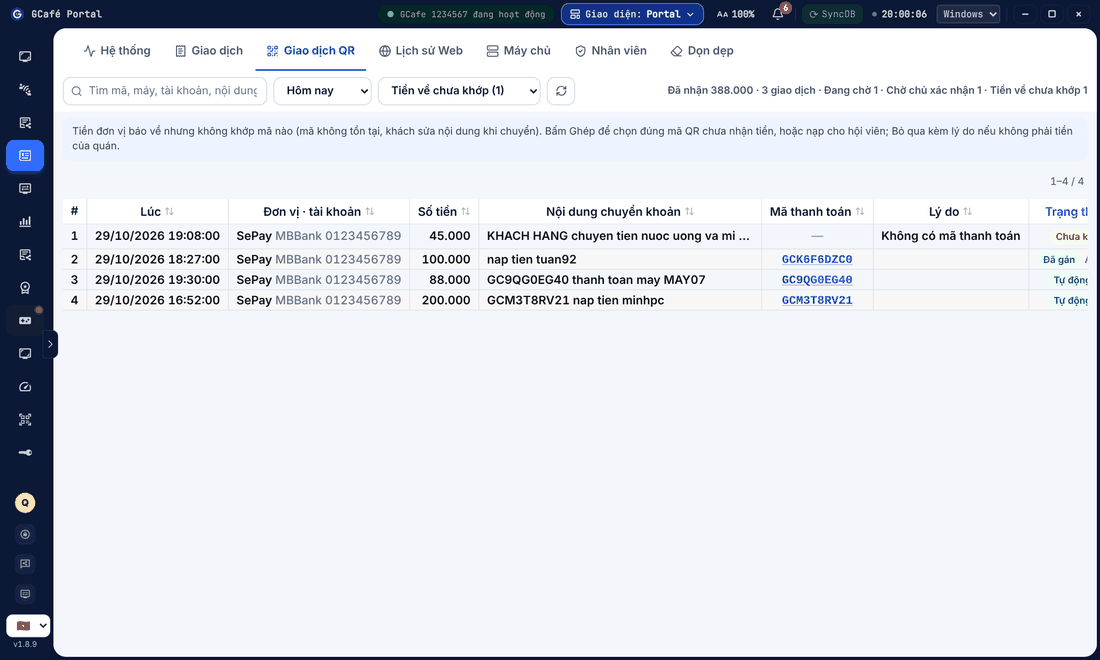
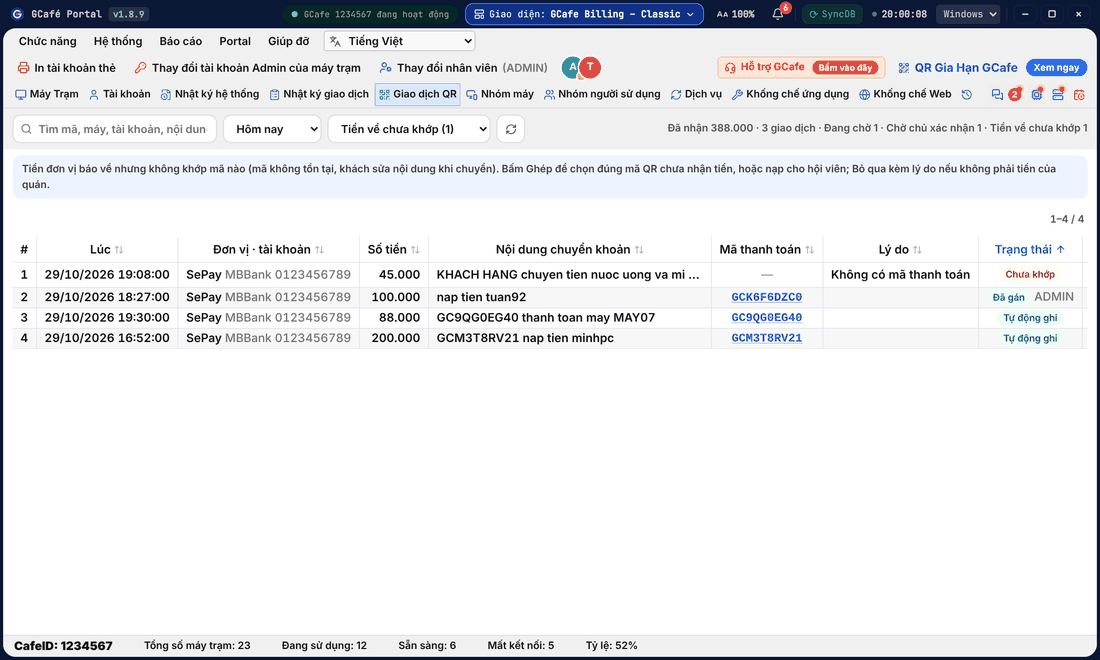
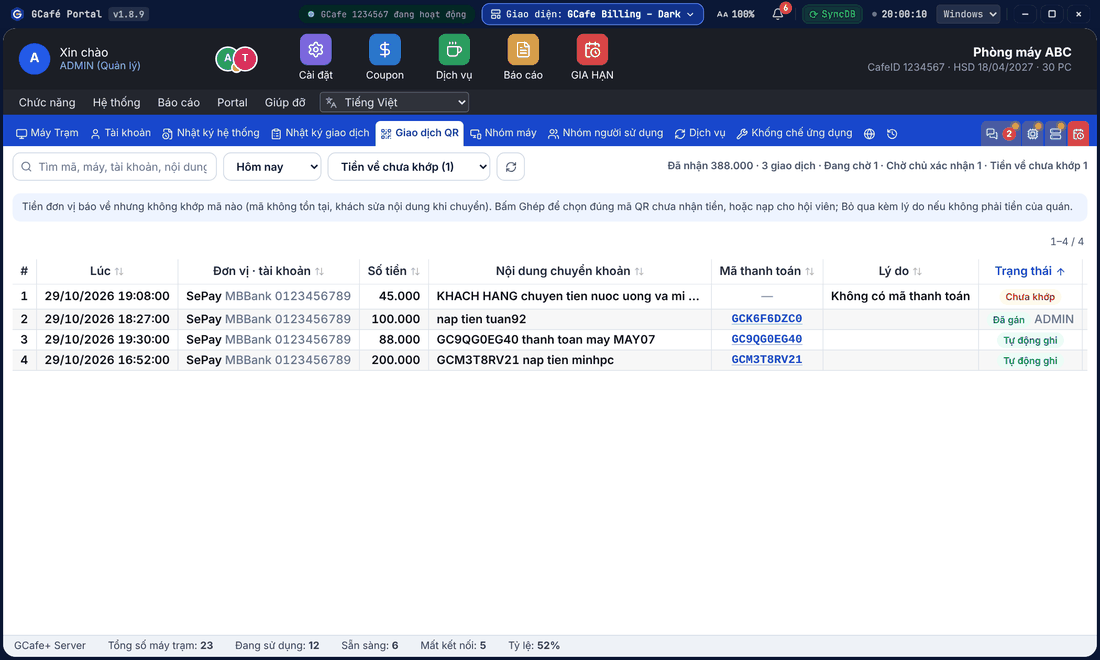
- Choose Xem › Tiền về chưa khớp.
- Click the Nội dung chuyển khoản (Transfer memo) cell to read it in full; the Lý do (Reason) column says why Portal did not record it.
- Click Ghép (Match), pick the right unpaid QR code (codes from the last 2 days, same amount first), then click Ghép vào mã đã chọn (Match to selected code).
- No suitable code? Top up a member with that amount instead.
- Not the shop’s money (personal, sent by mistake)? Click Bỏ qua (Ignore) and give a reason.
Result: the entry becomes Đã gán (Assigned), Đã nạp hội viên (Topped up to member) or Đã bỏ qua (Ignored), with the handler’s name. The Mã thanh toán (Payment code) column becomes a link back to the matched code.
Reason | Meaning |
|---|---|
Không có mã thanh toán | The memo contains no Portal code. |
Mã không do Portal phát | There is a code but it matches none the shop created, usually a typo. |
Mã đã hết hạn | The money arrived after the code expired. |
Mã đã thu / đã huỷ | The code was already confirmed or was cancelled. |
Lệch số tiền | The customer sent a different amount. |
Vượt hạn mức tự xác nhận | The amount is above the shop’s auto-confirm limit. |
Đơn vị không xác nhận giao dịch | The re-check did not find this transaction at the provider. |
Common errors
Message / symptom | Cause | What to do |
|---|---|---|
The QR transactions tab is missing | Auto-confirm is off, or the staff member lost the Xem Giao dịch QR right. | Turn it on in QR payments; check staff rights. |
Cần quyền Ghép / bỏ qua tiền về QR | The staff member has no matching right. | Let the Manager match it, or grant the right under Chức năng riêng Portal › Thanh toán QR. |
Không có mã đang chờ / vừa hết hạn trong 2 ngày. | The code for this money is older than 2 days or was never created. | Top up a member, or Bỏ qua with a reason and handle it by hand. |