
When you open a gaming room, everyone worries about good PCs and fast internet. But whether each day runs smoothly depends on the software behind them. Is billing accurate? Can players top up quickly? Are the games already on the machines? Is checking revenue at the end of the day a hassle?
This post lists what gaming cafe software needs to have, then shows which tool in the GCafe suite covers each need. Gaming rooms, computer rooms and internet cafes all manage things the same way.
What does a gaming room need to manage?
Seen from the cashier's desk, daily work falls into 5 areas:
- Billing: play time, service charges, rounding, and prices by machine zone.
- Members: creating accounts, top-ups, promotions, and credit (running a tab).
- Workstations: unlocking and locking machines, checking status, and remote control.
- Menu and game library: players open the menu and see their games, and the games are always up to date.
- Reports: revenue by day, shift and machine, plus the figures you need for tax records.
If one area is missing, you end up handling it by hand or in a notes file. The busier you get, the more mistakes creep in there.
Mapping table: which tool for which need
| Need | GCafe tool | Cost |
|---|---|---|
| Billing, members, workstation control | GCafe+ Billing (includes Membership) | Free, no limit on the number of machines |
| Diskless workstations | GCafe Boot | Free, no limit on the number of machines |
| Game menu for players | GameMenu | Free, no limit on the number of machines |
| Management, reports, tax records | GCafe Portal | Free, no limit on the number of machines |
| Automatic game updates | GCafe Update | Paid, 6-month plan |
The free and paid plans differ only in game updates. If you are weighing free software, read more in free internet cafe software: how to choose the right one for your needs.
Billing: don't lose money on any session
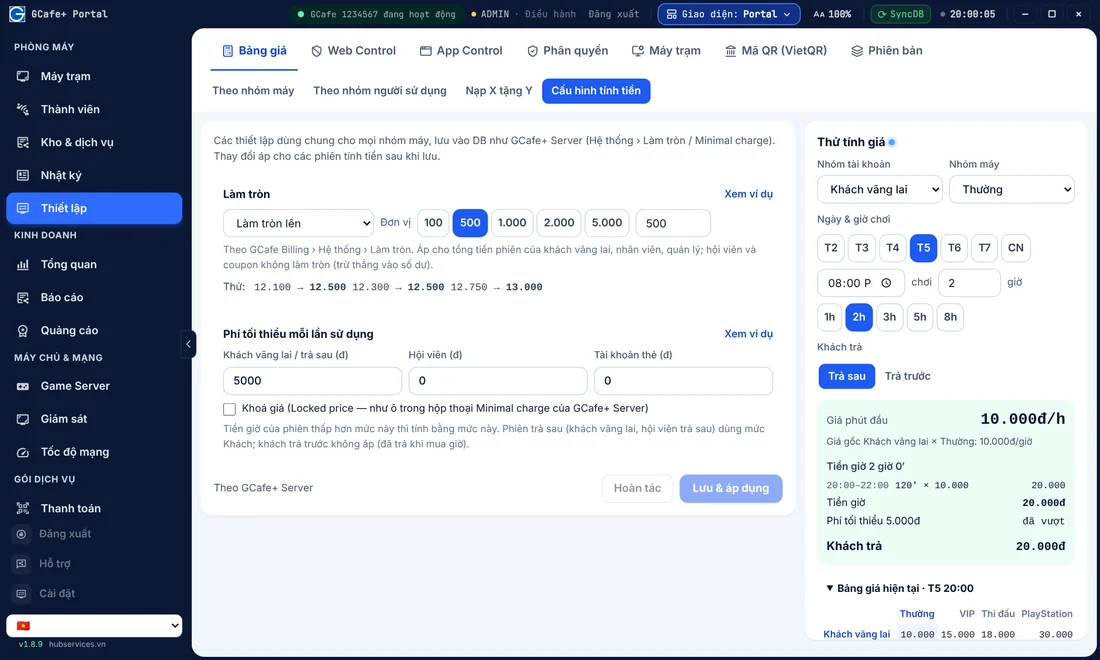
This is the most important area. Good billing software calculates time, hourly charges and service charges by itself, without relying on someone writing things down.
GCafe Billing calculates time and charges automatically by machine group and user group, with rounding and a minimum price per session. You can set separate prices for the standard zone and the VIP zone. To split prices into peak and off-peak hours, see hourly rates by time slot.
The server (the cashier machine) runs GCafe+ Server, and workstations run GCafe+ Client. If you are not sure how the two differ, see how GCafe+ Server and GCafe+ Client differ (Vietnamese).
Do you also have billiard tables? GCafe Billing and GCafe Portal now have a table layout that bills billiard tables directly, with no client workstation needed. They also support hardware that switches the table lights on and off. You manage everything in one system together with your computer room. For more detail, read billiard management software.
Members: keep players coming back
A gaming room lives on regular players. Your software should let you create member accounts, take top-ups, and track balances and promotions.
- Manage member, walk-in guest, staff and manager accounts.
- Let members run a tab when you choose to allow it.
- Set up promotions such as "Top up X, get Y" in Pricing.
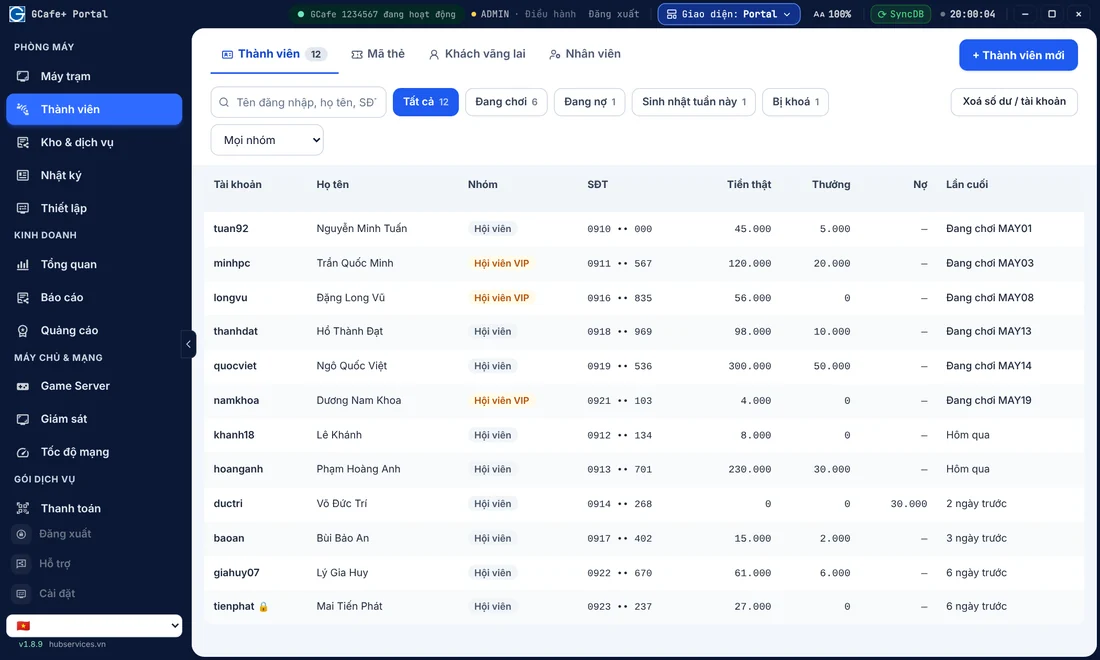
These features are part of GCafe+ Billing (with Membership), which is free. Want ideas to get players to top up more? See how to get players to add credit and come back and effective internet cafe coupons (Vietnamese).
Workstations: start machines fast, control them from the counter
From the server, you need to see the status of each machine and act right away when a player calls. GCafe Billing lets you view screens, take remote control, close applications, and shut down or restart machines. To power on a machine remotely, the workstation's mainboard must support Wake on LAN, and it must be enabled in the BIOS.
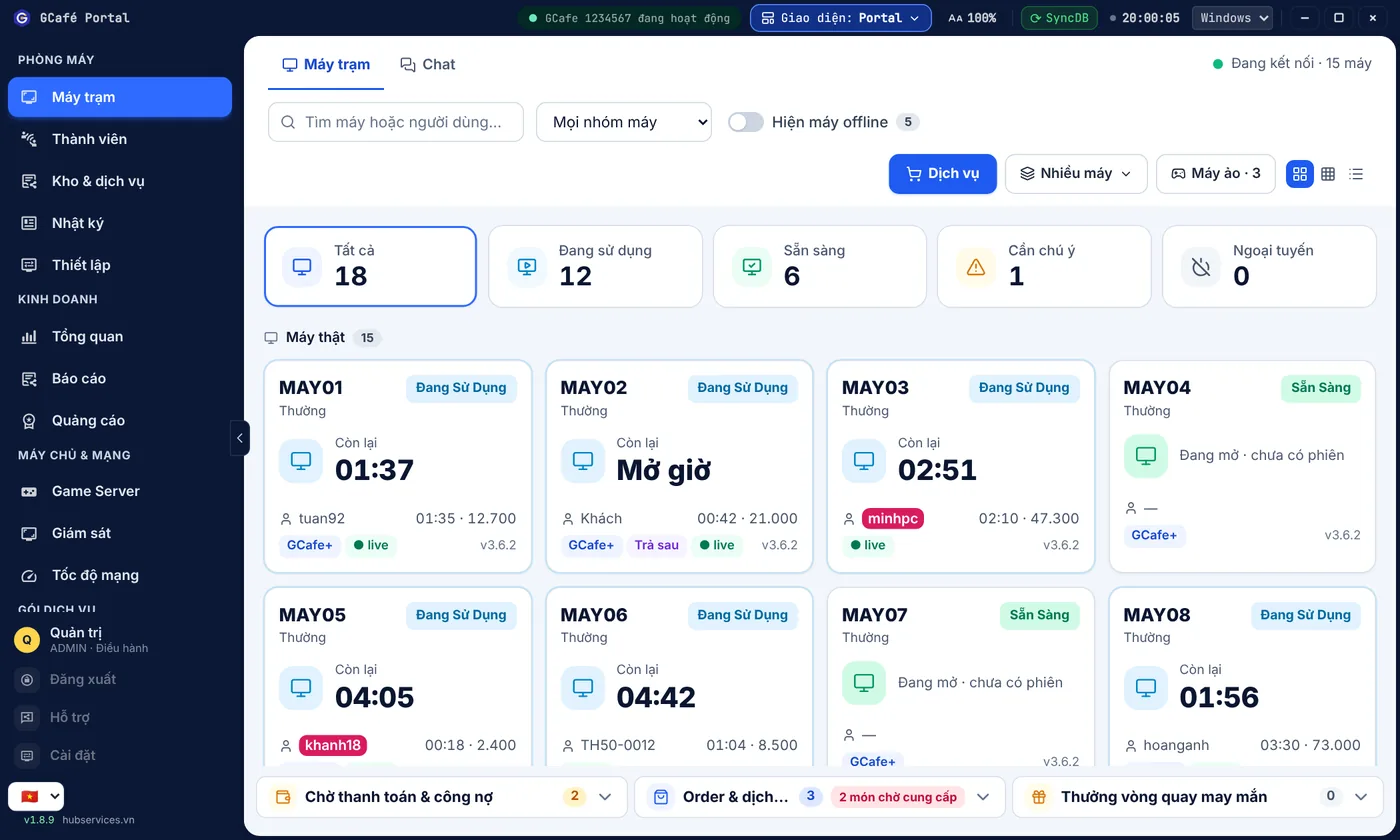
If your room has many machines, GCafe Boot lets workstations run without hard drives. You maintain and update everything centrally on the server instead of going from machine to machine. To understand how it works, read What is Bootrom and how GCafe Boot works. With this model, prepare your network well: see the LAN for diskless workstations (Vietnamese).
Game menu and game updates
Players come to play, so games must be ready and on the right version. GameMenu is the menu players use to find and open games on a workstation. To make games easy to find, see how to arrange your game menu (Vietnamese).
When a game gets a new version, you have two options: update it yourself, or use GCafe Update, the game server with automatic updates (formerly called CafeServer). This is the only paid part: 900,000 VND for 6 months, covering 30 workstations. When you upgrade, the system moves to the new version by itself. There is no reinstall, and you can't go back to the old version. Read more in Is GCafe Update free? If you want to know what to look for, see automatic game update software for internet cafes.
To stay stable when a game ships a major update, see what your room should prepare for major game updates (Vietnamese).
Reports and tax records: know whether you're making money
At the end of the day, you need to see the numbers right away. In GCafe Portal, the Business › Reports section puts all reports on one page:
- Revenue by day, week, month and staff shift.
- Service reports and revenue by machine.
- Gifted money, gifted time, and coupon (card) reports.
- Member reports and member debt.
- Tax report: revenue book form S1a-HKD under Circular 152/2025/TT-BTC.
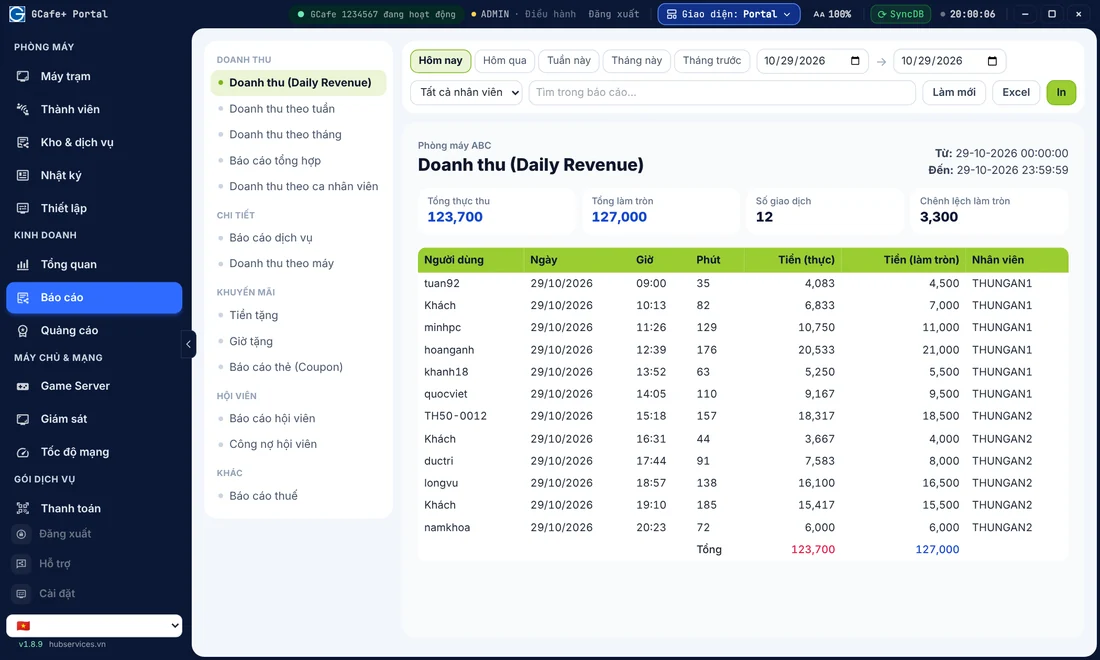
Business households can export the book by following how to export the S1a-HKD revenue book from GCafe Portal (Vietnamese). The metrics to check each day are in which daily metrics to track. How to read each report is covered in the GCafe Portal report documentation.
Note: staff can only see their own reports, while manager accounts can see the reports of all staff.
Already using an older version of GCafe Billing?
From the new version on, GCafe Portal is the official installer for GCafe Billing, replacing the older GCafe+ Server. Portal keeps your existing data (members, staff, pricing, machine groups, history). It offers a Classic or Dark interface so staff don't have to relearn anything. GCafe+ Client workstations that are already installed can still connect. The migration steps are in GCafe Portal replacing the older GCafe Billing. Switch during a quiet period, because workstations may lose connection for a few seconds.
Choosing software: 5 questions to ask yourself
- Does it bill by machine group, with rounding and a minimum price?
- Does it cover member top-ups, promotions and credit?
- Is it easy to control workstations from the counter?
- Are the game menu and game updates automatic?
- Are the reports detailed enough for tax records?
If the answer to all 5 is yes, the software is enough to keep a gaming room running well. GCafe has worked alongside internet cafes for more than 15 years, and more than 50,000 computer rooms now use this solution. You can also visit the GCafe home page to see the full set of tools for gaming cafe software.
About installation: the Company currently offers remote installation to customers for free. If you hire a technician to come to your room in person, the cost is agreed between the two sides. For a start-to-finish walkthrough, see how to install GCafe for your internet cafe: A-Z guide.
Need advice for your gaming room?
Call the hotline 1900 1232 for advice on the right setup, or leave your phone number on our pricing page. The GCafe team will get back to you and help.