

To install GCafe in your internet cafe or gaming room, you first need to know the parts of the software ecosystem: the billing system (GCafe Billing), the diskless workstation boot system (GCafe Boot), the game library tool (GCafe Update), the game menu (GameMenu) and the remote management page (GCafe Portal). You can download the billing installer yourself for a quick setup. Or call 1900 1232 and a technician or local dealer can set up your whole room for you.
This guide walks you through each step: what to prepare, how to install on the server, the cashier PC and the workstations, and what it really costs. That way your room runs smoothly from the first day you open.
1. Which programs make up a GCafe installation?
Many owners just say "install GCafe" when they start looking. In practice, the GCafe internet cafe software suite (a product of Hubservices Joint Stock Company) has 5 separate parts. Which ones you install depends on whether your room runs traditional hard drives or a diskless (bootrom) internet cafe:
| Software | Role in your room | Where it is installed / used | Software cost |
|---|---|---|---|
| GCafe Billing (GCafe+) | Billing for play time, member management, night combos, food and drink services | Cashier PC (GCafe+ Server) and workstations (GCafe+ Client) | Free (no limit on the number of PCs) |
| GCafe Boot | Boots diskless workstations over the LAN | Bootrom server and workstation image | Free (no limit on the number of PCs) |
| GameMenu | The game list shown on the player's screen | Workstation (or loaded directly from the server) | Free (no limit on the number of PCs) |
| GCafe Portal | Remote revenue management, staff permissions, tax book export, banner setup | Web browser (phone, tablet, laptop) | Free (no limit on the number of PCs) |
| GCafe Update | Automatic game update software for internet cafes (formerly called CafeServer) | Game server | Free basic version; paid for automatic game updates (VND 900,000 / 6 months / 30 workstations) |
So if all you need is free internet cafe billing software with member management and web reports, you pay no monthly software license. The only cost comes when you subscribe to the automatic game download and patch feature of GCafe Update. It saves you from watching for patches every time a game ships a new season.
2. What should you prepare before you install GCafe?
Careful hardware and network preparation before you install the software helps you avoid common small problems: lag, slow workstation boot, or the cashier PC losing its connection. Before you install GCafe, check these 4 items:
Check the server for a diskless room
If your cafe uses GCafe Boot, the server acts as the shared hard drive for every PC. Plan your physical drives (SSD/NVMe/HDD) by purpose: one for the server operating system, one for the workstation OS image, one for the cache (Writeback) and one for the game library. For help choosing parts, read preparing a GCafe Boot server (in Vietnamese).
Check your internal LAN
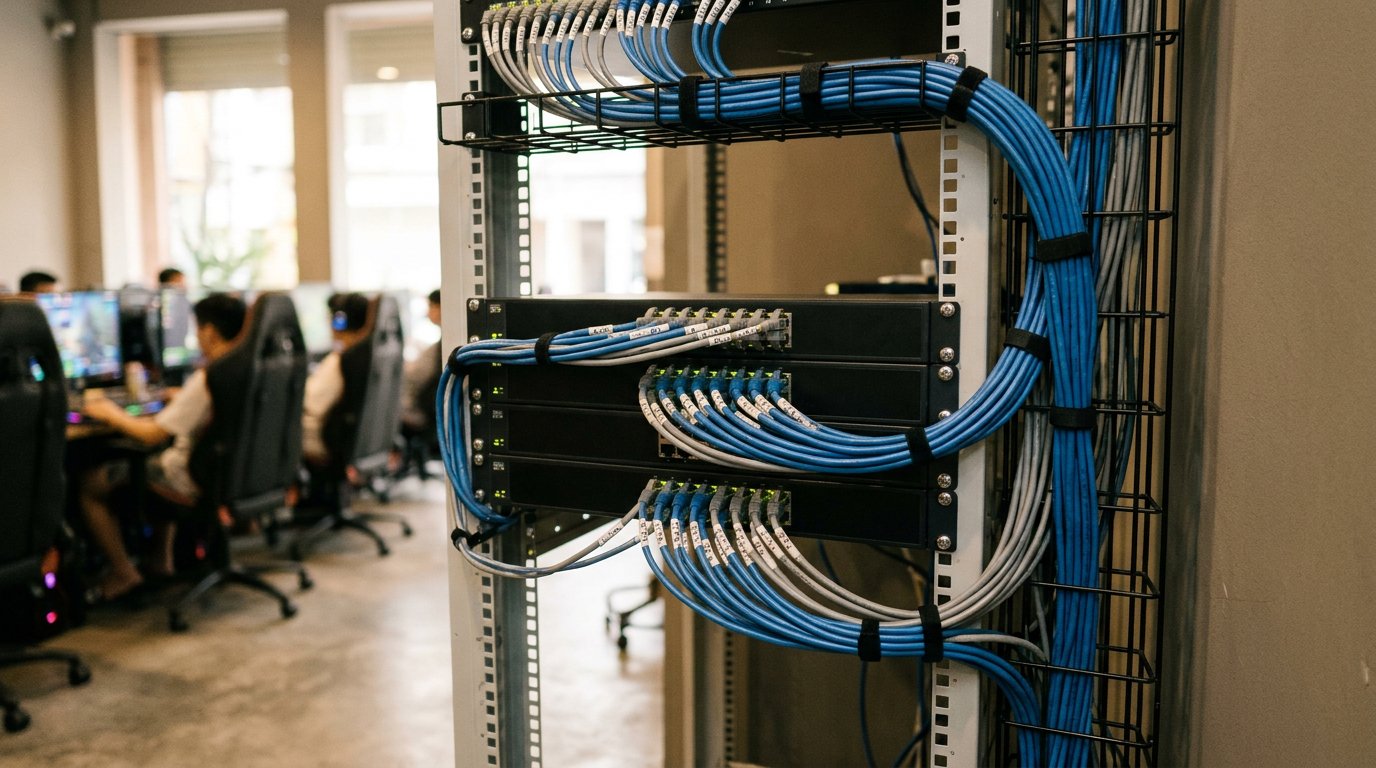
All Windows boot data and game downloads travel from the server to the workstations over LAN cables and switches. Make sure your cables meet standards, the connectors are firm, and the switches run at Gigabit speed (or 2.5G/10G for the uplink from the server to the main switch). If you are moving from hard-drive PCs to diskless, also see the guide on the LAN for a diskless internet cafe (in Vietnamese).
Prepare the cashier PC
The cashier PC is where you install GCafe+ Server. It does not need a powerful graphics card like a gaming PC. But it must have a stable SSD, good power (a UPS is recommended) and a clean Windows installation free of viruses, to protect your shop's money data.
Set static IPs for the whole room
So the cashier PC always recognizes each workstation (PC 01, PC 02...) and each workstation finds the right game server, plan a fixed static IP range. Cover the bootrom server, the cashier PC and every workstation by seat number.
3. Standard steps to install GCafe for an internet cafe
Here is the standard order for deploying the software in a new room, or in a room that is changing systems.
Step 1: Download the official installer or contact a dealer
Go to the Download page on the official Hubservices website to get the latest installer. Setting up a cafe bootrom and syncing the game drive takes technical skill. So you can also call the hotline 1900 1232. GCafe has dealers in all 34/34 provinces and cities (under the new administrative units), ready to install remotely or on site for your room.
Step 2: Install GCafe Boot and GCafe Update on the server
On the room's server, the technician installs two core components:
- Install GCafe Boot: Set up the network boot service (PXE), import the standard Windows image for internet cafes, configure the Writeback drive path, and add the workstations' MAC addresses to the management list.
- Install GCafe Update (GCafe Update server): Copy the
CafeServer.exefile to the server and run it as administrator. Enter your CafeID and web password to connect the server to the data center (IDC) and download the game library to your cafe's game drive (see details: GCafe Update installation guide). If your room already runs an older version, the system can upgrade GCafe Update automatically with no reinstall from scratch.
Step 3: Install GCafe+ Server on the cashier PC
At the cashier counter, set a static IP on the LAN. Create a data folder on a separate drive (for example E:\Data_GCafe). Then run the GCafe+ Server or GCafe Portal installer (part of the internet cafe billing software). After installation, you can choose the modern new interface or the familiar Classic interface, depending on what your staff prefer. If you are not sure which to pick, read GCafe Billing: new or Classic interface.
Step 4: Install GCafe+ Client and GameMenu on the workstations
You do not need to install each client PC one by one. With a diskless system, just open Super Image mode on one reference workstation (or edit the image directly):
- Run the
GCafePlusClient-Setup.exeinstaller as administrator to install the GCafe client (GCafe+ Client). Then enter the cashier PC's IP address so the two can connect (see each step in the GCafe+ Client workstation installation guide). To understand how it works, read how GCafe+ Server and GCafe+ Client differ (in Vietnamese). - Set up GameMenu to show the game list on screen. If GameMenu is loaded from the IDC through the game server, it updates to the new version automatically. If you install GameMenu permanently on the C: drive of the image, just open Super Image so it updates itself, then close it (see also: What is Super Image and how to update GameMenu, in Vietnamese).
After you close Super Image and restart, every workstation goes straight to the lock screen waiting for a player to log in. The GameMenu looks the same and tidy on every PC.
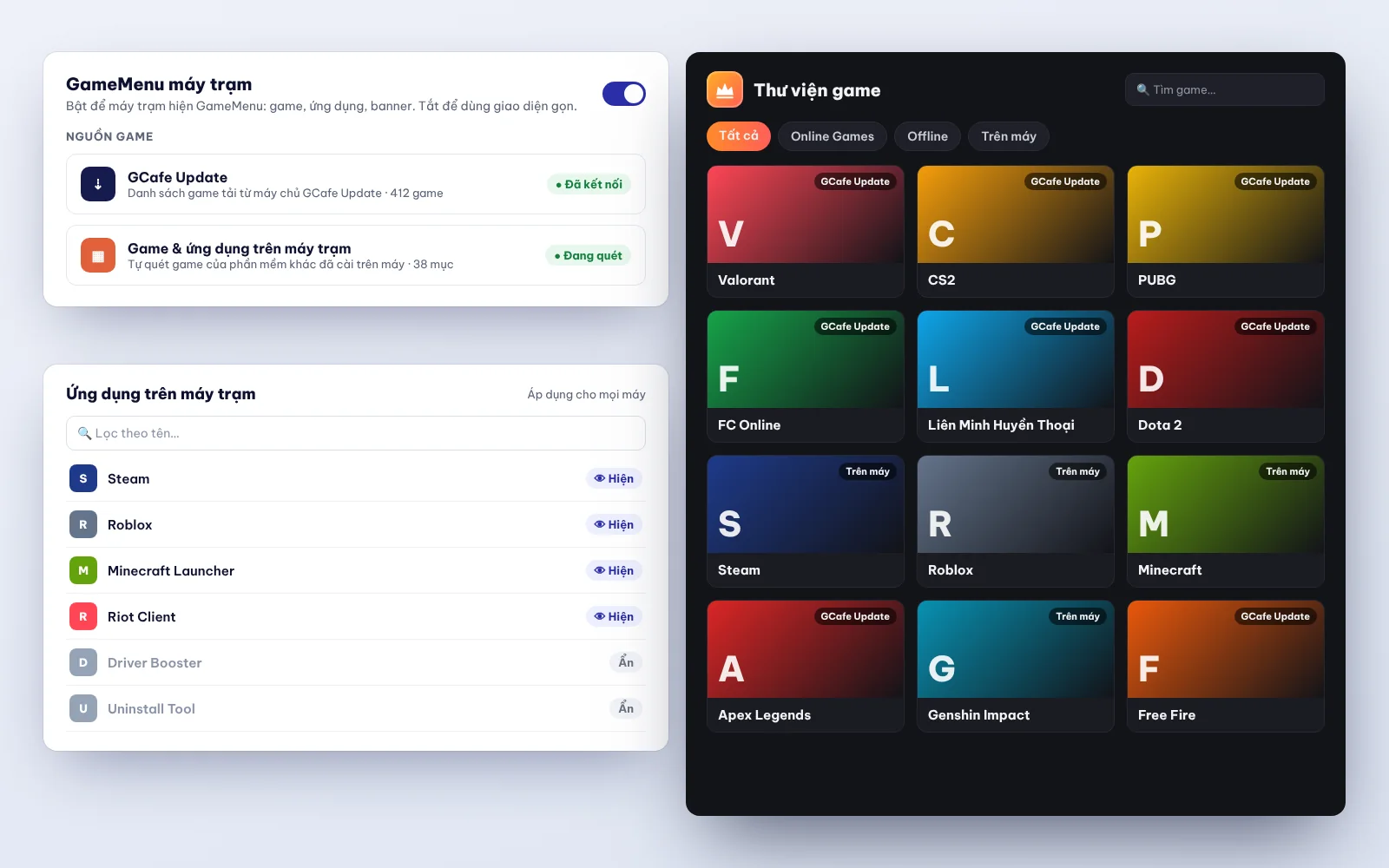
4. Basic setup after you install GCafe
Finishing the installation only builds the frame. To start welcoming players and billing accurately with no losses, log in to GCafe Portal and set your own business parameters.
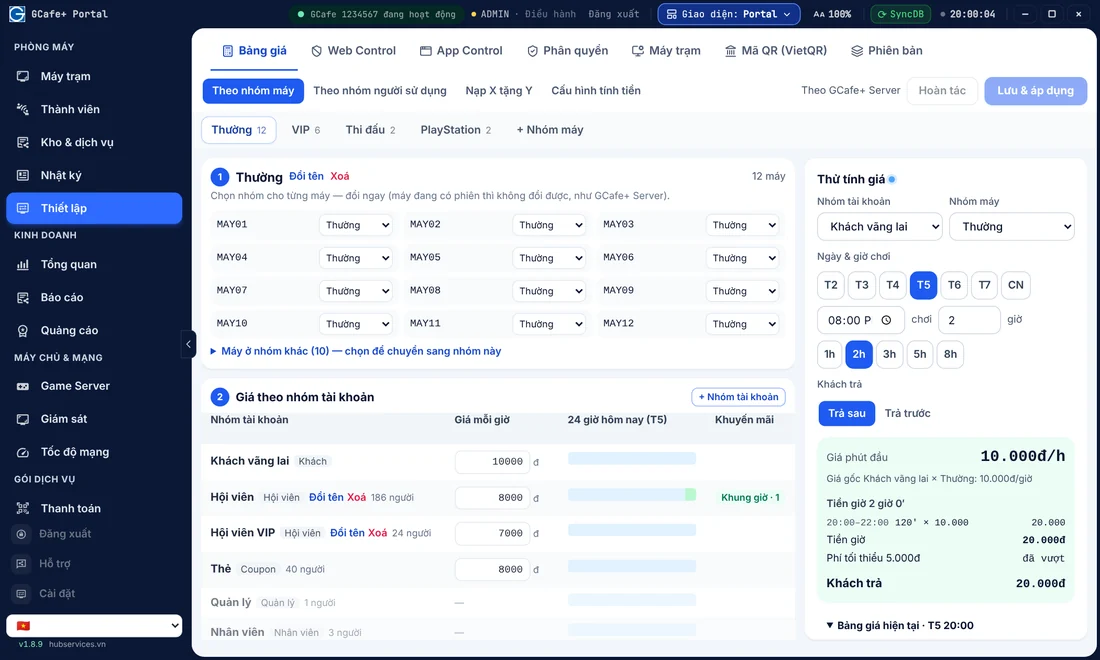
Group your PCs and set play-time prices
Most internet cafes are split into zones, such as Standard, VIP, Competition (FPS) or Couple rooms, each with different hardware. On the management page, open the PC group pricing section. Create a price for each zone and each customer group (walk-in guests, members, member tiers).
Set rounding rules and time slots
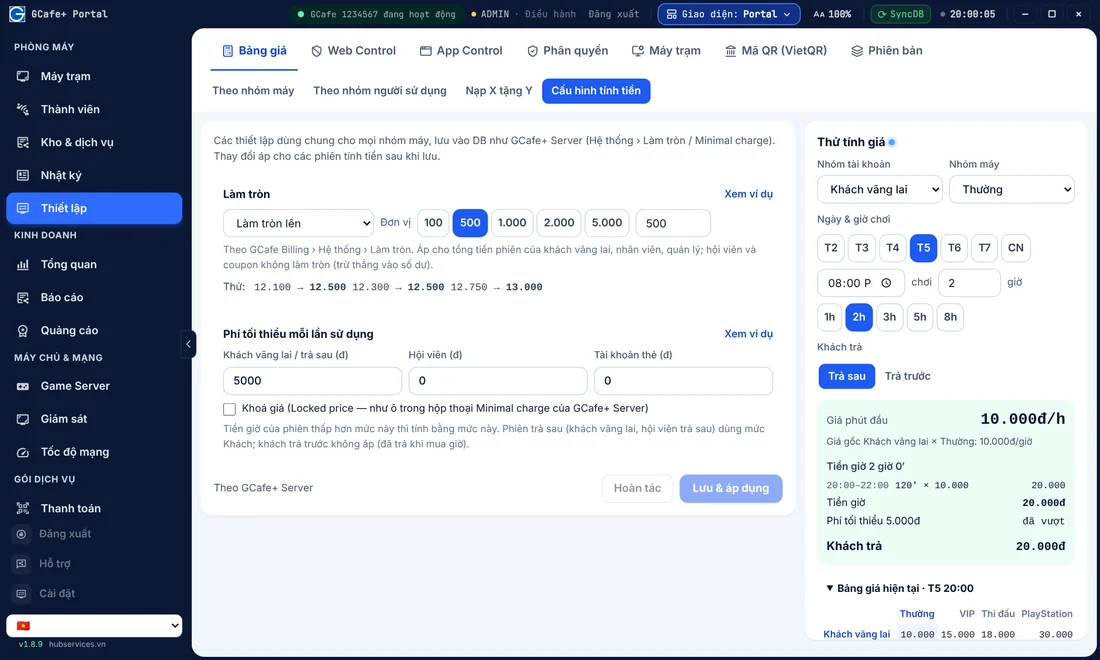
In Vietnam, cash at internet cafes is usually rounded to the nearest thousand or five hundred dong so cashiers can give change easily. Check the billing configuration section carefully. Set the minimum charge for each session and the rule for rounding the amount by minutes played. This is also where you set up night combos or play-time prices by time slot for peak and off-peak hours.
Create permission-based accounts for cashier staff
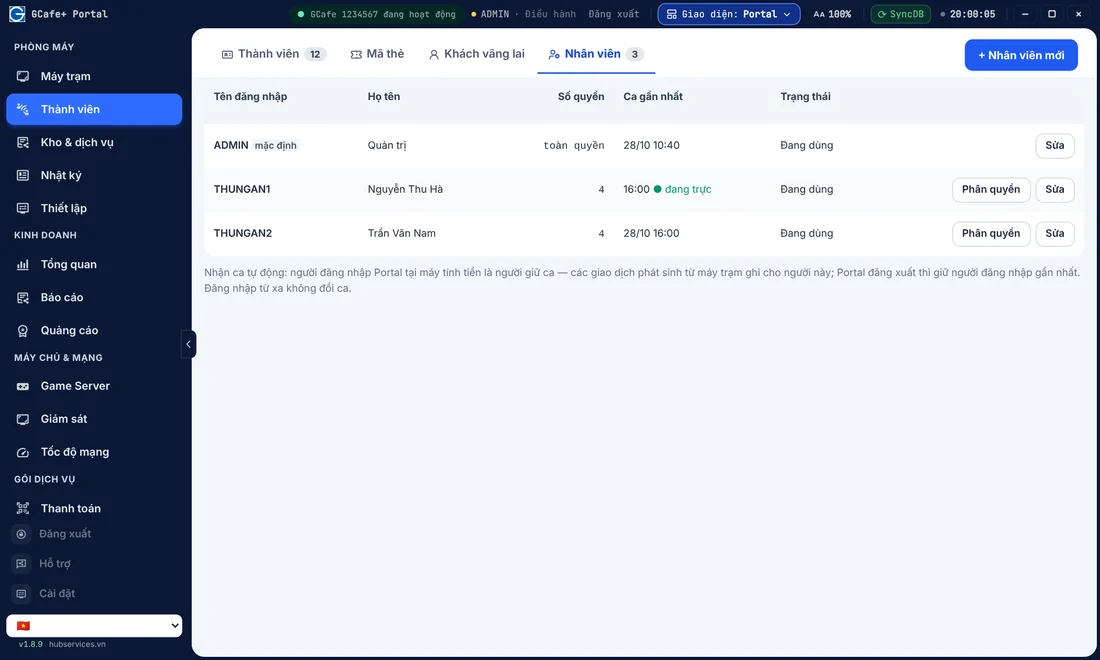
A common mistake for new owners is sharing one Admin account between the owner and the morning and evening shift staff. After you install GCafe, create a separate account for each staff member on Portal. Give them only the rights to top up, sell services and hand over shifts. Lock the rights to delete history or edit play-time prices. This keeps your internet cafe shift handover transparent and prevents revenue loss.
Use the management and customer care tools
Besides billing, the GCafe ecosystem includes several free tools to help you run your cafe with less effort:
- On-site advertising: Set up workstation screen ads with up to 5 banner slots and a wallpaper. Use them to announce room tournaments, instant noodle and soft drink combos, or top-up promotions.
- Keeping players: Combine top-up promotions with internet cafe coupons or a lucky wheel right on the client screen.
- Tax filing support: Use the household business tax report feature to export the S1a-HKD revenue book under Circular 152/2025/TT-BTC with just a few date filters.
5. How much does it cost to install and use GCafe each month?
You stay in control of your budget when you use the Hubservices suite:
- Completely free software (no limit on the number of PCs): GCafe+ Billing (including Membership, for internet cafe member management), GCafe Boot, GCafe Portal and GameMenu.
- Paid software: GCafe Update (automatic game updates). The current price is VND 900,000 / 6 months / 30 workstations. The only difference between the free and paid GCafe plans is this automatic game update feature (see details in Does GCafe Update cost money?, in Vietnamese).
- Technical installation fee: Remote installation over the internet is currently free for customers. If you hire a technician to install on site at your room, the cost depends on an agreement between both sides.
6. Contact us for fast GCafe installation support
GCafe has been with the internet cafe business in Vietnam for 15+ years. It serves 50,000+ computer rooms and 3 million+ player visits a day. The internet cafe software is designed to cut your technical workload so you can focus on customers and profit.
If you are opening a new room, moving to a diskless system, or need billing and automatic game updates installed together, contact our technical team:
- Call the support hotline: 1900 1232.
- Download the installer from the GCafe software download page.
- Or leave your phone number and number of PCs on the Pricing & Contact page. The GCafe dealer for your province or city will contact you as soon as possible to advise and help with installation.