
When you use or get ready to install GCafe Billing, you will see two familiar display options: GCafe+ Billing Classic and the new interface (now built into the GCafe Portal installer under the names Classic, Dark and Portal). Many owners ask the same thing: which interface will give me the fewest headaches?
This article does not call either option "better" or "worse." Each interface suits a different way of working. What matters most is which screen your cashiers feel comfortable using. Read on and you can make the choice in a few minutes.
Which interfaces does GCafe Billing offer?
GCafe Billing is GCafe's billing and PC management software for internet cafes and gaming rooms. The system has two parts that run on two types of machines:
- Server (the cashier PC): Runs GCafe+ Server (or the new official installer, GCafe Portal) to handle billing, accounts, price lists, reports and workstation control.
- Workstations: Run GCafe+ Client and connect directly to the server.
If you are not sure how these two parts work together, read How are GCafe+ Server and GCafe+ Client different? (in Vietnamese).
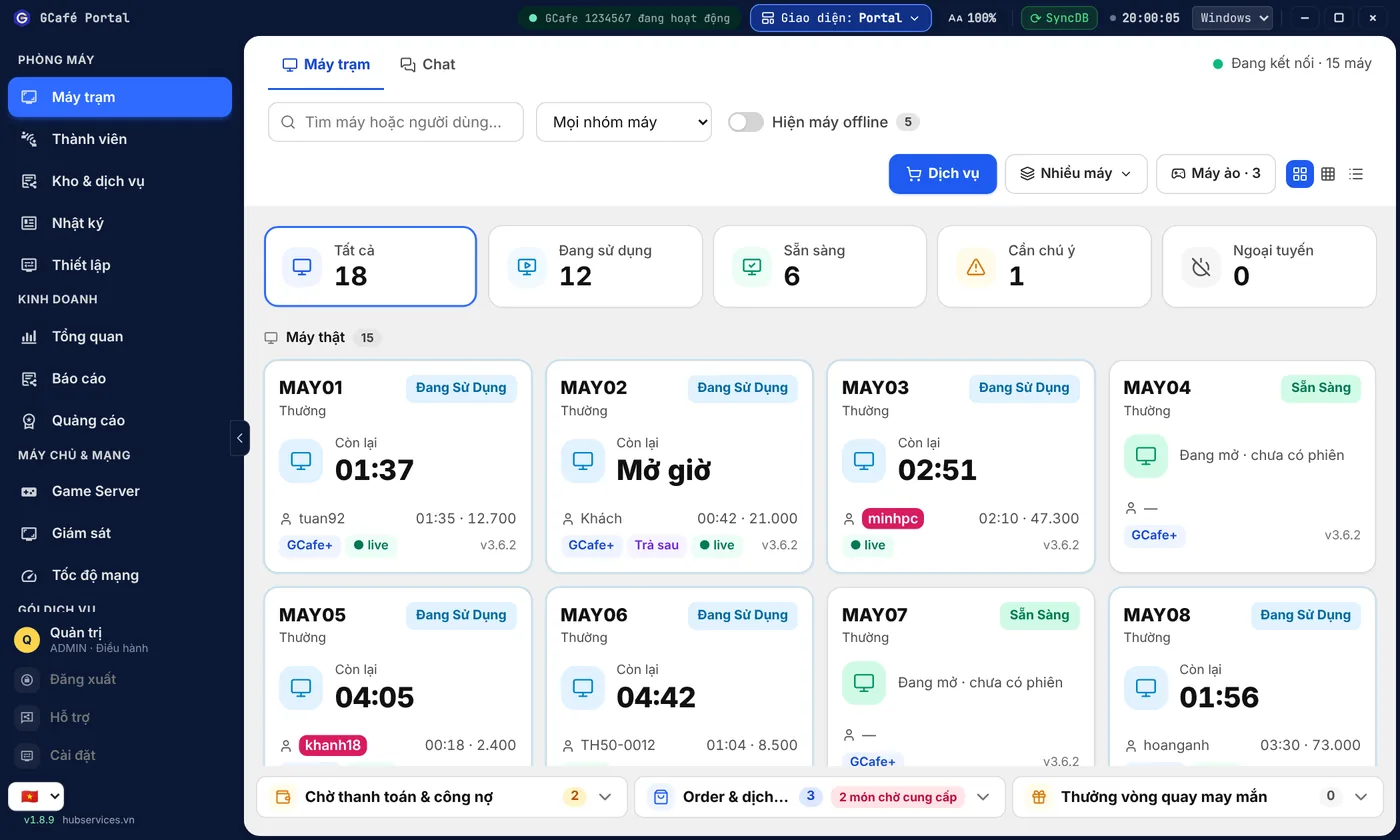
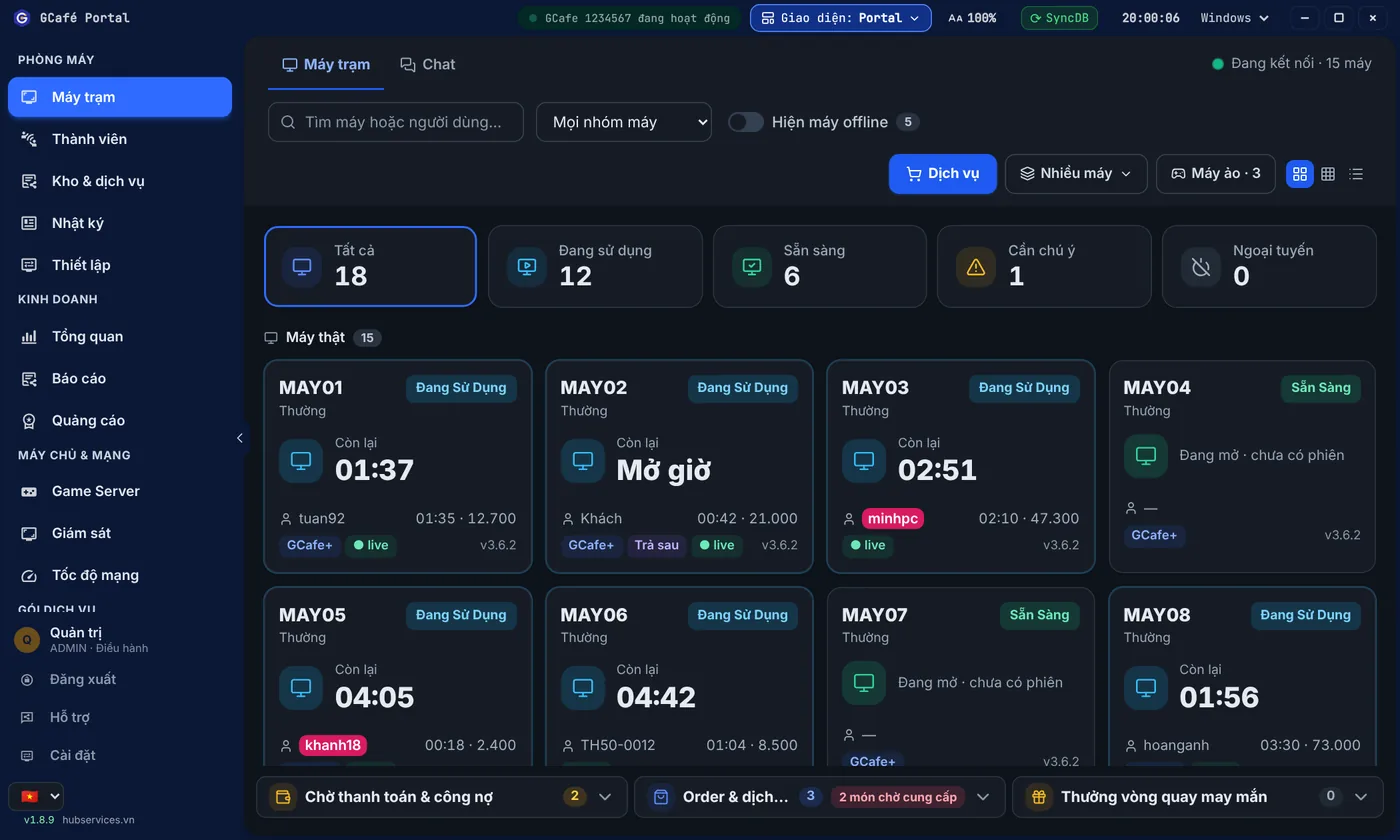
On the cashier PC, you can choose from these display styles:
- GCafe+ Billing Classic (the classic interface): A light background with a blue tab bar and the familiar row of tabs (Workstations, Accounts, System Log, Transaction Log, PC Groups, User Groups, Services, Application Control, Web Control, Web Log, Top-up/Renewal).
- New interface (GCafe Billing – Dark): A dark header with 5 large buttons (Settings, Coupon, Services, Reports, RENEW), a tab bar with an orange outline on the selected tab, and a PC Information panel.
- Portal interface: A modern layout with a left-hand menu split into four groups and a content area in the center.
One thing to remember: GCafe+ Billing (with Membership) is completely free, with no limit on the number of PCs. So whether you pick GCafe+ Billing Classic or the new interface, your software cost stays the same. For an overview, see our page on GCafe internet cafe management software.
A quick rule for choosing
Choose based on the person who actually sits at the counter, not just on what the owner likes to look at.
- Your staff already know the old way: Choose GCafe+ Billing Classic. Staff keep their usual habits, ask fewer questions and are less likely to click the wrong thing at peak hours.
- A new cafe, with staff who have not used any billing software: Use the new interface (Dark or Portal). With no old habits to unlearn, starting with the new interface keeps everyone working the same way from day one.
The person at the counter handles top-ups, opening PCs, timing and selling services all day. One unfamiliar action during a rush is enough to cause a mistake.
When should you use GCafe+ Billing Classic?
GCafe+ Billing Classic is a good fit if your gaming room matches any of these cases:
- Your cafe has run steadily for years, and your staff know where every tab and button is by heart.
- You have long-time staff and do not want to disrupt how they work during the busy season.
- You want to save time on retraining the morning, afternoon and night shifts.
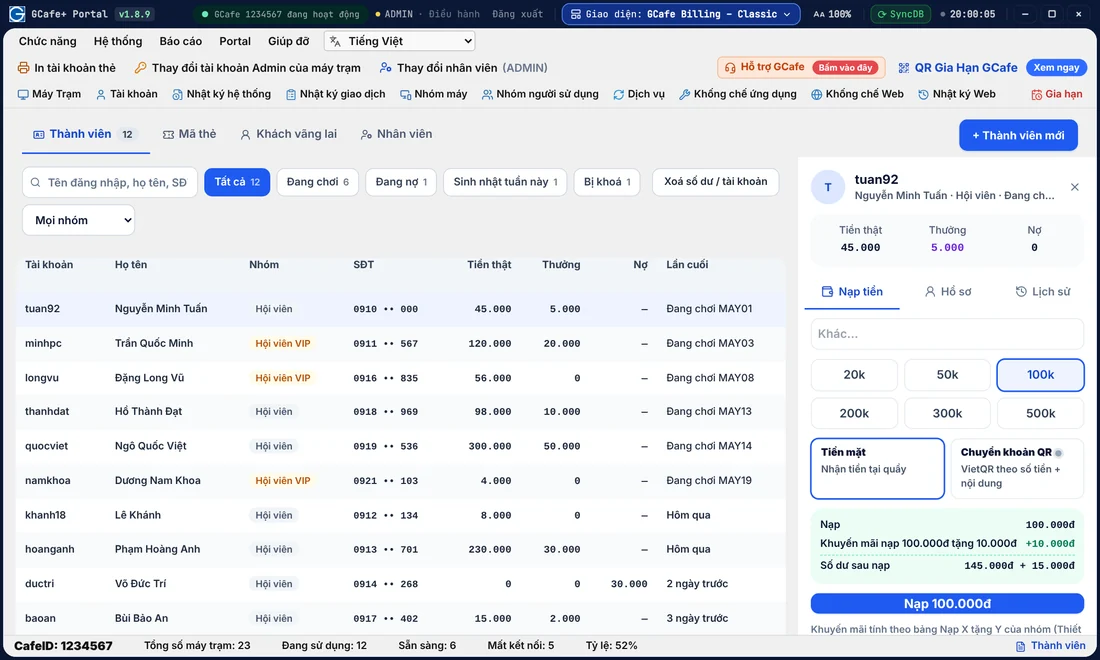
For this kind of cafe, keeping the Classic interface means staff can start their shift right away, with no retraining. You can use that time for other jobs, such as checking equipment or looking after customers. For ideas on a start-of-day routine, see the 15-minute opening maintenance checklist for your cafe (in Vietnamese).
When should you use the new interface?
The new interface (Dark, or the left-menu layout of Portal) suits gaming rooms that:
- Have just opened, and whose staff have no habits from the old version.
- Are hiring a completely new team, so you can train everyone on one standard from the start.
- Prefer a dark screen that is easier on the eyes during night shifts, or want to use the clear, grouped menu bar in GCafe Portal right away.
Side-by-side comparison of the two interfaces
In both the older GCafe+ Server and the new GCafe Portal installer, GCafe+ Billing Classic and the new (Dark) interface keep the same functions, menu names and steps. Only the look is different:
| Criteria | New interface (Dark / Portal) | GCafe+ Billing Classic |
|---|---|---|
| Best for | New cafes, new staff, or those who like a dark theme | Cafes already running, with staff used to the old way |
| What you install | Server (GCafe Portal / GCafe+ Server) & workstations (GCafe+ Client) | Server (GCafe Portal / GCafe+ Server) & workstations (GCafe+ Client) |
| Software cost | Free, no limit on the number of PCs | Free, no limit on the number of PCs |
| Layout | Dark header with 5 large buttons (Settings, Coupon, Services, Reports, RENEW), or a left menu | Traditional horizontal tab bar, with the PC information panel and the pending-payment list at the bottom |
| Functions & actions | Full feature set: billing, members, services, web/app blocking, reports | Full feature set: billing, members, services, web/app blocking, reports |
| Switching between interfaces | Switch at any time with the Interface button on the title bar (or go to System › Display style). Your data stays the same. | |
For details on where the buttons are placed, see the documentation page GCafe Billing-style interface in Portal (in Vietnamese).
Three steps to choose and switch the interface for your cafe
- Ask your cashier: Ask the person who has worked the counter the longest which screen they are used to. If the answer is "I'm used to the old version," choose GCafe+ Billing Classic.
- Switch right on the screen: If your cafe already runs GCafe Portal, just click the Interface button on the title bar and pick the style you want (Classic, Dark or Portal). The software remembers your choice the next time you open it. For more, see GCafe Portal replacing the old GCafe Billing (in Vietnamese).
- Let staff try it: During a quiet period, have staff open a PC, top up a member account, double-click a PC to open End transaction, or make a sale at the counter, so they get used to it.
You can download the latest official installer on the Download page.
Does your choice of interface affect other parts of GCafe?
GCafe is a connected set of tools for managing a gaming room. Switching between GCafe+ Billing Classic and the new interface only changes how the cashier PC looks. It does not delete any data and does not affect the other software in the GCafe ecosystem:
- GCafe Update: Automatic game update software (charged by the number of PCs, in 6-month plans: VND 900,000 per 6 months for 30 workstations). This is the only difference between the free and paid plans. See also Does GCafe Update cost money? (in Vietnamese).
- GCafe Boot: A diskless workstation boot solution (free).
- GCafe Portal: The current official installer, with billing, revenue management and tax reporting built in. It exports the S1a-HKD revenue ledger (Circular 152/2025/TT-BTC).
- GameMenu: The game menu shown on workstations (free).
Tips for changing the interface at the counter
- Your data stays 100% the same: When you switch the interface in GCafe Portal at any time, all member accounts, balances, staff, price lists, PC groups and transaction history stay as they were.
- Test during a quiet period: Do not change the interface suddenly at peak hours, or your staff may feel lost.
- Tell every shift in advance: The login screen also follows the selected interface, so let the next shift know beforehand.
Need advice or help with installation?
If you need help moving from the old version to GCafe Portal while keeping the familiar GCafe+ Billing Classic interface, call 1900 1232 or leave your details on the contact page. Right now, the company offers remote installation support free of charge. If you want a technician to come to your cafe in person, the cost is agreed between you and the technician. You can also check the pricing page for details.