
It happens every morning: customers walk in, one PC won't boot, one headset has no sound, one game hasn't finished updating. By the time you fix it, the customer is already waiting. Daily maintenance for your internet cafe doesn't take long. You just need a short routine that gives the same result no matter who does it.
This post gives you a checklist of about 15 minutes for staff to run before opening. At the end there is a short version you can print and stick at the counter.
Why run maintenance right before opening?
Small problems are quick to fix when you catch them early. Problems found during a busy hour cost you customers and throw the shift off. A start-of-day check helps you:
- Know which PC is broken before a customer sits down.
- Stop staff from running around during peak hours.
- Keep a clear fault record to pass on to a repair person or technician.
What matters is doing it every day, in the same order.
15-minute checklist overview
The table below is a suggested time split. Adjust it to your number of PCs and your floor layout.
| Time slot | Item | Goal |
|---|---|---|
| Minutes 1–4 | Server | Server runs stably, management software is ready |
| Minutes 5–7 | Network | Connection is up, no drops |
| Minutes 8–10 | Games | Games are updated and launch correctly |
| Minutes 11–13 | Workstations and headsets | All PCs are on, headsets have sound |
| Minutes 14–15 | Cleaning | Desks, mice and keyboards are tidy and clean |
These times are only a guide for dividing the work. A cafe with many PCs may need more people, each in charge of one zone.
Step 1: Check the server (4 minutes)
The server is the center of your cafe. If it has a problem, the whole cafe has a problem, so check it first.
- The server is on and running normally. No freezes, no strange errors on screen.
- GCafe+ Server is running. If you use GCafe Billing, the server runs GCafe+ Server and the workstations run GCafe+ Client. If the server isn't running, workstations can't bill time.
- The drives have free space. A full drive can slow things down or cause errors during game updates.
- Take a quick look at temperature and fan noise. An unusually loud fan is a sign it needs cleaning or a check.
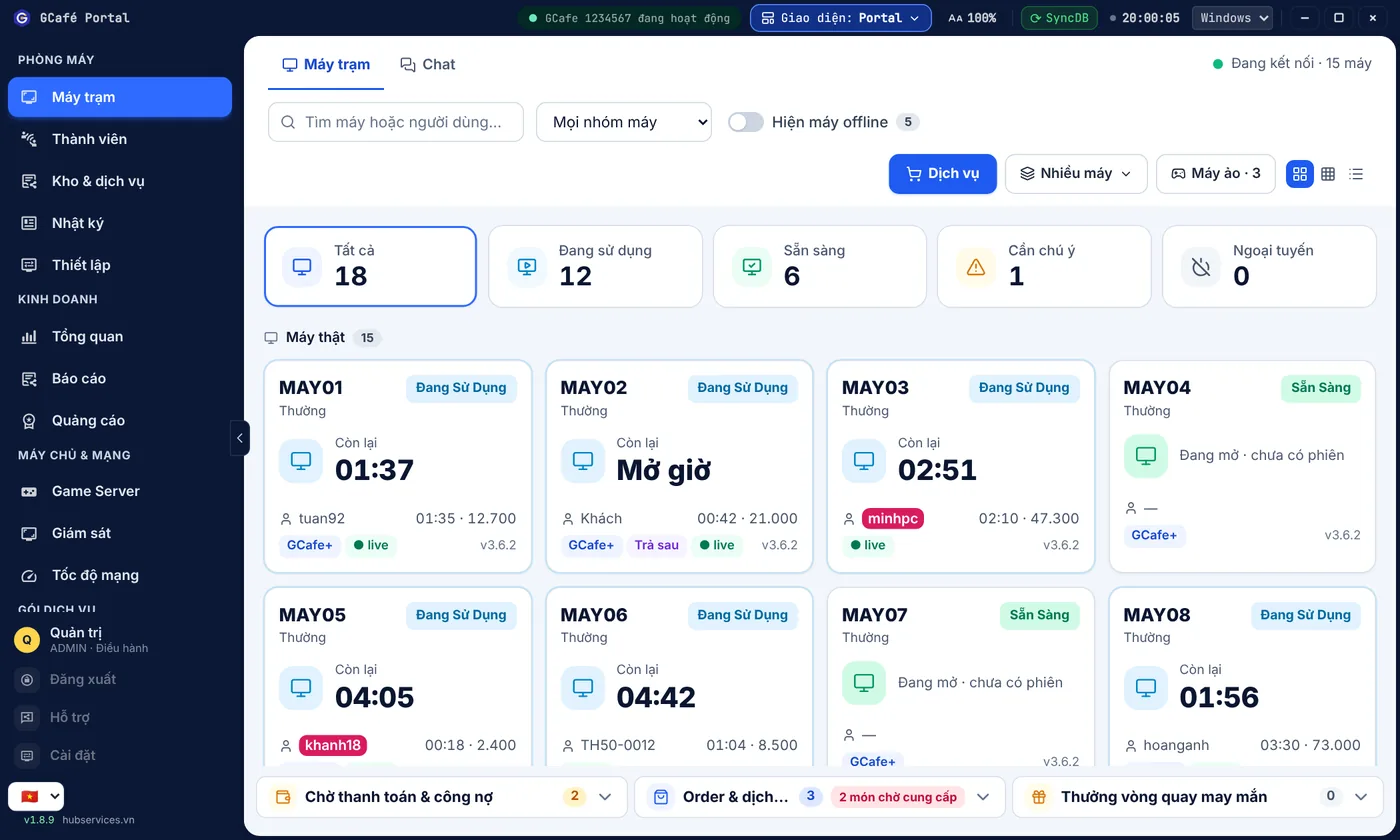
If your cafe uses GCafe Boot for diskless workstations, the server needs to be even more stable. Workstations boot over the network from the server. Turn on one workstation to make sure it gets into the system. For the game server, you can also schedule a restart or repair server data on the Tools page when maintenance is needed.
If you're looking for a simple internet cafe software package, GCafe covers billing, membership and game updates. Some products are free with no limit on the number of PCs. See details on the pricing page.
Step 2: Check the network (3 minutes)
An unstable network is the top reason customers leave, and it's often hard to predict. The start-of-day check takes only a few actions:
- Look at the indicator lights on the modem, router and switch. If a light is off or blinking oddly, write it down.
- Open a web page and any online game to test the connection.
- Test a few PCs in different zones. If a whole row loses its connection, suspect the switch or the cables for that row.
- Check network cables for tension, sharp bends or loose connectors.
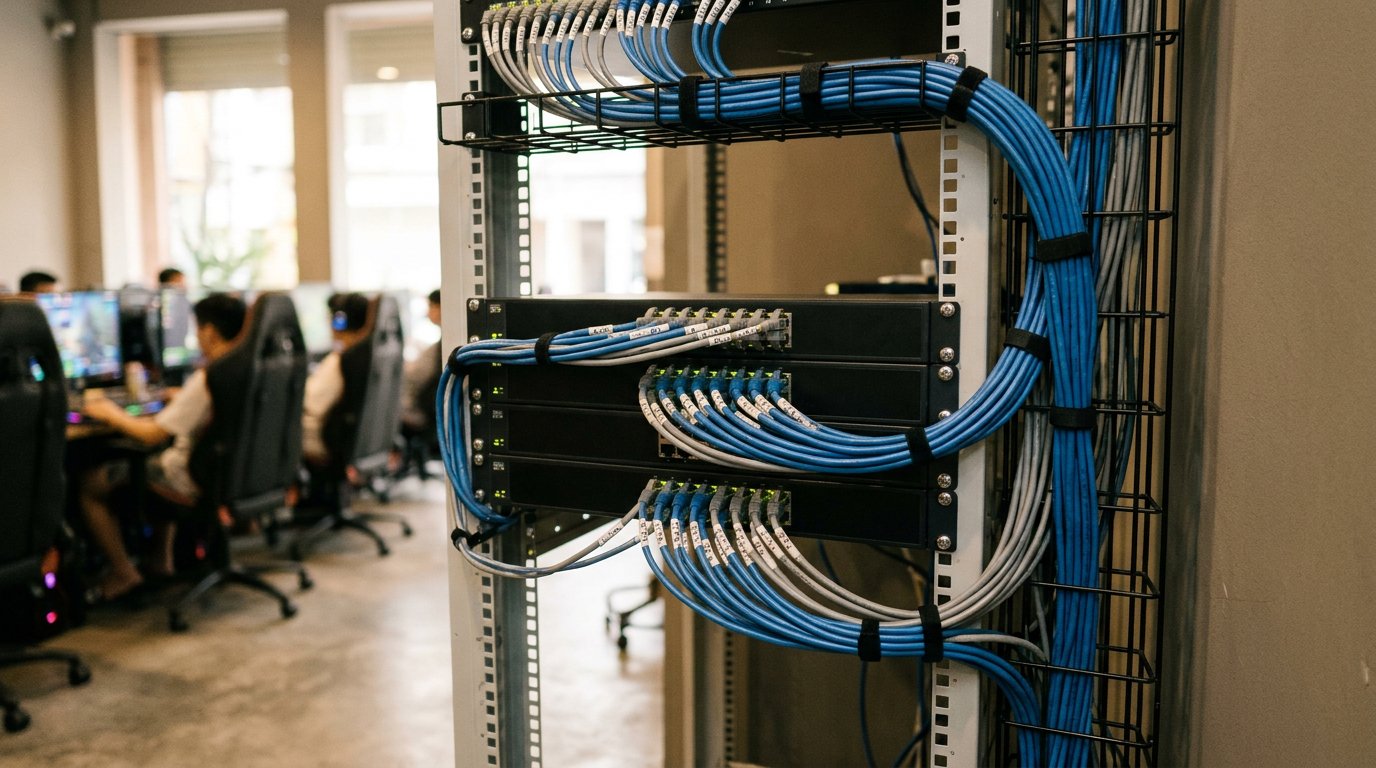
If staff can't fix a fault themselves, have them note the time, location and symptoms. This helps your technician or internet provider fix it faster.
Step 3: Check games and updates (3 minutes)
After network speed, updated games are what customers notice most. If they open a game and have to wait for a patch, they get annoyed.
- Open the 2–3 most popular games in your cafe on one workstation.
- Check that GameMenu displays correctly and games launch when clicked.
- See which games report a missing update or an error, and write them down.
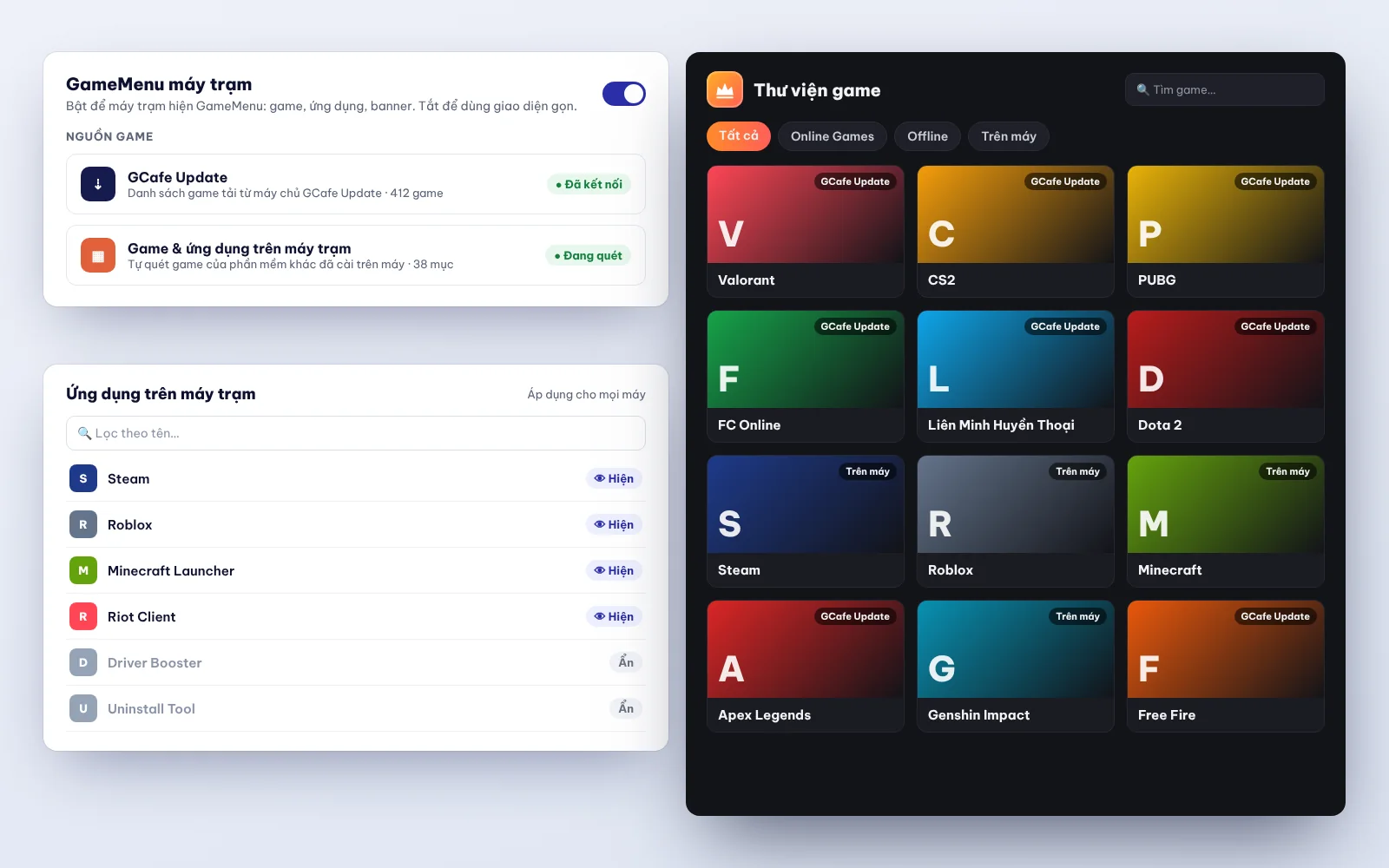
Updating each PC by hand takes a lot of effort. With GCafe Update, games update automatically. You can also read more about this automatic game update software for internet cafes. The paid plan is priced by number of PCs, on a 6-month plan. The free and paid plans differ only in game updates.
When you upgrade GCafe Update, the system upgrades itself, with no reinstall, and it does not roll back to the old version. For GameMenu:
- GameMenu loaded from the IDC updates to the new version by itself.
- GameMenu installed on drive C: open Super Image to update it automatically, then close it.
Staff only need to remember these two cases during the start-of-day check.
Step 4: Workstations and headsets (3 minutes)
Walk once around the cafe. No need to stop long at each PC.
- All PCs boot. Turn them on and see which ones show no picture, hang at the logo or show an error. With GCafe+ Client, check that the workstation is connected to the server.
- Mouse and keyboard. Quickly test that they respond and no keys are stuck.
- Headsets. Wear or listen to each pair: sound on both sides, mic picks up, cable not broken, jack plugged in firmly.
- Monitors. No lines, no blur, no color loss.
If a PC or headset is broken, put an "Under repair" label on it and write it down. Don't let a customer sit down and find out afterward.
If your cafe uses GCafe Portal, also glance at a workstation screen to check that banners show correctly. Workstation banners support up to 5 slots plus a wallpaper.
Step 5: Quick cleaning (2 minutes)
The start-of-day clean is not a deep clean. The goal is that customers walk in and see a clean place.
- Wipe desks, keyboard surfaces and mice.
- Clear trash, bottles and snack wrappers left from the last shift.
- Straighten the chairs and tidy headset cables.
- Wipe the counter and the counter screen.
Deeper cleaning, like blowing dust out of cases or cleaning fans, belongs in your weekly or monthly schedule, not in these 15 minutes.
Short version to print for the counter
You can copy this table, print it on A4 and stick it at the counter. Staff tick each item every day.
| ✔ | Task | Fault notes |
|---|---|---|
| ☐ | Server is on, no freeze, no error | |
| ☐ | GCafe+ Server is running | |
| ☐ | Drives have free space | |
| ☐ | Modem, router and switch lights are normal | |
| ☐ | Test the network in several PC zones | |
| ☐ | Open 2–3 popular games to test | |
| ☐ | GameMenu displays correctly, games are updated | |
| ☐ | All workstations on, GCafe+ Client connected | |
| ☐ | Mouse, keyboard and monitor are fine | |
| ☐ | Headsets have sound, mic picks up | |
| ☐ | Wipe desks, clear trash, straighten chairs | |
| ☐ | Put an "Under repair" label on faulty PCs |
At the top of the sheet, write the date, the staff member's name and the time the check finished. At the end of the shift, the owner can read this sheet and see what was unusual that day.
Tips to keep the checklist from being dropped
- Split the work by person. With 2 staff, one handles the server and network, the other handles workstations and cleaning.
- Follow the order. Server first, network second, then games and workstations. If the server is faulty, the later steps don't mean much.
- Write faults down right away. Don't keep them in your head. Use the notes column.
- Review at the end of the week. If certain PCs or headsets break often, consider replacing them.
- Use tools to cut manual work. Automatic game updates, billing and member management can all be handled by software. See more about GCafe's internet cafe billing software.
If you'd like to build more routines for your cafe, you can read are diskless workstations any good or how to create a night combo for your internet cafe.
Need advice for your cafe?
Every cafe has a different number of PCs, floor layout and way of operating. If you want to cut maintenance time further, call the hotline 1900 1232. You can also leave your phone number on the pricing page, and the GCafe team will call you back.