
You are looking into GCafe software and you keep seeing different names: Billing, Boot, Update, Portal, GameMenu. What does each one do? Which ones cost money? This post answers briefly, in the order owners usually ask.
What is GCafe software?
GCafe (also written GCafé) is a software suite for managing internet cafes and gaming centers, made by Hubservices Joint Stock Company. It handles three main jobs: billing and member management, game updates, and diskless workstations.
According to Hubservices, GCafe solutions are used in 50,000+ gaming centers, with 3 million+ gamer sessions every day and 15+ years working alongside internet cafes. The markets are Vietnam, Thailand, Cambodia and Indonesia. Dealers are present in every province and city (34/34 under the new administrative units).
You do not have to use every part. Pick what your cafe needs. The sections below go through each product.
GCafe products at a glance
| Product | Main job | Runs on | Cost |
|---|---|---|---|
| GCafe Billing (GCafe+ Billing, includes Membership) | Time billing, payments, member and staff management | Server (GCafe+ Server) and workstations (GCafe+ Client) | Free, unlimited number of PCs |
| GCafe Portal | The official installer for Billing, a new management interface, remote access | Server (the billing PC) | Free, unlimited number of PCs |
| GCafe Boot | Diskless workstations | Server and workstations | Free, unlimited number of PCs |
| GameMenu | Game menu, food and drink orders, chat on workstations | Workstations | Free, unlimited number of PCs |
| GCafe Update | Automatic game downloads, updates and game delivery over the LAN | Game server | Paid by number of PCs, 6-month plan |
In short: four free products, and one paid product, GCafe Update.
GCafe Billing and GCafe Portal: billing and cafe management
GCafe Billing is the billing and management software for gaming centers, and works as a full internet cafe billing system. The server runs GCafe+ Server and the workstations run GCafe+ Client. The software calculates play time, time charges and service charges, manages members and staff, and controls workstations from the server. The interface comes in two styles, new and Classic, with the same features. See our post on choosing the new or Classic interface.
If you want to know how GCafe+ Server and GCafe+ Client differ, read GCafe Plus: Server and Client.
GCafe Portal is the new name. From the new version on, Portal is the official installer for GCafe Billing and replaces the old GCafe+ Server. Portal keeps using your existing data: members, staff, price lists, machine groups and history. You sign in with your GCafe+ Server account, which has two roles: Admin (full access) and Staff (access as granted).
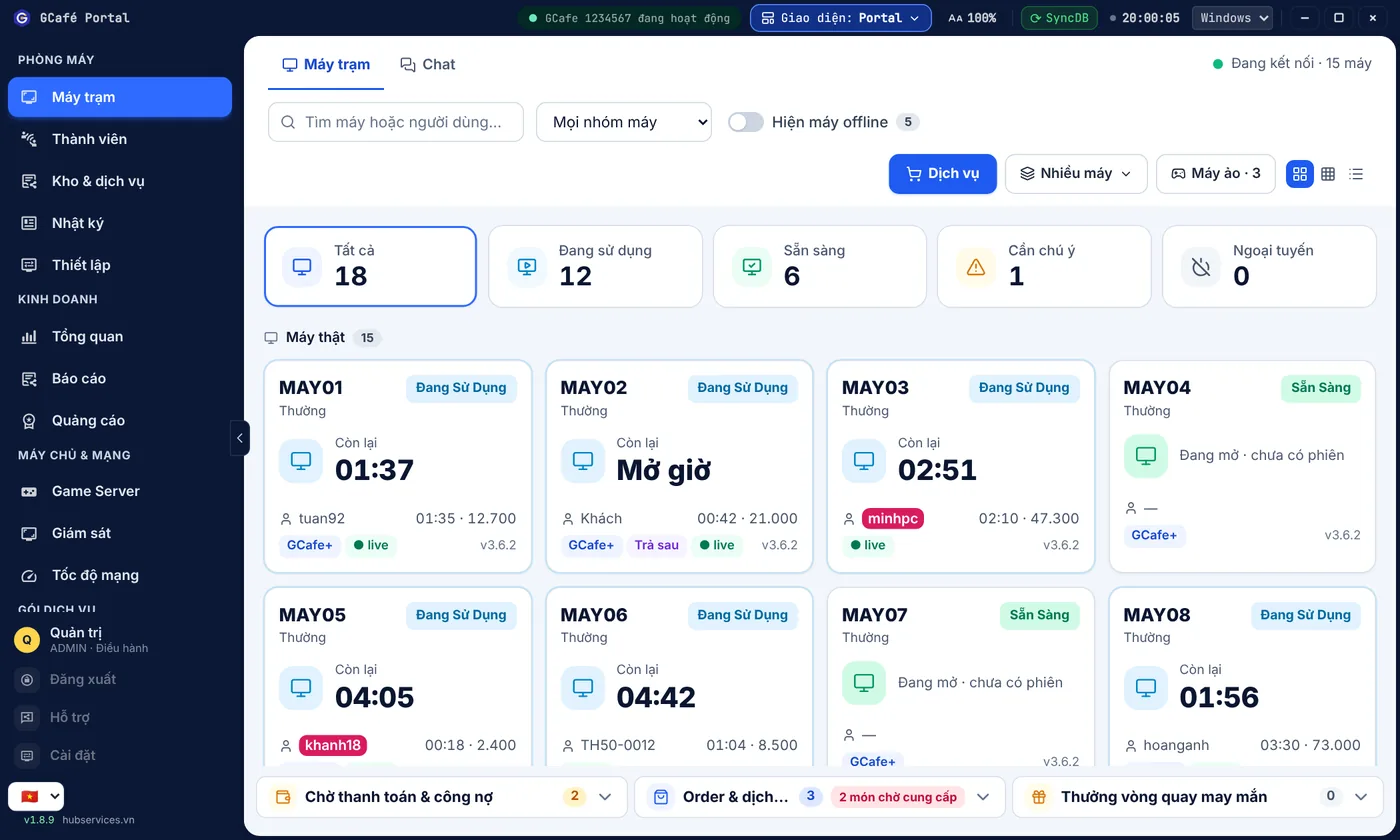
Some things you can do in Portal:
- See workstation status, open machines, take payments, top up accounts and chat with players.
- Manage internet cafe members, price lists, promotions, night combos and the service stock.
- View internet cafe revenue reports and create a revenue book in form S1a-HKD under Circular 152/2025/TT-BTC, exported to an Excel file. The steps are in our post on exporting the S1a-HKD revenue book.
- Set up to 5 banners and 5 wallpapers for workstations, and create a Lucky Wheel.
- Bill time for billiard tables using a table map, with no client workstation needed.
Note: remote access from a phone, QR payments and phone notifications need the gaming center to register a CafeID (only the Admin account can register it). Counter stock sales, the Lucky Wheel and bundled-item promotions only work when Portal handles billing in place of GCafe+ Server. This is also the recommended setup.
Minimum specs for the server and workstations: CPU i3 or higher, 4 GB RAM or more, 20 GB of free disk space, Windows 10 or later. The server should have a static IP. Installing on the server is a one-time job and takes about 10 minutes. Download the installers on the download page.
GCafe Boot: diskless workstations
GCafe Boot is the brand name for the diskless workstation solution (people in the trade often call it bootrom or diskless). Workstations start up and load games from the server over the LAN. You need fewer hard drives, and you no longer reinstall or update each PC one by one.
If you are researching internet cafe bootrom, also read what bootrom is and what to prepare for the server. The LAN decides how smooth things feel, so see the post on LAN for diskless gaming centers.
GCafe Boot is free, with no limit on the number of PCs.
GCafe Update: automatic game updates (paid)
GCafe Update (formerly called CafeServer) is the game server. It runs on your gaming center's server as a Windows service, starts with Windows, downloads and updates games on its own, then delivers them to workstations over the LAN. It is not installed on workstations. This is GCafe's solution for automatic game update for gaming centers.
The management interface is the Console, with the sections Overview, Game Library, Workstations, Workstation Downloads, Settings and Tools. You can open it from another PC on the LAN once you set a separate web password.
Game server requirements:
- Windows 64-bit, at least 16 GB RAM (32 GB or more recommended).
- Network card of at least 1 Gbps, and a static IP is advised.
- For game storage, an SSD (SATA or NVMe) with over 800 GB free is recommended. The minimum is an HDD with enough capacity.
On cost: GCafe Update is charged by number of PCs, on a 6-month plan. The current price is 900,000 VND for 6 months for 30 workstations. You renew by QR in the Payment section of Portal: choose a term of 6, 12 or 24 months and choose the PC Package. When the plan expires, the server stops updating games automatically. See details on the pricing page and in the post Is GCafe Update free?
Good news: the free and paid versions differ only in game updates. Billing, member management and diskless workstations are all free to use.
GameMenu: the game menu on workstations
GameMenu is the part players see on the workstation. In the GCafe+ Client suite it is called the Client App. Players use it to launch games, order food and services, top up their balance, and chat with the counter or with each other.
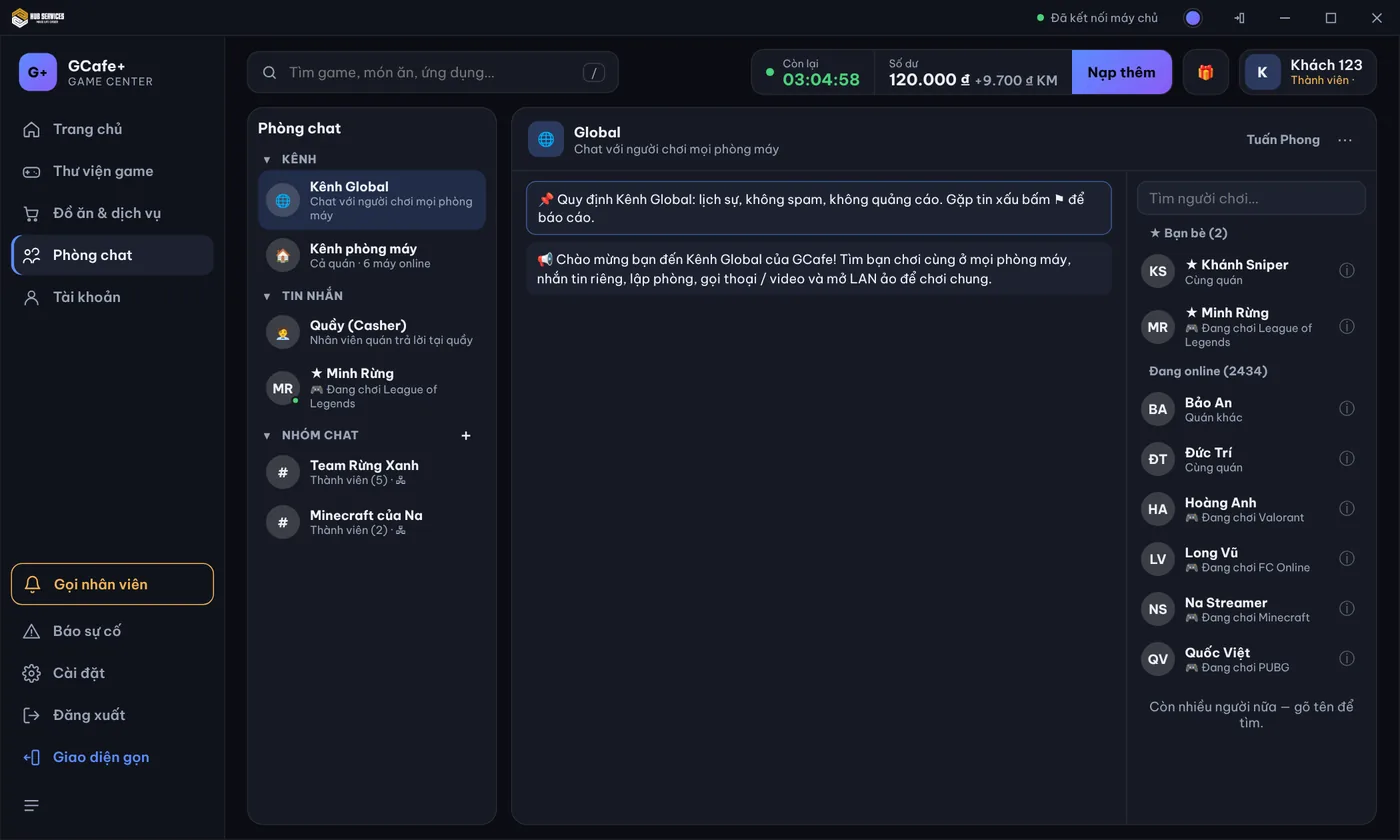
Owners use GameMenu to:
- Set banners (up to 5) and workstation wallpapers (up to 5). Workstations need GCafe Client version 2026 or later. See how to use the 5 banner slots.
- Add the cafe's logo (png or webp image, up to 1 MB).
- Arrange the game menu so players find games quickly.
Global Chat and virtual LAN are off by default. Turn them on in Settings › Workstations › Global Chat if you want them. To learn more, read What is GameMenu?
Free or paid: the short version
- Free, unlimited number of PCs: GCafe+ Billing (includes Membership), GCafe Boot, GCafe Portal, GameMenu.
- Paid: GCafe Update, charged by number of PCs, 6-month plan.
If you are weighing free internet cafe software, you can start with Portal and Billing without worrying about a PC limit. Add more later if you need it. For more on billing, see which features free internet cafe billing software should have.
Where should your cafe start?
- New cafe, PCs with hard drives: install Portal for billing, and add GCafe Update if you want games to update on their own.
- Cafe that wants to drop hard drives from workstations: use GCafe Boot together with GCafe Update. You need a good enough server and LAN. See the roadmap for moving to bootrom.
- Cafe still on an older GCafe+ Server: move to Portal. Your old data keeps working.
On installation, Hubservices says remote installation is currently free for customers. If you hire a technician to come on site, the fee is whatever the two sides agree. You can also read our A-Z guide to installing GCafe and do it yourself.
Need help choosing?
Call the hotline 1900 1232 for advice on which software set suits your cafe. Or leave your phone number on the pricing page and Hubservices will get back to you. The office is on the 2nd floor, Phong Vu building, 14-16-18 Nguyen Van Linh, Hai Chau, Da Nang.