
A customer walks in, sits at a PC, plays, pays and leaves. For walk-in guests, that's all you need. But if your cafe only has walk-in guests, you hardly know who comes back, who tops up, or who owes you money.
This is the foundation guide to internet cafe member management. You'll learn why member accounts are worth having, how to create them, what to track and how to look after your regulars. The steps are based on GCafe Billing and GCafe Portal.
Why your internet cafe should have member accounts
A member account gives you a "profile" tied to each customer. With a profile, you can track and look after your players. In practice:
- Know who your regulars are. Every member has their own profile and history.
- Get paid in advance. Members top up their account, then play using that balance.
- Promotions are easier. Offers such as "Top up X, get Y" are tied directly to the member's top-up.
- Keep a clear debt record. Members can be allowed to run a tab, and you can check member reports and debt reports.
- Fewer mix-ups at the counter. Every top-up is written to the log together with the staff member's name.
If you're looking for internet cafe management software that already includes membership, GCafe+ Billing comes with Membership. It's free, with no limit on the number of PCs.
Members, walk-in guests and staff: what's the difference?
Before you create accounts, be clear about the types of users your cafe has. There are four default groups: Walk-in guest, Member, Manager and Staff.
| Type | Needs an account? | Key point |
|---|---|---|
| Member | Yes (username and password) | Logs in on a workstation, spends prepaid balance, can be allowed to run a tab |
| Walk-in guest | No | Billed by the time spent on the PC |
| Staff | Yes | Works within the permissions they are given |
| Manager (Admin) | Yes | Full access: set prices, assign permissions, view all reports |
Walk-in guests don't need an account. Still, you can save their details on the Walk-in guest tab: guest name, ID card number, address and the PC they're using.
Create a member account on GCafe Portal
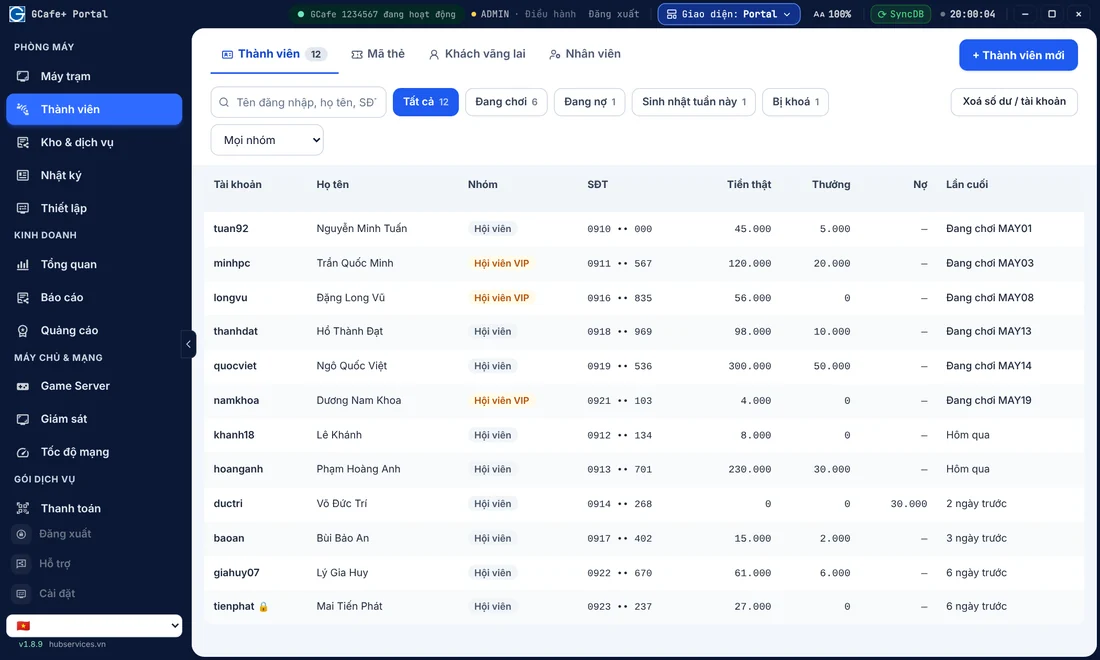
On GCafe Portal, members are under Phòng máy › Thành viên (Internet cafe › Members). Here's the short version:
- Go to Phòng máy › Thành viên.
- Click + Thành viên mới (+ New member).
- Enter the member's details, including username and password.
- Confirm. The account is ready to use right away to log in on a workstation.
For the full steps, see the guide Members, top-ups and card codes. If your cafe still runs an older GCafe+ Server, the steps are in Creating member and staff accounts.
Quick tip: choose usernames without accents or spaces that are easy to read out over the phone, for example tuan92. Players remember them easily, and your staff can find them fast.
What to track for each member
You don't need to track too much. For most cafes, the items below are enough to see how things stand:
- Account balance. Know who is about to run out so you can remind them to top up at the right time.
- History. Click a member to open the History tab, next to Top-up and Profile.
- Debt. If a member can run a tab, check the debt report regularly and don't let it pile up.
- Card codes (coupons). The code list shows which cards are in use, unused or expired.
- Suspicious accounts. You can lock an account or reset its password right from the member's profile.
- Transaction log. Every top-up, gift or loan is recorded with the name of the staff member who did it.
For a wider view, see also the daily revenue metrics worth checking.
Membership in GCafe+ Billing: keeping it simple
Membership is the member management part that comes with GCafe+ Billing, and it's free. It handles accounts, balances and tabs. Two bigger topics each have their own article, so you don't have to read the same thing twice:
- Designing member tiers: setting levels, upgrade conditions and perks. See Internet cafe member tiers (Vietnamese).
- Encouraging players to top up: which amounts, what bonus, and how to bring players back. See Internet cafe top-up.
As for topping up, on Portal you click the member, open the Top-up tab, choose an amount (20k – 500k) or Other… to enter your own, choose Cash or QR transfer, then click Top up and confirm. The "Top up X, get Y" promotion shows right below so staff can check it.
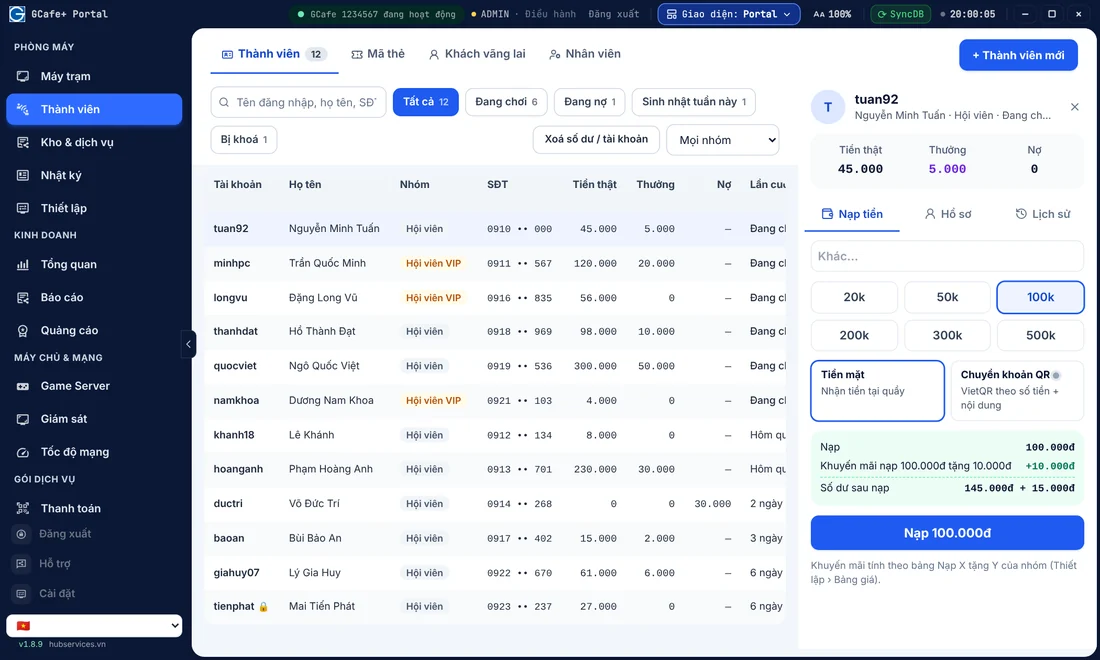
Note: features such as inventory, promotions, counter sales and the lucky wheel only run when Portal does the billing itself. If Portal runs alongside an older GCafe+ Server, the money-recording buttons show a yellow dot and the message "Cần phiên bản mới" (a newer version is needed). We recommend the full setup.
Looking after members: small things, done regularly
Creating an account is only the first step. Whether players stay depends on how you look after them. A few easy things to do:
- Give players a reason to top up. Use "Top up X, get Y" and internet cafe coupons with clear conditions and an expiry date.
- Give away time with a plan. See how to do it without losing money in the article on giving free play time (Vietnamese).
- Add some fun. If your cafe turns on the Lucky Wheel, set sensible prizes using the lucky wheel guide (Vietnamese).
- Let players keep track of their own time. Workstations show a notice at 30, 15, 10, 6, 4, 3, 2 and 1 minutes left. Players are less likely to be caught off guard when time runs out.
- Remember familiar faces. Profiles and history help staff greet players by name and ask about their usual games.
Looking after players doesn't have to be showy. Reminding them to top up at the right time, answering quickly when they ask and keeping tabs transparent is enough to make them feel respected.
Common mistakes in member management
- Sharing one staff account. When the numbers don't match, you can't tell who did what. Each person should log in with their own account.
- Being too relaxed with tabs. Running a tab is convenient, but you need to check the debt report often.
- Mixing up a temporary lock with logging out. Locking a PC with a temporary password does not stop the session, and time keeps counting. To stop billing, you must log out.
- Using hard-to-remember usernames. If players forget their username, they hesitate to log in.
To learn more about preventing losses, read 6 loopholes that cause play-time revenue loss (Vietnamese). If you're still comparing software, free internet cafe software helps you choose what fits your needs.
Need help setting up members for your cafe?
Every cafe has different player habits, so the way you group members and run promotions will differ too. If you'd like help installing and setting up members on GCafe Billing or GCafe Portal, call 1900 1232. You can also leave your phone number in the contact section on the Pricing page and the team will call you back.