
Gamers look at the screen the moment they sit down. That is your chance to tell them about a promotion, a combo or an event, without sending staff to every seat. The usual problem is that banners are there but messy. Each one tries to say everything, so players read none of them.
This guide helps you use internet cafe workstation banners in a cleaner way. You will get a way to split the 5 slots by purpose, tips for using wallpapers, and a few mistakes to avoid.
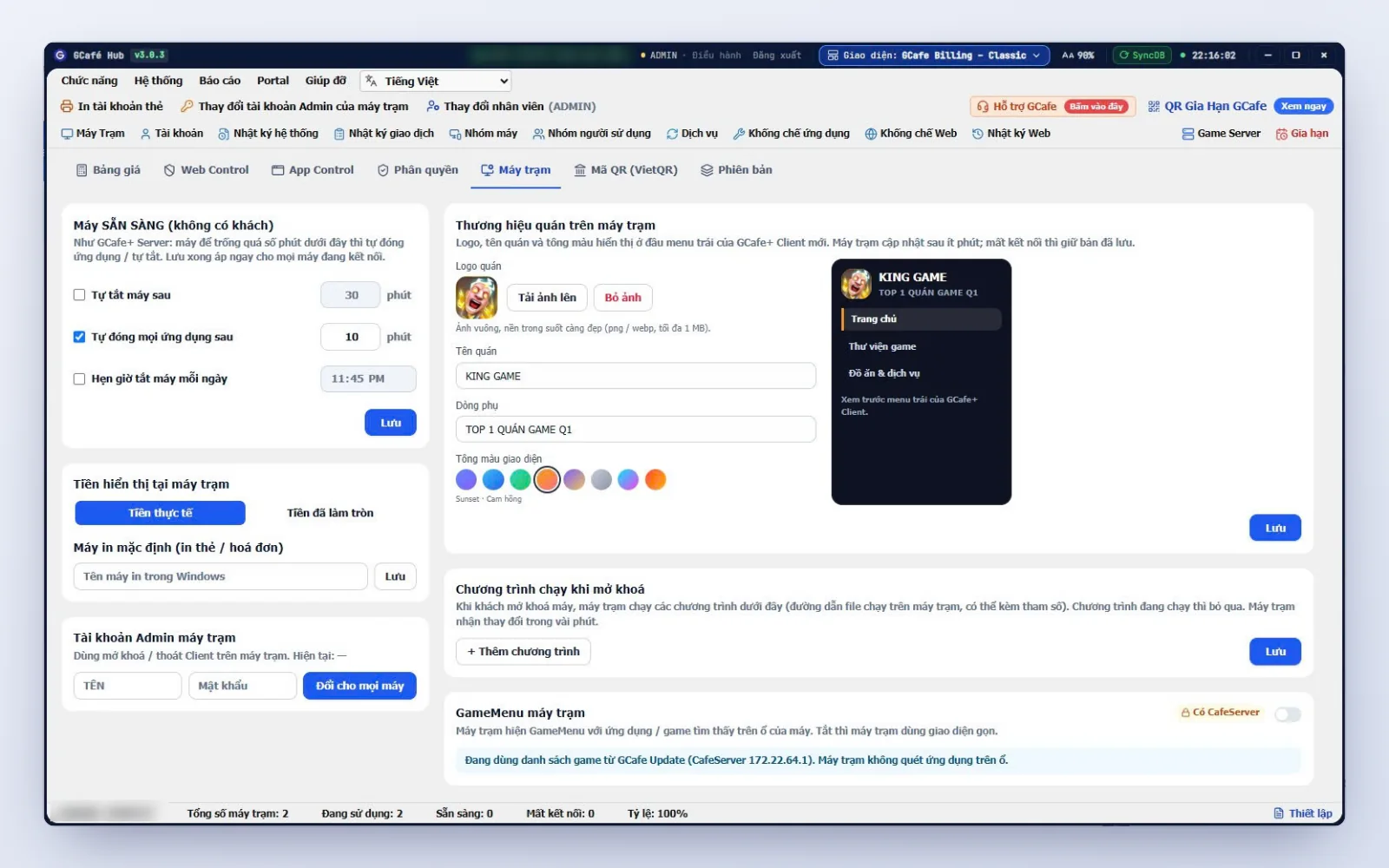
What does the workstation banner in GCafe Portal include?
GCafe Portal lets you show up to 5 banner slots on GameMenu and 5 workstation wallpapers. GCafe Portal is a free product with no limit on the number of machines. Workstations need GameMenu 2026 or later to display everything correctly.
The two items play different roles:
- Banners (up to 5 slots): for information that changes by day, week or campaign. Banners rotate on GameMenu, or switch automatically every 7 seconds on the Client App home page. When a player clicks a banner, it opens the web page you set (if you entered a URL).
- Workstation wallpapers (up to 5 images): a shared background, good for your cafe's identity or information that rarely changes. GCafe+ Client sets the image as the desktop wallpaper and changes the image each time a machine is unlocked.
About image size: workstation wallpapers should be landscape images with a 16:9 ratio (1920×1080 recommended). Banner images are shown in a tall, narrow frame, so keep the important text in the center of the image to avoid cropping. For step-by-step instructions, see GameMenu banners and workstation wallpapers.
If you are interested in workstation screen advertising in general, open Advertising › GameMenu Banner tab or the Workstation Wallpaper tab right inside GCafe Portal. You don't need a separate tool.
Why split slots by purpose instead of cramming everything into one banner?
You have 5 slots, but your cafe may have more than 5 things to say. Top-up promotions, night combos, weekend tournaments, maintenance notices, house rules... If you squeeze them all into one image, the text gets small and players scroll past it.
Splitting slots by purpose has three benefits:
- Easy to update. When a promotion ends, you only change that one slot.
- Easy to read. Each banner carries one message.
- Easy for players to remember. Regulars learn which slot has which news.
A suggested way to split the 5 slots
This is a starting point, not a fixed template. A cafe with many night players will have different priorities from one with many students.
| Slot | Suggested content | When to update |
|---|---|---|
| Slot 1 | Main promotion (for example top-up bonus, happy hour) | When the campaign changes |
| Slot 2 | Combo (night combo, play time + food/drink combo) | When the price or combo content changes |
| Slot 3 | Event (tournament, meetup, mini game) | Before and during the event |
| Slot 4 | Notice (maintenance, new hours, house rules) | When there is a new notice |
| Slot 5 | Flexible: membership, new games, support hotline | As needed |
Slot 1: promotion
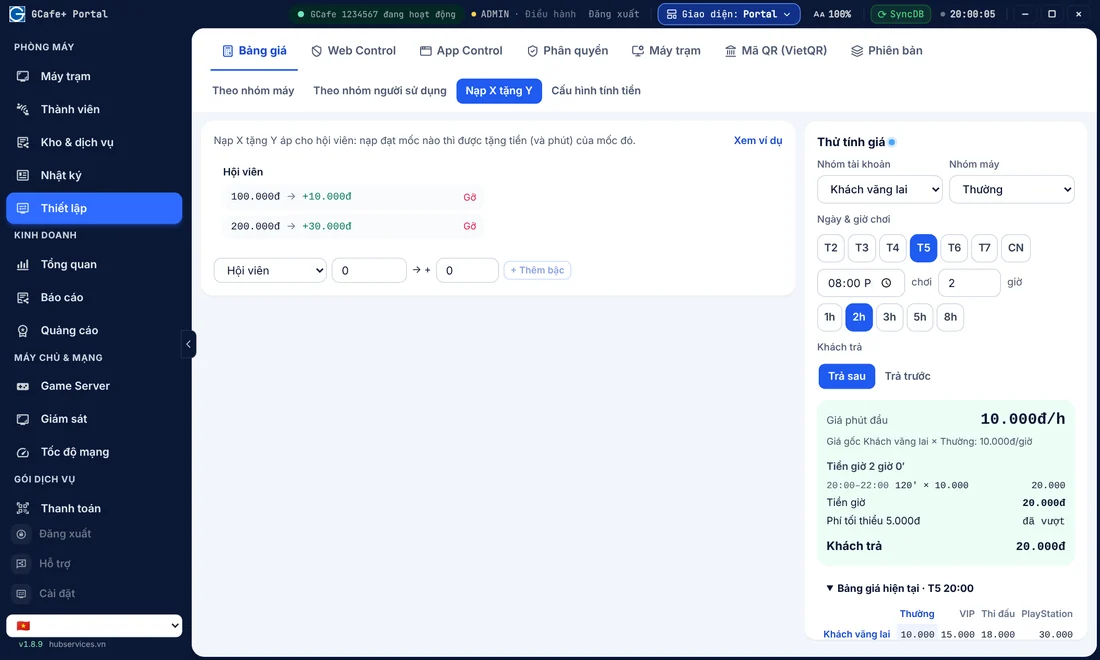
This slot should get top priority. Talk about one offer only. State the conditions briefly, along with the deadline. If your cafe uses GCafe Billing to bill and apply promotions or internet cafe coupons, say exactly how players get the offer so staff don't have to explain it again.
Slot 2: combo
A combo is easier to sell when players see the bundle price the moment they sit down. For example, a night combo banner should show the time window, the price and what is included. You set the exact numbers for your own cafe. If you need design ideas, read how to create a night combo that draws players and still makes a profit. For configuring combos in the billing software, see the GCafe Billing page.
Slot 3: events
Use it for small tournaments, social nights, a lucky wheel or seasonal programs. An event banner should include the date and time, how to join and the prize. When the event is over, replace it right away. An old event banner makes players think the cafe doesn't pay attention to details.
Slot 4: notices
This slot cuts down the number of times staff have to walk around and remind players. For example, maintenance hours, price list changes or new rules. Keep notices short and clear, with a single point. If you have a start-of-day maintenance checklist, the article on the 15-minute internet cafe maintenance checklist will help you know when to warn players.
Slot 5: flexible
The last slot is your buffer. You can use it for the membership program, new game announcements or your cafe's hotline number. If you want players to be excited about leveling up, check out how to design internet cafe membership tiers. Internet cafe membership management is part of GCafe Billing (with Membership included).
Workstation wallpapers and cafe branding: what should you put there?
The wallpaper is what players see for the longest time, but it is easy to forget. You can also add your logo (square png/webp, up to 1 MB), cafe name and color scheme at the top of the left menu in GCafe+ Client, under Settings › Workstation tab (details: Cafe branding on workstations).
A few tips for wallpapers:
- Put your cafe name, logo or tagline so the cafe looks neat and consistent.
- Leave the middle area clear for game icons and banners. Avoid busy images.
- Add information that rarely changes, such as the support hotline or short house rules.
- Avoid writing prices or promotions on the wallpaper. Every price change means redoing the image for the whole room.
An easy rule to remember: what changes often goes in the banner, what stays stable goes in the wallpaper.
Common mistakes with workstation banners
- Text too small or too close to the edge. Players sit some distance from the screen, so the text needs to be large enough, short, and placed in the center of the image so it isn't cropped by the frame.
- Too many messages in one banner. Each banner should carry one main idea.
- Expired banners left up. Set a regular time to review banners, for example when you check the machines at the start of the day.
- Not matching reality. If a banner shows one price but the billing software is set to another, you will get arguments. Check again before publishing.
- Using all 5 slots without assigning roles. When every slot is a promotion, players can't tell which one matters.
Where do banners fit in the GCafe suite?
Banners are only one part of running your cafe. The full GCafe suite, developed by Hubservices, includes:
- GCafe Billing: billing and membership. The server runs GCafe+ Server and workstations run GCafe+ Client.
- GCafe Portal: banners, wallpapers and reports, including the S1a-HKD revenue ledger template under Circular 152/2025/TT-BTC.
- GameMenu: the game menu on workstations.
- GCafe Boot: diskless workstations.
- GCafe Update: automatic game updates, a paid package charged by the number of machines, in 6-month plans.
GCafe Billing, GCafe Boot, GCafe Portal and GameMenu are all free, with no limit on the number of machines. The free and paid plans differ only in game updates. See the overview on the GCafe home page or get the software on the Download page.
A 10-minute routine to refresh banners every week
- Look at this week's promotions and pick one offer for slot 1.
- Update slot 2 if the combo has changed.
- Check the event calendar and put the upcoming event banner in slot 3.
- Remove old notices in slot 4 and post a new one if needed.
- Use slot 5 for extra content.
- Sit at one workstation (or lock and unlock a machine after about 2 minutes) to check that the banners display clearly.
Need help setting up banners?
If you aren't used to setting up banners in GCafe Portal yet, call the hotline 1900 1232. You can also leave your phone number in the contact section on the Pricing page to get advice.