
A player sits down, unlocks the PC, and right away sees a game list, promo banners and an order button. That screen is GameMenu. For you as the owner, it is the "storefront" of your gaming room. How fast players find a game, and whether they notice your combos, both depend on it.
This guide covers what GameMenu is, what sections it has, where the games come from, and how to update it. Jump to a section:
- What is GameMenu?
- What does GameMenu show on workstations?
- Where does the game list come from?
- Banners and wallpapers on GameMenu
- How to update GameMenu
- Things to know when using GameMenu
What is GameMenu?
GameMenu is the game menu that runs on your internet cafe workstations. Players use it to pick games, see your banners, order food and services, and chat with the counter. GameMenu is free with no limit on the number of PCs. It belongs to GCafe's free product group, together with GCafe+ Billing (with Membership), GCafe Boot and GCafe Portal. You can find the general overview on the GameMenu page.
One naming detail can cause confusion. In the GCafe+ Client documentation, this part is now called Client App (it used to be called GameMenu), and it has a G+ icon in the system tray. Both names refer to the interface players use after the PC is unlocked. The lock screen (Locker) is a separate part that appears before players log in.
GameMenu works together with your servers. GCafe Billing or GCafe Portal handles billing, chat and orders. GCafe Update handles the game list and game downloads. If you are looking for complete internet cafe management software, GameMenu is the part your players see directly.
What does GameMenu show on workstations?
After unlock, GameMenu has a menu on the left, a session bar at the top, content in the middle, and a panel on the right for the session, quick order and support. The main sections are:
| Section | Players use it to |
|---|---|
| Home | See your banners, your games, the current session, quick order, apps and the help button |
| Game library | Browse all games, filter by genre, sort and change the view |
| Food & services | Order items; the number of items in the cart shows next to the section name |
| Chat room | Chat with the counter and with other PCs in the cafe |
| Account | See balance and reward points, redeem a coupon, view history, change password, lock the PC |
| Call staff · Report an issue | Tell the counter someone needs to come to the PC |
| Settings · Log out | Change language and sound; end the session |
The top bar has a search box (press the / key to jump straight to it), remaining time, balance and a Top up button. The colored dot next to "Connected to server" shows whether the PC is connected or has lost connection. Players can also pick 1 of 8 interface color themes.
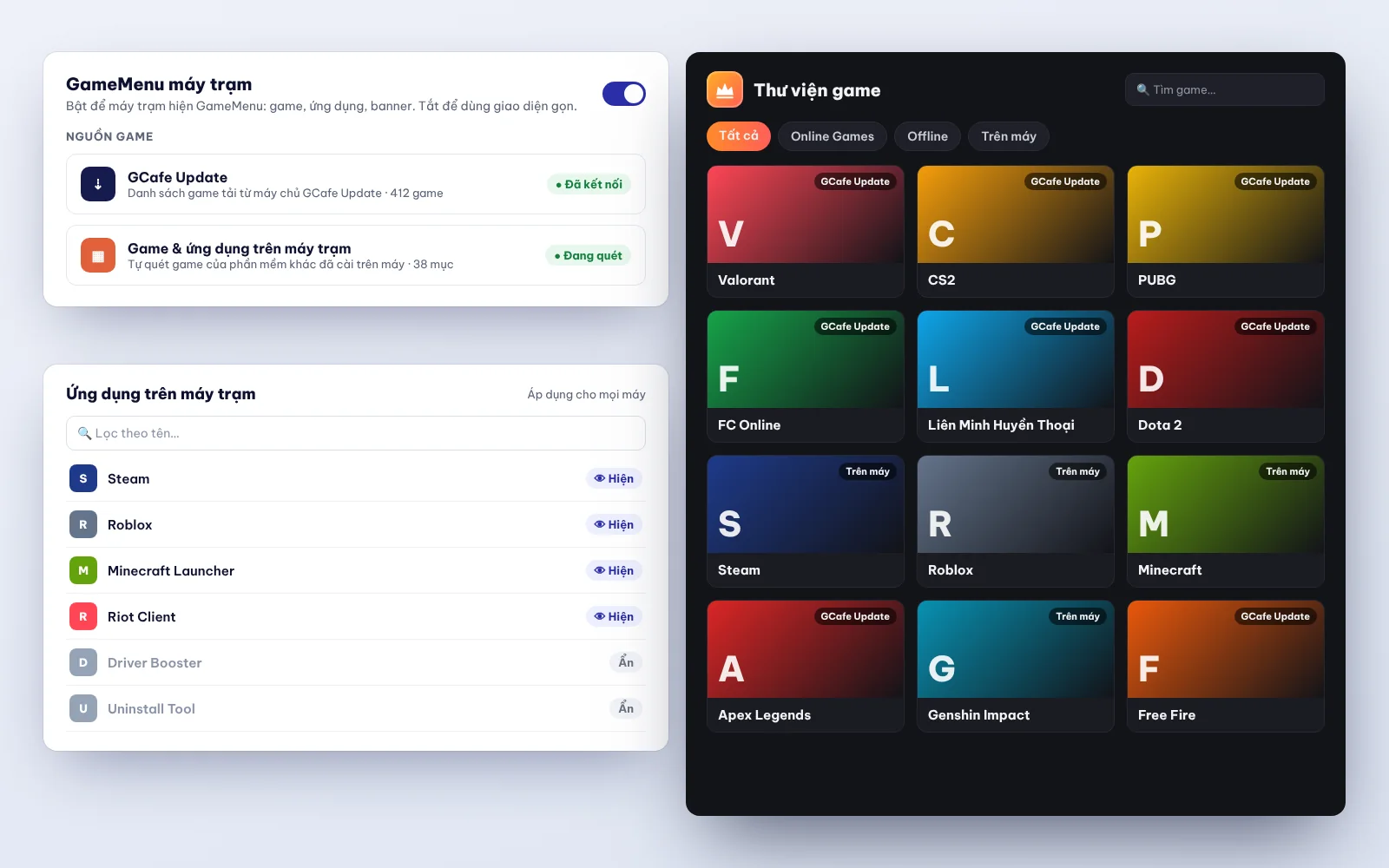
Each section is explained in detail in Getting to know the Client App interface.
Where does the game list come from?
Your game list comes from GCafe Update, GCafe's game server (previously called CafeServer). Players pick a game on the Home page or in the Game library. Here is how a player launches a game:
- Click Game library, then filter by genre, Favorites, Offline or New, or type a game name in the search box.
- Click a game once to see the detail panel on the right.
- Click ▶ Play now (or click the game again, or press Enter).
- GameMenu checks the files and updates, then launches the game by itself.
Players can sort by Popular at this cafe, Recently updated or Name A–Z, and switch the view between Grid, Compact and List. The ☆ Favorite button saves the favorites list on that PC. If a game has a problem, players click Report game issue to send a message to the counter. See more in Finding and running games and apps on the PC.
For rooms using GCafe Boot (diskless workstations), games are mounted to the workstation at boot, so they do not need to be downloaded from the GCafe Update Server. You can read more about GameMenu for diskless workstations.
To help players find games faster, take care with how you arrange the list: see how to arrange your internet cafe game menu.
Banners and wallpapers on GameMenu
GameMenu is also where you promote deals, events and combos. In GCafe Portal, you can set:
- Up to 5 banners on GameMenu. The home banners rotate every 7 seconds. You can add a URL so players can click a banner to open a web page.
- Up to 5 wallpapers for workstations. Use a landscape 1920×1080 image (16:9 ratio); the Windows wallpaper changes each time the PC is unlocked.
How to do it: go to Advertising › the GameMenu Banner tab, click Upload on an empty slot, choose an image, then click Update Banners. For wallpapers, open the Workstation wallpaper tab, upload an image, then click Update Wallpapers. Requirement: workstations must run GameMenu version 2026 or later. The full guide is in GameMenu banners and workstation wallpapers. To decide what to put in the 5 slots, see internet cafe workstation banners.
How to update GameMenu
You do not need to reinstall on each PC. Depending on how your cafe installed GameMenu, updating works like this:
| How your cafe uses it | How it updates |
|---|---|
| GameMenu loaded from IDC | Updates to the new version automatically |
| GameMenu installed on drive C: | Open Super Image to update automatically, then close it |
If yours is installed on drive C:, it helps to understand what Super Image does and when to open it. We wrote a separate guide: What is Super Image? Updating GameMenu on drive C: the right way.
To see which version a PC is running, look at the version number at the bottom right of the lock screen, or open the Client App and go to Settings › Version. This helps when you want to use banners and wallpapers, because they need version 2026 or later.
Also, workstations check for new versions at startup and periodically during the day. They download only the changed files, and they do not kick out players or restart the PC.
Things to know when using GameMenu
- Workstation requirements: Windows 10 or 11 with Microsoft Edge WebView2 Runtime (included in Windows 11). During installation, you must be logged in to Windows as Administrator and know the server IP.
- The ✕ button only hides the window: GameMenu keeps running in the system tray. Players click the G+ icon to open it again.
- Lost connection to the server: chat, ordering and top-up are temporarily unavailable.
- A temporary lock still charges time: to stop billing, the player must log out.
- The login box hides itself: on the lock screen, if nobody touches the PC for 45 seconds, the login box hides so your cafe's background shows clearly.
If you are weighing up software for your cafe, you can read more about free internet cafe software to pick what fits your needs. The parts that run on the server alongside GameMenu are GCafe Billing/Portal and GCafe Update. For more, see how GCafe+ Server and GCafe+ Client differ.
Need help installing or updating GameMenu?
If you are not sure whether your cafe loads GameMenu from IDC or installs it on drive C:, or you want help arranging banners and the game menu, call 1900 1232. You can also leave your phone number in the contact section, and the GCafe team will call you back.