
A player turns on a PC, clicks a favorite game, and sees an update message. They wait a few minutes, get annoyed, and head to another cafe. You can avoid this with a few minutes of checking before opening time.
This post walks you through a short routine to confirm your games are fully updated. It uses GCafe Update, the game update software for internet cafes, which runs on your game server. You can add it to your daily internet cafe maintenance checklist.
Why check when automatic updates are already on?
GCafe Update automatically downloads the changed parts of a game to the server, then shares them with workstations over your LAN. But "automatic" does not always mean "finished on time." Here are some common reasons:
- A game set to Manual only shows a "New version available" label and waits for you to start the update.
- The number of simultaneous downloads is limited (the default is 3), so the remaining games wait in the Queued state.
- The drive is full, or another program is holding the game's files, so the download stops.
- When the license expires, GCafe Update stops automatic updates.
Checking for 5–10 minutes before opening costs far less than fixing problems once every seat is full. If your cafe often deals with large patches, also read large game updates: what your cafe needs to prepare (Vietnamese).
The 5-step routine before opening
Step 1: Check that GCafe Update is running normally
Open the Console (GCafé Update Dashboard) from the shortcut on the server's Desktop. Go to Overview and check the status. Look at two things:
- GCafe status › Software update: "Up to date" is fine. If you see "Postponed" or "Check error" (usually a network issue), GCafe Update will retry on its own later.
- CPU, RAM, drives, network card, and the day's alerts: if there is an alert, deal with it first.
To open the Console from another computer in your cafe, you must set a separate web password in Settings › Console access password.
Step 2: See which games are still downloading or queued
Go to Game Library and open the Downloading tab. The goal is that no game is downloading or waiting in the queue.
- A game stuck in Queued: the limit on simultaneous downloads has been reached. Wait for another game to finish, or raise Number of simultaneous package downloads in Settings.
- A game showing an error: see Step 4.
Step 3: Find games that still show "New version available"
In Game Library, look for Manual games showing the "New version available" label. Start the update by hand, or switch the game to Auto if you want it to download by itself next time. For popular games that draw the most players, keep them on Auto.
If a game does not show a new version even though you know one exists, also check that your license is still valid. When the license expires, automatic updates stop.
Step 4: Fix games that show errors
Here are the common errors and quick fixes:
| What you see | How to fix it |
|---|---|
| "File… is open" message | The game is open on the server, or another program is holding the file. Close that program; the Console has a Close the program holding the file button. GCafe Update retries on its own. |
| Download failed because the drive is full | Free up space with Disk cleanup, or add a package folder on another drive. Then click Retry on the error line. |
| Slow download speed | Check Download limit in Settings, your cafe's Internet connection, and the network card speed on Overview. |
| Version warning (the version in your cafe is newer than the catalog) | Check the package again before updating, or run Full Update to bring it back to the catalog version. |
| "This folder already belongs to a package…" | Each folder can be used for only one game. Choose a different folder. |
A fuller list is on the page Games not downloading / updating (Vietnamese).
Step 5: Try opening games on a few workstations
Even when the server says everything is done, test it in practice. Pick a few workstations, with at least one in each machine group (each group only sees the games assigned to it). Open your busiest games and check that they launch.
- If a game finished updating but a workstation still shows file errors: on the server, right-click the game and choose Full Update to re-check all files.
- Then, on the workstation, let it download the game again, or use the option to delete the game files on the workstation and download them again.
For workstations with hard drives, you can also open the Workstation downloads page to see which machines run GCafe+ Client App and are sharing games with each other.
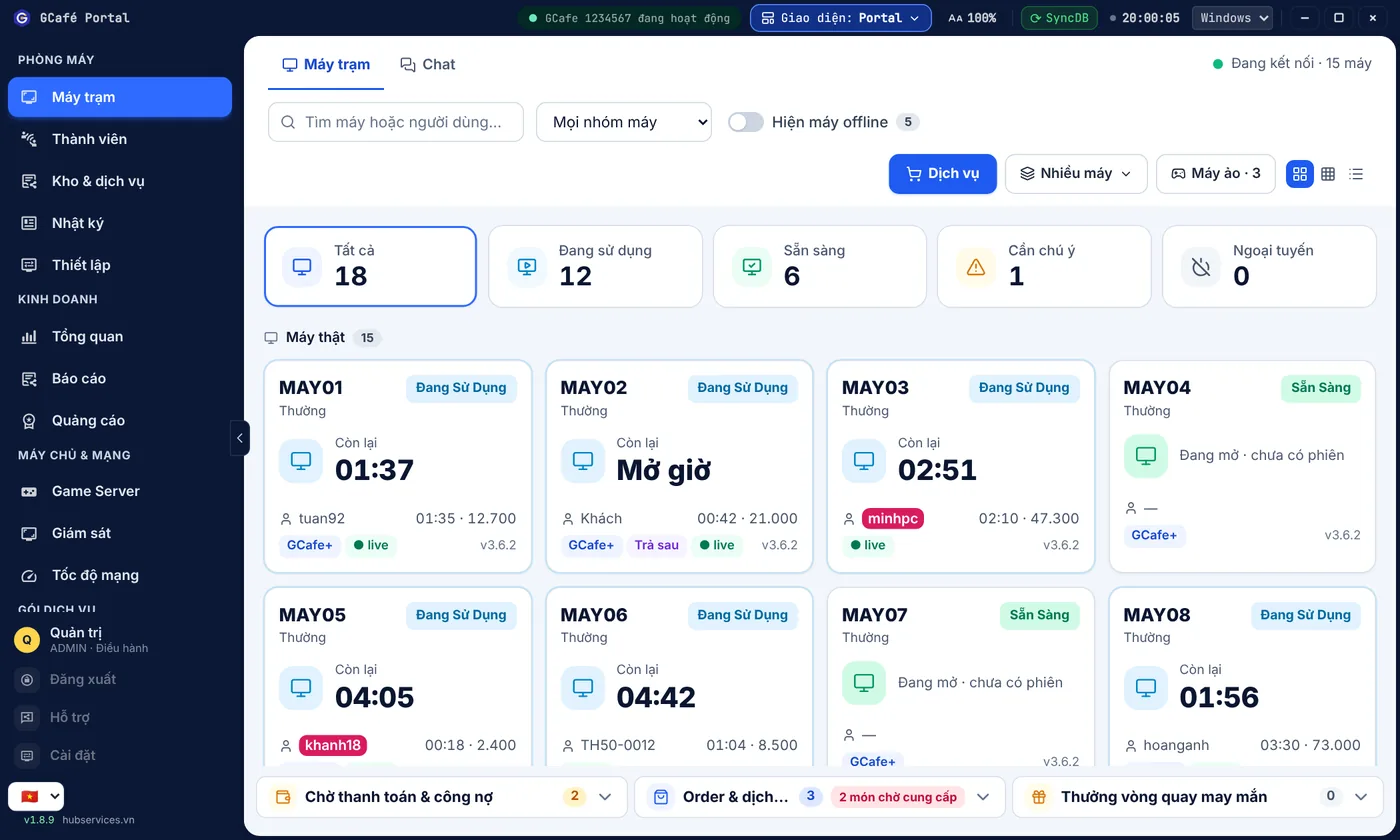
Before testing, look at the machine status on your billing screen so you can pick an idle machine for the test. You can read about your cafe's billing software on the GCafe Billing page.
Does a fresh update take long to reach workstations?
Workstations pull games directly from the server over your LAN. Configuration changes you make in Portal (for example banners or workstation settings) take a few minutes to reach the workstations. So don't make changes right before opening. Do them about 10–15 minutes earlier, so you have time to check again.
Settings that help games finish updating sooner
If games are still unfinished every morning, review a few items on the Settings page of GCafe Update (remember to click Save after you change them):
- Number of simultaneous package downloads: the default is 3. Raise it if your network is strong; lower it if your drive is slow.
- Download / upload limit: the default is 40 MB/s, applied after up to 10 seconds. If your network is slow at peak hours, lower it to 10–20 MB/s so players on online games don't lag. Set it higher again late at night so games update faster. The post on internet cafe game update bandwidth goes into more detail.
- Package folders: up to 3 folders, and the first folder is where new games are downloaded. Choose a drive with plenty of free space. Tips for preparing your storage drive are in game server for internet cafes (Vietnamese).
- Upload limit per workstation: the default is 20–40 MB/s, the maximum speed at which each workstation shares games with other machines.
These options are explained in full on the page GCafe Update configuration (Vietnamese).
What if your cafe runs diskless workstations?
In a diskless room, games are mounted to the workstation at boot, so workstations don't need to download games from GCafe Update. Your checks focus on the server: are games fully updated on the server, and does the drive have enough free space? If you are weighing this model, see GCafe Boot, or read about the diskless internet cafe system.
Make it a start-of-day habit
So you don't forget, turn the 5 steps into a short line on your morning-shift checklist:
- Overview: status is normal, no alerts.
- Downloading: no half-finished or Queued games.
- No games labeled "New version available" in your main game groups.
- No error lines (file open, drive full).
- Test games on a few workstations.
Whoever is on shift can do this in a few minutes. If your cafe has many PCs, give this job to one fixed person so it is easier to keep track. To see how the programs in the suite work together, read what is in GCafe software, or visit the home page for GCafe internet cafe management software.
Need help setting up?
If games in your cafe often get stuck in the queue, or you are not sure how to set the download limit for your connection, call 1900 1232. You can also leave your phone number in the contact section of the Pricing page to get advice for your cafe.