

When you have just opened an internet cafe, or just moved to the Hubservices system, the first thing you want is to learn the daily operations quickly. This GCafe user guide goes straight to what happens in a real gaming room. It covers what each tool in the ecosystem does, how to create accounts and top up for players at the counter, how to track revenue remotely, and how to maintain your game library and diskless workstations.
1. What does the GCafe internet cafe software suite include?
Before going into specific tasks, you should know the role of each part of the GCafe internet cafe software suite. Instead of putting everything into one heavy program, the system is split into focused tools that work together:
| Product | Main role in your gaming room | Cost |
|---|---|---|
| GCafe Billing (GCafe+ Server & GCafe+ Client) | Charges for play time, manages members, handles top-ups, sets up night combos, and locks/unlocks workstations. Comes with both the new interface and the Classic interface. | Free (no limit on number of PCs) |
| GCafe Portal | Manage your gaming room remotely in a web browser: view revenue reports, configure prices, set staff permissions, set workstation banners, and export tax ledgers. | Free (no limit on number of PCs) |
| GCafe Boot | A solution for booting diskless workstations over the LAN. It keeps the operating system in sync and fixes software problems with a single PC restart. | Free (no limit on number of PCs) |
| GameMenu | The game list shown on the workstation screen, so players can find and launch games quickly. | Free (no limit on number of PCs) |
| GCafe Update | A game server that updates games automatically from the IDC to your gaming room, so players can start right away without waiting for patches. | VND 900,000 / 6 months / 30 workstations (the free plan differs only in automatic game updates) |
If your gaming room does not have all of these set up yet, read our GCafe installation guide from A to Z first, or contact your local technician for help with the initial setup.
2. How to use GCafe Billing at the counter
At the cashier PC, staff and owners work directly in GCafe+ Server, while the player PCs run GCafe+ Client. To understand how the two sides work together, read how GCafe+ Server and GCafe+ Client differ.
Depending on what your staff prefer, you can use the modern new interface or the traditional Classic interface (see the comparison in choosing between the new and Classic interface for GCafe Billing). With this internet cafe billing software, these are the basic tasks you will do every day:
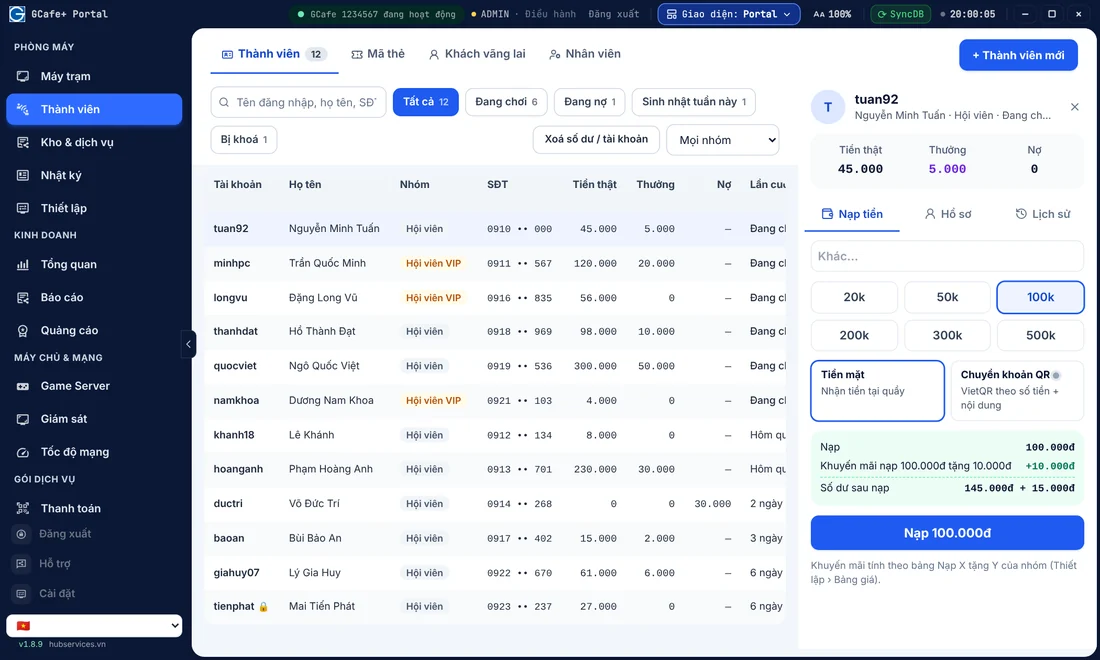
Create member accounts and top up play time
In most internet cafes in Vietnam today, players top up a member account (Membership) because it is convenient for both players and cashiers. When a new customer comes to the counter:
- Create the account: Enter a username (usually an easy-to-remember name or the player's phone number) and a default password, then choose the matching member group.
- Top up: Select the new account (or search for an existing member by name), enter the amount the player paid, and confirm the top-up.
- Top-up promotions: To keep regular players coming back, you can set up "top up X, get Y" offers or give bonus play time wisely right in the system. The software adds the bonus automatically, so your cashier does not have to calculate it by hand.
Open a PC for walk-in players, switch PCs, and sell night combos
- Prepaid / postpaid sessions: For walk-in players who do not want an account, the cashier clicks a free PC on the room map, chooses to open it, and enters the amount the player pays up front.
- Switching PCs: If a player on PC 05 wants to move to PC 10 to sit next to friends, a member only needs to log out of the old PC and log in on the new one. For a walk-in player opened at the counter, the cashier moves the session to the new PC in GCafe+ Server.
- Activate play-time packages (combos): Late night (usually 10 PM to 6 AM) is when internet cafes push night combos. Once you set the night package price, the player or cashier just picks the package. The system deducts the discounted amount and locks the PC at the set time. See how to create night combos that draw players to set the right time window.
3. How to use GCafe Portal to manage your gaming room remotely
An owner cannot stand at the counter 24/7. That is where internet cafe revenue management software GCafe Portal helps. Log in with a web browser and you can monitor everything in your gaming room from anywhere.
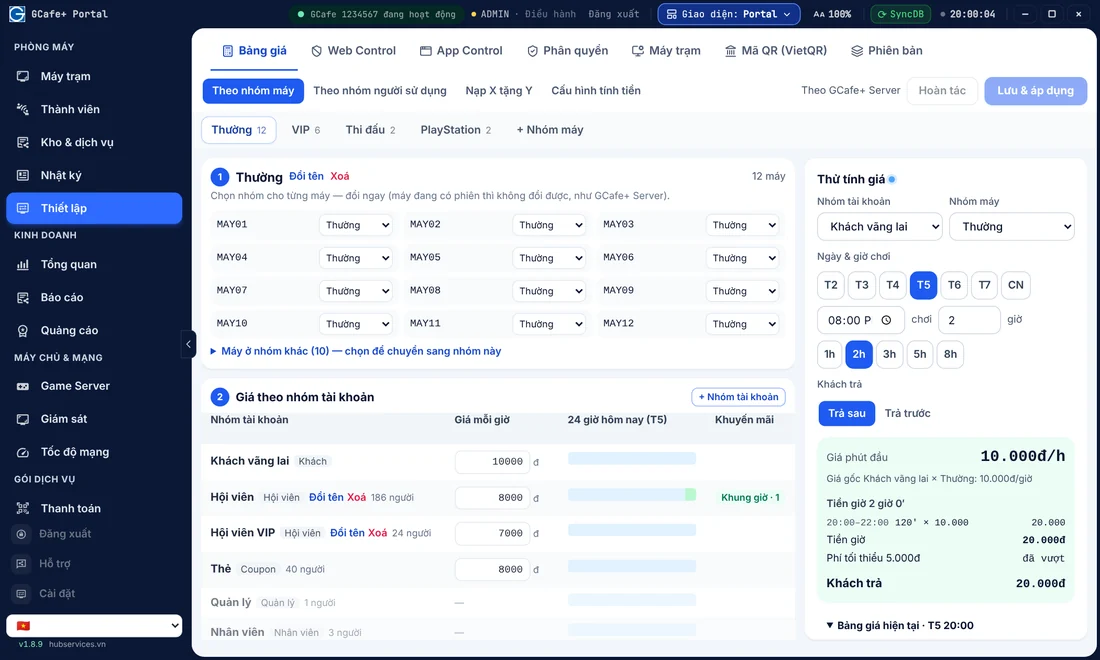
Set play-time prices by PC group and time slot
A standard gaming room is usually split into several zones: Standard, VIP, Esports, or Smoking Room. In GCafe Portal, open the billing and PC group pricing section to set separate prices for each zone. You can also split prices by peak and off-peak hours, or set special rates for each member tier.
Set staff permissions and reconcile shift handovers
Money loss during shift changes worries many gaming room owners. In GCafe Portal, create a separate account for each staff member in the staff management section and limit their permissions. For example, staff can top up accounts but cannot change prices or delete transaction history. Combine this with the 5-step shift handover process, and the cash at the counter will always match the numbers in the software.
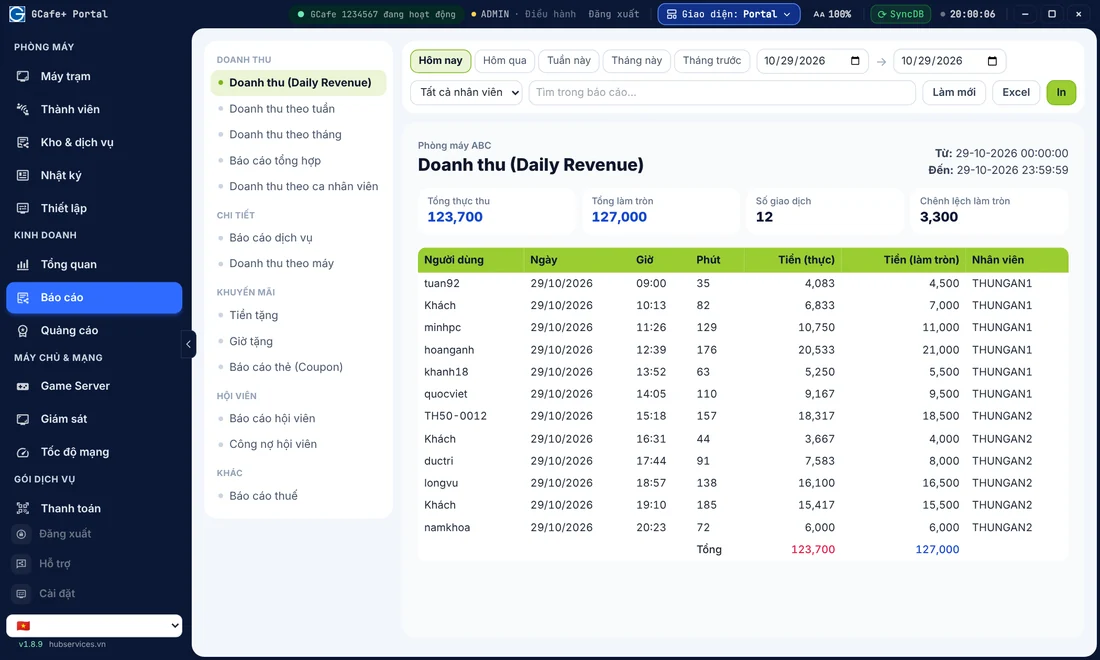
Track revenue reports and export the S1a-HKD tax ledger
Every day, open the revenue reports to see total member top-ups, walk-in income, and revenue by shift. To help owners meet the new accounting rules, GCafe Portal has a built-in tax report for household businesses. It lets you export the S1a-HKD revenue ledger under Circular 152/2025/TT-BTC in just a few steps by filtering dates.
Manage content, workstation banners, and room safety
Beyond money, GCafe Portal also gives you tools to control the network environment and promote your cafe on site:
- On-site advertising: You can use up to 5 banner slots plus a wallpaper on the workstations to show your food and drink menu, tournaments, or promotions. For tips, read how to use the 5 workstation banner slots effectively.
- Block harmful apps and websites: Use the app blocking feature (for cheating software, coin miners, and hacking tools) and block unsafe websites. This helps protect your IP range and keep the network stable for all PCs.
4. Run your game library and workstations with GCafe Update, GCafe Boot & GameMenu
What players want most is a smooth PC and instant access to games. To deliver that, you need to know how GCafe Boot, GCafe Update, and GameMenu work together.
Automatic game updates with GCafe Update
Online games release patches all the time, so downloading by hand on each PC is not realistic. With automatic game update software for internet cafes like GCafe Update, the server in your cafe downloads the latest updates from the IDC and syncs them to all workstations. You can also set the update window in Portal for the early morning, when the cafe is quiet, so it does not use bandwidth at peak hours.
A quick note: GCafe Update now upgrades itself to the new version without a reinstall, and you cannot roll back to an older version (see notes on upgrading GCafe Update).
Arrange GameMenu and open Super Image
On the workstation screen, players use GameMenu directly. Review and arrange your game menu from time to time, and put the games with the most players at the top so players can find them fast.
On the technical side of a diskless internet cafe (GCafe Boot):
- If GameMenu is loaded from the IDC (the game server), the interface updates itself when a new version is available.
- If GameMenu is installed on drive C: of the base image, you or your technician need to open Super Image in GCafe Boot when you want to update the version or add system software to the workstations. Wait for the update to finish, then close Super Image and save. See the step-by-step guide in what Super Image is and how to update correctly.
5. Daily tips for a smooth-running gaming room
Once you are comfortable with the tasks in this GCafe user guide, keep a simple 15-minute opening maintenance checklist so your cafe stays stable:
- Check the status of the GCafe+ Server machine and the GCafe Boot server before the peak opening hours.
- Look at the list of games updated overnight in GCafe Update. Make sure your main titles are not failing because the game drive is full.
- Check the shift handover record in GCafe Portal each morning to see the real cash flow of the previous day.
The GCafe solution now supports more than 50,000 gaming rooms and more than 3 million player visits per day, with a dealer network in all 34 of 34 provinces and cities in Vietnam. If you run into any problem during operation, or want to upgrade to automatic game updates, call our support hotline 1900 1232. You can also leave your phone number on the Contact & Pricing page, and our technicians will help you on site.
