

Want to run food and drink promotions at your internet cafe without wrong prices, and without staff discounting by hand? The simplest way is to use internet cafe discount software: set up a program once and let the system apply the price. In GCafe Portal, you get 5 promotion types: Percent off, Amount off per item, Fixed price, Buy X get Y, and Free add-on item.
This article goes through each type, with examples from a real internet cafe, how to create one, and how to keep control so you don't sell at a loss.
Why internet cafes should run service promotions in software
Gaming hours are your main income, but soft drinks, instant noodles, snacks and coffee add a good share of profit. Many cafes still run promotions by word of mouth: "drinks are discounted this afternoon", "buy 2 get 1". This often causes three problems:
- Each shift prices things its own way, and customers compare and ask questions.
- A promotion ends but nobody turns it off, so the cafe sells cheap all session.
- At the end of the month you can't tell which program worked and which one only cut your profit.
When promotions live in the software, the price is fixed at the moment of ordering, free items are deducted from stock, and everything has a report you can check. If you are looking at the full solution, see what is in the GCafe software suite.
5 service discount types in GCafe Portal
These types are under Inventory & Services › Promotions in GCafe Portal. The table below summarizes each type with a practical example:
| Type | Example at an internet cafe | Best when |
|---|---|---|
| Percent off | 20% off soft drinks from 14:00–17:00 | You want to pull players in during quiet hours |
| Amount off per item | VND 3,000 off each coffee | You want customers to remember the discount easily |
| Fixed price | All snacks at VND 10,000 | Clearing a product group, selling fast |
| Buy X get Y | Buy 2 get 1 Red Bull | Raising the quantity per purchase |
| Free add-on item | Buy 1 stir-fried noodles, get 1 bottled water | Encouraging main-dish orders |
1. Percent off
The simplest one. You pick an item group and set a percentage. For example, 20% off soft drinks from 14:00–17:00, when the cafe is quiet. This type suits items with a wide profit margin.
2. Amount off per item
Take off a fixed amount from each item, for example VND 3,000 off each coffee. Customers picture this more easily than a percentage, and staff don't have to do the math in their heads.
3. Fixed price
The whole item group sells at one price. For example, every snack at VND 10,000. It works well for pushing stock you have too much of, or for a price list that is easy to read for customers standing at the counter.
4. Buy X get Y
When a customer buys the required quantity, they get extra for free, for example buy 2 get 1 Red Bull. The free item is recorded as a separate line at price 0 and is still deducted from stock, so your inventory numbers stay accurate.
5. Free add-on item
Buy this item, get another one: buy 1 stir-fried noodles, get 1 bottled water. This type is often used for night combos. Note: it only runs when the cafe uses Portal for full billing. It does not run when Portal works alongside an older GCafe+ Server.
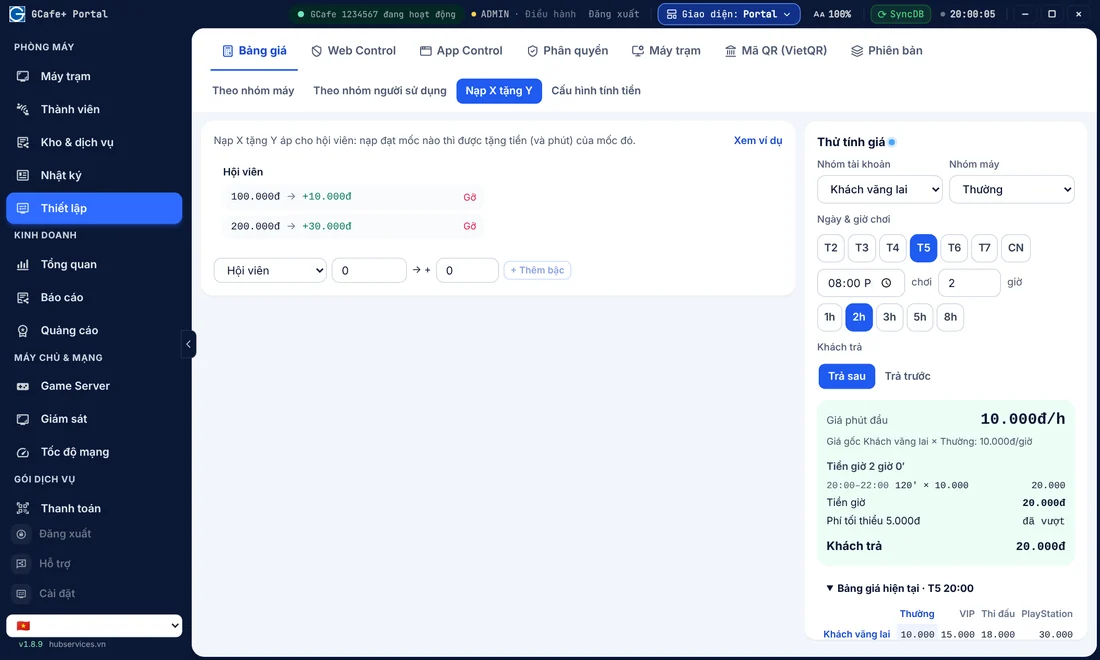
Besides promotions for food and drinks, Portal also has top-up promotions in the form of Top up X get Y in the Price list section. The two groups are separate, and you can use them side by side.
How to create a promotion program
Here are the steps to create a promotion program in Portal. The full guide is on the Promotions for food and drinks page.
- Go to Inventory & Services › Promotions, click + New promotion and enter a program name.
- Choose the Type and the discount level.
- Choose Applies to: All items, By category, or Select items.
- Choose the Scope (at least one): Order from workstation, Counter order for a PC, Sell at counter.
- Set the time: From date / To date, From time / To time, Days of the week. Leaving a field empty means it always applies.
- Click Save, then turn on the Enabled switch.
After that, the workstation shows the promotional price right on the order menu. Changes in Portal can take a few minutes to reach the workstations, so don't worry if a customer doesn't see the new price right away.
One handy point: if several programs run within the same scope, each item gets the best offer for the customer. You don't have to worry about two programs stacking into a discount that is too deep.
Keep control so promotions don't become losses
A good promotion is one that still makes a profit. Portal has a few tools to help.
Enter the cost price for every item
In Inventory & Services › Products, enter the Cost price / unit for each item. With a cost price, Portal can calculate gross profit correctly and block promotions that sell below cost.
Limit staff discounts
Click Promotion controls to set the Maximum discount staff can set (%), which is 50% by default, and choose which staff members can manage promotions. If a discount goes over the limit or below cost price, only an Admin account can save it.
Suggested promotions to move slow stock
Portal automatically finds items that are close to expiry, haven't sold in 28 days, or are overstocked, then suggests a discount no lower than cost price + 5%. Click Create promotion to use the suggestion right away. It is a way to clear stock without calculating item by item.
Example: turning promotions into a night combo
Late-night players are the easiest group to keep if your cafe has clear offers. Here is how, following the night combo setup guide:
- Night hourly rate: in Settings › Price list › By machine group, add a time slot (for example 22:00–06:00) with a lower rate per hour.
- Free drink: create a promotion of type Free add-on item or Buy X get Y, set From time 22:00 and To time 23:59 (add another promotion for 00:00–06:00 if needed), with scope Order from workstation and Counter order for a PC.
- Night combo card (optional): create a card code with preloaded money or play minutes, for example a "50k night card".
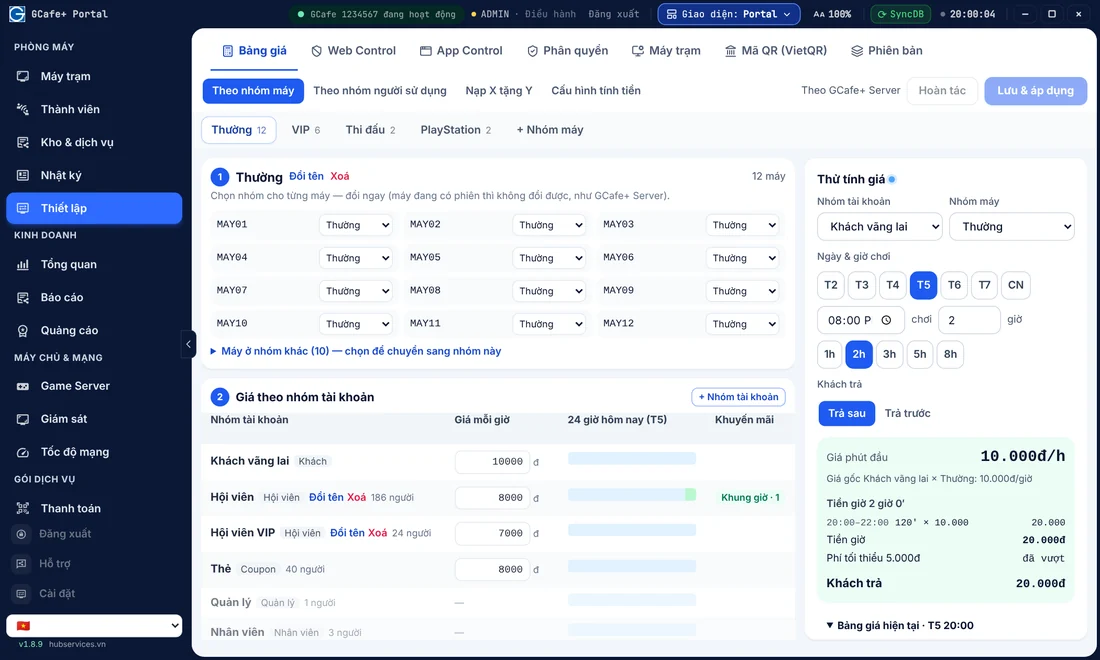
Note that each price line can use only one type of offer: a time slot or tiered pricing. To go deeper, read how to create an internet cafe night combo that draws players and still makes a profit.
Measure the results after running
Don't just leave a program running once it starts. In Business › Reports, the Service report has columns for original price and discount amount, so you can compare each program. You can pick a time range (Today, This week, This month…), filter by staff member and export to Excel.
A simple way to read it: keep programs that lift sales and still leave gross profit; turn off programs that only increase the discount amount while the number of items sold barely changes. If you would rather give out play time than discount items, see how to give free play time without losing money (Vietnamese) and effective internet cafe coupons (Vietnamese).
Requirements to use all promotion features
- Counter-sales inventory, the Lucky Wheel and free add-on promotions only run when Portal handles billing instead of GCafe+ Server. This is also the mode GCafe recommends. You change it in Settings › Version, and only an Admin account can change it.
- When Portal runs alongside an older GCafe+ Server, the money-writing buttons show a yellow dot and the message "New version required".
- An item that should appear on the workstation order menu must have On sale (visible to workstations) ticked.
Portal is the official installer for GCafe Billing, and it keeps your existing data such as members, staff, price lists, machine groups and history. GCafe+ Billing (with Membership) and GCafe Portal are both free, with no limit on the number of machines.
Conclusion: start with one small program
Don't turn on all 5 types at once. Pick a slow-selling item group, create one short program, watch the report for a few days, then expand. When you need night combos, inventory or reports, they are all in the same management screen.
Want advice on setting up promotions for your own cafe? Call 1900 1232 or leave your phone number on our Pricing page. The GCafe team will call you back.
