

Managing the technical room (the server room) of an internet cafe or cyber gaming center is more than fixing PCs when they break. It means keeping your servers, your LAN and dozens of workstations running smoothly every day, so players don't suffer stutter, lag or game crashes.
This article covers how to organize, run and maintain your internet cafe server room so it stays tidy, has fewer surprise failures and saves you time.
What does the technical room of an internet cafe include?
In a modern gaming center, all the core equipment is usually gathered in one corner or a small room, often called the server room. It sits apart from the player area to keep equipment safe and cool, and to avoid bumps and tampering.
A standard technical room in a Vietnamese internet cafe usually has 4 main groups of equipment:
- Diskless boot server: Stores the operating system image and the game drives, and serves data to your workstations over the network through GCafe Boot.
- Billing (cashier) server: Runs GCafe+ Server to manage member accounts, open machines, and bill playtime and services.
- Core network equipment: ISP modems, a load-balancing router and high-speed LAN switches connecting to each row of workstations.
- Power and cooling: A UPS for the server, a voltage stabilizer, exhaust fans or a dedicated air conditioner to keep equipment temperature steady.
Keeping this area separate makes it easier to control network cables, keep dust out and stop strangers from plugging devices into your core system.
4 rules for a tidy, cool technical room
Many workstation freezes and network drops across the whole room start in the server room itself, because it is too hot or the cables are a mess. When you design or clean up this area, follow these 4 practical rules:
1. Put the server and switches in a rack or on an open shelf
Don't leave the server case on a damp floor or squeeze it into a closed wooden cabinet. Use a proper rack with exhaust fans, or an open metal shelf with air on all four sides. Hot air from the server needs a way out right away.
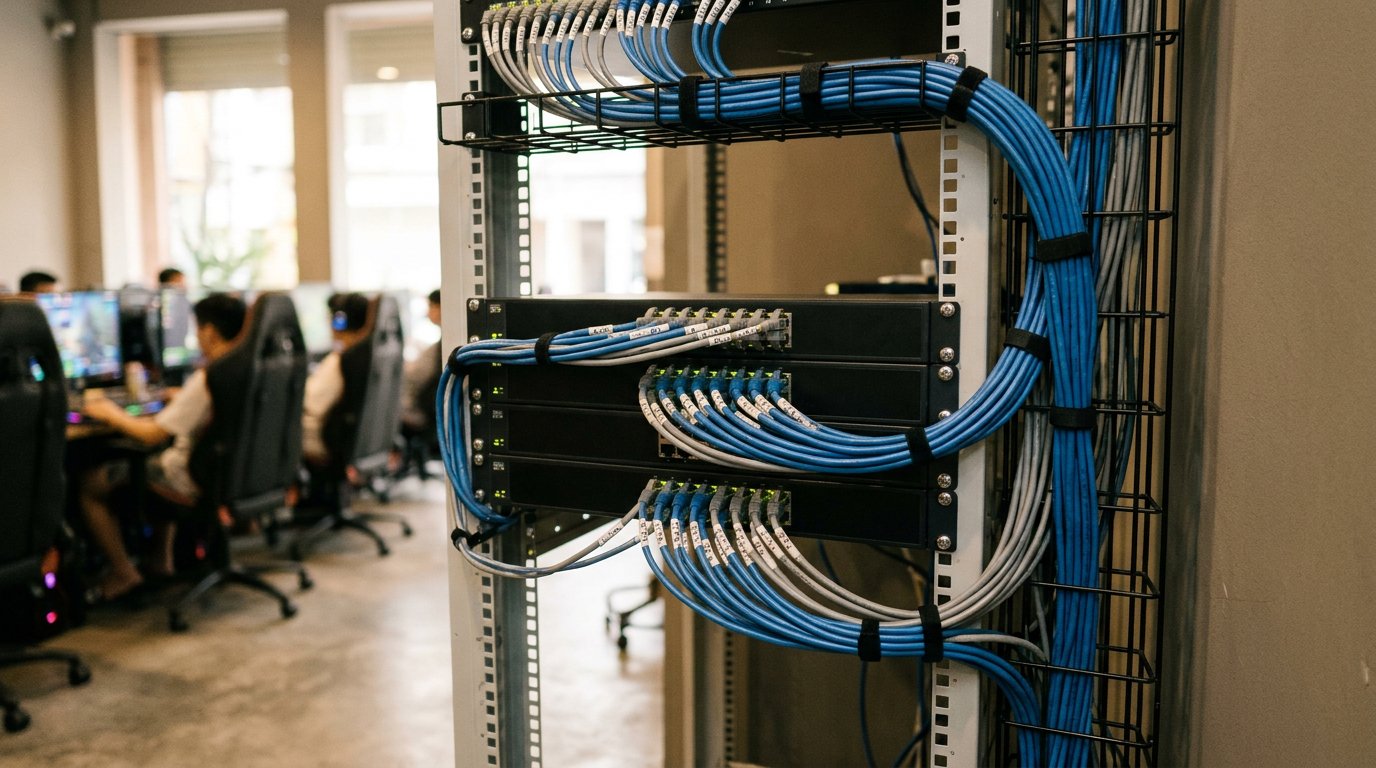
2. Number your LAN cables clearly at both ends
A 40–60 machine room has dozens of network cables running back to the main switch. If they aren't numbered to match the workstation order (PC 01, PC 02...), your technician can spend hours tracing cables whenever one machine has a flaky connection. Use labels or cable number rings from the start when you build your LAN for a diskless gaming room.
3. Keep power cables and network cables apart
Running 220V power cables alongside LAN cables, or bundling them together, can cause signal interference and slow down data from the server to the workstations. Use separate channels for power and for network cables.
4. Always use a UPS for the server and network equipment
A sudden power cut is the enemy of the SSD/NVMe drives in your server. A UPS gives your technician 5–10 minutes to shut the server down properly during an outage. That helps you avoid data corruption, or problems with an open Super Image.
Server room maintenance schedule: daily, weekly and monthly
Don't wait for a player to say "this PC is so laggy" before you check anything. Set up a regular checklist. Splitting the work into small tasks means the staff on duty can follow it during each shift.
| Frequency | What to check | What to do |
|---|---|---|
| Daily | Server room temperature, switch indicator lights, game update status | Check the server's drive and CPU temperatures; check that the LAN lights on the switch show the right speed; check whether the games have finished updating automatically. |
| Weekly | Clean up the game drive, restart network equipment | Restart the modem/router early in the morning when the room is quiet to clear the cache; remove old games nobody plays to free up server disk space. |
| Monthly | Dust cleaning, cable connectors and backup power | Blow dust out of the server rack's air filter, the power supply fans and the switch vents; check that the UPS battery still holds a good charge. |
You can combine this table with the 15-minute internet cafe maintenance checklist so your shift staff do it consistently.
Managing software from the server room: automate to save effort
Cool, clean hardware is only half the job. The other half for a gaming-room technician is managing the operating system, the game library and system security, so workstations always run smoothly.
Schedule automatic game updates and server restarts for off-peak hours
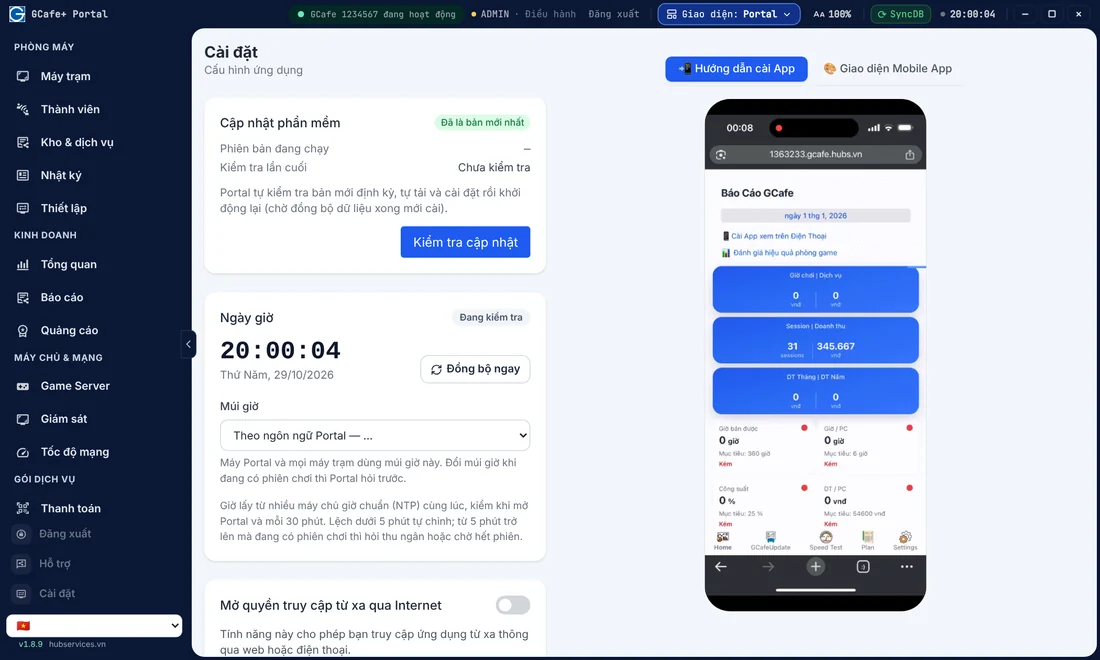
If the server downloads a heavy game update right in the evening peak, network bandwidth and disk read/write speed get shared, and players who are in a game can feel lag. Instead of updating by hand, use automatic game update software for internet cafes such as GCafe Update, so the server downloads new patches from the data center by itself.
On the GCafe Update server maintenance tools page, your technician can also schedule regular server restarts for quiet hours (for example 6:30 a.m.), daily or weekly, to keep the system stable.
Block unknown apps and harmful websites from one place
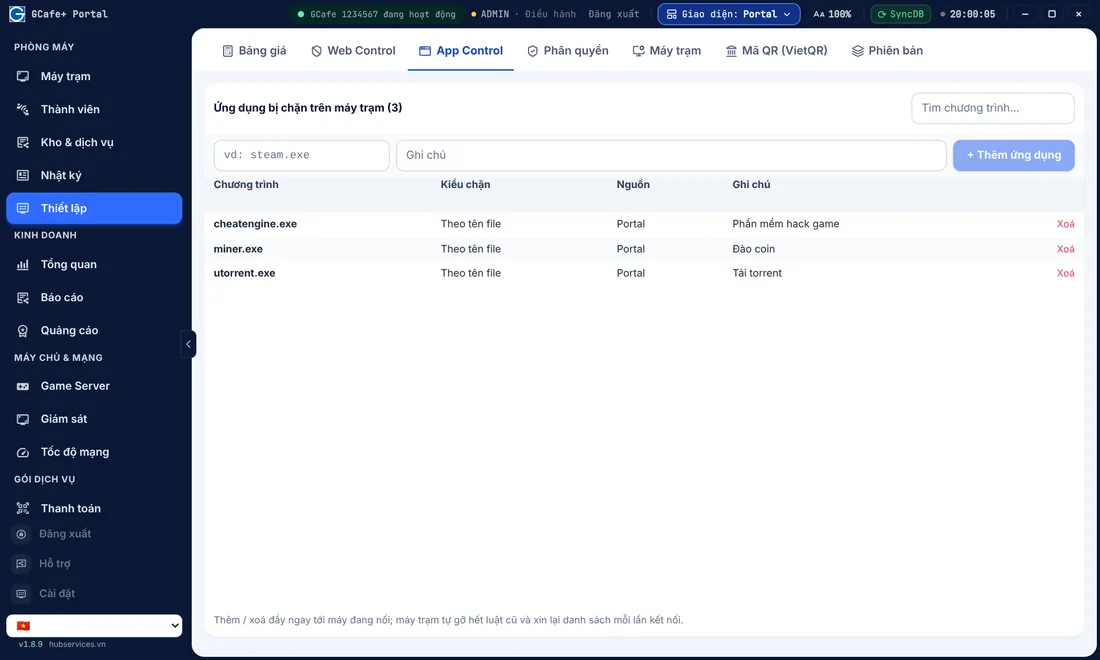
One headache for internet cafe technicians is players downloading cheat or hack tools, crypto-mining software, or visiting websites with malware. A diskless workstation wipes everything that was created once it restarts. But while a player is sitting there, that malicious software can still freeze the machine or put your internal network at risk.
With the central admin tools in GCafe Portal, your technician can set up a block list for apps (by process name or path) and block unsafe websites from the server, without going to each workstation.
Keep the workstation game menu tidy
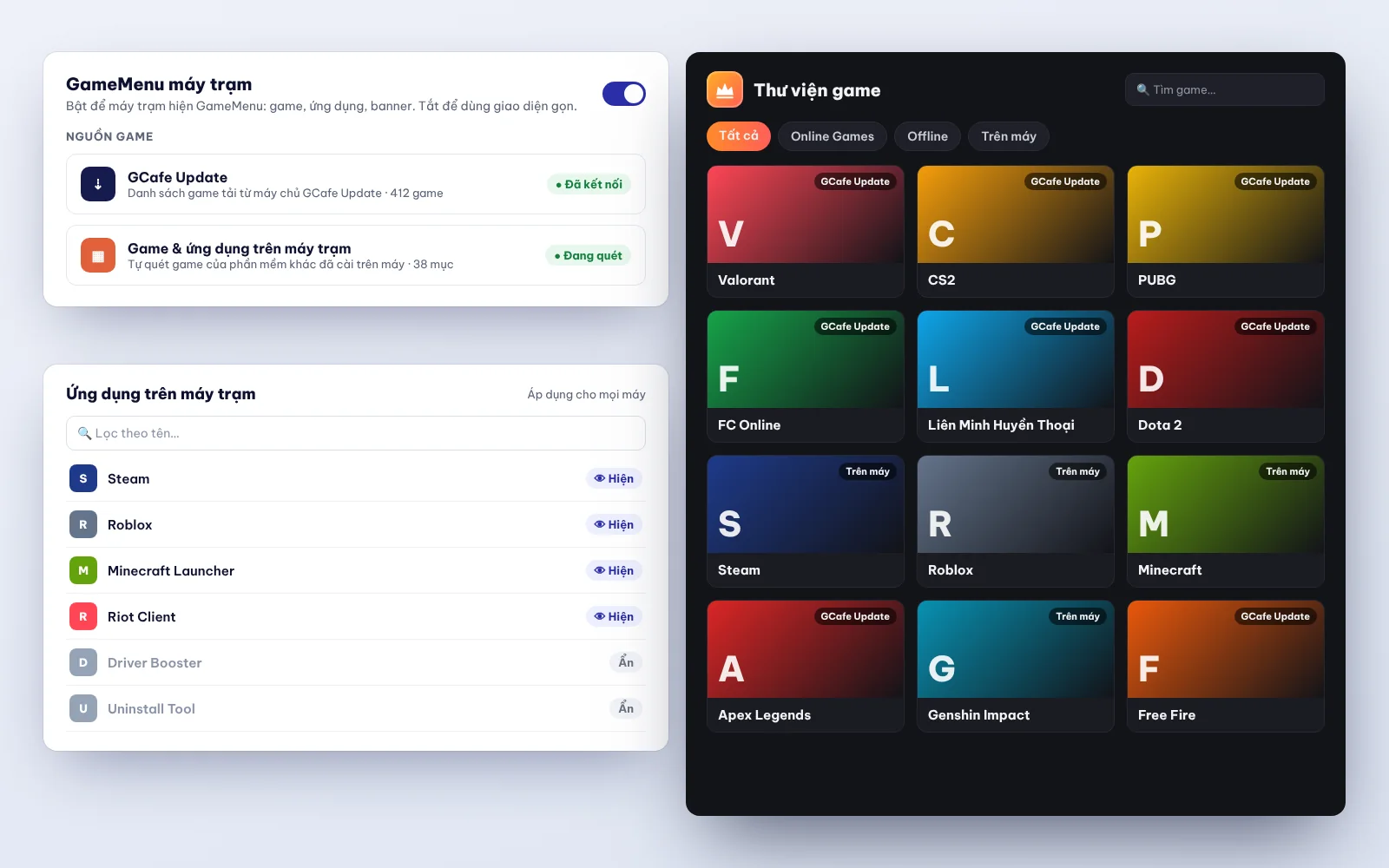
In the technical room, after you add a new game to the server, your technician should check how it looks on the workstation screen. When GameMenu syncs with the server, changes to icons and to categories (esports games, online games, support apps) show up right away on every machine through the GCafe+ Client interface.
Common server room problems and quick fixes
Even with careful maintenance, problems still happen sometimes. Here are 3 real situations your technician should know how to handle:
- All workstations boot slowly or hang at the boot screen: The cause is often a full or overheated SSD used as the server's cache (Writeback/Cache), or a loose main cable between the server and the main switch. First check the Writeback drive capacity and the Uplink port light on the switch.
- Players report games updating again every time they start the machine, or the game list looks wrong: This happens when a new update hasn't synced on the game server, or when data got corrupted after a sudden power cut. Check the sync status in GCafe Update, check that Super Image was closed properly, or use the Repair DB function in Tools only when you really have a data error. It is also worth reading how to prepare for a major game update in an internet cafe so you have enough disk space ready.
- One row of machines loses the network while other rows are fine: Most likely the secondary switch for that branch has lost power or the cable from the main switch has come loose. Just check the power and uplink cable of that one switch.
One GCafe toolset for your server room
Running a well-organized technical room doesn't require you to be an IT expert, as long as you choose a toolset that works together and have a technical team that supports you quickly.
The GCafe internet cafe software suite (a product of Hubservices Joint Stock Company) is used by more than 50,000 gaming rooms and has more than 15 years of experience. With the GCafe ecosystem, you get the core software free, with no limit on the number of machines: GCafe+ Billing (with Membership) as your internet cafe billing software, GCafe Boot for diskless workstations, GameMenu and GCafe Portal for managing revenue remotely.
Only the automatic game update service, GCafe Update, is paid: VND 900,000 / 6 months / 30 workstations. It saves you from watching for game patches every day. You also get direct technical support through our dealer network in all 34/34 provinces and cities, and remote installation is free.
If you need advice on a new setup, or want to optimize the technical system of your gaming room, call the hotline 1900 1232 or leave your phone number on the pricing page contact section, and the GCafe technical team will support you as fast as possible.