Quản lý phòng máy thông minh với GCafe
Từ tính tiền theo khung giờ, cập nhật game tự động đến Diskless tối ưu. Tất cả trong một nền tảng linh hoạt và hiệu quả cho chủ phòng máy.



Gamer Daily
Cybercafes
Exp
 Giải pháp toàn diện dành cho phòng game


GCafe Dashboard
Chuyên dành cho chủ phòng net với các thông tin, tính năng giúp Overview hoạt động kinh doanh phòng net, theo dõi doanh thu, đánh giá mức độ hiệu quả, khách hàng thân thiết, tiến độ cập nhật game mới, quản lý quảng cáo, Chương trình Vòng quay may mắn..... đặc biệt Báo Cáo Thuế theo chuẩn của cơ quan thuế VN

GCafe+ Billing
Chuyên dành cho Nhân Viên Trông Cửa Hàng giúp quản lý doanh thu, dịch vụ, tài khoản thành viên, kho, hàng tồn, thiết lập web cấm, phần mềm cấm dành cho máy trạm, giao ca nhân viên.....tương tác giữa nhân viên và khách hàng, order dịch vụ, chat, remote máy trạm sửa lỗi...

GCafe Diskless
Gcafe Diskless là một giải pháp quản lý máy trạm không ổ cứng, đặc biệt thuận tiện trong việc quản lý phòng net. Quản lý Image BootRom, Điểm ảnh , Cache Game Disk, Ram Cache .....

GCafe Update
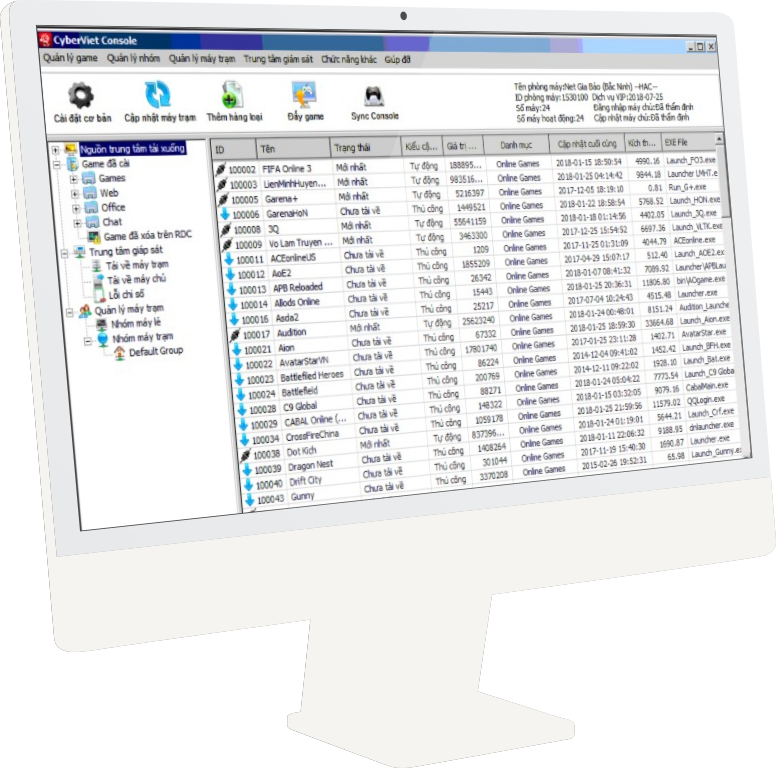
Quản lý Game tại phòng net, bao gồm tự động cập nhật game khi có update mới, xem và download các game về phòng máy, tự động hiển thị game sau khi download lên Menu Game tại máy trạm, quản lý nhóm game theo nhóm máy, Cập nhật xuyên băng với phòng máy sử dụng ổ cứng
All-inclusive package with everything you need to operate a gaming café?
Our solution offers comprehensive support, from business management to computer technical management, software, as well as payment solutions and connections with game operators to receive special incentives... something that almost NO SOFTWARE in Vietnam can fully provide.
Enhance the benefits for gamers when playing on PCs using GCafe.
Exclusively provided by HubsVN (GCafe), offering in-game policies that provide players with additional items and benefits, surpassing other gaming cafés.
The only software that supports both P2P and CDN download mechanisms (http).
This feature ensures that GCafeUpdate operates at maximum speed and never experiences bottlenecks due to too many PMs updating simultaneously (commonly encountered with HTTP downloads) or slowdowns when no peers are sharing files (commonly encountered with P2P).
Ranked #1 with over 15 years of experience.
Our large user base allows us to gather extensive feedback quickly, enabling us to develop the most suitable features. With 15 years of operation, our software and system have reached the highest level of stability.
Diverse game library with lightning-fast download speeds
Beyond Vietnam, we have expanded to other Southeast Asian countries such as Thailand, Indonesia, the Philippines, Taiwan, and Singapore. This allows us to understand market demands and continuously enhance our game library and infrastructure to serve multiple nations.
Licensed software compliant with Government Decree 72/
The software is certified in compliance with the legal regulations of many Southeast Asian countries. In Vietnam, the management of the internet service business is highly stringent, with strict requirements and heavy penalties imposed on Cyber Games using software that does not comply with Government Decree 72.

Sản phẩm mới triển khai
Billing Dashboard
Phần mềm duy nhất hổ trợ quản lý từ xa thông qua ứng dụng Điện Thoại
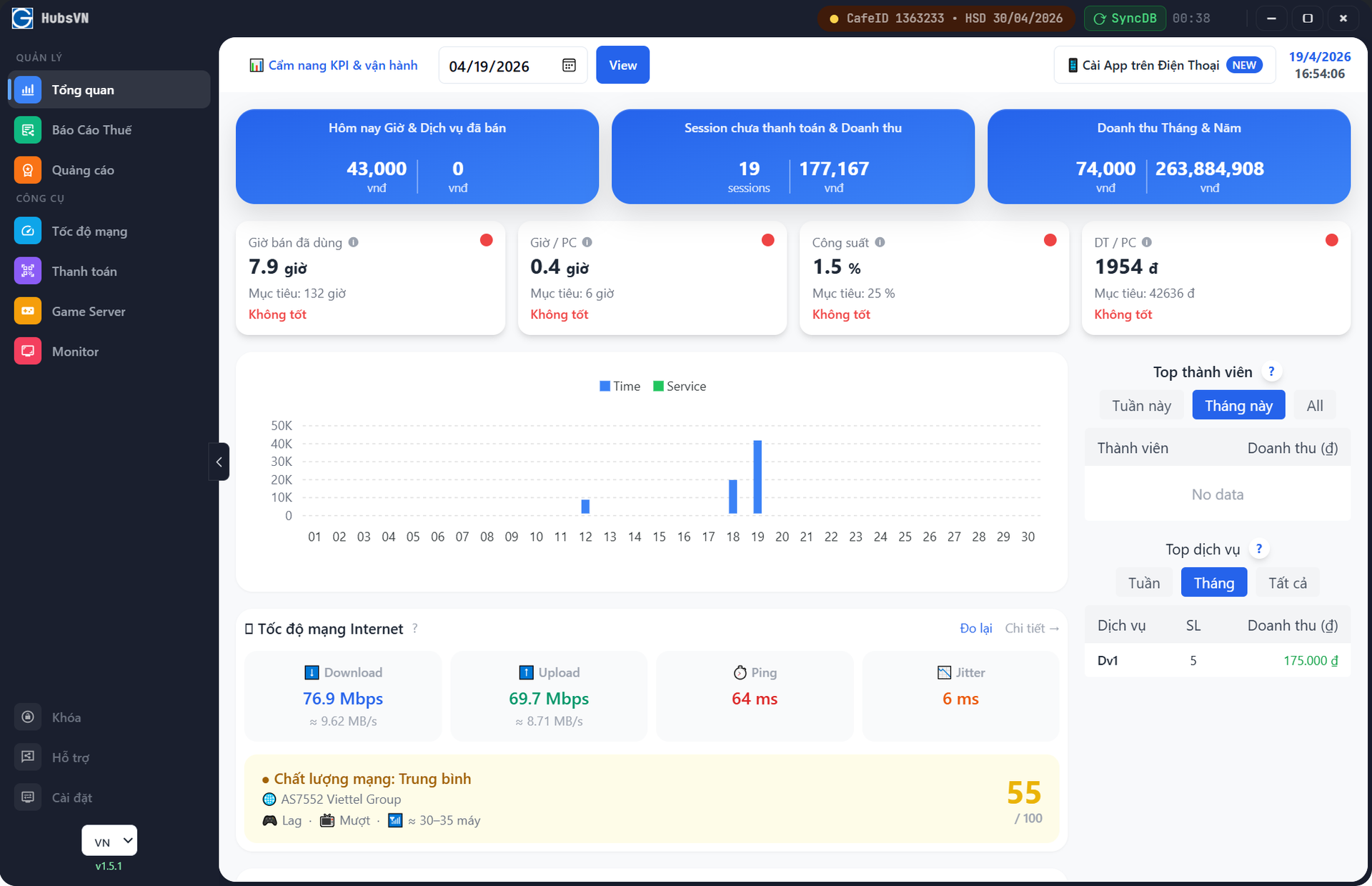
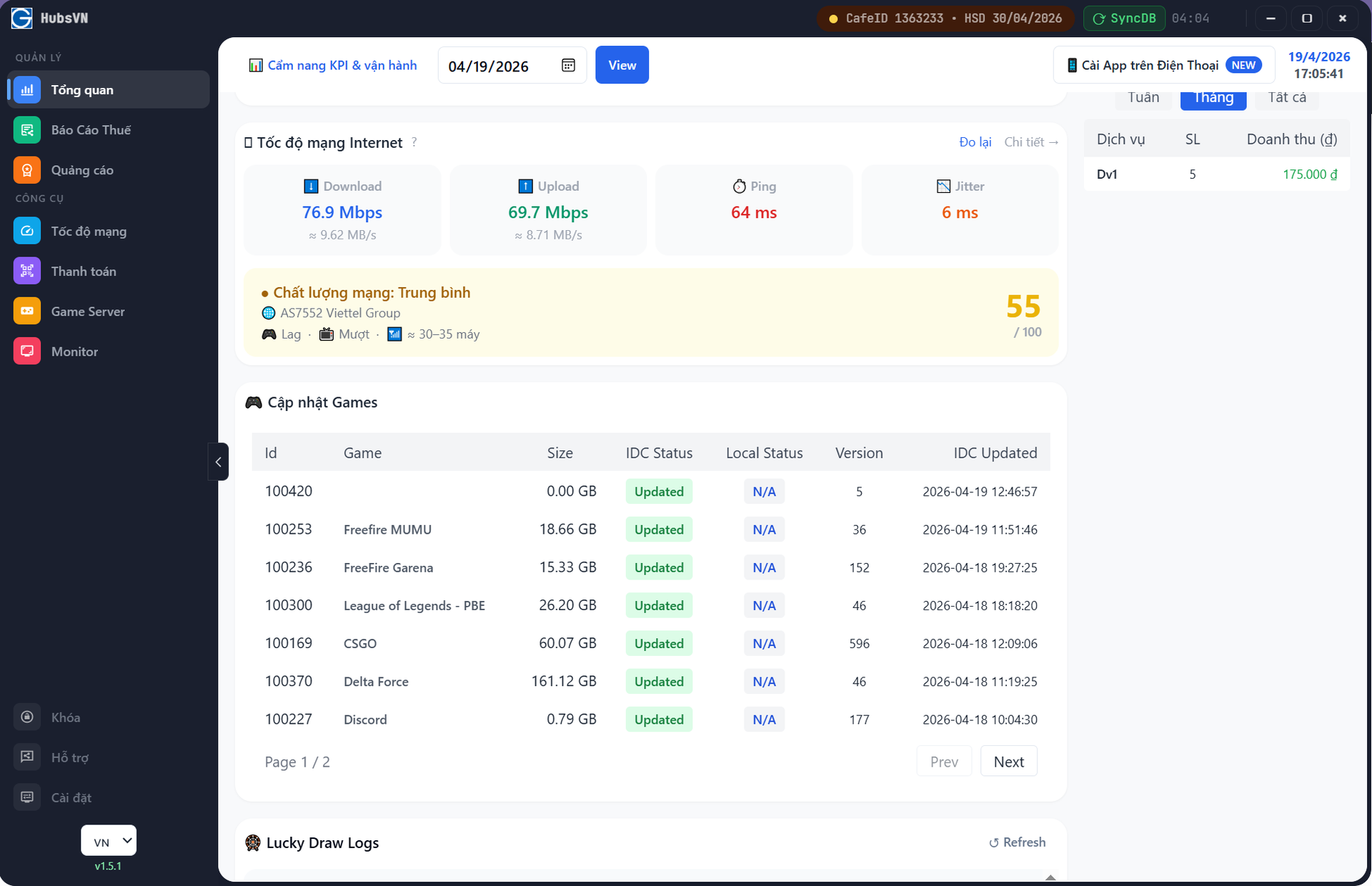
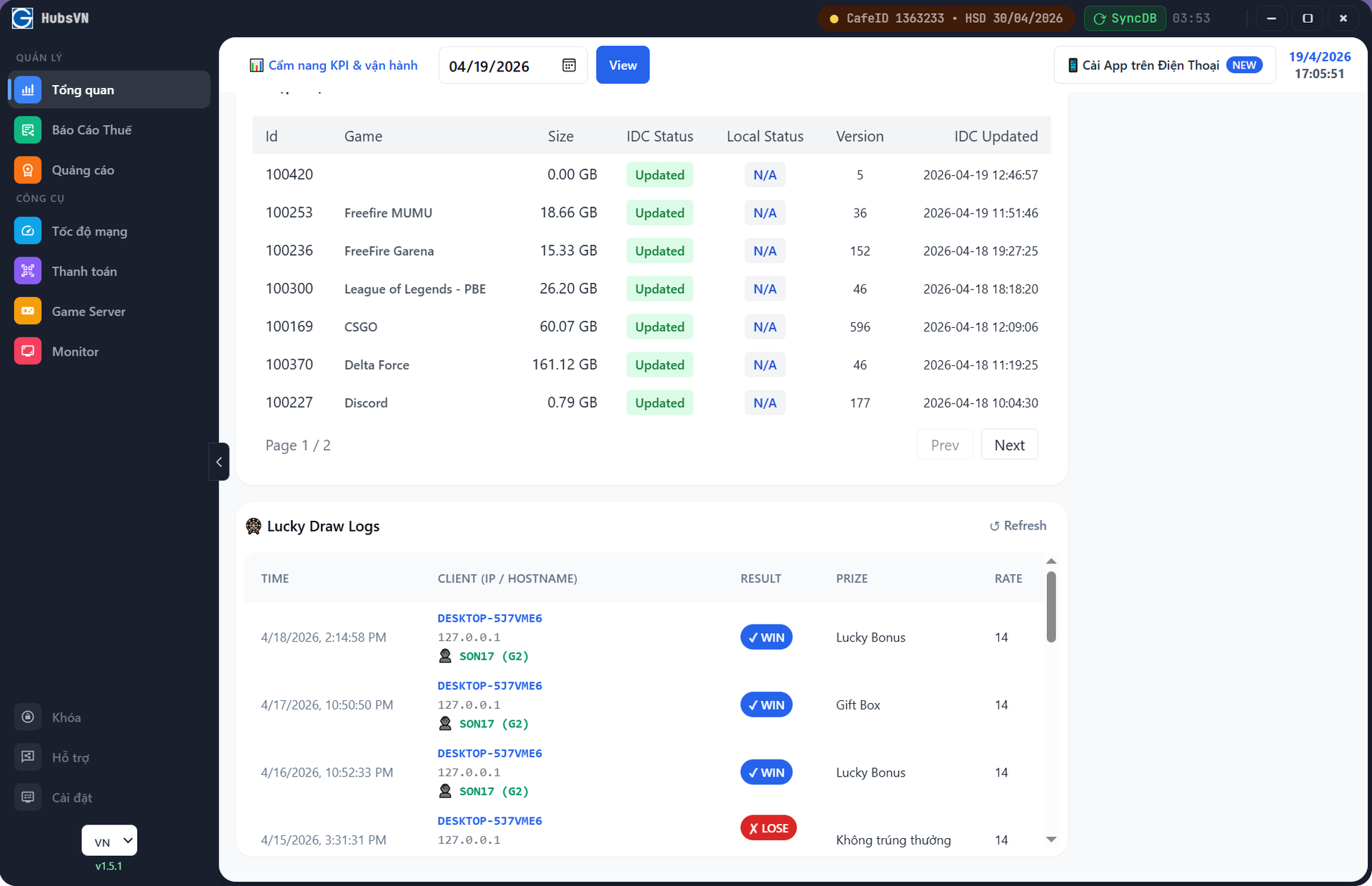
Tính năng được update 1/1/2026, giao diện Dashboard giúp chủ phòng net có cái nhìn tổng quan về hoạt động kinh doanh của mình từ doanh số, thành viên tích cực, dịch vụ bán chạy... đi kèm với các chỉ tiêu KPI cần đạt được và theo dõi tiến độ, củng như các Game mới, game nào có update...
Đặt biệt tính năng còn cho phép quản lý từ xa thông qua Điện Thoại... giúp các chủ Phòng Game có thể quản lý phòng Game ngay cả khi đang vi vu bên ngoài. Tính năng này hoàn toàn miễn phí giống như GCafe Billing
Password: gcafedemo
Dashboard thông minh
Giúp bạn theo dõi doanh thu, tình trạng phòng máy và tiến trình cập nhật game mọi lúc mọi nơi, ngay cả trên điện thoại. :
Theo dõi doanh thu
Xem doanh thu theo thời gian thực, số lượng khách, gói giờ bán ra trực tiếp trên dashboard.
Giám sát cập nhật game
Theo dõi tiến trình download, cập nhật game và trạng thái từng máy trong phòng.
Quản lý từ xa qua điện thoại
Truy cập dashboard trên điện thoại giúp bạn quản lý phòng game mọi lúc, mọi nơi.
Dashboard thông minh
Giúp bạn theo dõi doanh thu, tình trạng phòng máy và tiến trình cập nhật game mọi lúc mọi nơi, ngay cả trên điện thoại. :
Theo dõi doanh thu
Xem doanh thu theo thời gian thực, số lượng khách, gói giờ bán ra trực tiếp trên dashboard.
Giám sát cập nhật game
Theo dõi tiến trình download, cập nhật game và trạng thái từng máy trong phòng.
Quản lý từ xa qua điện thoại
Truy cập dashboard trên điện thoại giúp bạn quản lý phòng game mọi lúc, mọi nơi.
Xuất Báo Cáo Thuế
Hệ thống hỗ trợ xuất Sổ chi tiết doanh thu bán hàng hóa, dịch vụ theo đúng Mẫu số S1a-HKD, tuân thủ Thông tư 152/2025/TT-BTC ngày 31/12/2025 của Bộ Tài chính.
Xuất báo cáo chuẩn mẫu
Tự động tổng hợp và xuất báo cáo đúng định dạng S1a-HKD, đầy đủ thông tin: doanh thu, ngày giao dịch, loại hình dịch vụ.
Danh sách giao dịch chi tiết
Hiển thị toàn bộ giao dịch trong kỳ kê khai, bao gồm giờ chơi, dịch vụ và các khoản hoàn tiền, giúp kiểm soát minh bạch.
Xóa/Ẩn giao dịch không phù hợp
Cho phép chọn và loại bỏ các giao dịch sai lệch hoặc không hợp lệ trước khi xuất báo cáo, đảm bảo số liệu chính xác tuyệt đối.

Quản lý kênh Quảng Cáo tập trung
Hệ thống cung cấp công cụ để chủ phòng máy tự chủ đăng Banner, Wallpaper quảng cáo trên chính thiết bị máy trạm bằng vài click chuột
Quản lý Banner Slider trên GameMenu của máy trạm
Thông qua GCafe Dashboard chủ phòng máy có thể thiết lập banner hiển thị trên Game Menu của tất cả các máy trạm, tối đa có 5 slot banner
Quản lý Wallpaper của máy trạm với thiết lập đơn giản
Ngoaì Banner trên GameMenu thì GCafe cỏng cung cấp công cụ cho chủ Phòng Máy tự động set Wallpaper của các máy trạm


Vòng quay may mắn
Hệ thống cung cấp hệ thống Game Vòng Quay May Mắn ngay trên GameMenu và tích hợp với data GCafe Billing. Giúp linh hoạt tạo ra cơ chế phần thưởng nhằm kích thích doanh thu, tạo gắn kết cộng đồng khách hàng
Linh hoạt khởi tạo danh sách phần thưởng
GCafe Dashboard cung cấp nhiều nhóm phần thưởng để bạn lựa chọn khởi tạo, tùy biến màu sắc theo phong cách riêng
Thiết lập chinh sách và nhóm đối tượng áp dụng linh hoạt và liên kết dữ liệu với GCafe Billing
-
-Thưởng X lần quay thưởng cho lần đầu tiên trong ngày khách hàng sử dụng máy trạ
-
Thưởng X lần quay thưởng khi nạp Y số tiền
-
-Thưởng X lần quay thưởng sau khi đẫ sử dụng Y thời gian trong ngày


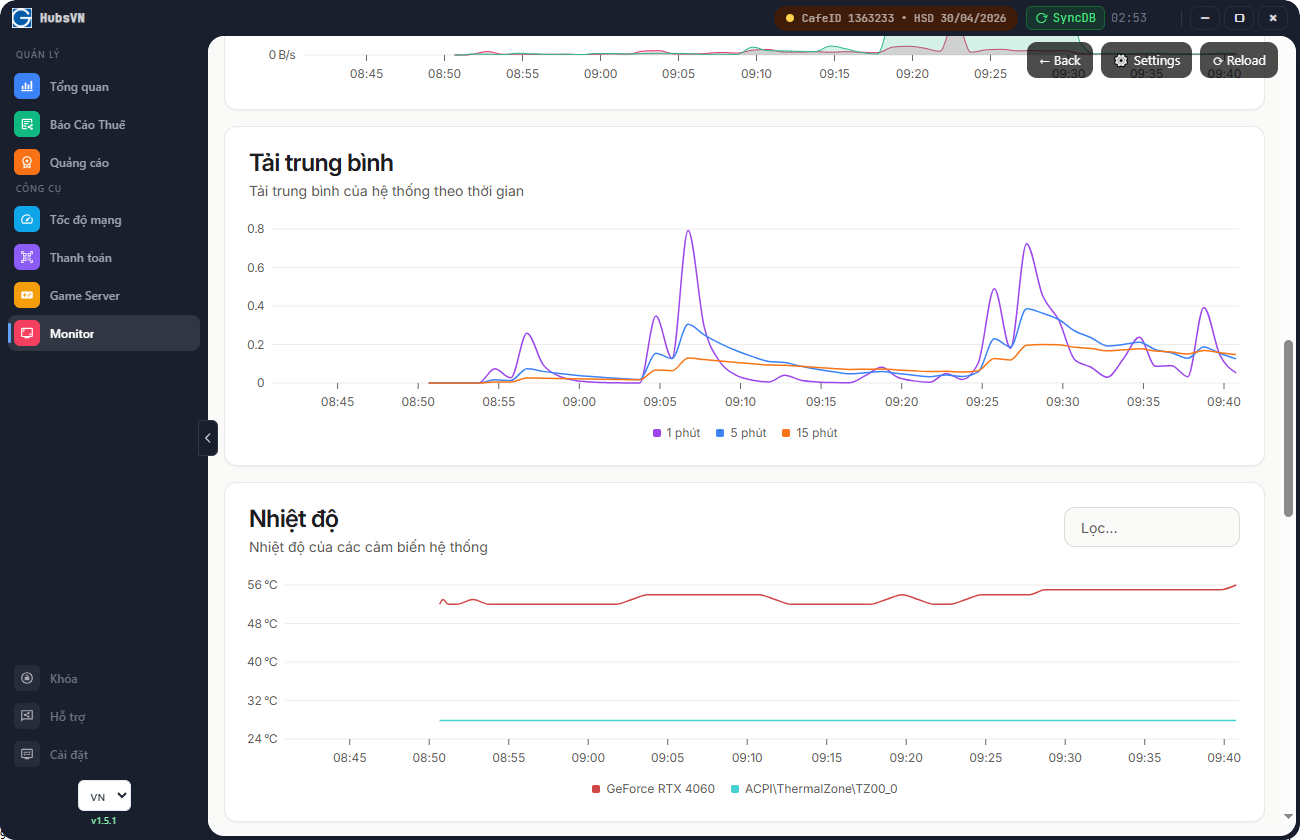
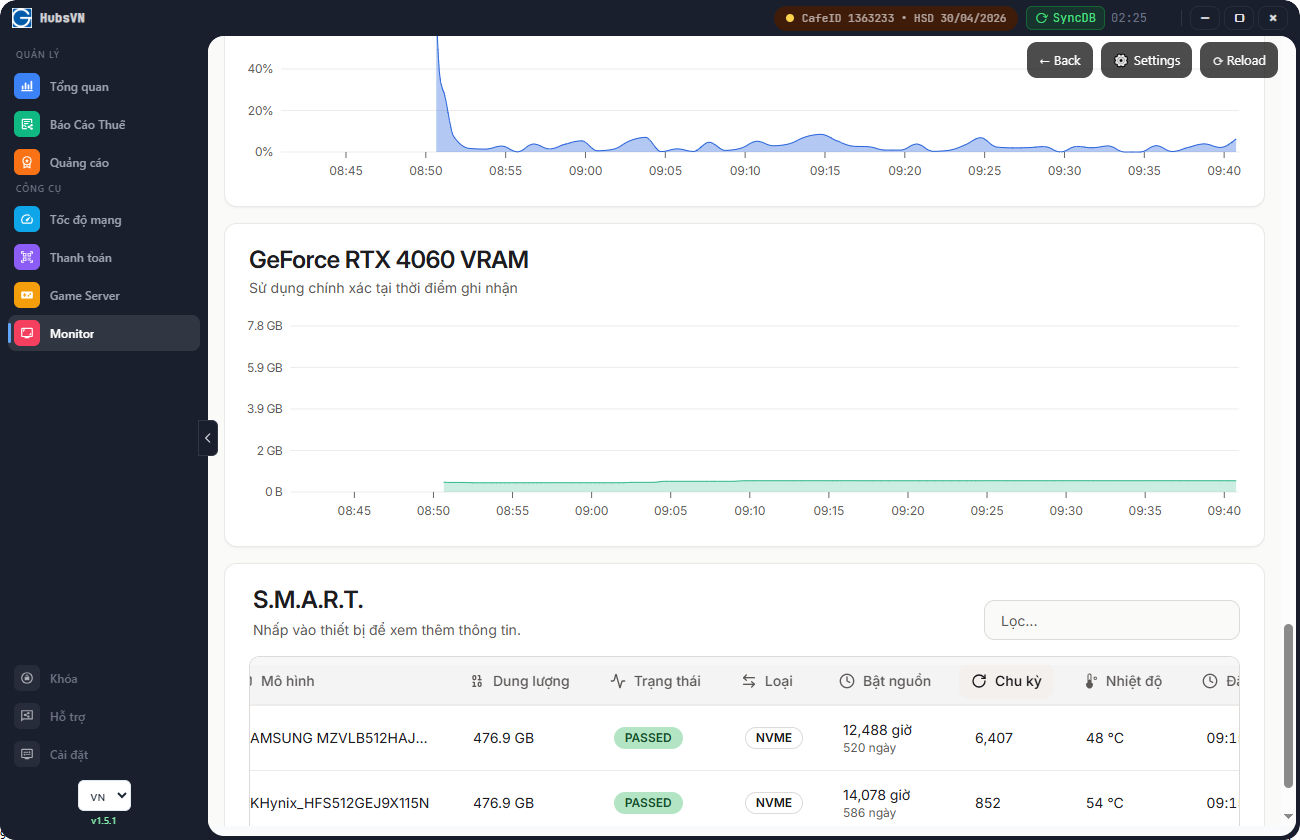
Giám sát phần cứng máy trạm
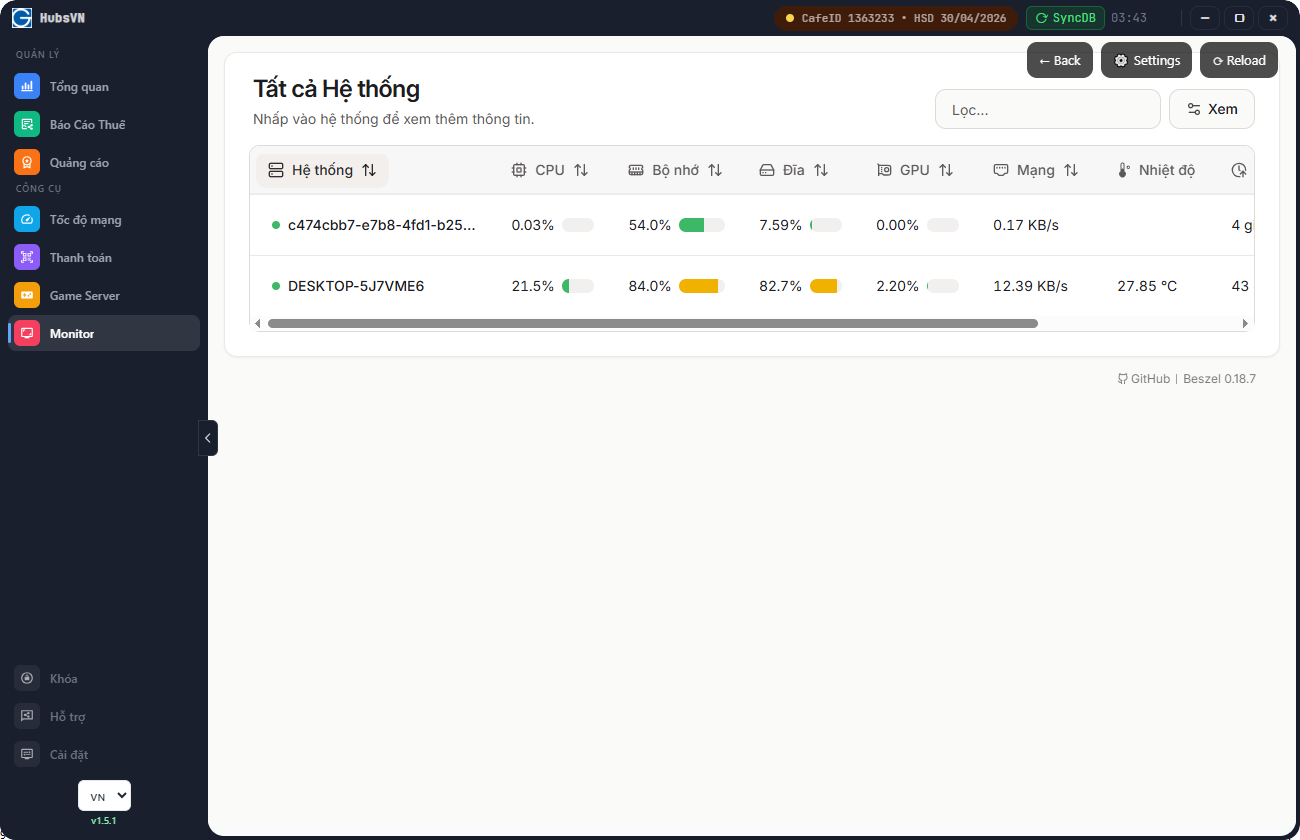
Hệ thống cung cấp giải pháp giúp giám sát thông số phần cứng máy trạm từ xa thông qua GCafe Dashboard
Phòng chống mất trộm thiết bị lúc nào ko biết
GCafe Dashboard theo dõi các thiết bị phần cứng máy trạm và list ra danh sách để chủ quán kiểm tra lại khi cần giúp tránh được thất thoát do mất trộm
Lưu trữ lịch sử hoạt động giúp dễ dàng đánh giá các lỗi phát sinh
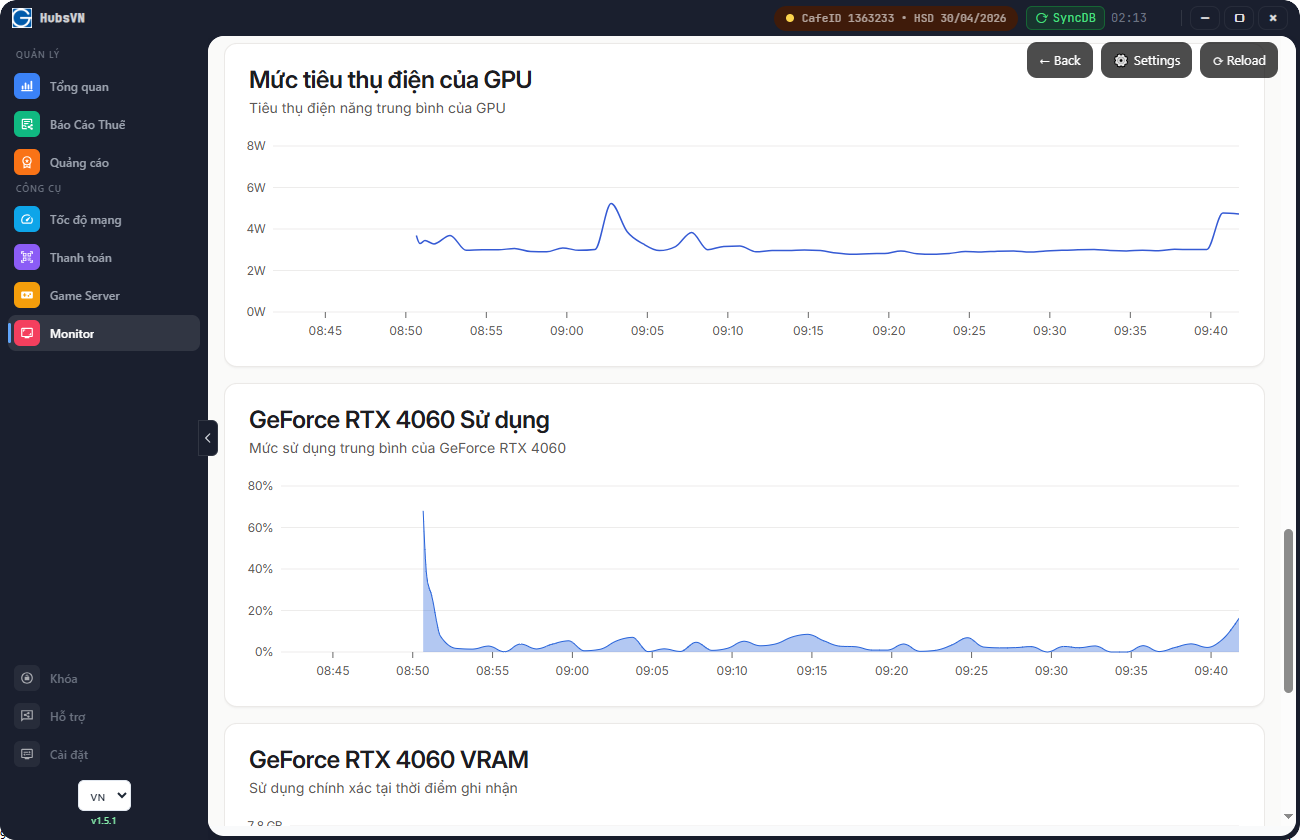
Đôi với quán net thì các lỗi như thỉnh thoản máy bị lagg, treo, dump xanh...là các lỗi thường xuyên gặp nhưng khó xử lý nhất vì không biết được nguyên nhân phần cứng hay phần mềm và ko thể chủ động tái tạo lại xư cố.. GCafe cung cấp biểu đồ lịch sử sử dụng của các thiết bị bên trong máy trạm giúp dễ dàng đưa ra các chuẩn đoán dự trên cơ sở dữ liệu của thiết bị
Giám sát nhiệt độ thiết bị , gia tăng tuổi thọ phần cứng
Nhiệt độ là yếu tố ảnh hưởng trực tiếp đến tuổi thọ máy tính củng như giá trị thanh lý, chi phí... tuy nhiên đôi lúc các chủ phòng máy ko nắm được các thiệt bị máy tính của phòng máy có đang nóng quá ko, thời tiết hiện tại có cần gia tăng quạt, điều hòa cho Phòng máy ko... Thông qua GCafe mọi người có thể đánh giá và đưa ra quyết định dễ dàng dựa trên cơ sở nhiệt độ từng thiết bị, mức tiêu thụ điện năng của GPU...
Giám sát phần cứng máy trạm
Hệ thống cung cấp giải pháp giúp giám sát thông số phần cứng máy trạm từ xa thông qua GCafe Dashboard
Phòng chống mất trộm thiết bị lúc nào ko biết
GCafe Dashboard theo dõi các thiết bị phần cứng máy trạm và list ra danh sách để chủ quán kiểm tra lại khi cần giúp tránh được thất thoát do mất trộm
Lưu trữ lịch sử hoạt động giúp dễ dàng đánh giá các lỗi phát sinh
Đôi với quán net thì các lỗi như thỉnh thoản máy bị lagg, treo, dump xanh...là các lỗi thường xuyên gặp nhưng khó xử lý nhất vì không biết được nguyên nhân phần cứng hay phần mềm và ko thể chủ động tái tạo lại xư cố.. GCafe cung cấp biểu đồ lịch sử sử dụng của các thiết bị bên trong máy trạm giúp dễ dàng đưa ra các chuẩn đoán dự trên cơ sở dữ liệu của thiết bị
Giám sát nhiệt độ thiết bị , gia tăng tuổi thọ phần cứng
Nhiệt độ là yếu tố ảnh hưởng trực tiếp đến tuổi thọ máy tính củng như giá trị thanh lý, chi phí... tuy nhiên đôi lúc các chủ phòng máy ko nắm được các thiệt bị máy tính của phòng máy có đang nóng quá ko, thời tiết hiện tại có cần gia tăng quạt, điều hòa cho Phòng máy ko... Thông qua GCafe mọi người có thể đánh giá và đưa ra quyết định dễ dàng dựa trên cơ sở nhiệt độ từng thiết bị, mức tiêu thụ điện năng của GPU...
Quản lý Game và Máy Server từ xa
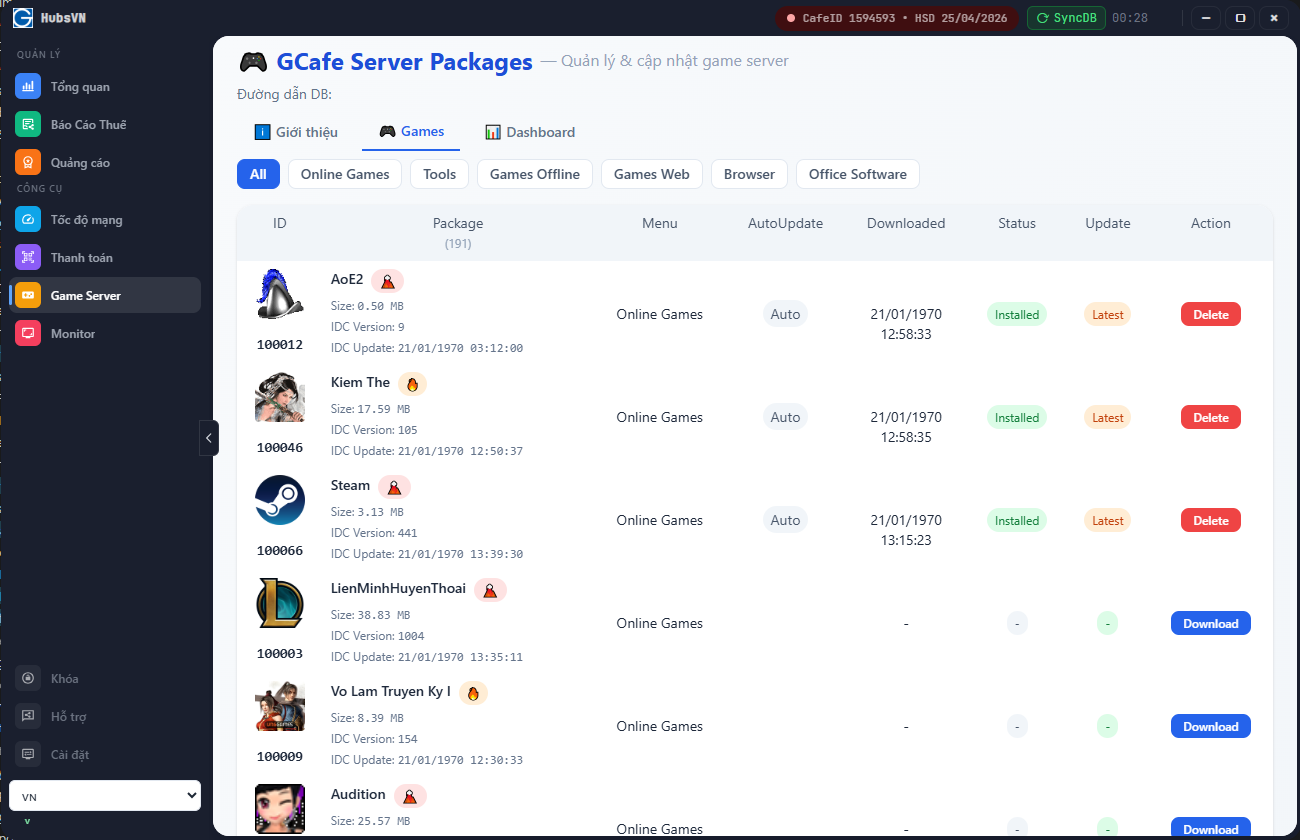
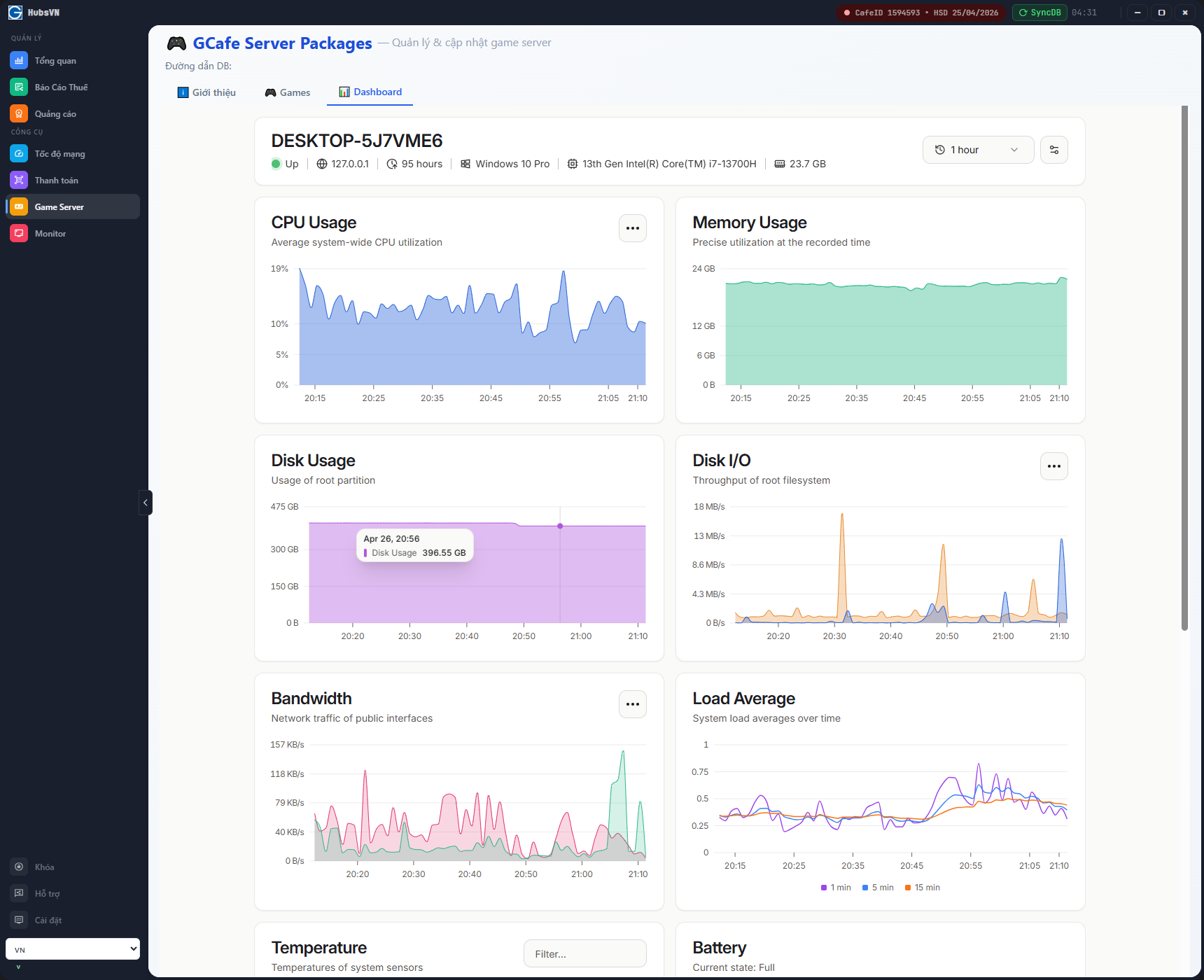
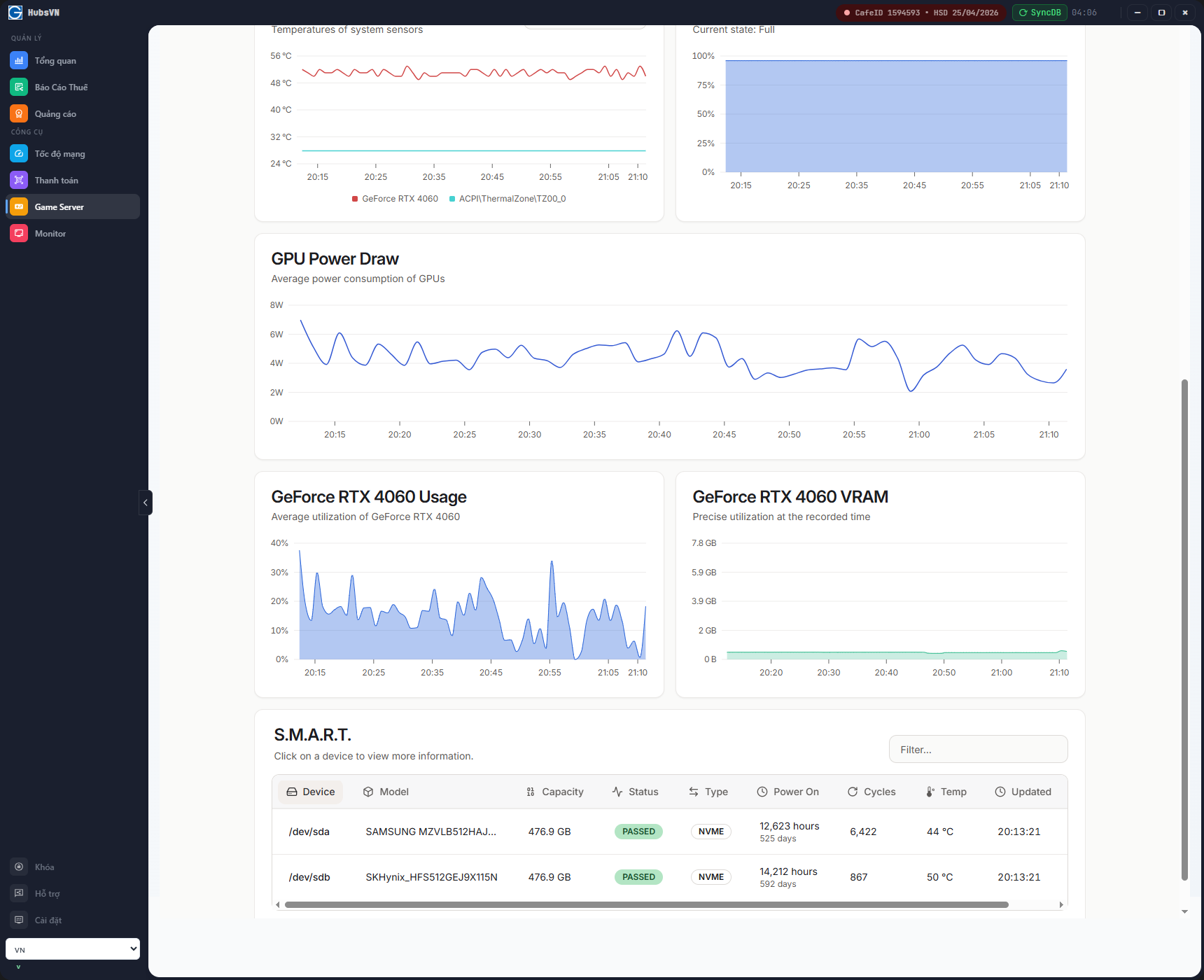
Hệ thống cung cấp giải pháp giúp quản lý Game, giám sát thông số phần cứng Server Game từ xa thông qua GCafe Dashboard
GCafe Dashboard theo dõi các thiết bị phần cứng máy trạm và list ra danh sách để chủ quán kiểm tra lại khi cần giúp tránh được thất thoát do mất trộm
Quản lý Server Game từ xa , Linh hoạt, chủ động download game
Với GCafe Dashboard các chủ phòng máy có thể quản lý game của PM mình, chủ động download thêm mới hoặc dọn dẹp các game củ mà ko lo làm lỗi hệ thống khi ko biết kỹ thuật.
Giám sát thông số kỹ thuật máy Server Game , Dễ dàng chuẩn đoán và xử lý sự cố phần cứng, nhiệt độ cao
Hệ thống giám sát thông số kỹ thuật, nhiệt độ phần cứng của máy Server giúp cho chủ phòng máy hoặc kỹ thuật viên dễ dàng chuẩn đoán bệnh phát sinh hoặc chủ động xử lý khi nhiệt độ tăng cao do thời tiết
Quản lý Game và Máy Server từ xa
Hệ thống cung cấp giải pháp giúp quản lý Game, giám sát thông số phần cứng Server Game từ xa thông qua GCafe Dashboard
GCafe Dashboard theo dõi các thiết bị phần cứng máy trạm và list ra danh sách để chủ quán kiểm tra lại khi cần giúp tránh được thất thoát do mất trộm
Quản lý Server Game từ xa , Linh hoạt, chủ động download game
Với GCafe Dashboard các chủ phòng máy có thể quản lý game của PM mình, chủ động download thêm mới hoặc dọn dẹp các game củ mà ko lo làm lỗi hệ thống khi ko biết kỹ thuật.
Giám sát thông số kỹ thuật máy Server Game , Dễ dàng chuẩn đoán và xử lý sự cố phần cứng, nhiệt độ cao
Hệ thống giám sát thông số kỹ thuật, nhiệt độ phần cứng của máy Server giúp cho chủ phòng máy hoặc kỹ thuật viên dễ dàng chuẩn đoán bệnh phát sinh hoặc chủ động xử lý khi nhiệt độ tăng cao do thời tiết

GCafe+ Billing
Phần mềm quản lý việc kinh doanh Phòng Net, CyberGame hoàn toàn MIỄN PHÍ
GCafé Plus – Internet Cafe is software that supports management at public internet access points , complying with Government Decree 72 on the management of internet access points. GCafé Plus supports comprehensive management at public internet access points.
Tính năng set giá linh hoạt
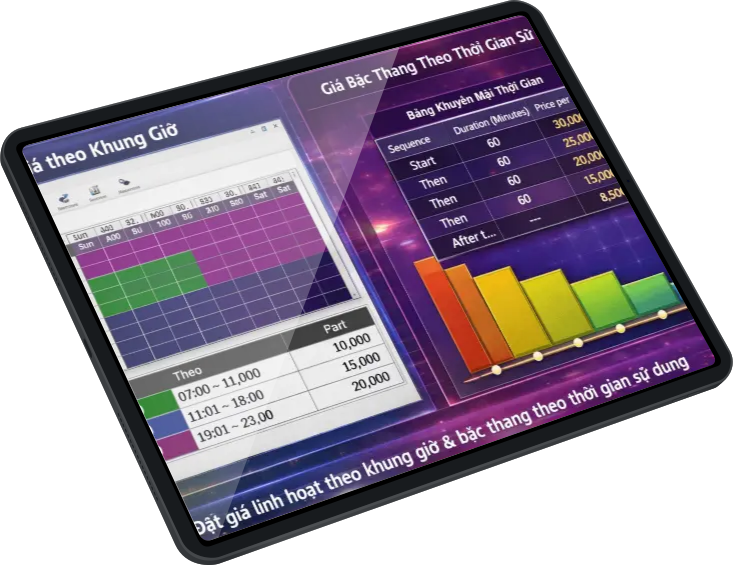
GCafe Billing hổ trợ việc set giá và chương trình khuyễn mãi theo các tiêu chí :
Giá theo nhóm thiết bị , Nhóm khách hàng
Tùy giá theo khu máy cấu hình cao/thường. Loại thiết bị như Bàn Bida, Máy thi đấu, Playtions...
Giá theo khung giờ trong ngày
1.0.19.3612-release.280- Đặt bảng giá khác nhau cho giờ thường, giờ vàng, cuối tuần.
Giá theo thời gian sử dụng
Giờ đầu 15K, giờ tiếp theo 10K...
Mã đăng nhập , Mã nạp tiền vào TK
X
Thiết lập quyền sử dụng cho máy trạm
GCafe Billing hổ trợ việc thiết lập các giới hạn cho máy trạm, giúp bạn bảo vệ thiết bị của mình củng như tạo môi trường chơi game sạch
Thiết lập các chức năng hệ thống mà người chơi có quyền sử dụng
- Task manager, Regit Editor, Time, Add and Remove....
Thiết lập các ứng dụng không cho phép chạy tại máy trạm
- Ngăn chặn máy trạm mở các ứng dụng độc hại, phản động hoặc gian lận
Thiết lập các trang web không cho phép mở tại máy trạm
- Ngăn chăn các trang web đen, đồi trụy, phản động ....

GCafeUpdate
Game management software for internet cafes, enabling automatic downloads of new games and updates 24/7. Internet cafe owners don't need to do anything extra; they'll always have a full selection of games available for customers.

Update Dashboard
GCafeUpdate phiên bản mới hổ trợ theo dõi tiến độ cập nhật, quản lý máy chủ game tư xa thông qua hệ thống web quản lý với các tính năng
- Dashboard : Giúp dễ dàng overview thiết bị máy chủ game nhanh chóng
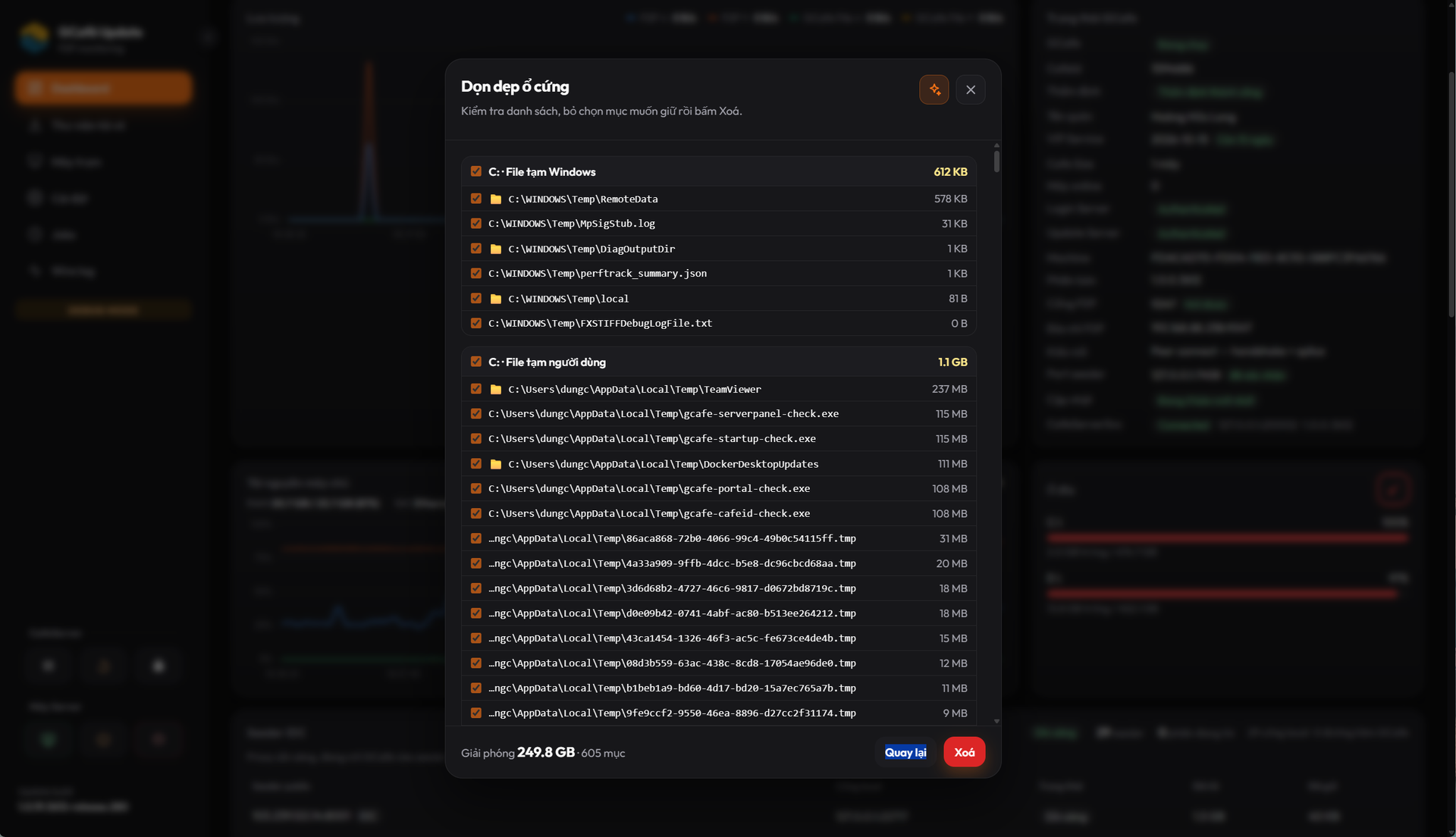
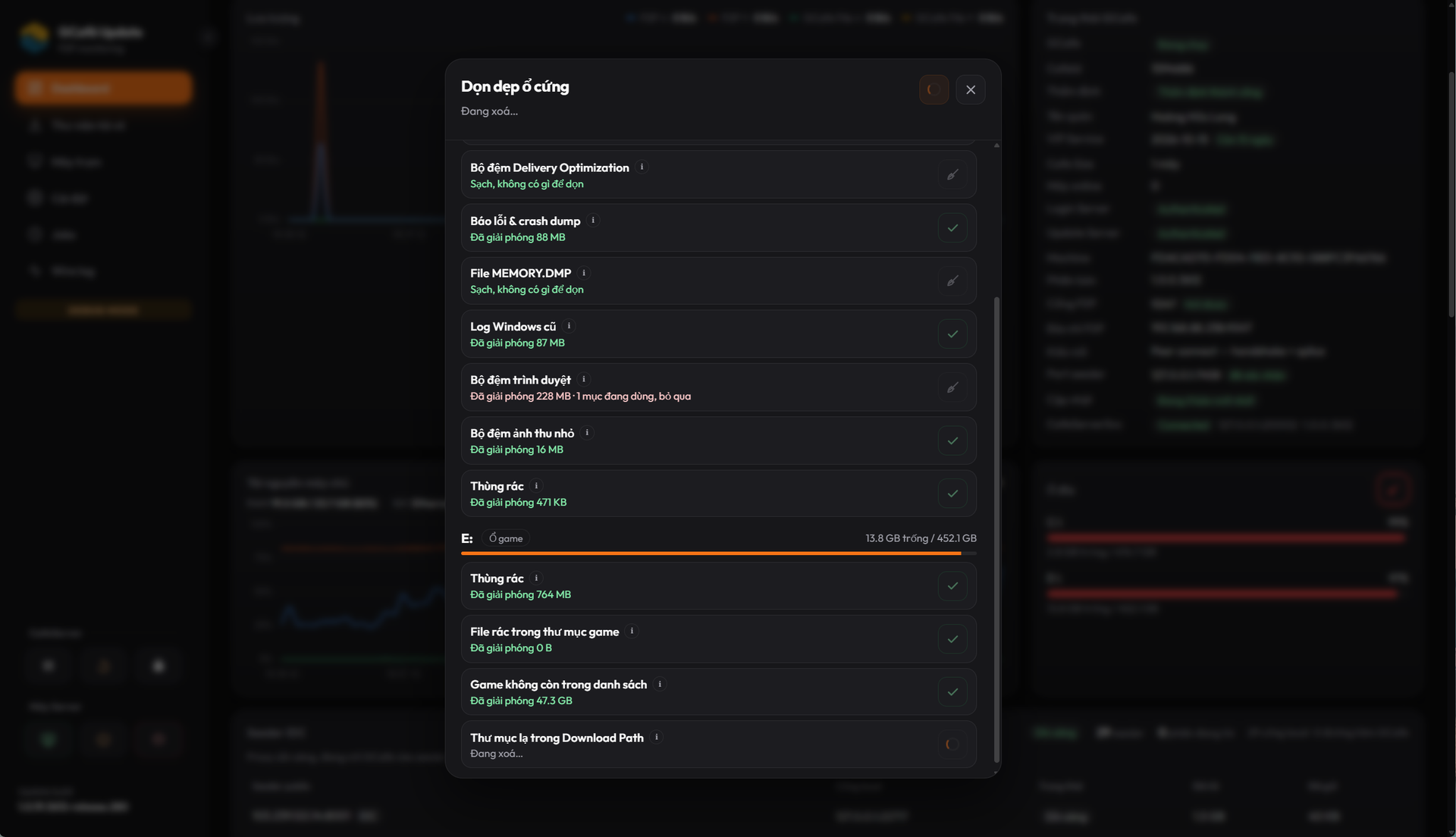
- Chức năng dọn dẹp ổ cứng giúp bạn nhanh chóng dọn dẹp rác tự động trên máy chủ để có nhiều chổ trống chứa game, lại ko bị xóa nhầm file game hoặc file hệ thống
- Thư viện tải về: Chưa danh sách game đã cài và các game GCafe đang có trên hệ thống, người dùng có thể lựa chọn và download từ đây
- Máy trạm: Quản lý danh sách máy trạm hiện tại, thông tin phần cứng, tình trạng online/offline, tình trạng game ở các máy
- Khác : Ngoài ra người dùng củng có thể thông qua đây cấu hình nhóm máy, game thuộc nhóm máy VIP, Thường, tốc độ tải....Reset máy server, lịch trình tắt máy...
Câu hỏi thường gặp
GCafe có gói Free hoàn toàn miễn phí và không giới hạn số lượng PC sử dụng, bao gồm đầy đủ các phần mềm:
GCafe Billing
GCafe Update
GCafe Diskless
👉 Tuy nhiên, điểm khác biệt nằm ở danh sách game hỗ trợ cập nhật tự động:
🔸 Gói Free:
Không hỗ trợ 100% game
Một số game cần update thủ công
🔸 Gói Basic / Pro / VIP:
✅ Hỗ trợ 100% danh sách game
✅ Update tự động 24/7
⚠ Có giới hạn số lượng máy (PC client), chia theo quy mô phòng máy:
0 – 30 PC
31 – 50 PC
51 – 100 PC
Trên 100 PC
👉 Vì vậy:
GCafe vẫn miễn phí để sử dụng lâu dài
Các gói trả phí là để mở rộng tính năng và tối ưu vận hành phòng máy chuyên nghiệp
👉 Trả lời:
Bạn có thể kiểm tra theo 2 cách rất đơn giản:
✅ Cách 1: Kiểm tra trong GCafe Update
Khi đang download game:
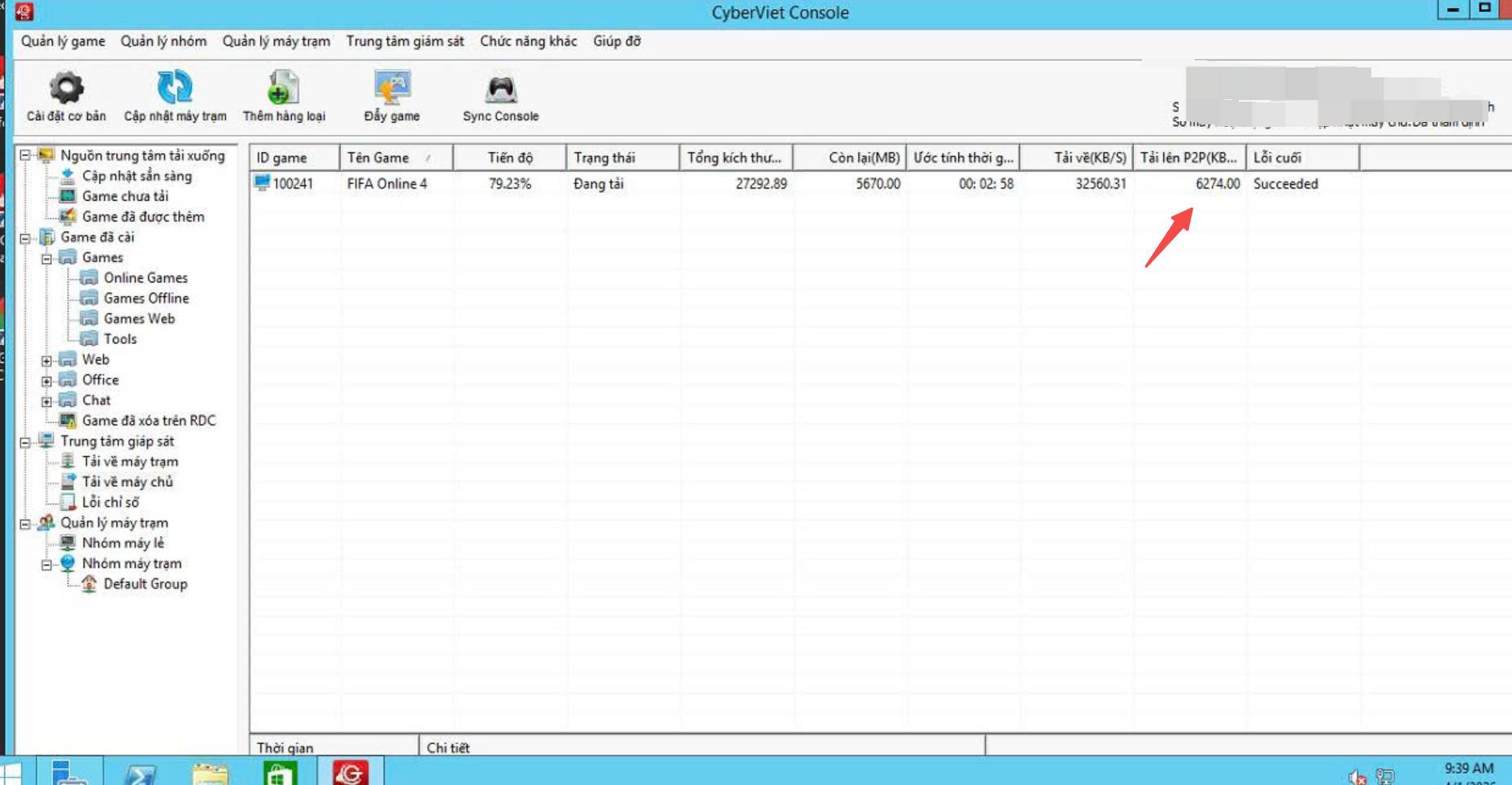
Quan sát cột "Tải lên" (Upload)
👉 Nếu thấy có băng thông upload:
➡️ Nghĩa là máy bạn đang chia sẻ dữ liệu cho máy khác (P2P)
➡️ Đồng thời cũng đang nhận dữ liệu từ P2P
📌 Hiểu đơn giản:
Không có P2P → chỉ download từ server GCafe
Có P2P → vừa download từ server + từ các máy khác
👉 ⇒ Tốc độ sẽ nhanh hơn đáng kể
✅ Cách 2: Kiểm tra bằng Resource Monitor (Windows)
Mở:
Resource Monitor → Network
Tìm process:
CafeServer.exe
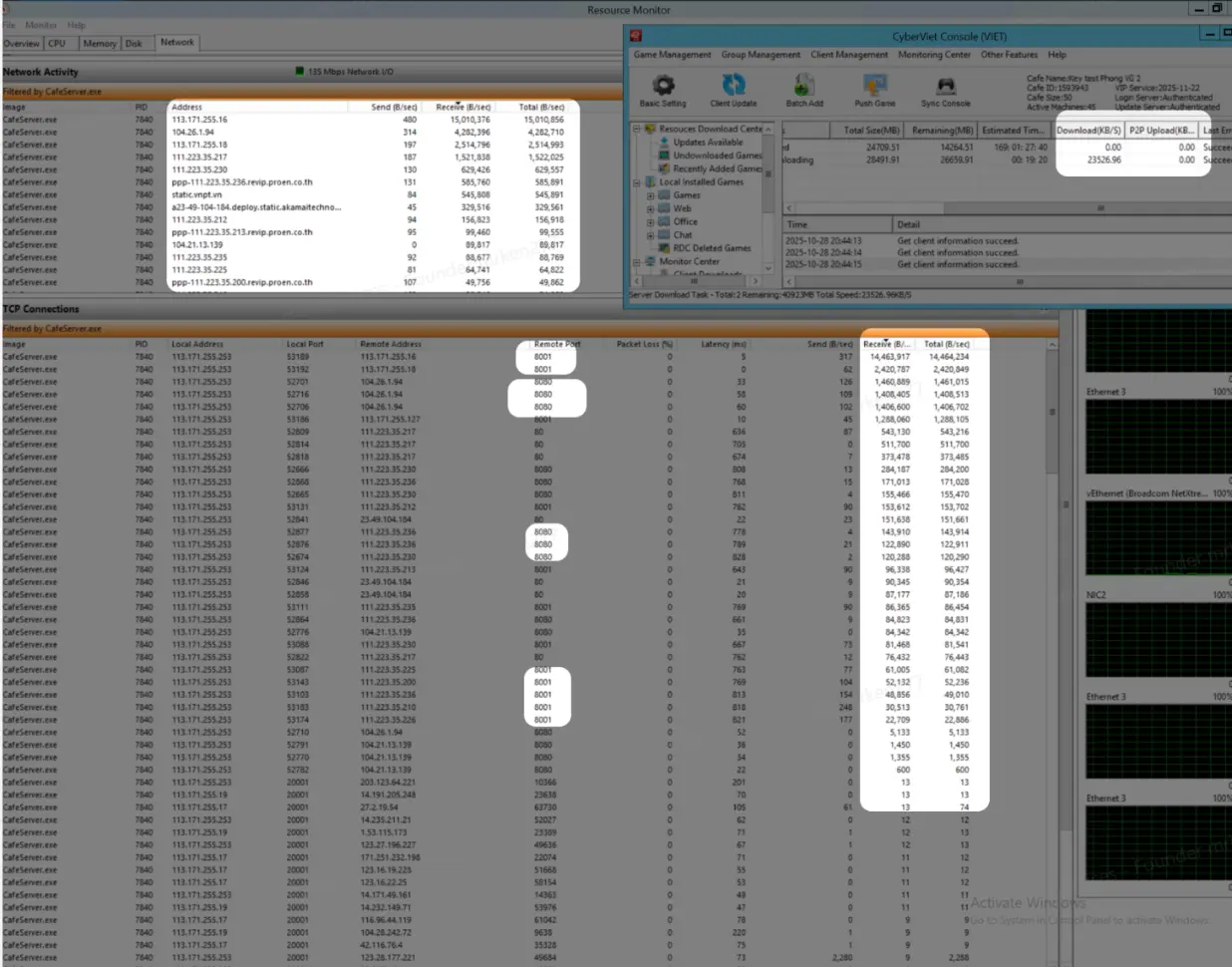
🔍 Quan sát kết nối:
Nếu thấy:
Kết nối tới nhiều IP khác nhau
Port dạng:
8001
9247
9927
9917
👉 Thì:
➡️ Đây chính là kết nối P2P
💡 Giải thích dễ hiểu:
Khi không có P2P:
Máy bạn chỉ kết nối server GCafe download và update game
Khi có P2P:
Máy bạn kết nối nhiều máy khác (Server GCafe tại các Phòng Máy khác)
Mỗi Server GCafe sẽ:
tải 1 phần
chia sẻ lại cho nhau
👉 Giống kiểu:
Torrent / LAN game update
👉 Trả lời:
Thực tế, GCafe Update đã bật sẵn P2P mặc định.
Tuy nhiên để P2P hoạt động hiệu quả, bạn cần đảm bảo 1 trong 2 điều kiện sau:
✅ Cách 1: Mở port trên router
- Mở port đến server GCafe Update:
- 9247
- 9927
- Có thể kiểm tra / chỉnh sửa trong file:
CafeServer.ini
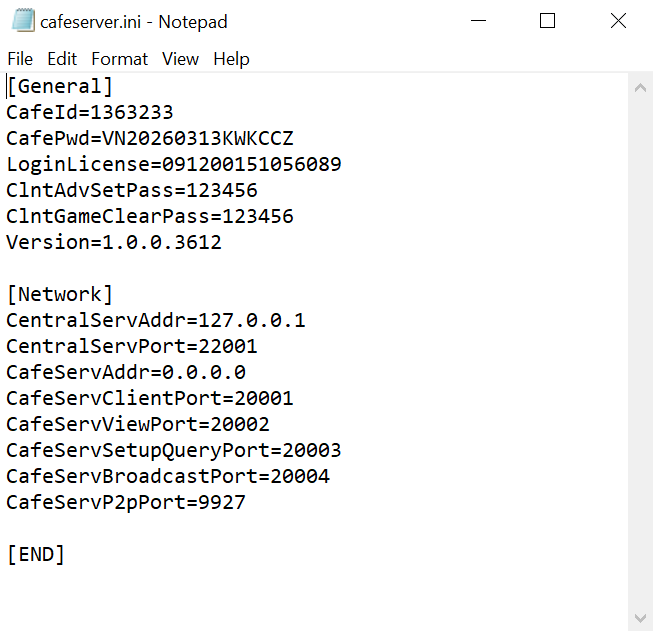
👉 Đây là cách tốt nhất để đạt tốc độ P2P tối đa.
✅ Cách 2: Dùng mạng Zerotier (nếu không mở được port)
Nếu bạn không thể mở port (do NAT, nhà mạng chặn...), hãy dùng ZeroTier
✔ Cách hoạt động:
- Tạo mạng LAN ảo giữa các máy
- Cho phép P2P hoạt động xuyên NAT
🔧 Cách tham gia Zerotier của GCafe
Có 2 cách:
✔ Cách tự động (khuyến nghị)
- Cài GCafe bản mới nhất từ website
- Hệ thống sẽ tự động join network
✔ Cách thủ công
- Chạy file:
gcafe_install.exe
(trong thư mục include)
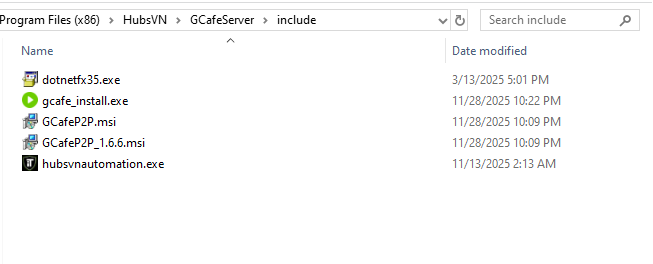
Hoặc:
- Cài ZeroTier
- Join 1 trong các network public:
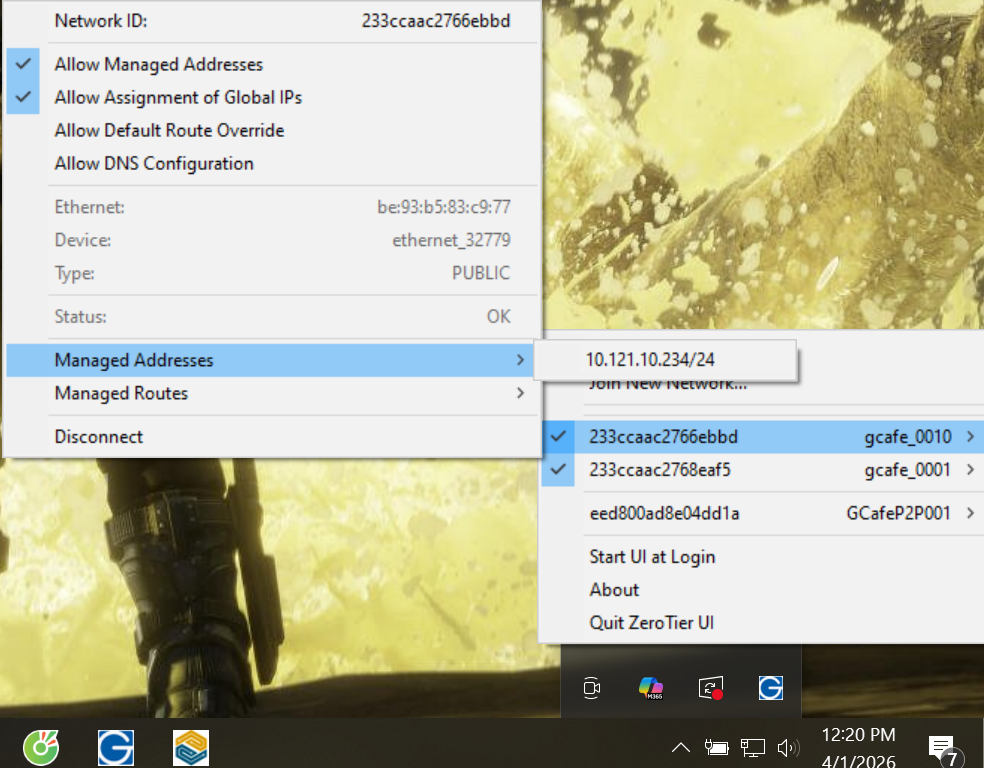
12ac4a1e710faff5
363c67c55a8243fc
8850338390d8a047
d3ecf5726d63a289
d3ecf5726de27435
233ccaac2766ebbd
9e1948db636e2165
a84ac5c10a310fd7
233ccaac2768eaf5
565799d8f6b1a8bd
a84ac5c10a5868ef
⚠ Lưu ý quan trọng:
- Phải bật: Allow Managed IP
- Sau khi join mới được cấp IP trong mạng GCafe
Check if your computer is connected to the internet by opening any web browser (Cốc Cốc, Chrome, Firefox, IE, etc.).
Access a frequently used website (e.g., gcafe.vn) to see if you can access it.
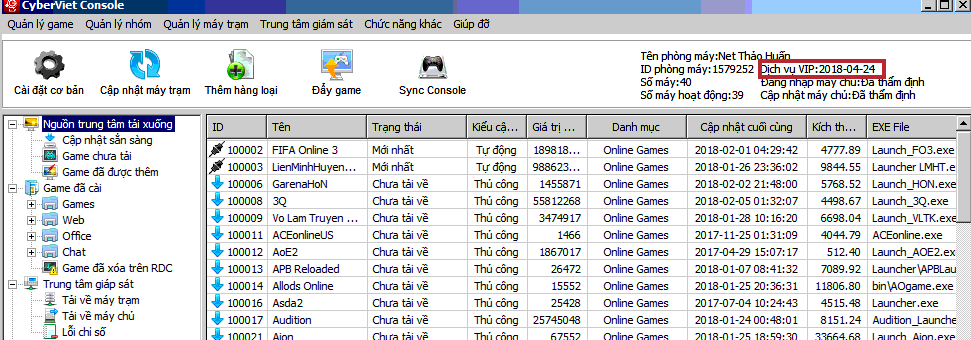
Check if your Gcafé Update is still valid. Log in to Gcafé Update - Look at the top right corner of the screen
If your subscription has expired, please contact 19001232 for instructions on how to register for an account.
Tin tức

GameHub
GameHub - FREE ipboot for personal PC
Free solution for gamers at home.
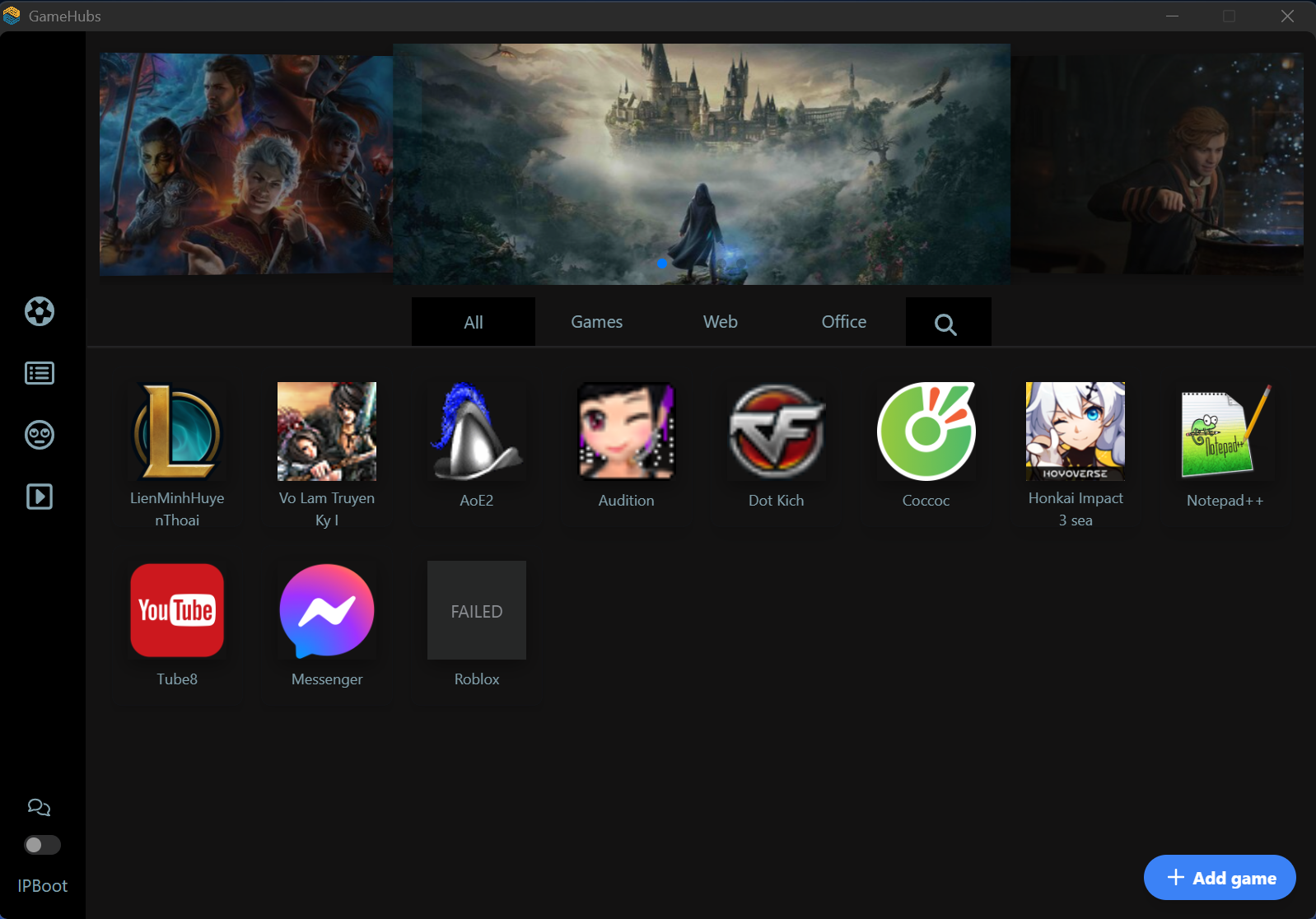
Game Menu system helps to centrally manage Games, Applications on your PC, creating neatness and professionalism. In addition, the system also provides Free high-speed Download feature, high-speed automatic update 24/24 to help users get Games quickly and safely, WITH GCA IPBOOT to receive incentives in Garena games.

GameHub V2
The updated version of GameHub brings optimized features for gamers, especially for use in gaming rooms using GCafe or KO, and for personal PCs; all can receive Free IPBoot.
- Unlimited Download/Installation/Update
- Extremely fast download speeds using CDN technology.
- Cloud Software allows you to quickly install necessary software without worrying about viruses or malware.
- Add more game controllers or integrate with GCafe Server. Free
- IPBoot for both Home Users and Internet Cafes


Connect GameHub to GCafe Server
Gamehub Version 2 supports GCafeServer connection, where Gamehub acts as a GameMenu. This feature allows game room owners to experience Gamehub V2 in their internet cafes.
Automatic download/update.
No limits on downloading and updating all games in the system."
Sources are guaranteed and verified.
All game and software sources are verified to ensure there are no harmful viruses for users' devices.
Receive IPBOOT X2 for FO4 and other Garena games."
Focus on promotional policies in Garena games.
Centralized management of games and applications.
Easily manage applications and games on devices.
Over 50,000 game rooms use our solutions in countries such as Vietnam, Thailand, Cambodia, Indonesia, and more.
Join the platform now.